





USB C to USB a Adapter: A Singapore Buyer's Guide 2026
You've probably run into this already. You unbox a newer laptop, tablet, or phone, see a row of USB-C ports, then reach for a perfectly good mouse, thumb drive, printer cable, or keyboard and realise it still uses USB-A.
That's where a USB-C to USB-A adapter earns its keep. It's tiny, cheap compared with replacing a pile of accessories, and often the fastest way to make old and new tech cooperate. For many people in Singapore, that matters every day at work, in school, and while travelling between home, office, campus, and public charging spots.
It also matters if you're trying to buy more sustainably. If your existing USB-A accessories still work, there's usually no good reason to bin them just because your newer device has moved to USB-C. A small adapter can extend the life of cables and peripherals you already own, which is the practical side of reducing e-waste.
Table of Contents
- The Bridge Between Your New and Old Tech
- What Exactly Is a USB-C to USB-A Adapter
- Understanding Speed and Power Limitations
- How to Choose the Right Adapter for Your Needs
- Adapters and Your Refurbished myhalo Device
- Troubleshooting Common Adapter Problems
The Bridge Between Your New and Old Tech
A USB-C to USB-A adapter looks simple because, physically, it is simple. One side fits a modern USB-C connection. The other side lets you keep using older USB-A accessories. In practice, that can save a lot of frustration when your desk setup still includes a wireless mouse receiver, an external keyboard, a camera cable, or a flash drive bought years ago.
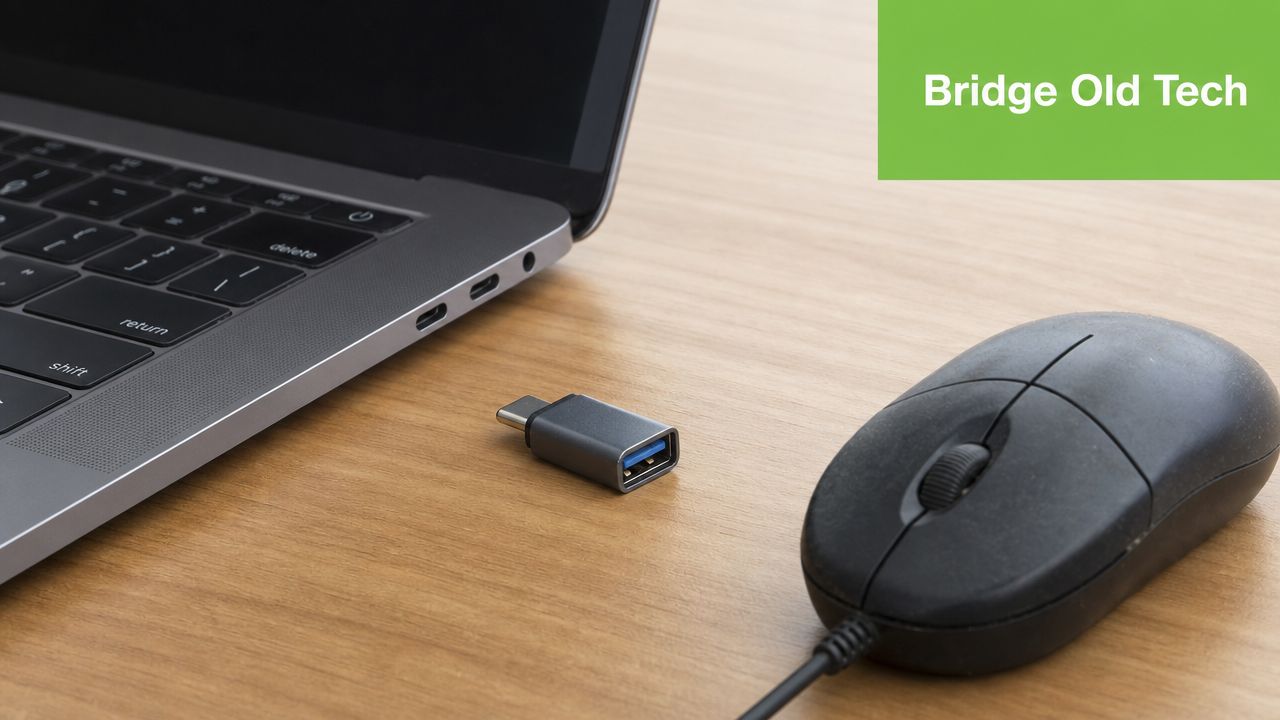
In Singapore, adapters are especially useful because many people move between mixed environments. Your newer notebook may only have USB-C, but the office monitor, library workstation, classroom PC, hotel charging point, or meeting room hub may still rely on USB-A. The adapter becomes a bridge between generations of hardware, not a luxury add-on.
The catch is that not all adapters behave the same way. Some are fine for a mouse or keyboard but poor for file transfers. Some let a device connect but don't deliver the charging result people expect. Others are physically awkward in tight spaces and put strain on ports if left plugged in all the time.
A good adapter doesn't upgrade old hardware. It lets compatible devices talk to each other with fewer compromises.
That's the key mindset to keep. Buy the adapter for the job you need. If your goal is reusing older accessories with a newer laptop, an adapter is often the smartest choice. If your goal is accessing features the older port never supported, an adapter won't perform magic.
What Exactly Is a USB-C to USB-A Adapter
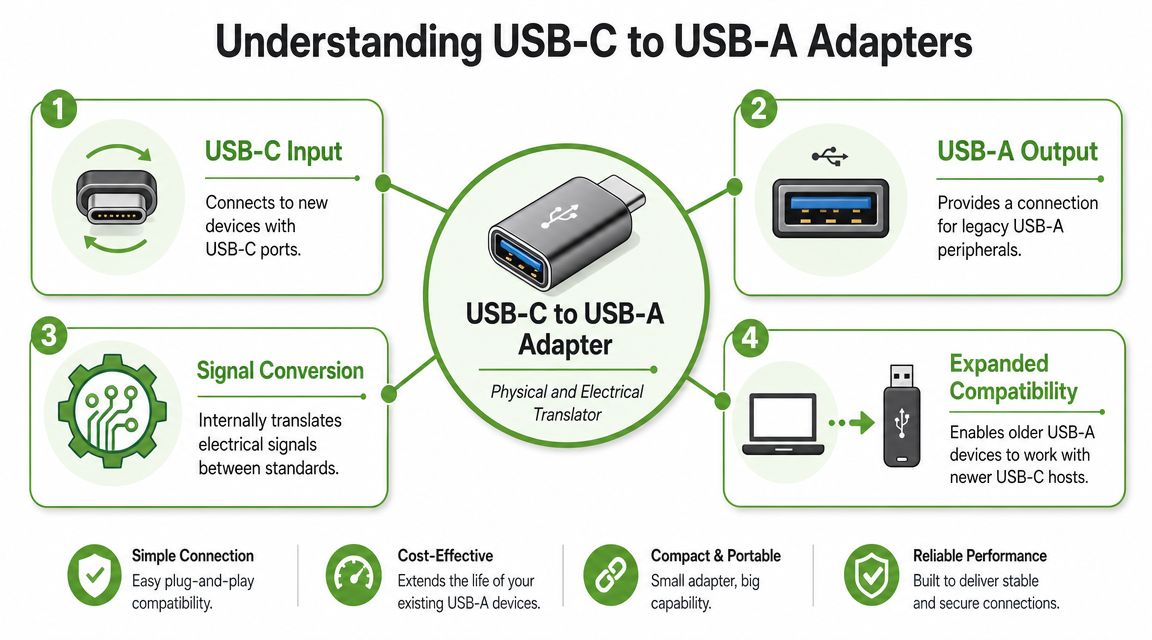
A USB-C to USB-A adapter is a translator between two connector formats. USB Type-C was first released in August 2014 as a 24-pin reversible connector, and later USB 3.2, released in September 2017, added two-lane operation enabling 10Gbps and 20Gbps modes over USB-C hardware, as noted in the USB-C specification overview. That's why newer devices favour USB-C. It's compact, reversible, and designed to support newer use cases.
An adapter steps in when the device on one side speaks through USB-C and the accessory on the other side still uses USB-A. Like a travel plug adapter, it doesn't rebuild the building's wiring. It just gives one plug shape a way to fit another system safely and usefully.
Two adapter shapes people mix up
People often use the same name for two different products, and that causes plenty of wrong purchases.
-
USB-C male to USB-A female
This is common for newer laptops and tablets. You plug the adapter into a USB-C port, then connect an older USB-A device such as a thumb drive, mouse receiver, or keyboard. -
USB-A male to USB-C female
This is used in the opposite direction. It can help when an older charger, PC, or hub only has USB-A and you need to connect a USB-C cable or accessory. -
Short cable versus rigid plug
Some adapters are solid one-piece blocks. Others use a short flexible lead. Neither is automatically better. The right choice depends on how much strain your port will face.
A quick visual refresher helps if you're comparing listings or trying to identify the right orientation before buying.
Why the connector alone doesn't tell you enough
The connector shape tells you what fits. It doesn't tell you the full story about data speed, charging behaviour, or feature support. Two adapters can look nearly identical and still behave very differently with storage drives, phones, hubs, or power sources.
That's why the label matters more than the shell. If the listing only says “USB-C compatible” without explaining data support or intended use, treat it as a convenience adapter first, not a high-performance one.
Understanding Speed and Power Limitations
Buyers often get tripped up. A USB-C to USB-A adapter may fit perfectly and still not deliver the transfer speed or charging result you had in mind.
Data speed follows the slowest link
A USB-C to USB-A adapter is typically limited to USB 3.2 Gen 1 / USB 3.1 Gen 1 signalling, which caps practical transfer speed at 5 Gbps, according to this adapter datasheet reference. Apple's USB-C to USB Adapter is also cited at up to 5Gbps in the verified material. That's fast enough for many flash drives, cameras, and everyday accessories, but it's below the newer USB-C capabilities some people assume they're getting.
Think of the connection as a chain. The host port, the adapter, the cable, and the device all matter. If one part of the chain is slower, the whole setup drops to that level.
Practical rule: the adapter's shape doesn't determine speed. The electronics inside it, plus the host port and cable, do.
That matters if you copy large photo libraries, move video files, or connect an external SSD. If your setup is built around an older USB-A port somewhere in the chain, you're using the older road even if the other end looks modern. If you're comparing charging cable options, myhalo's guide to fast charging cable choices is useful because cable limits are often mistaken for adapter limits.
Charging is a separate question
People often bundle “data transfer” and “charging” together as if they are the same feature. They aren't. An adapter can allow a connection while still offering modest charging behaviour on older hardware.
Many guides focus on physical fit but don't answer the question users really have. Will this work properly on an older laptop, monitor, hub, or public charging point? The answer is usually, “It depends on the weakest part of the setup.”
An adapter allows connection. It doesn't automatically unlock higher-power charging or newer port features that the host device never supported.
That's why older USB-A chargers and ports can feel inconsistent with newer phones and accessories. You may get a charge, but not the charging experience you expected. If charging speed matters more than compatibility, replacing the charger or using the correct native cable is often the better move.
How to Choose the Right Adapter for Your Needs
The right adapter depends less on branding and more on what you're asking it to do. Someone who wants to leave a mouse receiver plugged into a laptop has different needs from someone who transfers camera files every day.
Match the adapter to the job
Start with the device you'll connect most often.
For desk use, a small rigid adapter can be tidy and convenient. For travel, a compact model is easy to throw into a pouch. For crowded ports or awkward side-mounted connections, physical shape matters more than people expect.
Durability is a real buying factor. Vendors position right-angle adapters as low-profile tools for tight spaces and for reducing cord strain, which is useful for commuters, students, and anyone working in small setups. That design can help protect the cable and port from bending stress, as described in this right-angle adapter product reference.
Here's a practical checklist to use before buying:
-
Primary use case
Mouse, keyboard, and wireless dongles don't need the same performance focus as storage devices. -
Port direction
Check whether you need USB-C on the device side or USB-A on the device side. This is still the most common buying mistake. -
Physical fit
If your laptop sits flush against a stand, sleeve, or wall socket area, a right-angle or short-lead design may last longer. -
Build quality
Very cheap rigid adapters can work, but they're also more likely to feel loose or put pressure on the port if left installed permanently.
If you travel often, a multi-use accessory can make more sense than collecting loose adapters. For example, a universal travel adapter guide is worth reading if your charging kit needs to handle both plug standards and mixed USB accessories.
USB-C Adapter Feature Checklist
| Feature | What to Look For | Best For |
|---|---|---|
| Data support | Clear mention of USB 3 class support if you move files often | Flash drives, cameras, external storage |
| Connector direction | Correct male and female ends for your setup | Avoiding wrong purchases |
| Form factor | Rigid, short cable, or right-angle design | Desk setups, travel, tight spaces |
| Fit and finish | Secure connection without wobble | Daily use and long-term reliability |
| OTG support | Stated support if using with phones or tablets | Mobile peripherals and thumb drives |
| Low-profile design | Compact body that doesn't crowd nearby ports | Slim laptops and shared port layouts |
Don't overspend for features you won't use. But don't buy the cheapest anonymous adapter for an external drive and expect it to behave like a full-speed native connection.
Adapters and Your Refurbished myhalo Device
A refurbished laptop doesn't become less compatible with USB accessories just because it isn't factory fresh. USB compatibility is determined by the port standard on the device, not by whether the device is new, refurbished, or pre-owned.
Refurbished doesn't change USB compatibility
That's especially relevant for buyers in Singapore who choose refurbished hardware to save money and reduce waste. If your laptop has a USB-C port, it will interact with an adapter based on that port's actual standard and the adapter's design. Refurbishment status doesn't rewrite the USB rules.
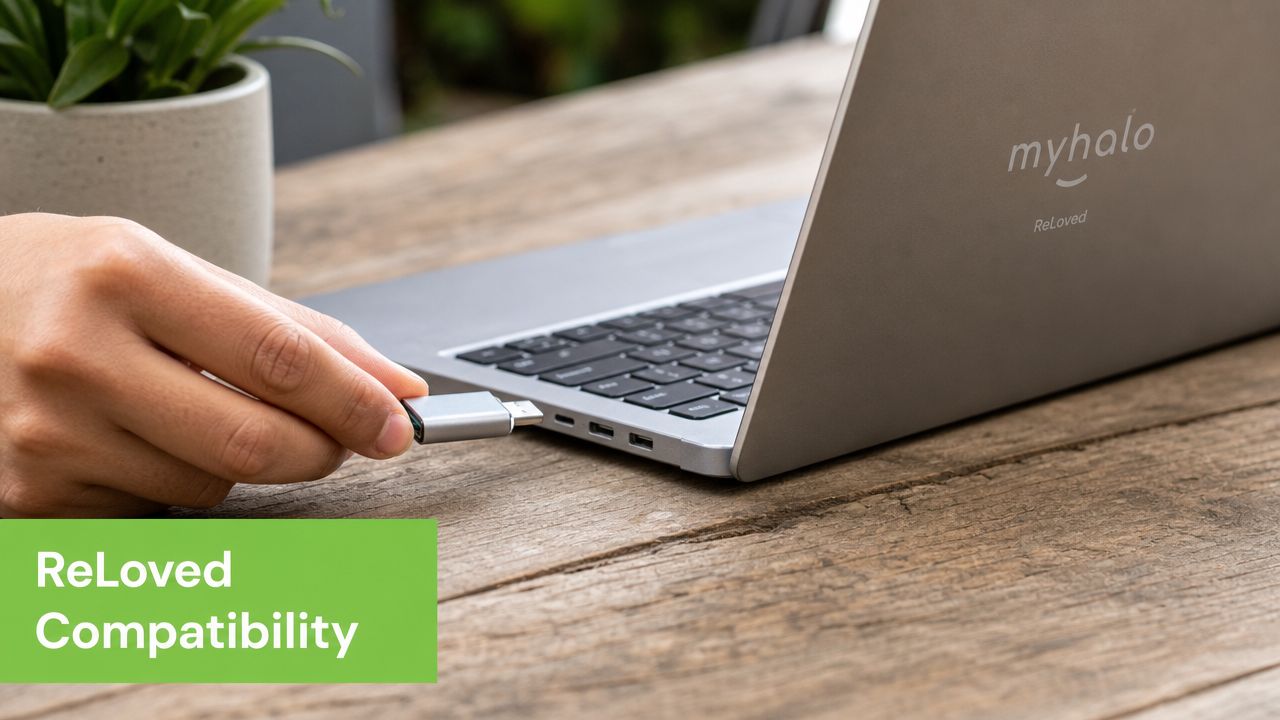
Many explainers stop at physical compatibility, but real-world performance on older laptops and hubs is where users get caught out. An adapter doesn't upgrade the port. It allows the connection, and the result depends on the host device, adapter, and cable, as discussed in this USB-A to USB-C compatibility note.
If your setup has grown beyond a single adapter, a dock may be more sensible than chaining accessories. One example is the Lenovo USB-C Universal Dock sold by myhalo, which fits users who need multiple legacy ports at a fixed desk rather than one small converter.
A small adapter can be the greener choice
There's a sustainability upside here that's easy to overlook. Reusing a solid USB-A keyboard, flash drive, webcam, or cable is often better than replacing it early just for connector convenience.
If the accessory still does its job, an adapter can extend its life without forcing a full replacement cycle.
That's a practical fit for refurbished devices. You keep more useful equipment in service, spend less on duplicate accessories, and generate less unnecessary waste.
Troubleshooting Common Adapter Problems
Most adapter problems are less dramatic than they look. Usually, you're dealing with a mismatch in direction, a loose connection, a slow component somewhere in the chain, or a power expectation the setup can't meet.
Adapter connected but nothing happens
Symptom: You plug it in and the device isn't detected.
Likely cause and solution: First, confirm you bought the correct direction of adapter. A USB-C male to USB-A female model and a USB-A male to USB-C female model solve different problems. Then unplug everything, reconnect firmly, and test with a second accessory you know works.
Symptom: The connection works on one device but not another.
Likely cause and solution: The host port may support fewer functions than you expect. Test the same adapter with a simple USB-A device such as a mouse or keyboard. If that works but storage or charging does not, the issue is often capability, not total failure.
Start troubleshooting with the simplest accessory you have. A basic mouse or keyboard reveals compatibility issues faster than a complex hub or phone.
Transfers are slow or charging is unreliable
Symptom: File copies take longer than expected.
Likely cause and solution: Check every part of the chain. A slower USB device, older cable, or basic adapter can bottleneck the transfer. For storage-heavy use, switch to an adapter clearly intended for data, not just charging or basic connectivity.
Symptom: Your phone or tablet charges, but slowly.
Likely cause and solution: That usually means the port is supplying power, but not in the way you hoped. Try a direct charger and native cable instead of routing power through an older USB-A path.
Symptom: The adapter feels loose or wobbly.**
Likely cause and solution: Dust in the port, wear on the connector, or poor build quality can all cause that. Stop forcing the connection. Clean the port carefully, test another adapter, and avoid leaving a badly fitting one installed all the time.
A good rule is to replace the adapter if you notice heat, intermittent dropouts, or obvious physical slack. Small accessories shouldn't feel disposable, but they also shouldn't be trusted once they start behaving unpredictably.
If you're trying to keep older accessories useful with a newer laptop, phone, or tablet, myhalo is a practical place to look for compatible devices, docks, and support in Singapore. The bigger win isn't buying more gear. It's buying fewer wrong accessories, keeping working tech in service longer, and building a setup that fits how you use your devices.