





Tp Link Router
You're on a video call in the study, your child is streaming lessons in the bedroom, and someone else has started a large download. The broadband plan looks fast on paper, yet the connection still freezes. In Singapore homes, the problem often isn't the fibre subscription. It's the TP-Link router, its placement, its configuration, or the number of concrete walls between it and your devices.
The right purchase depends on more than a headline speed. You need to check your ISP's connection requirements, understand how your HDB or condominium layout affects coverage, and confirm that the product sold locally carries the appropriate compliance labels. You should also decide whether a single router, an EasyMesh arrangement, or a TP-Link Deco mesh system suits the floor plan.
This guide focuses on those practical decisions, including when a refurbished device makes sense and how to extend a router's useful life instead of replacing it too early.
Table of Contents
- Why Your Router Matters More Than Your Broadband Plan
- Wi-Fi Standards and Core Technologies Explained Simply
- Single Router or Mesh System for Your Home Layout
- Reading TP-Link Model Numbers Without Getting Lost
- Setting Up Your Router with Singapore ISPs
- Buying New or Refurbished Without Cutting Corners
- Extending the Life of Your Router and Reducing E-Waste
- Common Questions Before You Buy
Why Your Router Matters More Than Your Broadband Plan
A broadband plan delivers service to your home. The router distributes that service to phones, laptops, televisions, cameras and smart appliances. If the router has weak coverage, limited ports, poor placement or an unsuitable configuration, paying for a faster fibre tier won't fix the actual bottleneck.
In a compact flat, a capable single router may handle everyday streaming and work calls comfortably. In a larger HDB flat with concrete walls, the same router may produce excellent speeds beside the unit and frustrating dead zones at the far end of the home. The radio signal has to travel through doors, walls, furniture and neighbouring networks before it reaches your device.
Practical rule: Test the location and the connection before upgrading the plan. If performance is strong beside the router but poor in another room, coverage is the problem.
Your first diagnosis is simple. Connect one laptop to the router with Ethernet, then compare that result with a wireless test in the problem room. If wired performance is stable but Wi-Fi is unreliable, investigate placement, interference, channel width and topology. If both wired and wireless performance is poor, check the ISP service, the ONT or fibre equipment, and the router's WAN configuration.
Singapore-specific setup matters too. TP-Link's local FAQ identifies Dynamic IP for StarHub, MyRepublic and M1, while Singtel requires Dynamic IP with a Singapore-Singtel VLAN profile. The details are set out in TP-Link's Singapore ISP connection guidance. A router can be technically excellent and still fail to connect if the ISP profile is wrong.
Local compliance is another reason to buy carefully. TP-Link states that Wi-Fi routers sold for local use must meet IMDA technical requirements, while Singapore's Cybersecurity Labelling Scheme applies to residential routers. IMDA also requires an IMDA compliance label and a CSA cybersecurity label on local Wi-Fi router products, as described in its equipment compliance framework.
The question to answer is direct: is your bottleneck the broadband plan, or the router and coverage inside your home?
Wi-Fi Standards and Core Technologies Explained Simply
Wi-Fi 5, Wi-Fi 6, Wi-Fi 6E and Wi-Fi 7 are successive generations of wireless technology. The label shows what the router and compatible devices support, but it does not guarantee maximum speed throughout your flat. Concrete walls, neighbouring networks and older clients still set practical limits.
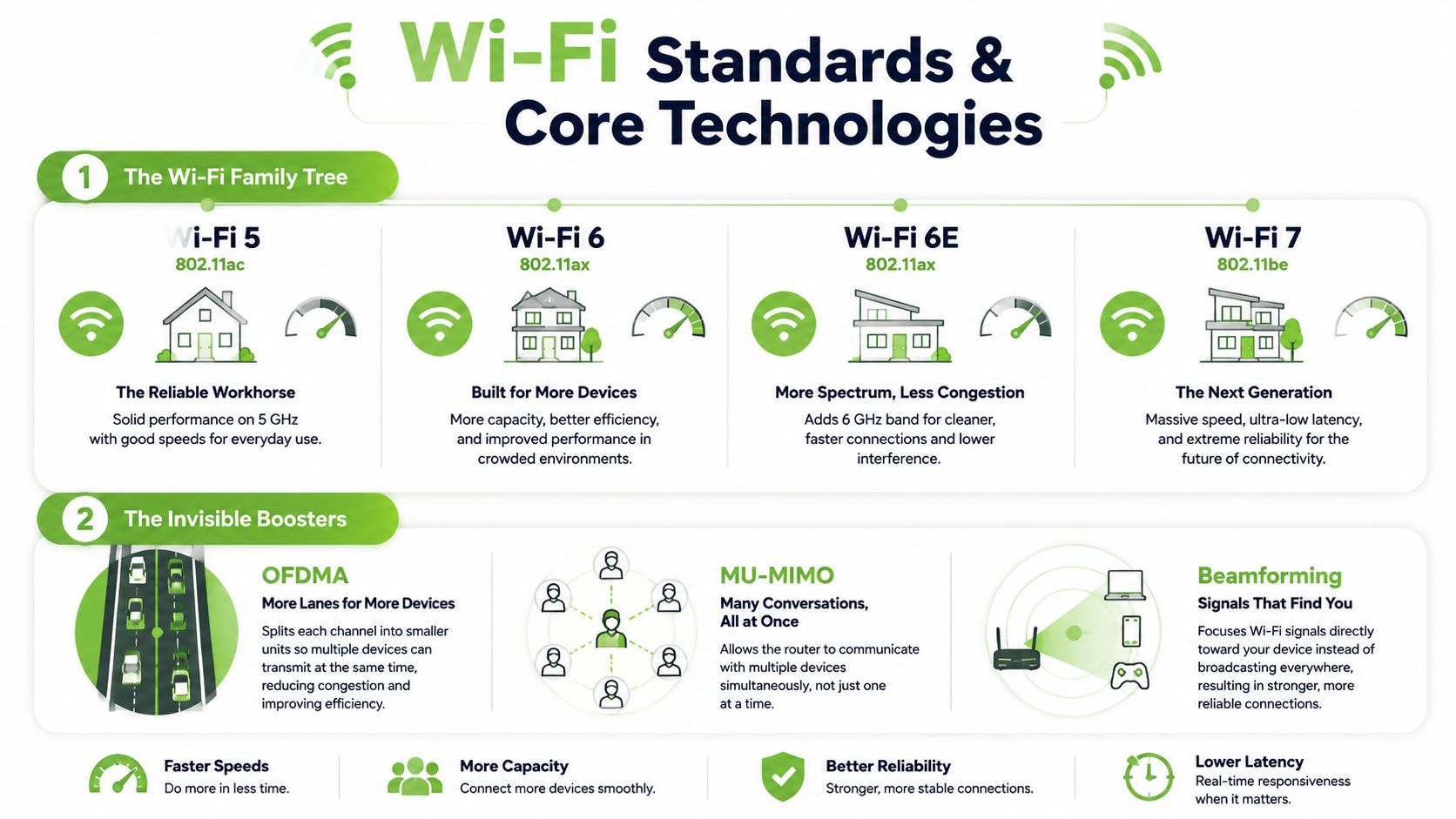
One analogy is enough: the standards are building codes. Wi-Fi 5 remains suitable for basic devices. Wi-Fi 6 improves how the router manages many connected devices. Wi-Fi 6E adds the 6 GHz band where supported. Wi-Fi 7 introduces broader channels and Multi-Link Operation, which can use more than one band to improve responsiveness and resilience when both router and client support it.
The features that change everyday use
OFDMA divides wireless airtime into smaller allocations, allowing the router to organise transmissions for several devices more efficiently. This helps when phones, tablets, televisions and smart-home devices compete for airtime.
MU-MIMO lets the router communicate with multiple compatible devices in parallel instead of serving every device in a strict one-at-a-time sequence. It does not eliminate congestion, but it helps an access point handle a busy household.
Beamforming directs signal toward the connected device to improve link quality. Walls, distance and interference still affect the result, particularly in HDB flats where the router may sit near the entrance while bedrooms are separated by concrete walls.
WPA3 is the newer wireless security option on many current TP-Link models. Use it when your devices support it, keep firmware updated and create a guest network for visitors, contractors or short-term users. Guest access keeps those devices separate from the main home network, provided the router's guest isolation settings are enabled.
Bands, channels and apartment density
A dual-band router uses 2.4 GHz and 5 GHz. The 2.4 GHz band generally travels farther and passes obstacles more readily, while 5 GHz usually provides more capacity at shorter range. A tri-band router adds another band, which can distribute traffic or provide a dedicated wireless link in some mesh arrangements.
A 160 MHz channel can carry more data than a narrower channel when the client supports it and the spectrum is clean. Wi-Fi 7 can use 320 MHz-capable 6 GHz operation, but that requires compatible devices and a usable 6 GHz environment. In dense Singapore apartment blocks, wider channels can be more sensitive to neighbouring networks and limited channel availability.
Use this mental model: bands are floors, channels are rooms, and the Wi-Fi standard is the building code. More floors and larger rooms help only when your devices can access them and the walls do not block the route. Choose the standard for your actual devices, then prioritise coverage and stable placement over a headline speed your clients cannot use.
Single Router or Mesh System for Your Home Layout
Coverage is usually more important than a larger speed number. A fast router placed behind a television cabinet may perform worse than a slower model positioned centrally and raised into open air.
Match the topology to the floor plan
| Home layout | My recommendation | Why |
|---|---|---|
| Compact one-bedroom flat | Single Archer router | One centrally placed unit may cover the practical living area without the cost or complexity of multiple nodes. |
| Standard four-room HDB flat | Router first, mesh if dead zones remain | Concrete walls and service-yard placement can create weak rooms. A Deco system or compatible EasyMesh expansion is more sensible than chasing a higher headline speed. |
| Multi-floor condominium | Mesh system | A single access point rarely provides consistent coverage across floors. Wired backhaul is preferable where cabling is available. |
| Small office with a meeting room | Router plus managed expansion or mesh | Staff devices, guest access and the meeting room create separate coverage and security needs. Plan placement around people and walls, not the internet entry point alone. |
TP-Link's Singapore range includes dual-band and tri-band Wi-Fi 7 routers, Deco mesh systems, and EasyMesh-compatible devices. The catalogue spans BE3600, BE7200, BE11000, BE19000 and BE24000-class products, giving buyers several ways to balance coverage, capacity and cost through the TP-Link router and mesh collection at myhalo.
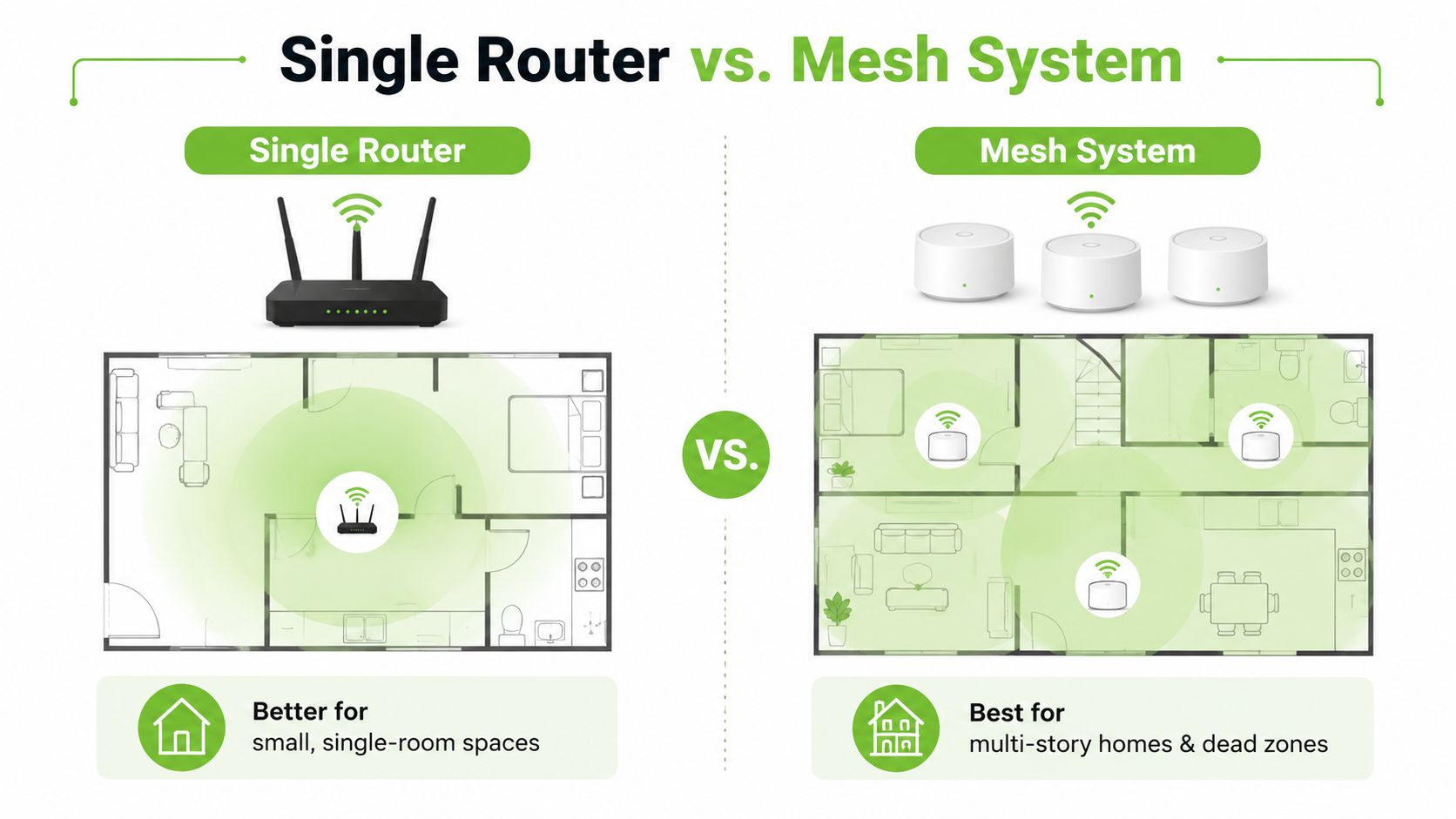
A single router remains the better choice when the home is compact, devices cluster near one location, and there's no persistent dead zone. Mesh becomes worthwhile when the far room is consistently weak, when several concrete walls intervene, or when you need a stable connection across floors.
Mesh isn't a magic signal booster. Each node still needs a good position, and a badly placed satellite simply repeats a weak connection.
If you're installing mesh for a UK property or helping a family member abroad, the UK Wi-Fi mesh setup guide is a useful reference for planning node placement and backhaul. The same principle applies locally: place nodes where they can communicate well, not inside the dead zone itself.
For Singapore homes, count the walls, floors and problem rooms before comparing speed classes. Topology is the purchase decision that determines whether the advertised performance reaches the places where you use Wi-Fi.
Reading TP-Link Model Numbers Without Getting Lost
TP-Link model names become easier once you separate the family, generation and speed class. Archer generally identifies a conventional wireless router, while Deco identifies the company's mesh family. The letters provide a quick generation clue: AX refers to Wi-Fi 6 equipment, while BE refers to Wi-Fi 7 equipment.
The number is a combined class indicator, not a promise that one device will deliver that exact speed to one laptop. It adds the theoretical capacity of the supported bands. Your client device, distance, channel width, interference and broadband service determine what you experience.
Three useful examples
The Singapore Archer AX50 is an AX3000 dual-band Wi-Fi 6 router. Its listed rates are 2402 Mbps on 5 GHz and 574 Mbps on 2.4 GHz, as shown on TP-Link's Archer AX50 specification page. The 5 GHz figure depends on HE160 channel width, so compatible clients and favourable spectrum conditions are required. In a dense apartment block, contiguous channel availability and co-channel congestion can reduce the practical result.
The Archer BE230 is a BE3600 Wi-Fi 7 router with 2882 Mbps on 5 GHz and 688 Mbps on 2.4 GHz. For multi-gig users, it has a 2.5 Gbps WAN port, a 2.5 Gbps LAN port and three 1 Gbps LAN ports, according to TP-Link's Archer BE230 specifications. That hardware matters for fast fibre services and local NAS transfers. A router with only gigabit Ethernet can't pass multi-gig wired traffic through a single connection, regardless of its wireless class.
The Singapore range also includes much higher classes. TP-Link advertises routers with internet ports up to 10 Gbps and Wi-Fi speeds above 3,000 Mbps on its Singapore Wi-Fi router catalogue. StarHub identifies the TP-Link EB810v as Wi-Fi 7-ready, with 11,520 Mbps on 6 GHz, 8,640 Mbps on 5 GHz and 1,376 Mbps on 2.4 GHz, plus 10 Gbps WAN and LAN connectivity, in its local broadband guide.
Common TP-Link model classes at a glance
| Class | Typical use | WAN port | Mesh-ready |
|---|---|---|---|
| AX3000 | Wi-Fi 6 homes with regular streaming, work calls and many everyday devices | Gigabit on Archer AX50 | Check the specific model and supported system |
| BE3600 | Entry Wi-Fi 7 upgrade with faster wired networking | 2.5 Gbps on Archer BE230 | Check model support and firmware |
| BE19000 | High-capacity tri-band Wi-Fi 7 home networks | Varies by model | Check the individual product |
| Deco X-series | Whole-home Wi-Fi 6 mesh | Varies by model | Deco mesh platform |
Don't buy by the largest number on the box. Check the WAN port, LAN ports, client compatibility and home layout first.
Setting Up Your Router with Singapore ISPs
A router replacement can fail before any speed test begins. In Singapore, the ISP profile determines whether the new TP-Link router receives an internet connection, so configure that profile before troubleshooting Wi-Fi performance.
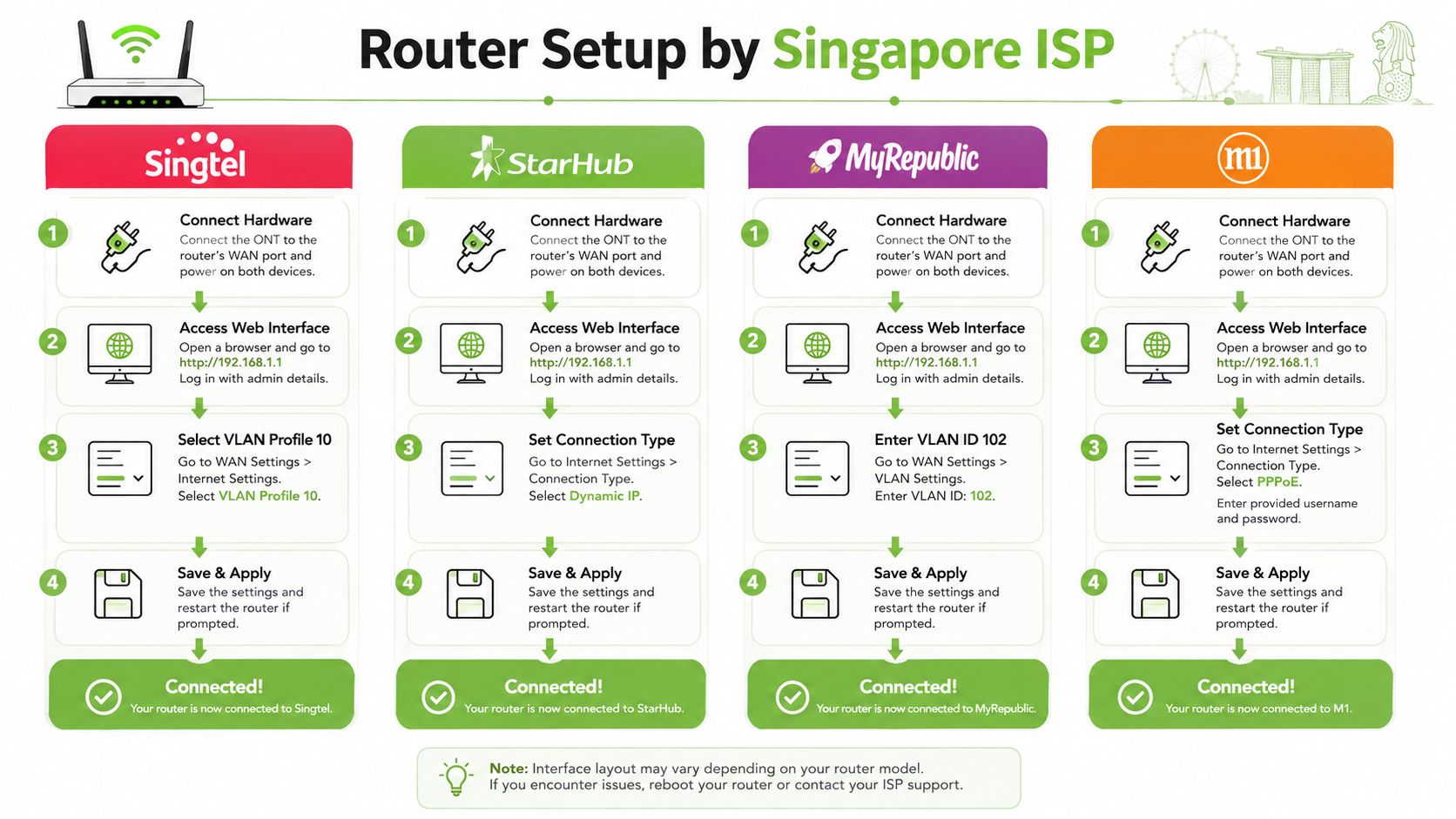
TP-Link's Singapore guidance identifies Dynamic IP for StarHub, MyRepublic and M1. Singtel uses Dynamic IP with a Singapore-Singtel VLAN profile. Choose the matching local option in the router interface. Do not rely on a generic overseas setup guide.
The first setup sequence
- Connect the hardware. Leave the ONT or fibre termination equipment connected as the ISP specifies. Run an Ethernet cable from the ONT to the router's WAN port, then restart the equipment in order.
- Open the management interface. Connect to the new TP-Link router and use its app or web interface. Select the local ISP profile if one is available.
- Choose the connection mode. Set Dynamic IP for StarHub, MyRepublic and M1. For Singtel, select the Singapore-Singtel VLAN profile instead of an untagged generic connection.
- Secure the router. Create a unique administration password, update the firmware, set a recognisable Wi-Fi name and choose a strong wireless password. Enable WPA3 when your key devices support it.
- Test the flat properly. Check beside the router, in the room used for work calls and at the furthest regular-use point. In HDB flats, concrete walls can reduce coverage sharply, so one test beside the router proves very little.
Here's a short visual walkthrough for the physical and interface basics:
Three day-one problems
No internet after replacing the ISP router: Check the WAN cable, restart the ONT and router, and confirm the ISP profile. If the previous router used provider-specific settings, reproduce those settings rather than expecting automatic detection.
One device is slow: Test another device in the same location. If only one client struggles, update its wireless driver, try 5 GHz or 6 GHz where supported, and check compatibility with the router's advertised standard.
Intermittent drops: Move the router into an open position, check its firmware and try a narrower channel width if a wide channel performs poorly in a crowded block. For visitors, use separate credentials and follow this guide to setup guest network for hosts.
Also verify the router's local compliance markings before installation, particularly for a replacement bought overseas. Choose a model intended for Singapore use, then keep its firmware current to extend its practical service life.
Buying New or Refurbished Without Cutting Corners
A new TP-Link router gives you the cleanest ownership history, current packaging and the manufacturer's standard support path. A professionally refurbished router can also be a sensible purchase, but only when the seller explains what was tested, what warranty applies, how returns work and whether cosmetic wear is disclosed clearly.
For routers, battery health isn't relevant. The important checks are different. A credible 30-point quality check should include repeated power cycles, WAN and LAN port testing, antenna and casing inspection, firmware verification, thermal behaviour under load, wireless stability and reset-button operation. The provider should also state whether accessories and the power adapter are original or compatible replacements.
Compare the ownership risk
| Buying route | Best fit | What to verify |
|---|---|---|
| Factory-sealed new | You want the latest model and the simplest support path | Warranty terms, local compliance labels and return conditions |
| Professionally refurbished | You want lower cost without accepting unknown faults | Test process, grading, warranty, return window and firmware support |
| Used from an unknown seller | Only for buyers comfortable diagnosing faults | Original adapter, reset access, port condition and support availability |
A router doesn't have a battery, so don't accept vague claims about “battery health” for this product category. Ask instead for port condition, firmware status and stability testing. Transparent grading should distinguish light cosmetic wear from cracked housing, damaged antennas or bent connectors.
Process certification can add confidence because it indicates an organised quality system, but it isn't a substitute for product-level testing. ISO 9001:2015 certification is useful as a process signal. Ask what the process checks on the particular router you're buying.
For a brand-new comparison point, you can review a sealed Nest WiFi router, then compare its support and network features with the TP-Link model you're considering. The right decision depends on total cost of ownership, not the lowest sticker price.
Be wary of a bargain that comes without a return route, firmware support or clear device grading. A cheaper router that drops connections can cost more in lost work time than a properly checked unit with visible wear and a documented warranty.
Extending the Life of Your Router and Reducing E-Waste
Singapore's NEA includes routers under regulated e-waste categories for ICT equipment, alongside modems, computers, laptops, mobile phones and tablets. The agency advises consumers to use approved collection points and consider repair where feasible, as explained in its e-waste management guidance.
Repair makes sense when the router has an isolated port fault, loose power connection or intermittent behaviour that a technician can diagnose. Replacement is more sensible when the device no longer receives firmware support, lacks the wireless capability your household now needs, or has suffered heat or electrical damage.
A lifecycle approach also protects budgets. Keeping a stable router in service avoids unnecessary setup work, reduces disruption for households and prevents SMEs from replacing network equipment before they've assessed repair or reuse. A working older unit may also serve as an access point, guest-network device or backup instead of becoming immediate waste.
Better ownership means planning the next use before you discard the current one.
Warranty extensions, maintenance plans and trade-in pathways can make that planning easier. A device that no longer suits your home may still have value for another user after testing, secure reset and transparent grading. For more practical ideas on repair, reuse and responsible disposal, explore a zero e-waste world.
Common Questions Before You Buy
Is Wi-Fi 7 worth paying for in 2026? Buy it when you have compatible Wi-Fi 7 clients, multi-gig broadband or fast local transfers. Otherwise, a well-placed Wi-Fi 6 router may be the more sensible choice.
Is mesh better in a small flat? Not automatically. A single centrally placed router is usually simpler unless concrete walls create a known dead zone.
How often should I replace a router? Replace it when support, stability, coverage or port capacity no longer meets your needs, not because a newer model exists.
What if my ISP won't provide VLAN details? Ask for the exact third-party router requirements and keep the ISP router until you've confirmed compatibility.
What should I check before buying locally? Look for the IMDA compliance mark and CSA cybersecurity label. Singapore currently requires residential routers sold locally to meet CLS Level 1, with the requirement scheduled to rise to Level 2 by end-2027, according to the CSA announcement on residential router labelling.
myhalo can help you choose a suitable TP-Link router, assess refurbished equipment through documented checks, and support repair, reuse, trade-in and responsible recycling as your network evolves. Visit myhalo to compare practical technology options and get lifecycle support instead of treating every upgrade as a replacement.