





Preventive Maintenance for Laptops: Pro Tips
Your laptop probably didn't fail all at once. It got a little warmer during video calls. The fan became louder. Boot-up took longer. Apps that used to open instantly began to hesitate. Then one day, right after the warranty period felt safely behind you, the machine started behaving like it was much older than it really was.
That pattern is common in Singapore. Laptops here don't just deal with daily work. They also deal with heat, humidity, dust and constant charging habits that wear them down faster if nobody intervenes early. A generic cleaning checklist from another market often misses that reality.
Preventive maintenance for laptops is the habit of fixing small problems before they become expensive ones. For students, home users and SMEs, that usually means better performance, fewer interruptions and more value from the device you already paid for.
Table of Contents
Why Your Laptop Needs a Regular Health Check
A laptop can look fine on the outside and still be heading towards trouble. That's why preventive maintenance for laptops matters. Most failures don't begin as dramatic failures. They begin as small warning signs that users work around until the machine becomes unreliable.

A slow laptop is usually giving warnings
A student notices the browser freezing when too many tabs are open. A small business owner hears the cooling fan spinning harder during spreadsheets and Zoom calls. A freelancer starts carrying a charger everywhere because battery life no longer feels trustworthy. These aren't random annoyances. They're often early signs that the laptop needs attention.
Singapore's climate makes those signs more important, not less. Warm conditions and humidity put extra stress on cooling and battery behaviour, so delay usually costs more later. That's why waiting for a full breakdown is generally a poor maintenance strategy.
Practical rule: If your laptop's behaviour has clearly changed, treat that as a maintenance event, not a personality quirk.
In reliability work, the useful distinction is between acting on a schedule and acting only after something breaks. If you want a broader industrial framing of that mindset, Forge Reliability's technical guide for engineers is a good reference. The principle applies surprisingly well to personal devices too.
Maintenance is cheaper than disruption
The value of maintenance isn't only about keeping a laptop clean. It's about protecting the work tied to it. For a student, that means assignments and exams. For an SME, that means invoices, customer files and daily operations. For most households, it means avoiding a rushed replacement purchase when money could've been spent better elsewhere.
That's also why repair, reuse and sensible upgrades deserve more attention than automatic replacement. A well-maintained laptop often remains useful much longer than owners expect, especially when the machine is still fit for everyday work. Buyers who are also weighing whether refurbishment is worth considering can compare the trade-offs in this guide to refurbished laptop computers.
A laptop health check is really resource management in disguise. You spend a bit of time now so you don't lose far more time, money and flexibility later.
The Physical Check-Up Hardware and Cooling
Most laptop problems I see in daily use start with heat. Not malware. Not exotic hardware defects. Just poor airflow, trapped dust and rising internal temperatures that gradually drag performance down.
That's why physical care has to start with cooling, not cosmetics.
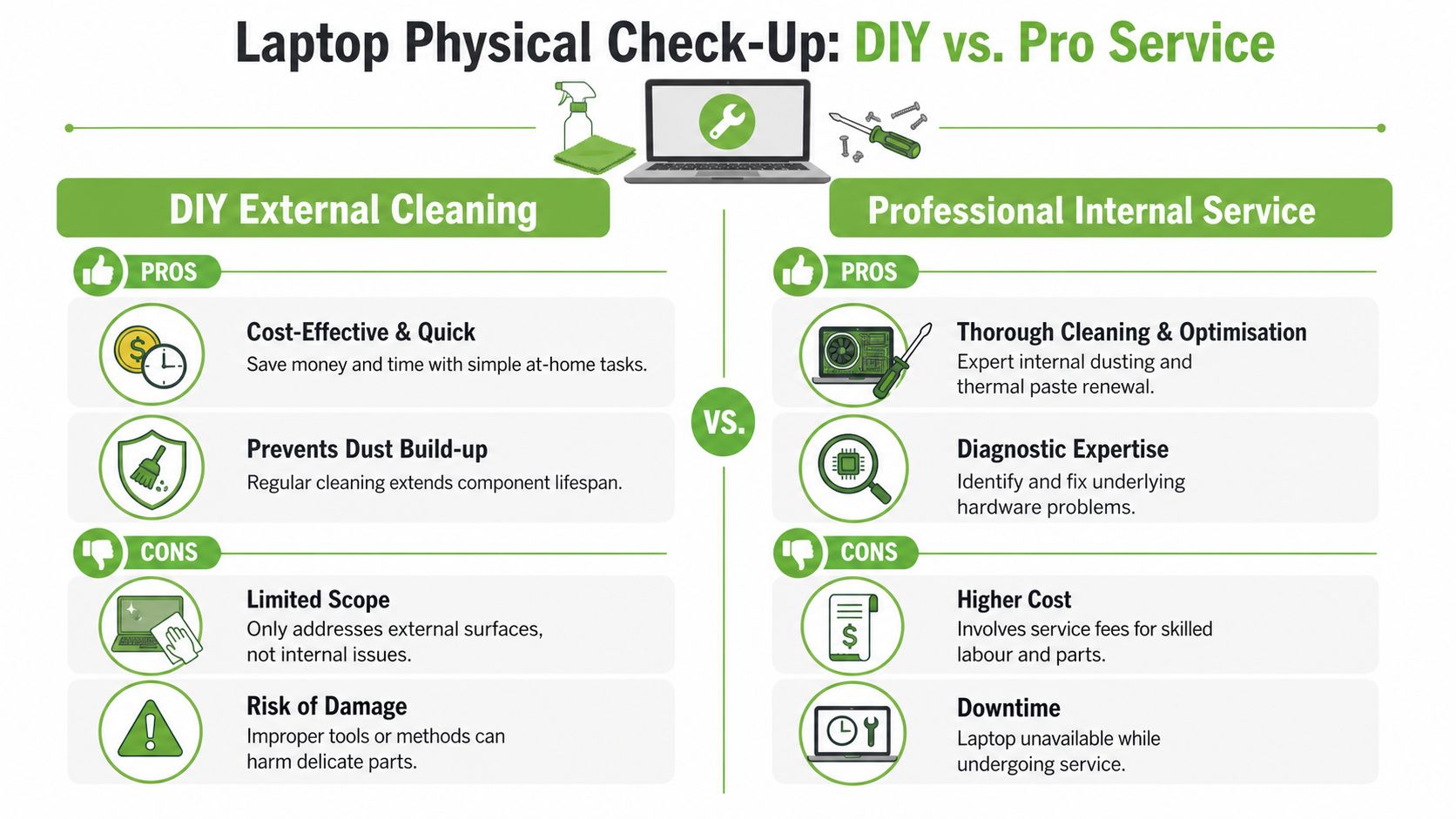
What you can safely do at home
External cleaning is the part most users can handle confidently if they slow down and use the right tools. You don't need specialist lab equipment. You do need basic discipline.
A safe routine looks like this:
- Power down fully: Shut the laptop off, unplug it and let it cool before you clean anything.
- Use a microfibre cloth: Wipe the screen and outer surfaces gently. Avoid rough tissues and paper towels.
- Clear the keyboard carefully: A soft brush works well for crumbs and dust between keys.
- Clean vents from the outside: Short bursts of compressed air can help remove visible dust around intake and exhaust areas.
- Use proper tools: A purpose-built electronics cleaning kit makes the job easier than improvising with cotton buds and random cloths.
Users in Singapore should pay special attention to vents because dust build-up in a humid environment tends to cling instead of lifting away easily. Physical cleaning every 6 to 12 months is recommended to prevent thermal failure, and compressed air can reduce internal temperatures by up to 15°C according to this laptop maintenance guide for Singapore conditions.
Where DIY should stop
Here's the trade-off many people get wrong. Cleaning the outside is low risk. Opening the chassis is not.
Internal work means delicate clips, tiny screws, fan connectors, thermal pads and in some models a layout that's easy to damage if you don't already know the sequence. A rushed DIY attempt can turn a maintenance task into a repair bill.
A local benchmark worth following is this. In Singapore's office and casual-use environment, preventive internal laptop cleaning every 12–24 months is recommended to avoid performance degradation from dust in cooling systems, with earlier servicing if symptoms such as loud fans or slowing appear sooner, based on guidance for laptop cleaning and thermal paste servicing in Singapore.
Opening a laptop only to blow dust around inside is not the same as proper internal servicing.
That interval matters because office laptops are often neglected precisely because they aren't gaming machines. People assume light use means no maintenance. In practice, moderate daily use in a warm, humid setting still loads dust into fans and heatsinks over time.
A professional service also has diagnostic value. Technicians can spot fan wear, thermal paste degradation, loose hinges, swelling batteries and early signs of board issues before they interrupt work.
Here's a useful visual overview before you decide which tasks belong at home and which don't:
A simple cooling routine that works
You don't need an elaborate checklist to improve cooling. You need consistency.
Try this working routine:
| Habit | Why it helps |
|---|---|
| Keep the laptop on a hard, flat surface | Soft beds and cushions block intake vents |
| Clear vents during routine cleaning | Better airflow means less heat build-up |
| Don't ignore fan noise | Noise often appears before bigger thermal issues |
| Book internal servicing when symptoms persist | It's safer than pushing the machine until throttling worsens |
The goal isn't to make the laptop look polished. The goal is to keep heat from becoming the hidden cause behind every other complaint.
Optimising Your Digital Engine Storage and Software
Not every slow laptop needs new parts. Many just need less clutter. Storage bloat, messy startup settings and neglected updates can make a healthy machine feel tired.
That's good news because software housekeeping is one of the cheapest forms of preventive maintenance for laptops. In many cases, it costs nothing except a bit of attention.
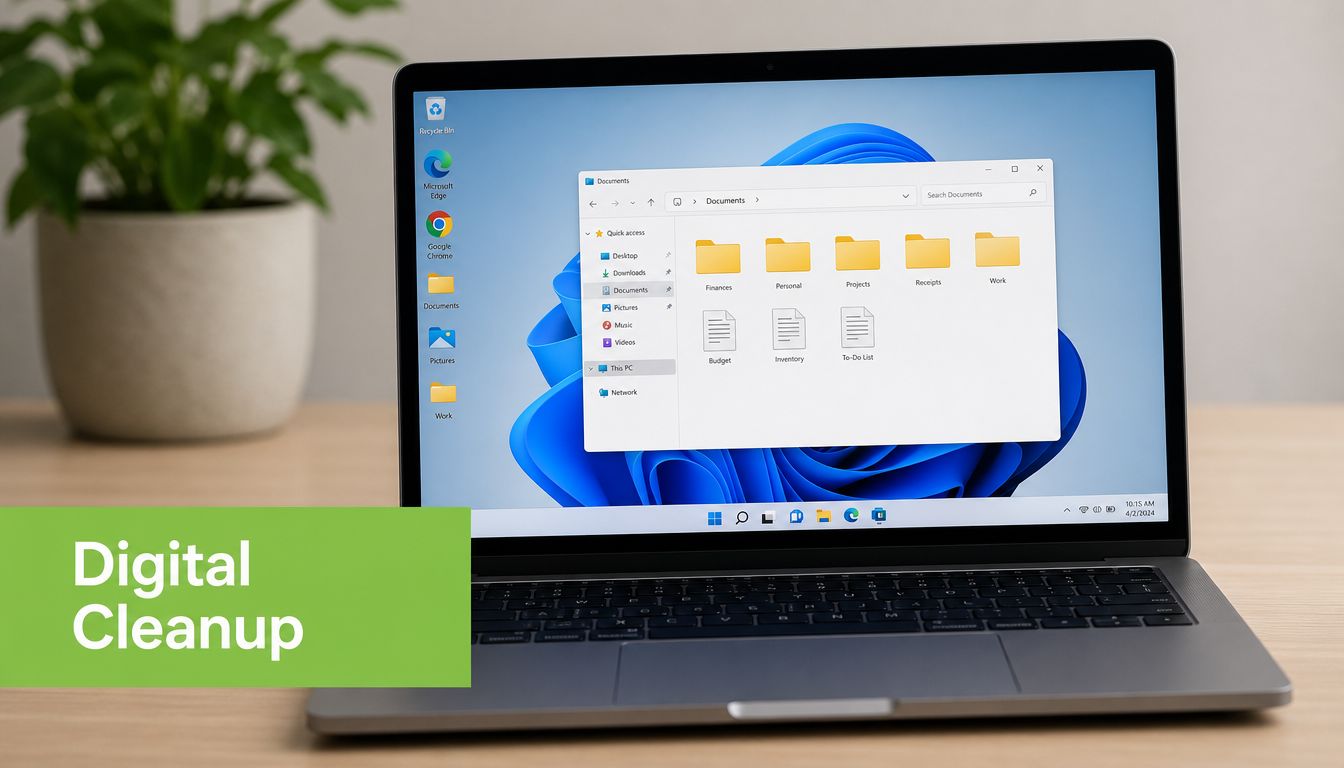
Free space matters more than most people think
If a laptop feels sluggish, one of the first things to check is available storage. Windows needs working room for temporary files, updates and memory caching. When the drive gets too full, the whole system starts to feel constrained.
A practical benchmark is to keep at least 10% free drive space. That helps prevent slowdowns and performance degradation, and Windows tools such as Storage Sense can remove junk files and improve speed, as explained in this computer maintenance and care guide.
A quick cleanup usually includes:
- Remove large unused files: Old downloads, duplicate videos and forgotten installers are common culprits.
- Empty the recycle bin: Many users delete files but never clear them fully.
- Uninstall software you don't use: Trial apps and bundled utilities often sit idle while consuming space.
- Turn on built-in cleanup tools: Storage Sense on Windows and Optimise Storage on macOS help automate the boring part.
A nearly full drive doesn't always look dramatic. It usually feels like random slowness.
Trim startup clutter and stale software
The second common issue is startup overload. Many apps add themselves to launch at boot, even when you rarely use them. Cloud sync tools, chat apps, printer utilities and manufacturer software can all stack up.
That doesn't mean every startup app is bad. Security software and essential work tools may need to launch early. But if your laptop takes too long to become usable after logging in, review startup items and disable anything non-essential.
A straightforward digital maintenance routine includes:
- Check startup apps monthly: Disable low-value items first.
- Install operating system updates promptly: Updates often fix stability and security issues.
- Keep your browser lean: Too many extensions can slow daily work more than people realise.
- Run regular antivirus scans: This is basic maintenance, not an emergency-only task.
- Restart occasionally: Some users only sleep their laptops for weeks. A proper restart can clear temporary issues.
For SMEs, software discipline matters even more because one poorly maintained laptop often becomes an internal support headache. For individual users, it's often the difference between a machine that still feels dependable and one that feels ready for replacement too early.
Digital maintenance isn't glamorous. It works because it removes friction from everyday use.
Mastering Battery Health for Lasting Power
Battery advice online is full of superstition. Some people think every laptop should stay plugged in all day. Others treat every drop below half charge as dangerous. In reality, battery care is much simpler when you focus on the two biggest stressors. Heat and prolonged time at extreme charge levels.
In Singapore, heat is the harder problem. A laptop that already runs warm because of dust, blocked airflow or heavy workloads also warms the battery. That's one reason battery decline often feels faster than expected.
Heat is the battery killer most people ignore
A battery doesn't usually fail because of one dramatic mistake. It wears down through daily habits. Constant charging at full level, poor ventilation and long periods of heat all add pressure.
Local guidance notes that users should avoid guessing and instead monitor battery health directly. On Windows, you can generate a report with the command powercfg /batteryreport. If design capacity drops below 50%, replacement is advised to avoid unexpected shutdowns, according to this preventive computer maintenance reference.
That threshold is useful because it moves the conversation away from feelings. “It drains faster than before” is too vague. A report gives you something concrete to check.
Practical battery habits that usually help include:
- Avoid constant heat exposure: Don't leave the laptop working hard on bedding, sofas or in stuffy corners.
- Use battery-saving settings sensibly: Lower screen brightness and background activity when full performance isn't needed.
- Give the battery some movement: If you're plugged in all the time, occasional normal battery use helps you spot decline earlier.
- Watch for behavioural changes: Sudden drops, shutdowns or swelling need attention fast.
Use a battery report instead of guessing
The battery report is valuable because it separates battery wear from other problems. Sometimes the battery is weak. Sometimes the charger is failing. Sometimes the laptop is throttling from heat and users blame battery life by mistake.
If you use a MacBook and want a practical overview of replacement timing and warning signs, this guide to MacBook battery replacement is a useful reference.
If your battery can't support normal work reliably, that's no longer a convenience issue. It's a maintenance issue.
The best battery strategy isn't perfection. It's awareness. Keep the machine cool, avoid abusive charging habits, and check health with built-in tools before the problem becomes disruptive.
Your Data Safety Net and Professional Care
A laptop can be repaired. Lost files often can't. That's why any serious maintenance routine starts with backups, not screwdrivers.
People usually think about backups only after a spill, failed update or dead drive. By then, the stress level is already too high and decisions get rushed.
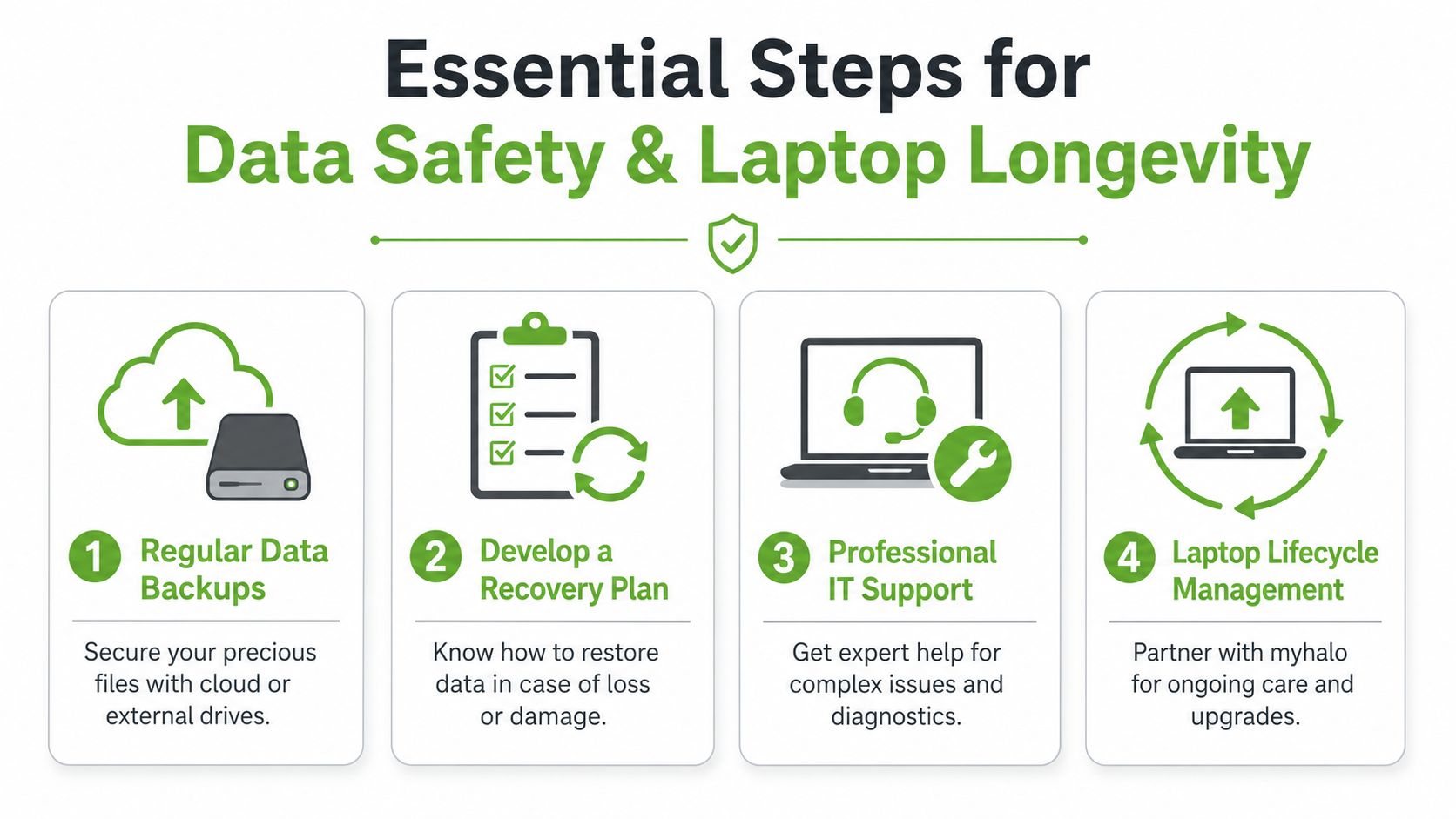
Backups come before repairs
For most users, the easiest starting point is the 3-2-1 approach. Keep your files in three copies, on two different types of storage, with one copy separate from the laptop. It sounds more technical than it is. In practice, that often means your laptop, a cloud backup and an external drive.
Preventive maintenance sometimes involves risk. A storage drive can fail during normal ageing. A system reset can go wrong. A repair may require parts replacement. If your data strategy is weak, even a routine service becomes stressful.
A sensible backup habit looks like this:
- Back up active work regularly: School files, accounting folders and client documents shouldn't live in only one place.
- Test recovery once in a while: A backup you can't restore isn't much help.
- Separate personal and business folders: That makes recovery faster if you need to move to another device.
- Keep one offline or external copy: Cloud sync is useful, but it shouldn't be your only line of defence.
Why many users get stuck between DIY and repair shops
There's a real gap in the market for everyday users. A lot of guidance in Singapore is built around corporate IT contracts or one-off repair visits. That leaves students, freelancers and smaller businesses in an awkward middle ground.
One useful local observation is that existing content tends to focus on corporate IT maintenance or reactive repair, while individual users in Singapore often lack affordable guidance for proactive care. That gap creates room for entry-level preventive support such as myhalo e‑Xtender, as noted in this Singapore preventive IT maintenance overview.
That gap explains why many laptops get maintained too late. Users don't need a full outsourced IT department. They need practical help at the right moment. Things like health checks, cleaning, battery assessment, migration support and sensible repair advice.
For SMEs, there's another layer. Standardising maintenance habits across even a small laptop fleet reduces avoidable downtime and last-minute replacement pressure. For solo users, structured support removes the burden of remembering every task yourself.
When outside help is the smarter choice
Professional help makes the most sense when the task is risky, time-consuming or easy to get wrong. Internal cleaning, battery replacement, thermal servicing, data migration and diagnostic troubleshooting all fit that category.
Security is another area where “good enough” can become expensive. If you're choosing protection tools for a business environment, a market overview like Toolradar's guide to best enterprise antivirus solutions can help frame what to evaluate before rolling software out across a team.
The stronger long-term model is lifecycle thinking. Maintain the current laptop properly. Repair it when that's sensible. Replace only when the economics or reliability no longer make sense. Then pass the device into responsible reuse, certified refurbishment or proper recycling instead of treating it as disposable.
That's where a lifecycle partner matters more than a simple seller. A business or household often needs more than a new box. It needs diagnosis, continuity, data handling, grading clarity, battery disclosure, secure processes and a realistic path for the next stage of the device's life.
Your Laptop Maintenance Questions Answered
A good maintenance plan should be easy to follow without turning into a hobby. If you keep the routine simple, you're far more likely to stick with it.
Preventive Maintenance Schedule
| Frequency | Task | Focus Area |
|---|---|---|
| Weekly | Back up important files and do a quick visual check for heat, fan noise or charger issues | Data safety and early warning signs |
| Weekly | Remove obvious clutter from downloads and recycle bin | Storage housekeeping |
| Monthly | Review startup apps, install updates and run a full antivirus scan | Performance and security |
| Monthly | Clean the screen, keyboard and outer vents carefully | External cleanliness and airflow |
| Monthly | Check battery behaviour and power settings | Battery awareness |
| Annually | Arrange a professional inspection if the laptop runs hot, slows down or shows persistent fan noise | Internal health and diagnostics |
| Every 12–24 months | Schedule internal cleaning for office or casual-use laptops in Singapore conditions | Cooling system maintenance |
Common questions
Can I clean the inside of my laptop myself?
Sometimes, yes. It's generally not the best value choice. Modern laptops can be delicate to open, and damage often happens during disassembly rather than cleaning. External cleaning is usually safe. Internal servicing is usually better left to trained technicians.
Will maintenance void my warranty?
It depends on the manufacturer and what you do. Simple external cleaning generally isn't an issue. Opening the chassis, replacing parts or using unauthorised repair methods can be. Check your warranty terms before attempting internal work.
How do I know if my laptop needs professional attention now, not later?
The most common signs are sustained fan noise, recurring heat, slowing under normal workloads, battery instability, charging issues or unexpected shutdowns. If basic cleaning and software housekeeping don't improve things, book a proper diagnosis.
Is preventive maintenance worth it for older laptops?
Usually yes, if the laptop still matches your workload. A basic maintenance visit can be worthwhile when it helps you delay an unnecessary replacement, especially for writing, browsing, admin work, online lessons and light business tasks.
How is proactive care different from a normal repair?
A repair deals with a fault that has already happened. Proactive care is about checking, cleaning, monitoring and replacing wear items before they interrupt work. One is reactive. The other protects uptime and extends usable life.
What should businesses look for in a device support partner?
Look for process quality, secure handling, clear communication, realistic advice and good lifecycle options. That includes repair capability, data migration support, transparent grading for replacement units, battery disclosure and responsible end-of-life handling.
If you want a practical partner for repair, reuse and longer device lifespan, myhalo is built around that lifecycle approach. From Certified ReLoved and Certified Surplus devices to RescueAdvise, mylo AI Assistant, responsible trade-ins, recycling support, and care options such as e‑Xtender and Protect, myhalo helps consumers and SMEs make smarter decisions with tech. Its ISO 9001 Certified and ISO 27001 Certified processes, 30-point quality checks, and transparent device grading and battery health disclosure are especially useful when you're trying to balance cost, reliability and sustainability without guesswork.