





How to Prevent Data Loss with Backups That Work
You save a document on your laptop, take photos on your phone, and store customer files in a shared folder. Everything feels safe until the laptop stops starting, the phone disappears, or ransomware locks the shared drive. The stressful part isn't only losing a file. You may also lose the latest version, access to customer records, hours of work, or the ability to continue serving people.
Learning how to prevent data loss starts with a simple shift. Don't rely on one device, one cloud account, or one person remembering to copy files. Build a recovery system that combines regular backups, offline isolation, access controls, careful device handling and tested restoration. For individuals and SMEs in Singapore, that system should also include sensible migration, repair and reuse decisions throughout a device's lifecycle.
Table of Contents
- Why Data Loss Still Happens and What It Costs You
- Understanding Your Risk Before You Choose Tools
- Building a Backup System That Actually Restores
- Choosing Between Cloud Local and Hybrid Protection
- Everyday Habits That Keep Data Safe and Recoverable
- Next Steps to Extend Device Life and Stay Protected
Why Data Loss Still Happens and What It Costs You
A freelance designer finishes a client presentation late at night and deletes what appears to be an old project folder. The folder contains the working files for the current presentation. A small business owner keeps accounting records on one office desktop, then discovers that the drive has failed. A phone is stolen on the MRT, taking years of photos and unsynchronised business contacts with it.
These incidents don't require an advanced attacker. Accidental deletion, hardware failure, theft, malware and human error can all remove access to important information. A device can also remain physically usable while its storage becomes unreliable, which makes waiting for obvious warning signs a poor protection strategy.
Start with the data that matters most
List the files and records that would be difficult or impossible to recreate:
- Work in progress: Customer proposals, design files, contracts, invoices and operational documents.
- Personal records: Photos, videos, identity documents and important messages.
- Access information: Recovery codes, password-manager data and authentication details.
- System information: Business application settings, device configurations and source code where relevant.
Then ask where each item exists today. It might be on a laptop, an external drive, a cloud folder, an email account or a staff member's phone. If the answer is “only there”, you've found a single point of failure.
Singapore organisations already treat this risk as a practical business concern. A Kroll survey found that 46% of Singapore organisations had experienced a cyber incident, while 55% identified data loss as a top concern. Among affected respondents, 43% reported data loss or business interruption as the main impact of attacks, as reported in the Singapore data backup and recovery market overview.
Practical rule: Protect the data that would interrupt your life or business first, then improve coverage for everything else.
The useful question isn't “How do I make loss impossible?” No system can promise that. Ask instead, “If this device vanished today, which information could I restore, how quickly could I resume work, and what would still be missing?” That mindset turns prevention into recoverability by design. For businesses that regularly exchange sensitive files, reviewing TOOLii secure client features can also help you consider safer ways to move information instead of relying on informal attachments or personal storage.
Understanding Your Risk Before You Choose Tools
Buying storage before identifying your important data often creates a neat backup of the wrong things. Spend a short, focused review identifying what needs protection, where it lives and who can access it.
The local context makes this exercise worthwhile. Singapore's 2023/24 breach recorded 202 large-scale data breaches in a single year, according to the Cyber Security Agency incident-reporting guidance. A breach may expose information, while a failed device or ransomware incident may make it unavailable. Your protection plan needs to address both outcomes.
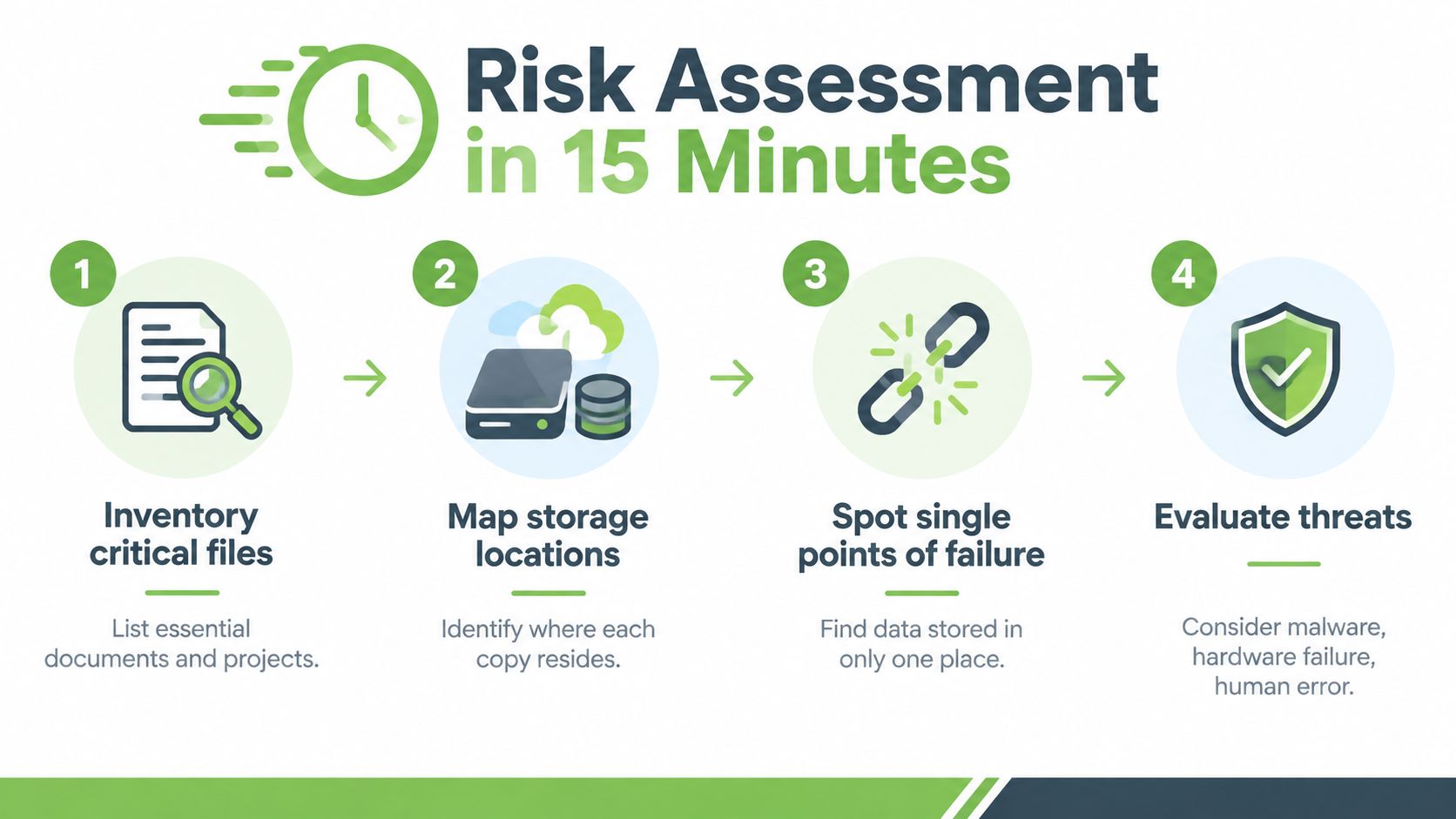
Use a short risk inventory
Write the answers down rather than keeping them in your head:
- Inventory critical files. List the documents, photos, records and projects you couldn't easily recreate.
- Map storage locations. Record whether each item sits on a phone, laptop, desktop, shared drive, cloud platform or removable media.
- Spot single points of failure. Mark anything that exists in only one place or depends on one person's account.
- Evaluate threats. Consider malware, hardware failure, theft, accidental deletion, misdirected sharing and loss of account access.
Don't treat every file equally. A public marketing image can usually wait behind customer records, source code, financial files, legal documents and active project work. Your first backup set should cover the information that affects continuity, obligations and income.
Include people and permissions
Backups won't prevent an authorised user from sharing sensitive information incorrectly. Singapore survey data points to the importance of behaviour-aware controls: 45% of organisations reported careless employees or third-party contractors as the cause of their most significant data-loss events, while 38% cited compromised users and 36% cited malicious insiders. The same survey found that 1% of users were responsible for 76% of data-loss events, reinforcing the value of targeted monitoring rather than treating every user identically. These findings appear in Proofpoint's Singapore data-security report.
Use least privilege in plain terms. Give each person access to the files needed for their role, remove access when responsibilities change, and restrict backup administration to authorised personnel. For a small team, this can be a documented review of shared folders and administrator accounts. For a larger environment, use access logs and policy-based controls to identify unusual downloads or unauthorised sharing.
At the end of the review, create three priority groups: restore immediately, restore soon and replace or recreate later. That list will guide your backup schedule, storage capacity, encryption settings and recovery tests without wasting effort on data that doesn't matter.
Building a Backup System That Actually Restores
A backup is useful only if it contains the right information and you can restore it. The familiar 3-2-1 approach gives you a practical starting point: keep at least three copies, use two different storage types, and keep one copy offsite or offline.
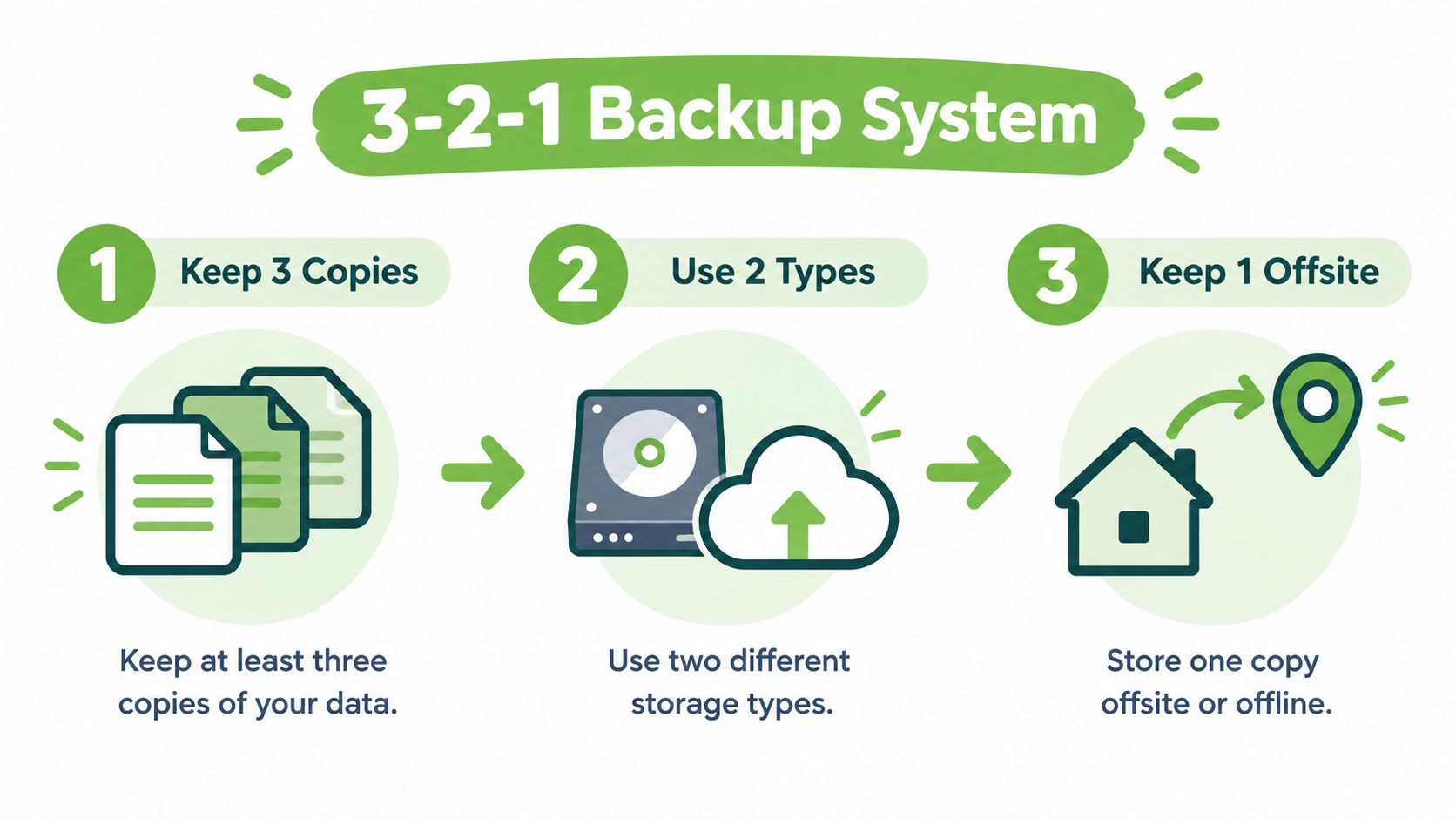
Build the layers in order
Start with an automatic copy. Phones can use their built-in iCloud or Google backup services for supported settings, contacts, photos and application data. Check what the service includes, because synchronisation isn't always the same as a recoverable backup. A synchronised deletion may also remove the item from other connected devices.
Add a local copy for faster recovery. A Windows laptop can use File History or an approved backup application with an external drive. A MacBook can use Time Machine with a separate drive. A desktop or small office can use an external drive or NAS, provided the backup account and network permissions are protected.
Keep a further copy away from the main environment. The Cyber Security Agency advises Singapore organisations to keep important-data backups updated and store them offline and outside the enterprise network, so ransomware or a breach can't encrypt or destroy both copies at once. Government ICT guidance also specifies backing up important data and systems at least every day, storing backups in a secure separate location, keeping offline or isolated copies and encrypting them using current cryptographic standards. The Singapore government data-protection control guidance sets out these controls.
An external drive can be useful, but disconnect it after the scheduled backup if it doesn't need to remain online. A suitable enclosure, such as the ORICO 2.5-inch SATA USB 3.0 HDD enclosure, can let you reuse a compatible drive as a separate local backup destination. Keep the drive somewhere physically secure and label it clearly.
Cover migration and configuration data
People often copy visible files but forget the information needed to rebuild a working setup. Where relevant, include ICT system configuration, application settings and source code in the backup plan. Singapore's PDPC also advises offline backups, automation where feasible, restricted backup access and separate offsite or isolated storage in its guide to data-protection practices for ICT systems.
Before replacing a phone or computer, complete a controlled migration. Confirm that contacts, photos, documents, browser data, authentication methods and business applications have moved successfully. A structured migration service can reduce the chance of leaving files on a device that is about to be erased or traded in. For organisations handling a more complex transition, you can choose Alignmint for migration as a resource for planning and executing a data move.
Watch the setup walkthrough below for a visual explanation of backup planning and restoration considerations.
The final step is a restore rehearsal. Select a small file, restore it to a different folder or test device, open it and confirm that it isn't corrupted. For a business, document who performs the restore, which account is used, where the restored data goes and how staff resume work. A backup schedule without a tested recovery path is only an assumption.
Choosing Between Cloud Local and Hybrid Protection
Cloud, local and hybrid backups solve different problems. Cloud storage offers access when a device is unavailable, local storage can restore large files quickly, and a hybrid design reduces dependence on one provider or one physical location.
| Strategy | Best For | Strengths | Watch Outs |
|---|---|---|---|
| Cloud | Individuals and teams working across devices | Accessible from different locations, can automate copies and support account-based recovery | Account takeover, accidental synchronisation and provider settings can affect recovery |
| Local | Fast restoration of large files or device images | Quick access without an internet connection, direct control over the storage device | Theft, fire, drive failure and ransomware if the drive remains connected |
| Hybrid | SMEs and households with important or frequently changing data | Combines accessible copies with local speed and an isolated layer | Requires clearer ownership, encryption, schedules and regular restore checks |
Configure protection, not just storage
Encrypt backups so a lost drive doesn't become an open copy of your files. Use strong account protection and keep recovery information somewhere separate from the primary device. Versioning matters too. It lets you recover an earlier file state after an unwanted edit, overwriting incident or delayed discovery of malware.
Singapore government ICT guidance recommends monitoring data flows, detecting sensitive-data transfers and blocking unauthorised sharing. It identifies built-in controls such as Microsoft Purview and Google Workspace rules as practical options, with regular policy updates as threats evolve. These tools should support clear rules, such as preventing customer data from being sent to personal accounts, rather than blocking ordinary work without explanation.
Match the design to the situation
A student with mostly photos and documents may need automated cloud protection plus an offline external drive. A small consultancy with customer records may need a hybrid system, separate administrator access, encrypted backups and restore documentation. A team moving between platforms needs to plan migration before retiring old equipment, not after the old device has been wiped.
Removable media also needs care. A guide to memory cards and micro SD cards can help clarify the difference between convenient device storage and a dependable backup destination. A memory card inside a camera or phone shouldn't be treated as the only copy of important photos.
The main pitfall is proximity. If every backup remains signed in, mounted or connected to the same network, one ransomware event may reach all of them. Keep at least one encrypted copy isolated, protect the credentials that control it and test the path from incident to restoration.
Everyday Habits That Keep Data Safe and Recoverable
A well-designed backup can still fail through neglect. People leave drives connected, ignore update prompts, reuse weak passwords or click a convincing message that grants an attacker access to a cloud account. Daily habits keep the technical setup useful.
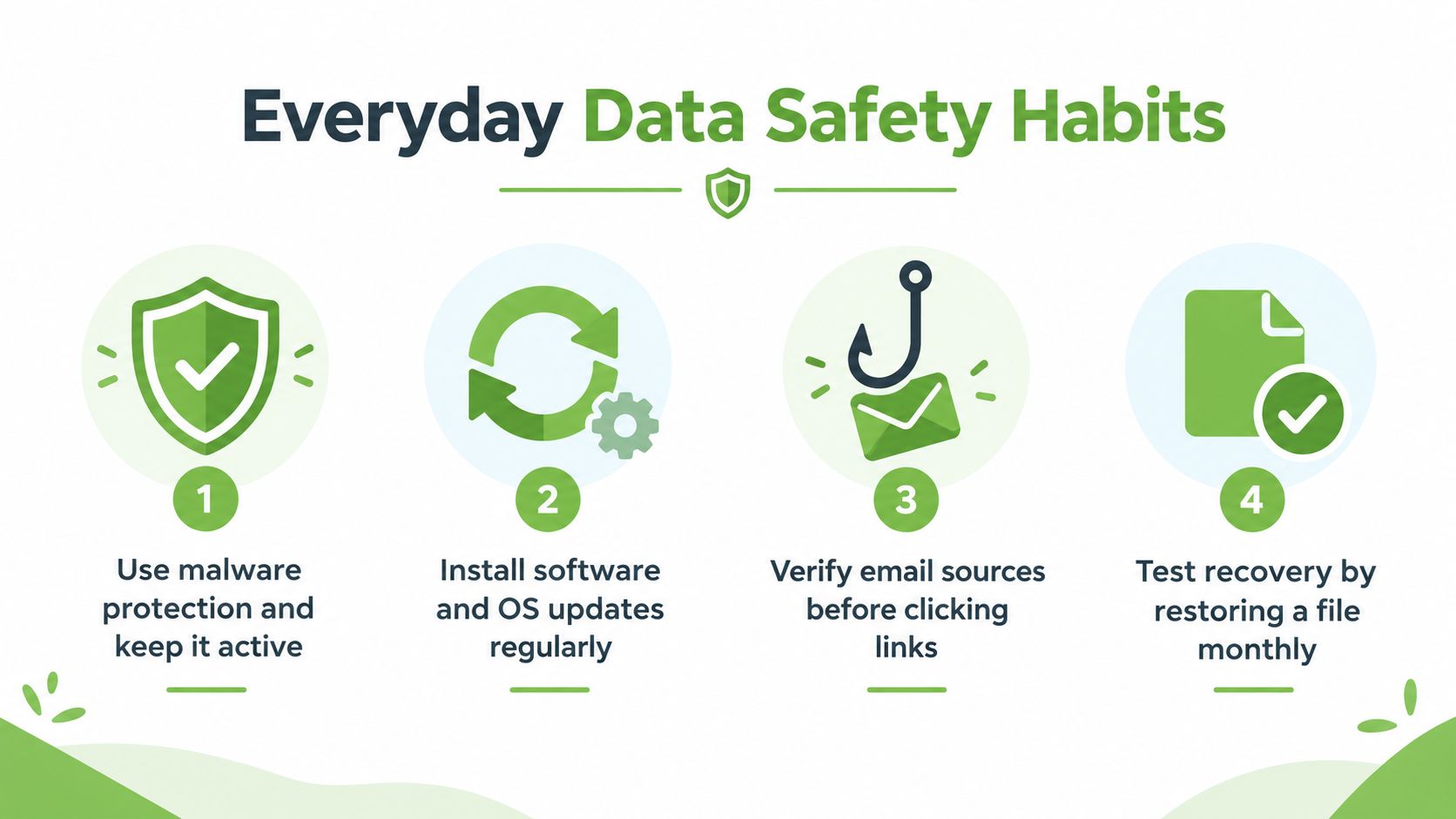
Reduce the ordinary causes
Use active malware protection and install operating-system and application updates. Updates close known weaknesses and may also improve storage reliability. Treat unexpected requests for passwords, payment details or file access as untrusted until you verify the sender through another channel.
Keep devices physically safe. Don't leave a laptop unattended in a vehicle, protect phones with a lock screen, and use surge protection for fixed equipment where appropriate. When a device begins overheating, showing unusual drive behaviour or losing files, stop treating it as a dependable storage location and copy important data while it remains accessible.
A suitable security product may add another layer for a personal or small-business device. For example, you can review McAfee LiveSafe for one device alongside built-in operating-system protection, provided you understand what each layer covers and keep it updated.
Restrict access to the safety net
Only authorised people should manage backup destinations, delete backup sets or change retention settings. Use separate administrator accounts where practical. If a contractor needs a project folder, grant access to that folder rather than the entire storage environment, and remove the permission when the work ends.
Singapore ransomware reporting shows why recovery planning needs more than a backup checkbox. A 2025 Singapore business study reported that 64% of organisations were hit by ransomware, while only 46% used backups to restore data, down from 58% in 2024 and below the global average of 54%. The same report found that 53% of Singapore attacks resulted in encryption, and the mean ransom demand reached US$1.3 million, with 42% of demands above US$1 million. These figures are reported in Frontier Enterprise's Singapore ransomware coverage.
Test restoration before a crisis
Run a small restore regularly. Choose a document, photo and business file, restore each to a separate location, open them and confirm that the contents are usable. Then record the result, including the backup date, destination, person responsible and any missing permissions.
For an SME, a simple recovery drill can follow this order:
- Isolate affected equipment: Disconnect a suspected infected device or share from the network.
- Identify the clean restore point: Select a backup created before the problem began.
- Restore to a controlled location: Avoid overwriting the original evidence or current files.
- Verify the result: Ask the owner to open key files and confirm that applications work.
- Document the process: Keep instructions clear enough for another authorised person to follow.
A separate report found that 50% of Singapore companies paid ransom to recover data, while 53% fully recovered within a week and 22% took one to six months. It also reported that only 46% used backups to restore data, reinforcing the need for immutable or offline copies and rehearsed recovery, particularly for SMEs with limited resources. The findings are covered by The Straits Times on Singapore malware incidents.
Next Steps to Extend Device Life and Stay Protected
Data-loss prevention isn't separate from device lifecycle management. A failing drive, unsupported operating system or badly planned upgrade can create the conditions for loss. Repairing a suitable device, migrating data before replacement and securely erasing retired equipment all help preserve access while reducing unnecessary technology turnover.
Use this review as a practical maintenance list:
- Identify priority data: Know what must be restored first.
- Automate daily protection: Follow the Singapore government baseline for important data and systems.
- Isolate one copy: Keep an encrypted backup offline or outside the main network.
- Limit access: Restrict backup administration and shared-folder permissions.
- Test restoration: Open restored files and document the recovery steps.
- Review after change: Recheck the plan after a device replacement, staff change or major application migration.
Treat devices as part of the recovery plan
A lifecycle partner can help connect backup habits with practical technology decisions. myhalo's RescueAdvise and mylo AI Assistant can support guidance around device use, migration and care, while repair can extend the useful life of equipment that remains suitable for the workload.
When replacement is sensible, Certified ReLoved and Certified Surplus devices provide reuse options without skipping basic quality checks. myhalo describes transparent device grading and battery-health disclosure, with 30-point quality checks applied through an ISO 9001-certified process. Its ISO 27001-certified processes are relevant when organisations assess information-security practices, but buyers should still confirm their own backup, erasure and access requirements.
Responsible recycling matters at end of life, especially after data has been migrated and securely erased. The best outcome isn't automatically buying new equipment. It may be repairing an existing laptop, reusing a suitable device for a lighter role, choosing a professionally checked replacement or recycling equipment that no longer has a safe purpose. These choices can support business resilience, cost control and smarter resource utilisation while reducing the number of rushed migrations.
Review your backup system quarterly, test a real restore and record what changed. If a device is failing or due for replacement, plan the migration before the handover, then verify the new device before erasing the old one.
myhalo supports device migration, repair, reuse and responsible recycling alongside technology purchases, including Certified ReLoved and Certified Surplus options with transparent grading and quality checks. Visit myhalo to review suitable devices and lifecycle support for keeping your data accessible through the next upgrade.