





How to Extend Phone Battery Life: Practical Tips for 2026
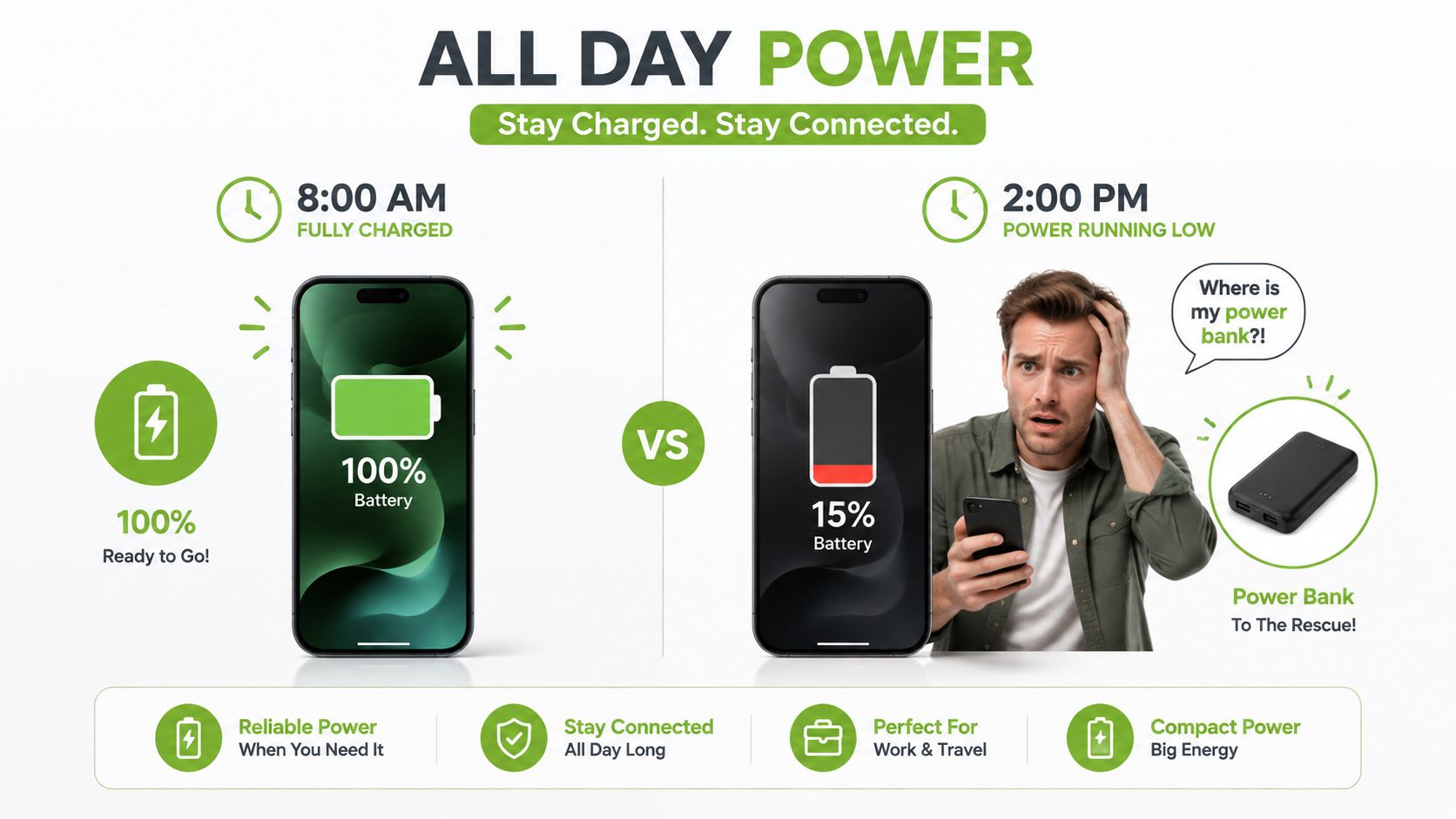
You unplug your phone at 8am, step into Singapore's heat, answer messages, use navigation, and take a few calls. By mid-afternoon, the battery icon is already in the red and you're looking for a power bank. Sometimes the problem is poor daily power management. Sometimes the battery itself has lost enough capacity that no setting can restore the runtime you remember.
Learning how to extend phone battery life means separating those two problems. Daily runtime concerns how long the phone lasts between charges. Battery health concerns how much capacity the battery can still hold after months or years of use. The right diagnosis saves you from wasting time on aggressive power-saving settings when a battery replacement would make more sense.
Table of Contents
- Why Your Phone Battery Drains Faster Than Expected
- Charging Habits That Preserve Battery Health
- Temperature Control and Environmental Factors
- Display Settings and Background App Management
- When Battery Safety Matters More Than Battery Life
- Monitoring Health and Deciding When to Replace
Why Your Phone Battery Drains Faster Than Expected
A phone showing 100% today may not hold the same amount of energy it held when new. Singapore battery guidance commonly treats 80% maximum capacity as the practical replacement threshold, because a battery below that level is considered significantly degraded. iPhone users can check Maximum Capacity directly in Settings through Apple's Battery Health tools, while Android owners may need manufacturer diagnostics or a trusted monitoring app. Local Singapore battery guidance explains the 80% benchmark and how Battery Health helps users judge replacement timing.
That distinction matters in practice. A healthy battery can still run down quickly if the screen stays bright, an app repeatedly accesses location, or the phone keeps searching for a weak mobile signal. A degraded battery, however, starts with less usable capacity even when the indicator says 100%. Turning down brightness may improve that day's runtime, but it won't restore missing capacity.
Diagnose the real source of the drain
Open the battery dashboard before changing everything at once. On iPhone, go to Settings > Battery and review activity by app. On Android, the wording varies, but Settings > Battery or Battery and device care normally shows which apps and functions consumed the most power.
Look for patterns rather than one-off spikes:
- High screen activity: Brightness, video, gaming and a high refresh rate are usually daily-runtime issues.
- Heavy background use: An app that consumes power while you aren't using it may need background permissions restricted.
- Sudden percentage drops: Rapid drops, random shutdowns or a phone that becomes hot during light use point towards battery wear or a fault.
- Weak connectivity: Mobile network searching, especially in enclosed areas, can drain a healthy battery faster than expected.
The same logic applies to other battery-powered devices. If you're comparing expected service life across portable electronics, this guide to buy quartz watches at WatchClick provides useful context on why usage patterns and maintenance affect small power sources differently. For phones, the key decision is simpler: optimise settings when capacity remains sound, and investigate repair when the cell itself is failing.
Charging Habits That Preserve Battery Health
A phone used heavily every day can reach about 80% of original capacity after roughly 500 full charge cycles. Some newer flagship batteries are rated for up to 1,000 cycles before reaching that same capacity mark. Heavy daily cycling may bring a phone there in about 18 to 24 months, while lighter use and better heat management can extend that period. That decline affects more than runtime. A visibly worn battery can reduce resale appeal, and repeated replacement costs may outweigh the benefit of optimising every last charge. Singapore battery-health guidance outlines these cycle benchmarks and the effect of charging conditions.
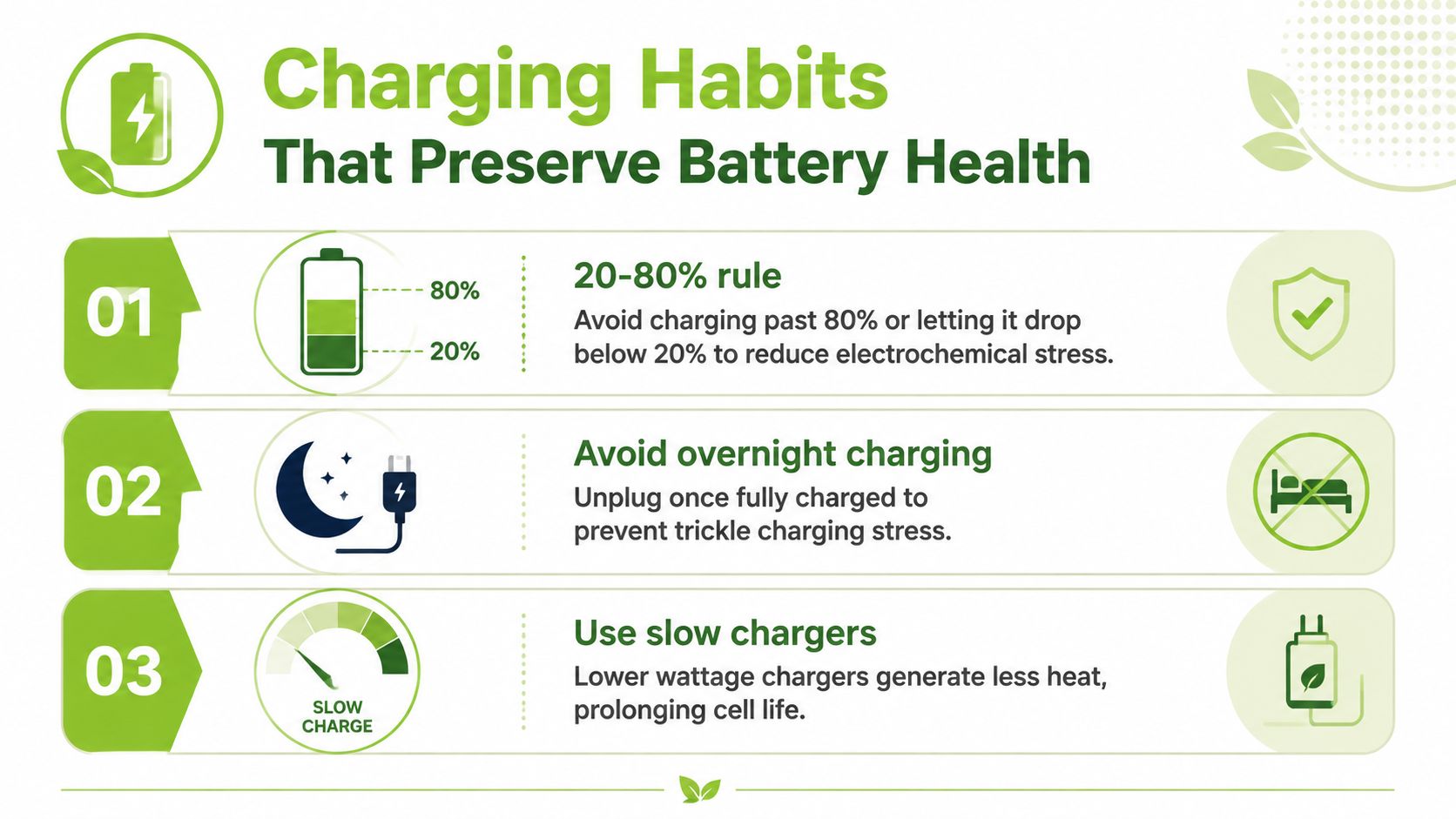
The practical default is to keep the battery broadly between 20% and 80%. Follow that range when convenient, not as a strict routine. Charging to full before a long day will not suddenly damage the phone. The useful trade-off is avoiding frequent deep discharges and leaving the device at the extremes for long periods.
A more forgiving charging routine
Use these habits as defaults:
- Top up before the battery becomes critically low. A short charge during a break is preferable to repeatedly running the phone down until it shuts off.
- Use 100% strategically. For travel or a long day, charge fully shortly before leaving instead of keeping the phone full for hours.
- Enable Optimised Battery Charging or Adaptive Charging. These features delay the final part of charging around your routine, reducing time spent at full capacity.
- Treat fast charging as a convenience. It helps when time is limited, while slower charging generally produces less heat. Use a reputable, manufacturer-recommended charger and cable. This guide to fast-charging cables can help with cable compatibility. Avoid charging while gaming or running demanding navigation.
- Charge in an open, ventilated place. Keep a charging phone out from under bedding, pillows and cushions.
Practical rule: Consistent control of heat and charging extremes matters more than perfect percentages. An occasional 100% charge is less concerning than leaving the phone hot and full for long periods every day.
Singapore-based guidance also supports the 20% to 80% approach and warns that warm, poorly ventilated overnight charging can accelerate wear. This local explanation of phone battery myths and charging habits offers a concise review of partial charging and common pitfalls. These habits can preserve capacity, but they cannot reverse an ageing cell. If battery wear is already affecting shutdowns, resale value or daily reliability, early replacement may be cheaper than endless optimisation.
Temperature Control and Environmental Factors
Heat is the variable that deserves the most attention in Singapore. Apple says iPhone is designed to work best at 16°C to 22°C, and charging or using it above 35°C can permanently reduce battery lifespan. Apple Singapore's temperature guidance explains the recommended range and the risk of high heat.
Samsung Singapore gives Galaxy users a broader operating range of 0°C to 35°C and warns that extended use or storage above 35°C or below 0°C can worsen performance, trigger unexpected shutdowns and shorten battery life. Samsung's battery care guidance covers these temperature limits.
The phone's internal temperature matters as much as the weather. A warm room, direct sunlight, mobile data, gaming and charging can combine into a much hotter device. Samsung guidance also notes that phones can warm during fast or wireless charging, and charging may stop if the device becomes too hot.
Temperature Impact on Battery Health
| Temperature Range | Effect on Battery | Recommended Action |
|---|---|---|
| 16°C to 22°C | The preferred range identified by Apple for iPhone use | Charge and store the phone here where practical |
| 0°C to 35°C | Samsung's recommended Galaxy operating range | Use normally, while avoiding extra heat from charging and heavy tasks |
| Above 35°C | Performance can worsen and long-term lifespan may shorten | Move the phone away from sunlight, hot surfaces and enclosed spaces |
| Below 0°C | Performance can deteriorate and shutdowns may occur | Let the device return to a moderate temperature before charging |
Remove a thick case if it traps noticeable heat during charging. Don't leave the phone on a car dashboard, in a parked vehicle or in direct afternoon sun. If it feels unusually hot, stop demanding tasks, unplug it if necessary, and let it cool naturally in the shade. Don't put it in a fridge, because condensation can damage internal components.
Temperature control also protects business continuity. A phone used for authentication, calls, payments or delivery coordination needs predictable availability. Preventing heat-related slowdowns and premature replacement supports smarter resource use for households and SMEs, not just better environmental outcomes.
Display Settings and Background App Management
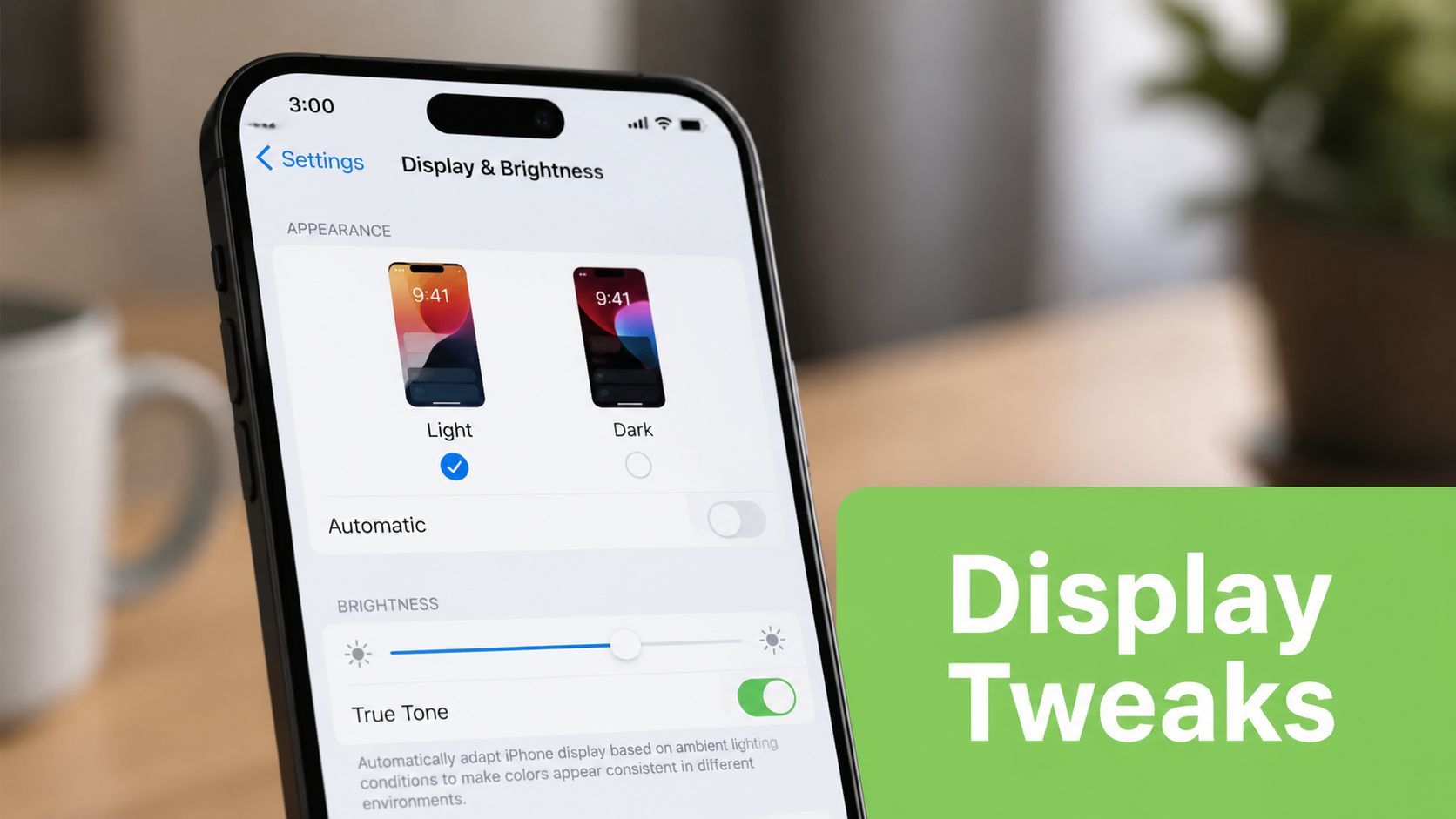
The display is often the easiest daily-runtime gain because it consumes power whenever it's lit. Start with adaptive brightness, then reduce it manually if the phone consistently chooses a level that's brighter than you need indoors. Set Auto-Lock or screen timeout to 30 seconds or less if that suits your routine, particularly if you often put the phone down without locking it.
Dark Mode can help on phones with OLED or AMOLED screens because black pixels can remain unlit. It won't provide the same benefit on every display type, so treat it as a sensible preference rather than a universal cure. A simpler lock screen, fewer animated effects and a lower refresh rate can also reduce consumption, although the trade-off is less visual smoothness.
Audit before restricting everything
Don't disable every background feature blindly. Check what uses power, then change the permissions that don't support your daily needs.
- iPhone battery review: Open Settings > Battery. Tap activity by app and compare screen use with background activity.
- iPhone Background App Refresh: Go to Settings > General > Background App Refresh. Disable it for shopping, games and other apps that don't need fresh content before you open them.
- Android battery review: Open Settings > Battery and device care, then review Battery usage. The exact labels differ between Samsung, Google Pixel and other Android devices.
- Android background controls: Open an app's Battery or Mobile data settings and restrict background activity where constant updates aren't necessary.
- Location permissions: Set food delivery, ride-hailing and shopping apps to “While Using” rather than “Always” unless continuous access serves a clear purpose.
- Email syncing: Push email is convenient for urgent accounts. For less important inboxes, use a longer fetch interval, such as hourly rather than every 15 minutes, if your phone and mail app provide that choice.
Low Power Mode on iPhone and Battery Saver on Android can help during a long day by limiting background activity and some visual effects. They're useful controls, not substitutes for a failing battery. Also avoid installing battery-cleaner apps that constantly monitor or force-close processes. The operating system already manages most background apps, and repeated relaunching can waste power.
When Battery Safety Matters More Than Battery Life
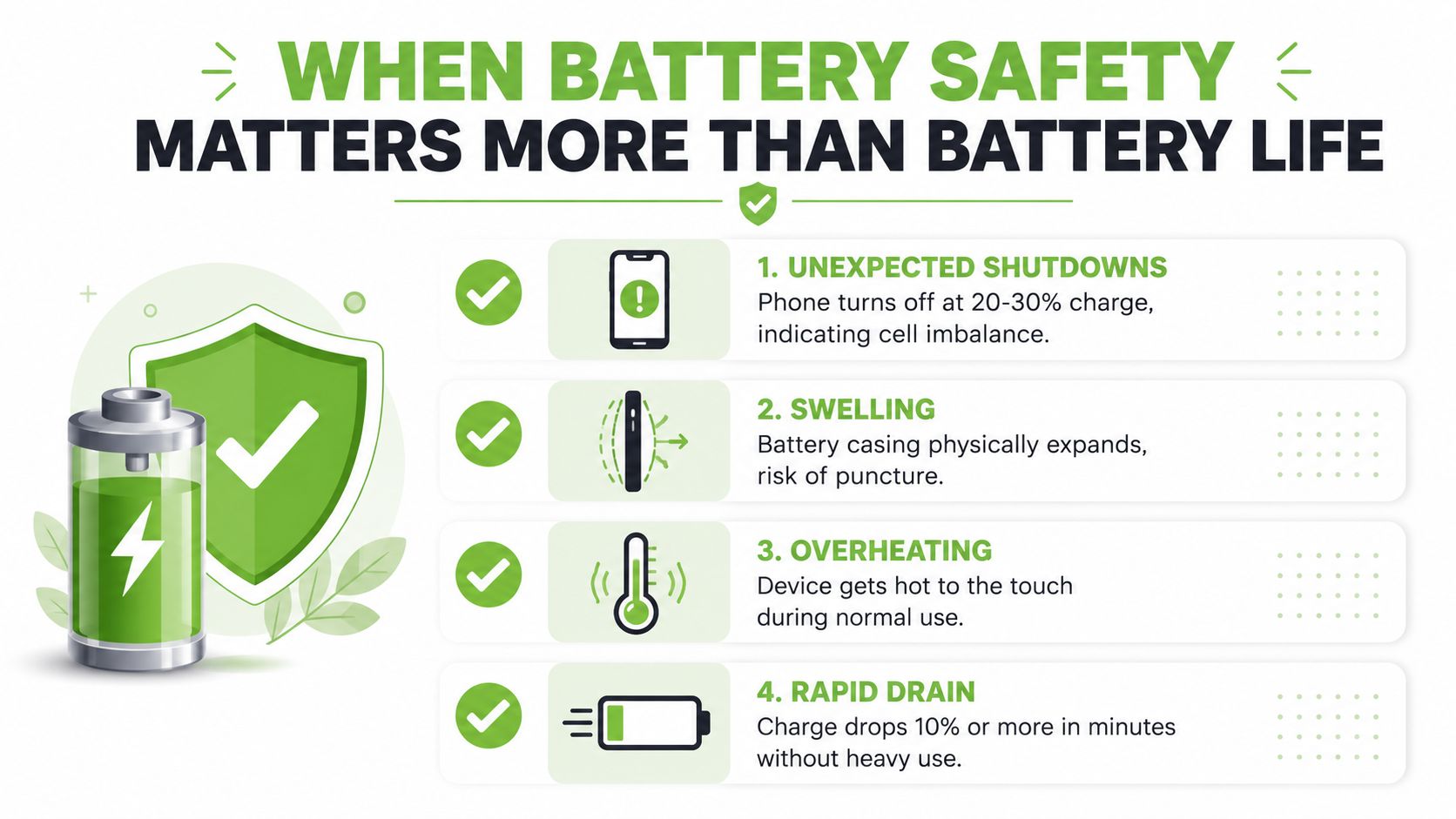
A longer runtime isn't worth taking risks with a damaged lithium-ion battery. Stop charging and seek professional help if the phone is swollen, unusually hot, leaking or physically damaged. A lifting screen, a case that no longer fits or a visible bulge can indicate that the battery casing is expanding. That creates a puncture and fire risk, not a minor cosmetic problem.
Other warning signs deserve prompt diagnosis:
- Unexpected shutdowns: The phone turns off even though the indicator still shows charge.
- Rapid drain: The percentage falls unusually quickly during light use.
- Unusual warmth: The device becomes hot during ordinary calls, messaging or standby.
- Physical deformation: The screen lifts or the rear housing separates.
Use a clear decision rule
If the battery is swollen, leaking or damaged, stop using the device. Don't press the screen back down, puncture the casing or attempt another charging cycle. Keep it away from heat and flammable materials while arranging professional advice, and don't place a damaged battery in a general or blue recycling bin.
If the phone shuts down unexpectedly without visible swelling, back up important data and arrange a diagnostic promptly. Software changes may reduce background drain, but they can't repair a chemically exhausted or physically compromised cell.
Battery optimisation is a performance task. Swelling, leakage and abnormal heat are safety issues.
For ordinary travel and work use, a power bank can provide backup, but it shouldn't hide a dangerous fault. myhalo's Singapore power bank guide can help with practical backup planning, while Singapore's Consumer Product Safety Office guidance on lithium-ion batteries explains safe charging, handling and disposal.
Monitoring Health and Deciding When to Replace
Battery Health is most useful when you connect the number to how the phone behaves. On iPhone, open Settings > Battery > Battery Health and review Maximum Capacity. Samsung owners can use Samsung Members diagnostics, while Android users may use AccuBattery as an estimate when the manufacturer doesn't expose a clear health reading.
The 80% threshold is a practical local reference for deciding whether to continue optimising, replace the battery or reassess the device. Apple's Singapore repair information states that AppleCare+ service eligibility applies when iPhone battery capacity falls below 80%, while normal battery wear isn't covered in the same way. Review Apple Singapore's iPhone repair and service terms before assuming coverage.
Battery Health vs. Replacement Economics
| Battery Health | Performance Impact | Estimated Resale Deduction (SGD) | Official Replacement Cost (SGD) | Recommended Action |
|---|---|---|---|---|
| Above 85% | Generally usable capacity and predictable daily performance | Not specified | Not specified | Continue sensible charging and monitor usage |
| 80% to 85% | Runtime may feel shorter, particularly under heavy use | About S$40 to S$80 according to local Singapore market guidance, as outlined in this battery-health reference | Not specified | Compare repair cost, resale plans and actual runtime |
| Below 80% | Degradation is significant, and power-saving settings may no longer restore all-day use | A stronger replacement recommendation is common, but no fixed deduction applies | Not specified | Request a diagnostic and compare replacement or trade-in options |
The hidden cost is opportunity cost. A student who carries a power bank, charges repeatedly and tolerates sudden shutdowns may be preserving the handset's original battery, but losing convenience and usable time every day. An SME may also spend more staff time managing unreliable devices than it would spend on a measured repair or replacement decision.
A battery swap can preserve the rest of a functioning phone, especially when the display, camera, software support and storage still meet your needs. A lifecycle partner such as myhalo can support that decision through its LifeExtender battery replacement service, diagnostics, trade-ins, Certified ReLoved devices and Certified Surplus products, with transparent grading and battery-health disclosure. Its 30-point quality checks are carried out under an ISO 9001-certified process, while ISO 27001 certification addresses its information-security management approach. See myhalo's iPhone battery replacement cost guide when comparing repair with a wider upgrade.
Singapore's e-waste volume gives the decision a practical business angle. The country generates about 60,000 tonnes of e-waste a year, described in the cited guidance as roughly equivalent to each person discarding about 70 mobile phones annually. This lithium-battery maintenance reference discusses the local e-waste context. Extending a usable phone through repair, reuse or a properly assessed Certified ReLoved device can reduce unnecessary purchasing, protect budgets and keep working hardware productive for longer.
If your phone drains quickly, myhalo can help you distinguish between settings-related runtime loss and a battery that needs professional attention through repair, diagnostics, trade-in and lifecycle options such as Certified ReLoved and Certified Surplus devices. Visit myhalo to review battery-conscious replacement choices, transparent device grading and support for keeping your current technology in service longer.