





HDMI to HDMI Cable for Monitor: A Practical 2026 Guide
You're standing in front of a wall of HDMI cables at Sim Lim Square or a Challenger store. One packet promises 4K, another says 8K, a third highlights 120Hz, and several show identical-looking connectors with gold-plated pins. You've just bought a new monitor, laptop dock, console or graphics card, so the simple question, “Which HDMI to HDMI cable for monitor should I get?”, suddenly feels less simple.
The connector shape tells you only whether the cable can physically plug in. It doesn't tell you whether the cable, monitor and source device can move the same amount of data. That mismatch can leave you with flicker, a black screen, a capped refresh rate or an image that works at a lower setting than you expected.
This guide focuses on HDMI version, bandwidth, cable length and port matching for monitor setups in Singapore. It won't go deep into audio return channel features or HDMI-over-Ethernet extender installations. The aim is more practical: help you buy only what your setup needs, reuse what still works and avoid paying for impressive packaging that doesn't solve the actual bottleneck.
Table of Contents
- Why Picking the Right HDMI to HDMI Cable Matters in Singapore
- HDMI Versions and Bandwidth Explained Without the Jargon
- Matching HDMI Specs to Office, Gaming, and Creator Monitors
- Cable Length, Active vs Passive, and What Works in Real Homes
- When an HDMI to HDMI Cable Is the Wrong Choice
- Common HDMI Compatibility Pitfalls and How to Fix Them
- Buying Smart, Reusing Well, and Cutting E-Waste
- Your Practical HDMI Cable Checklist for 2026 Setups
Why Picking the Right HDMI to HDMI Cable Matters in Singapore
Consider a common desk upgrade. A Singapore office worker replaces an older Full HD monitor with a 4K display, then connects the same laptop dock using the same HDMI cable. The picture appears, but the refresh rate is lower than expected. In another home, a console owner connects a new high-refresh monitor with a cable that came with an older television. The screen works at first, but 4K gaming is limited to a lower refresh mode.
Both setups have matching HDMI ports. The problem is that matching connectors aren't the same as matching capabilities.
Singapore-oriented buying guidance describes HDMI 2.0 as common in mid-range monitors, with HDMI 2.1 used for newer gaming monitors and graphics cards. It also notes that many monitors include an HDMI cable in the box, while longer cable runs can experience sparkles, dropouts or no signal unless they use an active or fibre-optic design. You can compare that local context in this guide to monitor cable choices.
The three parts that must agree
A monitor connection has three important participants:
- The source device, such as a desktop GPU, laptop, dock, mini PC or console.
- The monitor input, which determines what signal the display can receive.
- The cable, which must carry the required bandwidth across the distance.
The weakest part limits the result. A high-capability cable won't upgrade an older monitor port, and a modern monitor won't receive a high-refresh signal if the source or cable can't provide it.
Practical rule: Buy for the mode you actually want to run, not the biggest resolution printed on the packet.
For a basic office monitor, a certified cable that supports the required 4K 60Hz mode is usually more sensible than an expensive cable bought for a gaming feature the monitor and laptop can't use. For a gaming or creator setup, the decision needs more care because high refresh, HDR and colour depth all increase the amount of data travelling through the cable.
HDMI Versions and Bandwidth Explained Without the Jargon
A monitor can show a picture and still fail to deliver the mode you bought it for. The reason is often bandwidth, the amount of signal a connection can carry at once.
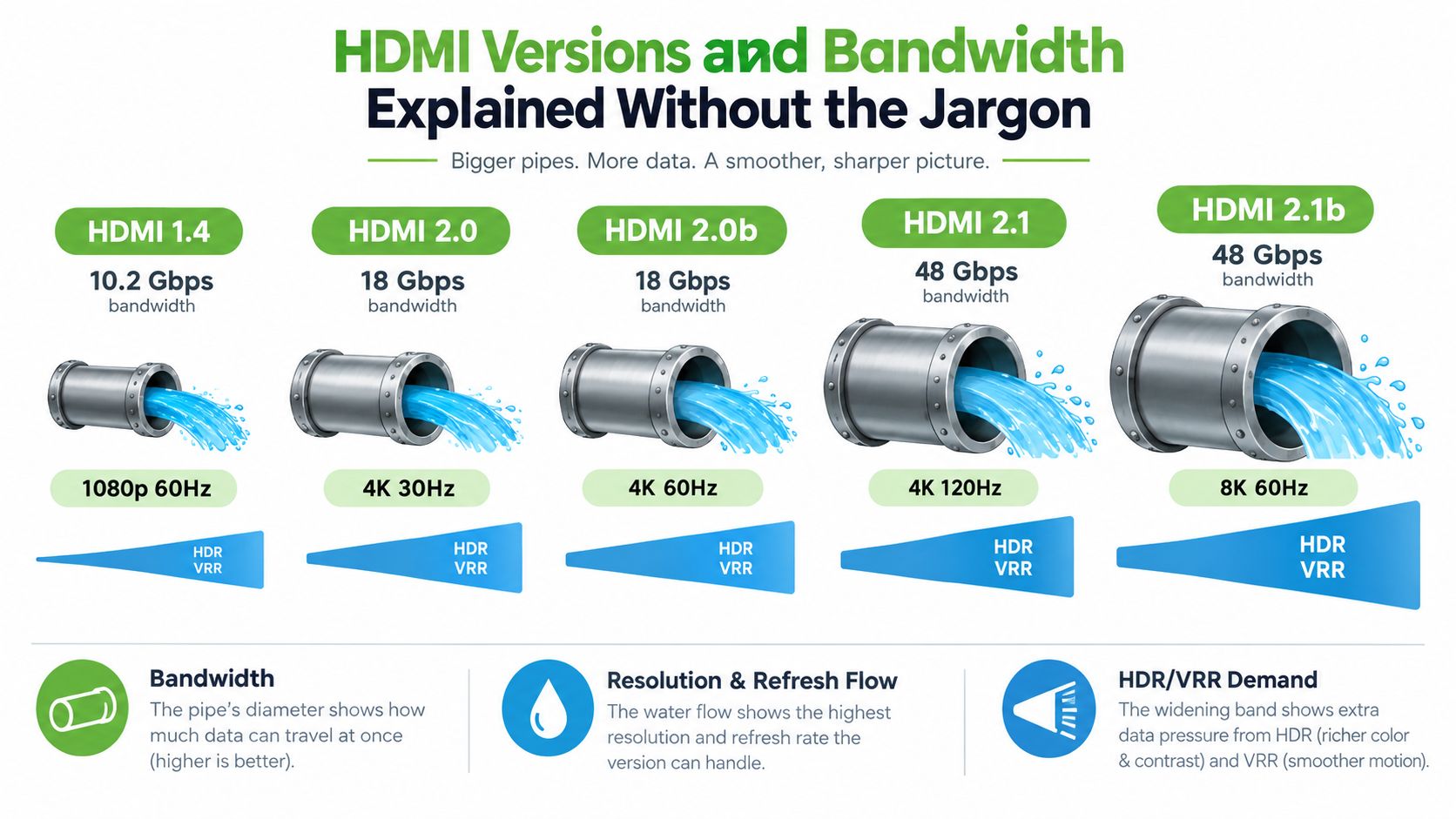
Bandwidth works like the width of a water pipe. Resolution and refresh rate are the water flowing through it. Higher resolution sends more pixels, while a higher refresh rate sends those pixels more often. HDR, greater colour depth and variable refresh rate can increase the demand as well.
HDMI 1.4 provides 10.2 Gbps, HDMI 2.0 and HDMI 2.0b provide 18 Gbps, and HDMI 2.1 raises raw bandwidth to 48 Gbps, as outlined in Singapore guidance on HDMI, DisplayPort and USB-C. This is why HDMI 2.0 is commonly associated with 4K at 60Hz, while HDMI 2.1 is the relevant class for 4K at 120Hz or 8K at 60Hz.
Why the number matters
A cable does not create bandwidth. It either carries the signal requested by the monitor and source, or the system selects a lower mode.
Suppose both your monitor and graphics card support 4K at 120Hz. An HDMI 2.0-class cable has an 18 Gbps ceiling, so it may become the narrow part of the connection. An HDMI 2.1-class link raises the raw ceiling to 48 Gbps, although protocol overhead leaves less bandwidth for actual display data.
The result can be confusing. The screen may still work, but the operating system might offer only 4K at 60Hz, reduce colour information, or limit HDR and variable refresh options. Nothing is necessarily broken. The connection is operating within the limit set by its weakest participant.
Look beyond the version name
The HDMI version printed on a cable is less useful than its certification and bandwidth rating. For HDMI 2.1-class performance, look for the Ultra High Speed HDMI certification label and check the stated capability. An “8K” label alone does not prove that the source, monitor and cable support every feature associated with HDMI 2.1.
Check the exact ports on both devices, identify the resolution and refresh rate you need, and choose a certified cable that can carry that signal. The right purchase matches the whole connection, not just the largest number on the box.
Matching HDMI Specs to Office, Gaming, and Creator Monitors
A monitor at a quiet office desk has different cable needs from a gaming or creator setup. Start with the display mode you plan to use, then check whether the source device, monitor port and HDMI cable can carry that mode together.
For a 27-inch 4K office monitor running at 60Hz, HDMI 2.0-class bandwidth is usually a sensible match. Documents, web applications, dashboards and video calls do not need a higher-bandwidth cable when both the monitor and source are built around 4K at 60Hz. Spend any remaining budget on an adjustable stand, USB hub or more comfortable panel instead.
Gaming requires closer matching. A console and gaming monitor may need HDMI 2.1 for 4K at 120Hz. A desktop PC may achieve a higher refresh rate through DisplayPort, even if the monitor also has HDMI. Check the monitor's specification page carefully. Its HDMI and DisplayPort inputs may support different maximum modes, much like two doors into the same room can have different widths.
Creator work adds demands beyond a 4K desktop. A 4K high-refresh panel with 10-bit colour and HDR sends more display data than a basic office setup. At HDMI 2.1-class performance, 10-bit HDR at 4:4:4 chroma can place greater demands on the connection. If available bandwidth falls short, the system may apply compression or reduced chroma, which can affect small text and colour fidelity.
The monitor's advertised maximum is useful only when the source, port and cable can reach it together.
| Use Case | Typical Monitor | HDMI Version | Bandwidth | Max Refresh |
|---|---|---|---|---|
| Office productivity | 4K display for documents and web work | HDMI 2.0 class | 18 Gbps | 4K at 60Hz |
| Console gaming | 4K high-refresh gaming display | HDMI 2.1 class | 48 Gbps raw | 4K at 120Hz |
| Creator workstation | 4K high-refresh display with HDR and 10-bit colour | HDMI 2.1 class | 48 Gbps raw | Depends on the monitor and source |
| Mixed-use desktop | 4K display with laptop, dock or mini PC | Match the source and display | Match the required mode | Depends on the complete setup |
For practical guidance on selecting a gaming display, see myhalo's guide to affordable gaming monitors. The useful takeaway is buy the bandwidth your actual monitor mode requires, rather than choosing a cable solely because its box carries the biggest resolution label.
Cable Length, Active vs Passive, and What Works in Real Homes
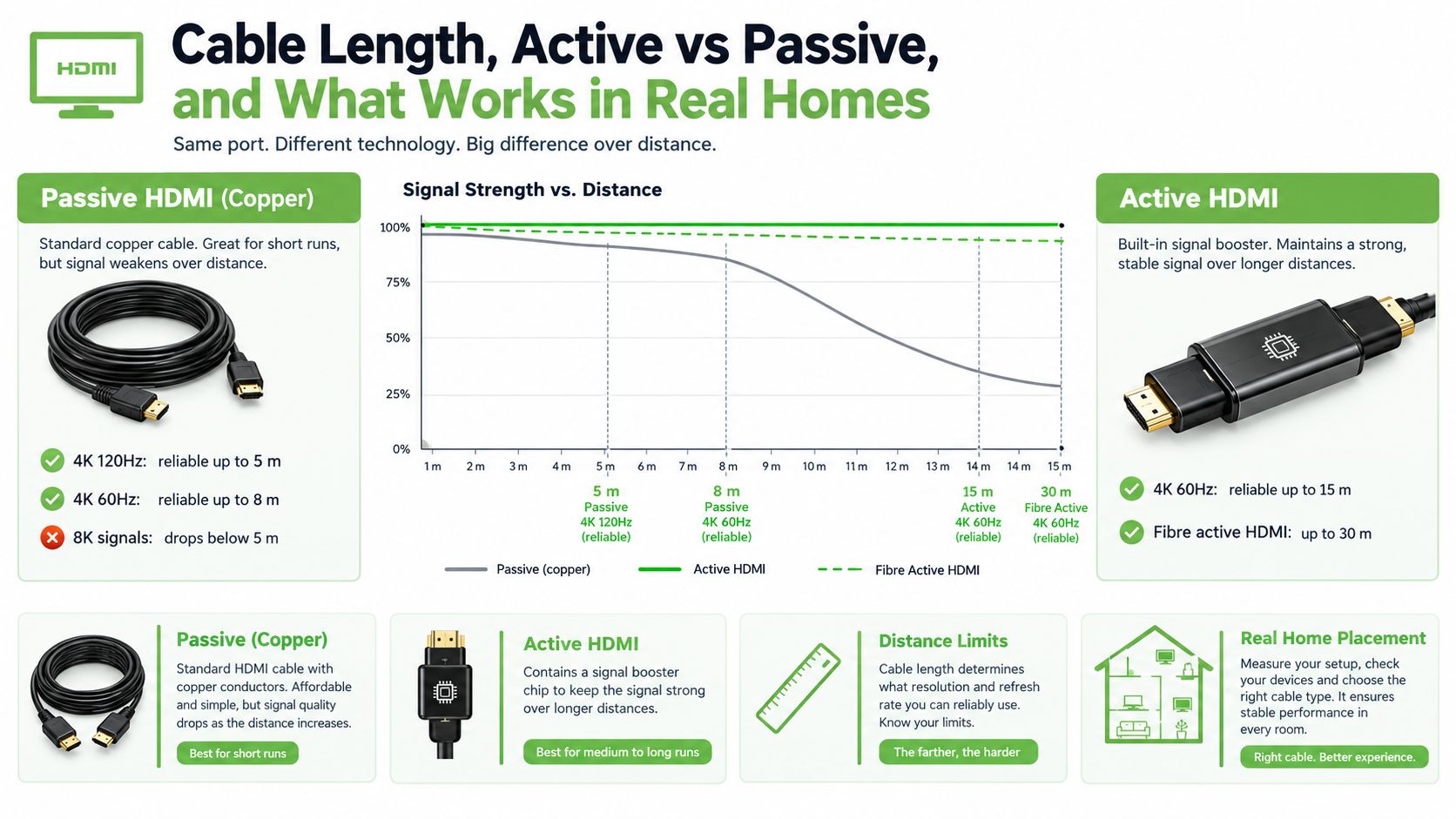
Short HDMI cables are usually straightforward. A passive copper cable carries the signal without electronics, and it's a practical choice for a study desk where the source device sits beside the monitor.
Distance makes the signal harder to maintain. Singapore retail guidance indicates that passive copper HDMI cables are usually reliable up to about 5 metres for 4K at 60Hz, while higher-refresh 4K use may be limited to about 3 metres. Longer runs can produce sparkles, dropouts or no signal, so cable length matters alongside the connector and HDMI rating.
Choosing the cable design
A passive cable is ordinary copper with no signal-processing chip. It's simple, often inexpensive and suitable for short runs.
An active HDMI cable includes electronics that help maintain the signal over a longer distance. Many active cables are directional, so one end must connect to the source and the other to the monitor. Look for labels such as “Source” and “Display” before routing the cable behind furniture.
A fibre-optic HDMI cable converts the signal for transmission over optical fibre. It can make more sense for a projector mounted across a room, a console under a television or a PC in a bedroom connected to a living-room display. Longer distances deserve careful product selection because a cheap, unlabelled active cable can fail without warning or work only at a lower display mode.
Before buying, measure the actual route rather than the straight-line distance. Include the path around a desk, along a skirting board or through a cable channel. Confirm that both ends use full-size HDMI connectors, because mini HDMI and micro HDMI devices need a different cable or adapter.
For a desktop arrangement, a short passive cable is usually the least complicated option. For a wall-mounted display or projector, an active or fibre design may be more appropriate. You can also compare the practical differences between DisplayPort and HDMI connections in this DP to HDMI cable guide.
When an HDMI to HDMI Cable Is the Wrong Choice
Two HDMI ports make an HDMI-to-HDMI cable an obvious choice, but not every monitor setup has HDMI at both ends.
A desktop gaming monitor often gives DisplayPort more room for high-refresh PC use. DisplayPort can also suit adaptive sync workflows involving technologies such as G-Sync or FreeSync, depending on the monitor and graphics card. HDMI remains highly practical for consoles and consumer devices, but it isn't automatically the strongest connection for every PC.
USB-C can be the cleaner answer for a laptop. When the port supports DisplayPort Alt Mode or Thunderbolt, one USB-C connection may carry display output, data and power delivery. That can reduce desk clutter when a laptop connects to a compatible monitor or dock. A USB-C socket alone doesn't guarantee video output, so check the laptop specification before buying.
Where the alternatives fit
| Setup Type | Best Connector | Why It Wins | HDMI Caveat |
|---|---|---|---|
| Desktop PC to high-refresh monitor | DisplayPort | Often matches PC gaming features and monitor bandwidth | HDMI may support a lower mode on the same display |
| Laptop to USB-C monitor | USB-C with DisplayPort Alt Mode or Thunderbolt | Can combine video, data and power | The laptop's USB-C port must support display output |
| Console to gaming monitor | HDMI 2.1 class | Native console compatibility and high-refresh 4K capability | HDMI 2.0 inputs can limit the available mode |
| Multiple-monitor workstation | DisplayPort-based setup | Better suited to daisy-chaining where supported | HDMI usually needs a separate connection per display |
| Ultrawide PC monitor | DisplayPort | Often the preferred route for demanding ultrawide modes | HDMI may not expose the panel's full capability |
An HDMI-to-DisplayPort active adapter can help when the ports don't match, but it adds another device to troubleshoot and may affect cost or latency. Passive HDMI-to-DVI cables also have directional limitations, so they aren't universal converters.
A MacBook Air connected to a Dell ultrawide may be better served by USB-C than HDMI. A multi-monitor trading desk may be easier to organise around DisplayPort. A console-to-PC capture-card workflow may also benefit from a setup that supports DisplayPort passthrough. If your laptop has USB-C but your monitor has HDMI, this USB-C to HDMI adaptor guide is a useful starting point.
Common HDMI Compatibility Pitfalls and How to Fix Them
Most HDMI problems come from a mismatch, not from a mysterious failure inside the monitor. The cable may fit perfectly while still falling short of the required signal.
Five problems worth checking first
- Version mismatch. An HDMI 2.0-class cable can't provide HDMI 2.1-class 4K at 120Hz only because the monitor and graphics card support it. Check the input specification, source output and cable certification as a set.
- Oversized marketing claims. “8K ready” or “high speed” on a packet doesn't prove the cable has the bandwidth you need. Look for an official certification label and a clearly stated capability rather than relying on the largest resolution printed on the front.
- Port confusion. HDMI ARC and eARC ports can look like ordinary HDMI ports, especially on soundbars and televisions. They're designed for particular audio paths. For a monitor, confirm that you're using the correct input and that the source is connected to an output.
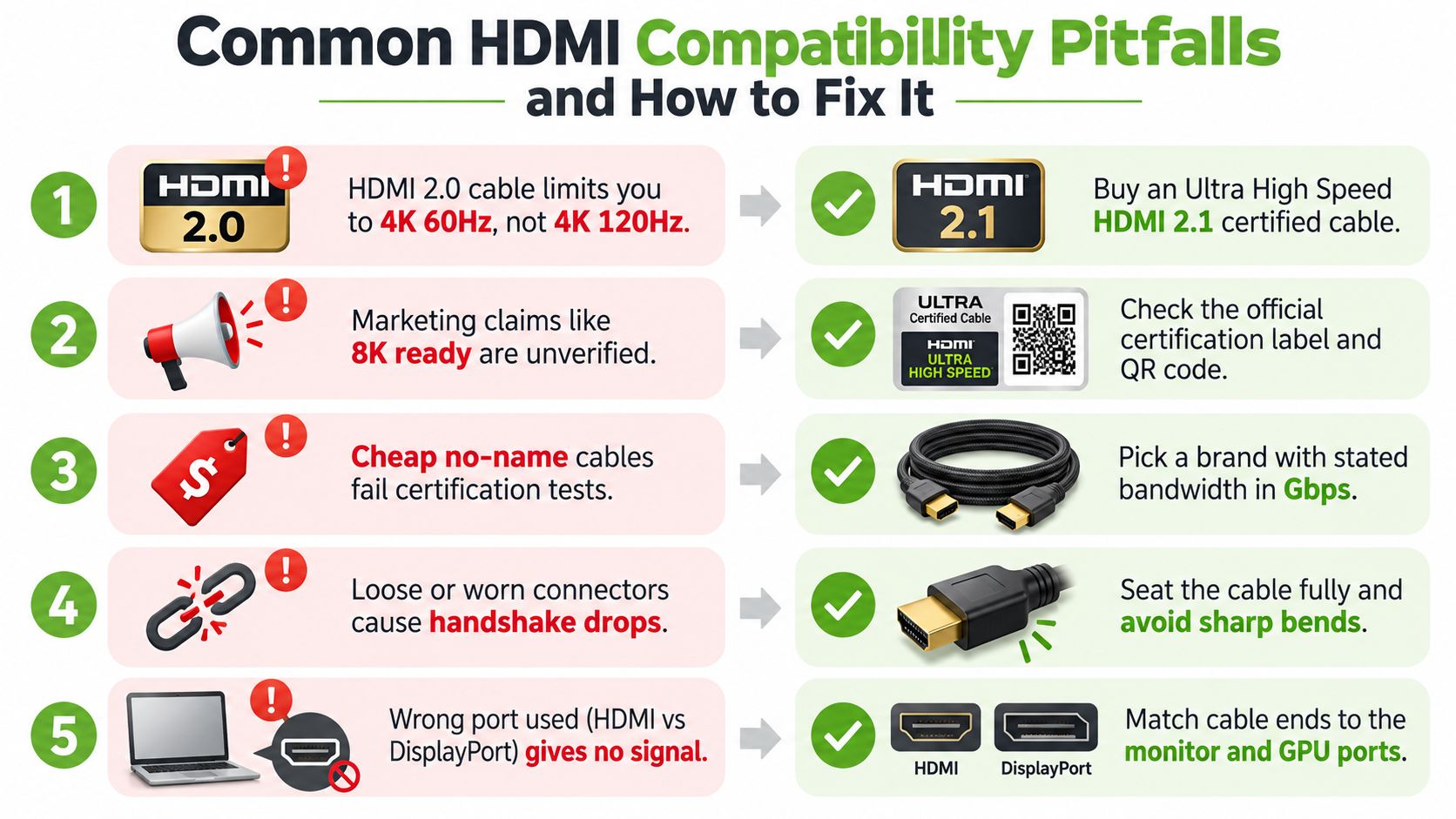
- HDCP handshake trouble. A streaming device, monitor or receiver may fail to agree on content protection, leaving you with a black screen. Power-cycle the devices, remove unnecessary adapters and test a certified cable directly between the source and display.
- Refresh-rate lockouts. A cable can show a 4K picture while limiting the display to a lower refresh rate. Open the operating system or console display settings and select the intended resolution and refresh rate. If the option isn't available, test another cable and input before blaming the monitor.
Troubleshooting order: check the ports, check the source settings, reseat the connectors, then test a known suitable cable.
Loose connectors and tight bends can also cause intermittent signal loss. Seat both plugs fully, avoid pulling on the cable and keep active cables connected in their labelled direction. If a certified 48 Gbps cable is required for HDMI 2.1 features, use that rating rather than assuming any cable with an HDMI 2.1 phrase can deliver the same result.
Buying Smart, Reusing Well, and Cutting E-Waste
Before buying a new HDMI cable, inspect the ones already in your home or office. A cable from an older monitor may be perfectly suitable for a 4K 60Hz office setup. Test it at the intended resolution and refresh rate, then keep it if the image remains stable.
Buying brand-new makes sense when you need a specific certification, a longer length or a replacement for a damaged cable. Reusing makes more sense when the existing cable already supports the required mode. A warranty-backed option can be useful when a business needs predictable replacement support, especially where a failed display connection interrupts daily work.
The value calculation isn't only about the purchase price. A cable that works reliably for the current monitor, can move to a future desk and remains useful for another device has a longer practical life. Throwing away a working cable because a new monitor arrived wastes that remaining value.
Responsible disposal in Singapore
If an HDMI cable is broken and can't be repaired or reused, route it through an e-waste programme rather than placing it in normal rubbish. Singapore guidance lists collection options including ALBA, SGRecycle-Virogreen, Shell-Metalo and KGS, with details available through the national guidance for recycling electronic cables.
For households, that can be as simple as storing unusable cables in a small box until the next suitable collection trip. For SMEs, separating cables from general office waste makes it easier to track what can be reused, what should be redeployed and what needs recycling.
A lifecycle approach also applies to the equipment around the cable. Repairing a monitor, reusing a working dock or choosing a professionally checked device can preserve business value and reduce replacement disruption. myhalo works across that wider lifecycle with Certified ReLoved and Certified Surplus devices, repair support, RescueAdvise, the mylo AI Assistant, transparent grading, battery health disclosure and 30-point quality checks under ISO 9001 and ISO 27001 processes.
Your Practical HDMI Cable Checklist for 2026 Setups
Use this checklist before you place an order or route a cable behind a cabinet.
- Confirm the monitor mode. Write down the resolution, refresh rate, HDR requirement and whether the monitor reaches its highest mode through HDMI or DisplayPort.
- Check the source output. Look at the desktop GPU, laptop, dock, mini PC or console specification. A capable monitor can't receive a mode that the source doesn't output.
- Match the HDMI class. For ordinary 4K at 60Hz, an HDMI 2.0-class cable may be enough. For 4K at 120Hz or 8K at 60Hz, check for HDMI 2.1-class support and a certified Ultra High Speed label.
- Choose the cable design by distance. Use passive copper for a short desk connection when it meets the required bandwidth. Consider active or fibre-optic HDMI for a longer route, and check directional labels before installation.
- Test before permanent routing. Connect the source and monitor, select the intended display mode and check for flicker, dropouts, missing HDR or an unavailable refresh rate. Testing first saves you from removing cable trunking later.
- Keep the purchase details. Save the packaging, certification information and warranty record. That makes troubleshooting or replacement easier if the connection becomes unstable.
Old cables should be tested for reuse before disposal. Damaged cables belong at an appropriate e-waste collection point such as those listed in Singapore's electronic-cable recycling guidance. A repair-first retailer can also help you think beyond the cable, including monitor faults, device migration, trade-ins and replacement planning.
The wider lesson is simple. Your HDMI cable is one part of a complete signal path, and the right choice depends on the monitor, source, distance and desired display mode. Once those details are clear, you won't need to chase the most expensive cable on the shelf.
For monitors, cables, adapters and professionally checked technology, visit myhalo to compare options that fit your setup and budget. You can also use myhalo's lifecycle services to explore repairs, reuse, trade-ins and responsible replacement instead of treating every upgrade as a reason to discard working equipment.