





DP HDMI Cable Guide for Singapore Setups
You've probably had this happen at home or in the office. The laptop is plugged in, the monitor is on, the cable fits, and yet the screen comes up at the wrong sharpness, the wrong refresh rate, or no signal at all. In Singapore, where many setups mix newer laptops, older monitors, docks, and gaming rigs, a DP HDMI cable looks like a simple fix, but the wrong one can limit what your hardware can do.
The tricky part is that the connector shape is only half the story. What matters just as much is direction, conversion method, and bandwidth, because a cable that physically fits can still underperform if the chain behind it is mismatched. That's why so many people end up buying twice, first a cheap cable, then the right one.
Table of Contents
- The Cable Mix-Up Most Singapore Setups Hit
- What DisplayPort and HDMI Do
- Passive vs Active Cables and Why It Matters
- Bandwidth, Resolution and Refresh Rate Limits
- A Practical Buying Checklist for Singapore Buyers
- Real Setups from Singapore Homes and Offices
- Installation and Troubleshooting Without the Headache
- Smarter Cable Choices and Sustainable Tech
The Cable Mix-Up Most Singapore Setups Hit
A familiar scene plays out in many HDB flats and condo studies. Someone brings a work laptop home, plugs it into a monitor that only has HDMI, then wonders why the display looks softer than expected or refuses to run at the refresh rate printed on the box. The cable worked in the sense that it connected the devices, but it didn't necessarily let the setup perform properly.
Why this happens so often
Singapore's tech mix is unusually practical. A lot of people keep a good monitor for years, then swap laptops, docks, or GPUs around it, so the ports no longer line up neatly. That's where a DP HDMI cable becomes useful, but only if the source, display, and adapter logic all match.
A DisplayPort 1.4 setup can support 25.92 Gbps of data rate, and DisplayPort 2.0 raises total bandwidth to 80.0 Gbps, while HDMI 2.1 reaches 48 Gbps. Those standards matter because the cable sitting on your desk doesn't magically add capability, it has to pass through what the devices can negotiate, and the conversion stage can be the bottleneck DisplayPort standard overview.
Practical rule: if the port shape fits but the picture feels limited, the cable may be translating the signal at a lower level than your devices support.
The part most buyers miss
Many product listings say “DP to HDMI” and stop there. That wording hides the core question, which is whether the cable is designed for your exact source device, your monitor, and your target resolution. For a student, that might mean a stable 1080p classroom display. For a gamer or creator, it might mean the difference between a usable setup and one that never reaches the monitor's advertised refresh rate.
The cleanest way to think about it is this. The cable is not the whole solution, it's the bridge between two systems that speak slightly different display languages. If the bridge is built for the wrong traffic, the trip still happens, just not at the speed you expected.
What DisplayPort and HDMI Do
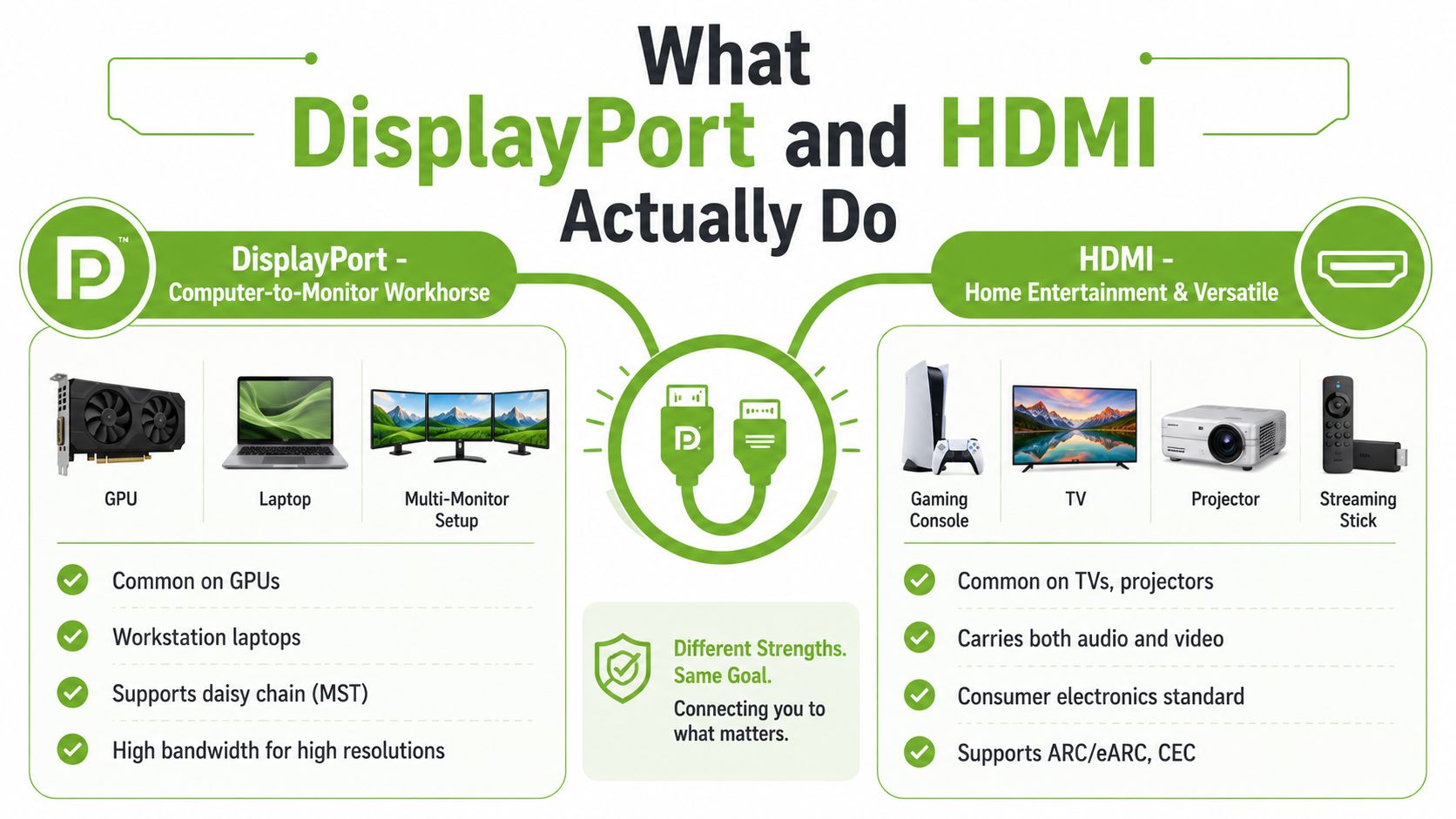
DisplayPort and HDMI solve related but different problems. DisplayPort is the computer-to-monitor workhorse, common on GPUs, workstation laptops, and high-refresh displays. HDMI is the display-everywhere standard, often found on TVs, projectors, consoles, and many office monitors.
DisplayPort and HDMI are two different dialects of the same language. A DP HDMI cable acts as the translator between those two ports. That translation is not symmetrical. A DisplayPort source can be sent to an HDMI display input, but not every HDMI source can be sent into a DisplayPort monitor the same way. One product listing in the market states this plainly, the cable is directional and cannot be used in reverse from HDMI source to DisplayPort display directional cable description.
That one-way behaviour is where many people get caught. They see matching plugs and assume it's a universal adapter. It isn't. The signal path is more like a one-way street than a roundabout.
DisplayPort to HDMI conversion is not about port shape alone. It's about which device is talking first, and what kind of translator sits in the middle.
Why direction matters in real life
If you're connecting a laptop dock to an HDMI monitor, the path is usually straightforward. If you're trying to connect a games console or HDMI-only source to a monitor that only accepts DisplayPort, this kind of cable won't solve it. You'd need a different adapter class entirely, and that is why “fits physically” and “works electrically” are not the same thing.
HDMI is still very common because it's everywhere in consumer devices, while DisplayPort shows up more often in high-performance PC environments. That split is why the same desk can contain both standards, even when the user only wants one screen to light up. Picking the right cable also helps stretch the life of existing GPUs, laptops, and monitors, which is the more sustainable choice than replacing hardware that still works. For people assembling mixed setups, a practical reference point is a Lenovo USB-C universal dock with HDMI and DisplayPort outputs, since it shows how modern desks often need several display paths at once.
Passive vs Active Cables and Why It Matters
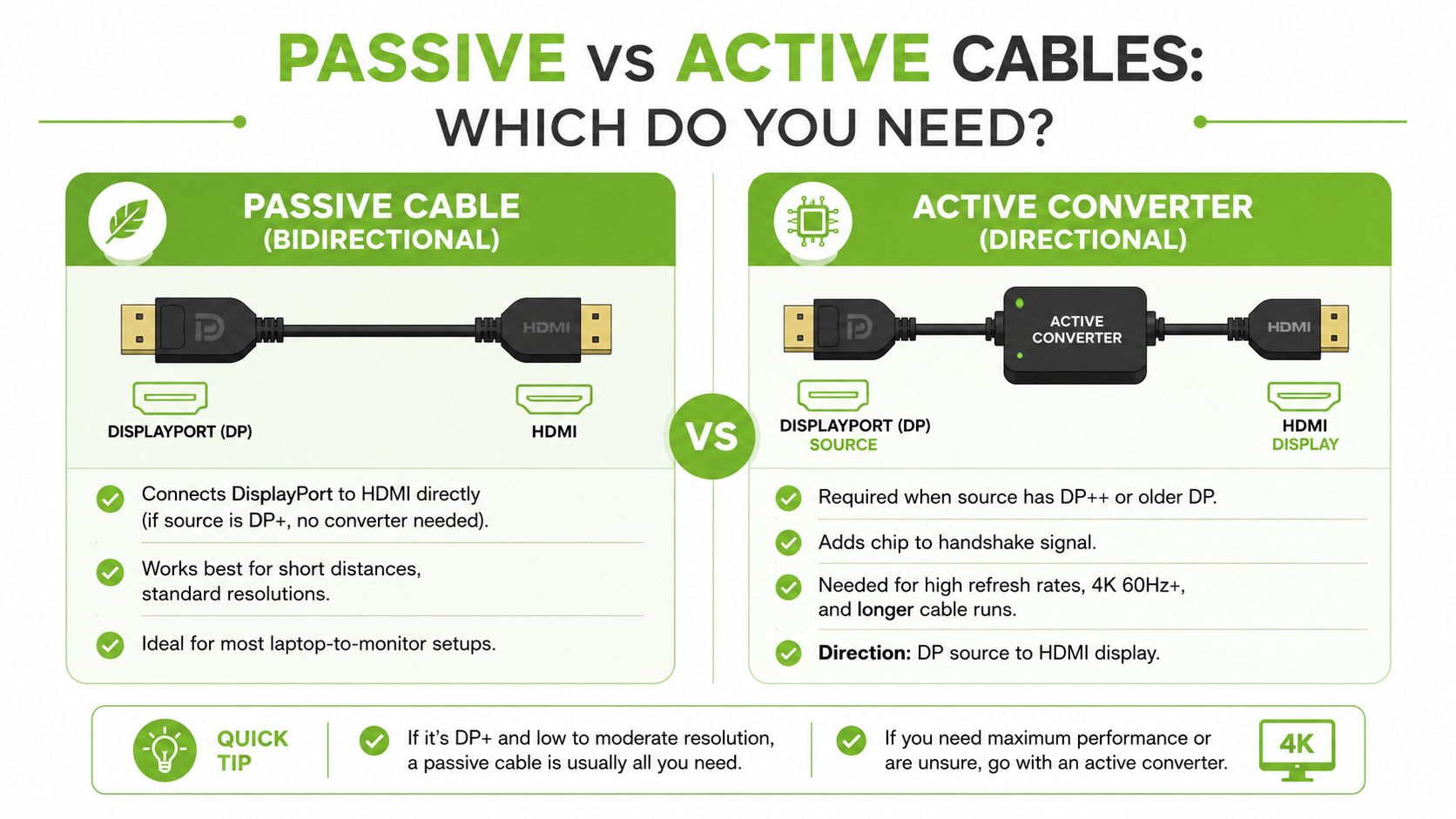
This is the fork in the road that decides most buying mistakes. A passive cable is simpler and cheaper, but it only works when the source supports Dual-Mode DisplayPort, often called DP++. An active converter has a chipset inside, so it can do the signal conversion itself when the source can't.
Passive cables are the simpler route
A passive option is like a basic plug adaptor. If the source already understands the right kind of output, the cable doesn't need to do heavy lifting. That can be enough for many desktop or laptop-to-monitor setups, especially when the run is short and the resolution target is modest.
But there's a catch. If the source doesn't support DP++, a passive cable may connect physically and still fail to display anything. That's why users sometimes report a “no signal” issue after buying what looked like the obvious part.
Active converters do more of the work
An active cable is more like a powered voltage converter. It contains the chip that handles the translation, so it's better suited for tricky device pairs, longer cable runs, and higher-performance use cases. The trade-off is that some active adapters need external USB power, a detail that's easy to miss if you only skim the product page adapter power and direction guidance.
Good buying habit: if the listing doesn't clearly say DP++, active, or directional, don't assume it will work the way you want.
For buyers who want one place to check broader desk-ready options, a dock can sometimes simplify the whole setup, such as this myhalo Lenovo USB-C universal dock with HDMI and DisplayPort outputs. That kind of hub doesn't replace cable compatibility, but it can reduce the number of handoffs in a mixed-device workspace.
Bandwidth, Resolution and Refresh Rate Limits
A cable choice only makes sense when you match it to the signal it has to carry. For many Singapore users, the question is not whether the monitor turns on, but whether the setup can run 4K at 60 Hz, 4K at 120 Hz, or a higher-refresh office or gaming mode without compromise. The conversion chip, not just the connector, decides a lot of that. Picking the right cable also keeps a solid GPU, laptop, or monitor in service for longer, which fits the circular-tech habit of using what already works instead of replacing it too early.
The numbers that shape the experience
On the source side, DisplayPort 1.2 provides 21.6 Gbps gross bandwidth, while the practical ceiling for a DP to HDMI cable used in monitor and workstation setups is often 18 Gbps, which is enough for 4K at 60 Hz on HDMI 2.0-class links adapter datasheet. If the adapter is based on HDMI 1.4, the same family of products may only reach 3840×2160 at 30 Hz. That is the difference between a clean working desktop and one that feels slow as you move windows around.
Cable version vs practical output
| Cable Version | Typical Bandwidth | Max Practical Output | Best For |
|---|---|---|---|
| DP 1.2 to HDMI 1.4-class adapter | 18 Gbps practical ceiling for many adapter links | 3840×2160 at 30 Hz | Basic office use, signage, older displays |
| DP 1.2 to HDMI 2.0-class adapter | 18 Gbps practical ceiling for many adapter links | 3840×2160 at 60 Hz | Productivity, clearer text, smoother daily work |
| DP 1.4 to HDMI 2.1-class active converter | Higher-performance active conversion path | 4K at 120 Hz or 8K at 60 Hz on suitable links | Gaming, premium monitors, creator workflows |
DisplayPort and HDMI standards keep moving, but the useful point stays the same. Bandwidth is the gatekeeper, not the plug shape. A cable can say “4K ready” and still land at 30 Hz if the internal conversion stage is built for an older HDMI level.
For longer and more demanding runs, the product class matters even more. A 5 m active DP-to-HDMI cable sold in the region is positioned as a 4K at 60 Hz solution, while another 2 m active converter cable supports 8K at 60 Hz and 4K at 120 Hz on HDMI 2.1 FRL, with HDR10, HDCP 1.x/2.2/2.3, and DSC 1.1/1.2a support active cable specs. A practical way to think about it is simple. Short desk links and room-to-room links are different jobs, so they should not use the same cable assumption.
For buyers comparing high-end options, a product like the Coteci 8K HDMI cable bundle belongs in the same conversation, because the target is still the same, matching the cable to the display mode you want to run. That keeps the old laptop, graphics card, or monitor useful for longer, instead of turning a cable choice into a full hardware upgrade.
A Practical Buying Checklist for Singapore Buyers
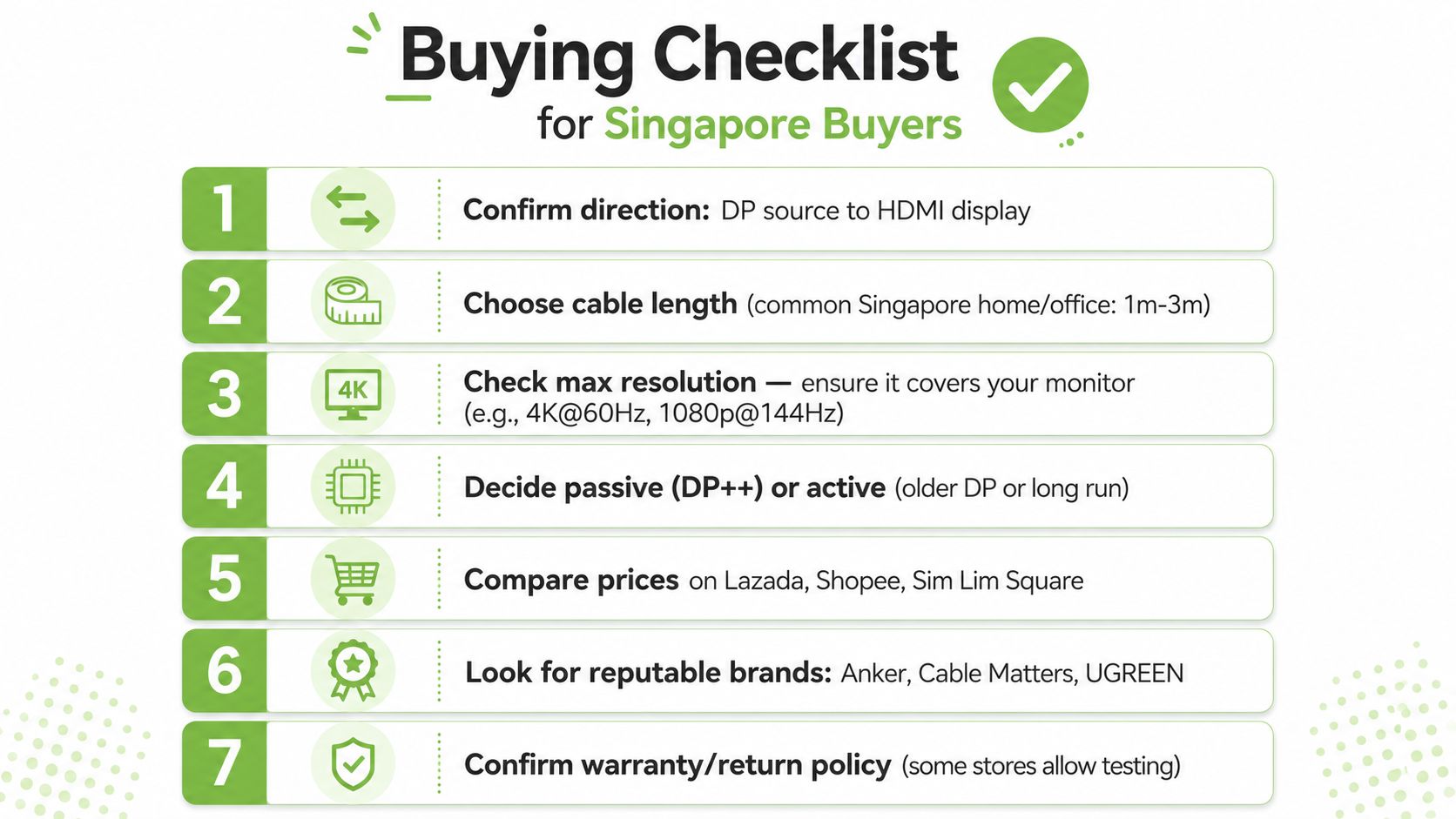
Most product pages get one thing right and three things wrong. They name the connector, mention a resolution, and then skip the details that decide whether the cable works in your actual setup. The easiest way to avoid that is to check the chain in the same order every time.
The checklist that saves repeat purchases
- Confirm direction first. The source should be DisplayPort, the display should be HDMI, and the cable should be designed for that one-way path.
- Check whether the source supports DP++. If it doesn't, a passive cable may fail even when the plugs fit.
- Match the HDMI version to the monitor. A 4K monitor that accepts HDMI 2.0 behaves very differently from one limited to an older HDMI input.
- Look for HDCP support if you stream video. HDCP 2.2 matters when you want protected 4K playback from a laptop or media device.
- Choose active for longer runs. Once the desk gets bigger or the meeting room gets more complex, chipset-based conversion is usually the safer bet.
- Confirm power needs. Some active adapters need USB power, so don't be surprised if the cable box also wants a small power lead.
- Read the output mode, not just the headline. A listing that says “4K” is not enough if the fine print says 30 Hz.
The reason this matters for Singapore buyers is simple. A cable that works for spreadsheets but drops the refresh rate for a presentation, or refuses protected video playback, creates friction in the same way a low-quality charger does. You only notice it when the meeting starts.
Buying rule: tie each spec to a real job, text clarity, streaming, gaming smoothness, or long-run reliability, then ignore anything that doesn't affect that job.
If you want accessories and devices handled with more rigour than a random marketplace listing, myhalo applies the same idea through its device lifecycle approach, including 30-point quality checks and ISO 9001 Certified processes for the products and services it handles. That mindset matters because the cable should support the hardware you already own, not push you into a replacement cycle too early.
Real Setups from Singapore Homes and Offices
A good cable choice feels obvious once you anchor it to a real room. The same DP HDMI cable can be perfect in one setup and wrong in another, because what matters is the source device, the display, and how far apart they sit.
Home office with a USB-C dock and 4K monitor
A hybrid worker in a three-room HDB flat might run a laptop through a dock, then send video to a 4K HDMI monitor for spreadsheets, email, and calls. In that case, the cleaner route is usually whichever link keeps the whole chain stable at the monitor's native mode, rather than the cheapest connector that only proves the ports can touch.
A desk setup like this often benefits more from a dock or monitor pairing than from a bargain cable alone. For example, this LG 27-inch 27UN880-B 4K UHD IPS Ergo Stand USB-C monitor is the sort of display that makes a tidy laptop-to-monitor workflow easier to plan around, because the video path and desk ergonomics are already built into the setup.
Gaming rig with a high-refresh display
A gamer pairing a mid-range GPU to an HDMI 2.1 monitor has a stricter requirement. The goal is not just “image on screen”, it's keeping the signal stable at the refresh rate the display is capable of, especially when motion smoothness matters. An active converter and the right version support matter more than cable length or packaging claims.
If the cable drops the chain to an older HDMI mode, the result is often obvious. The game still runs, but motion feels less fluid, and the monitor's top-end mode never engages. That's a wasted upgrade, and it usually means the cable was the weak link.
SME meeting room or projector link
An SME conference room adds distance, switching, and more people watching the result. A longer active cable is usually the sensible choice here, because the link needs to survive repeated plug-ins, different laptops, and the occasional rushed start to a client call. In a room like that, a “no signal” issue doesn't just annoy one person, it eats meeting time.
Installation and Troubleshooting Without the Headache
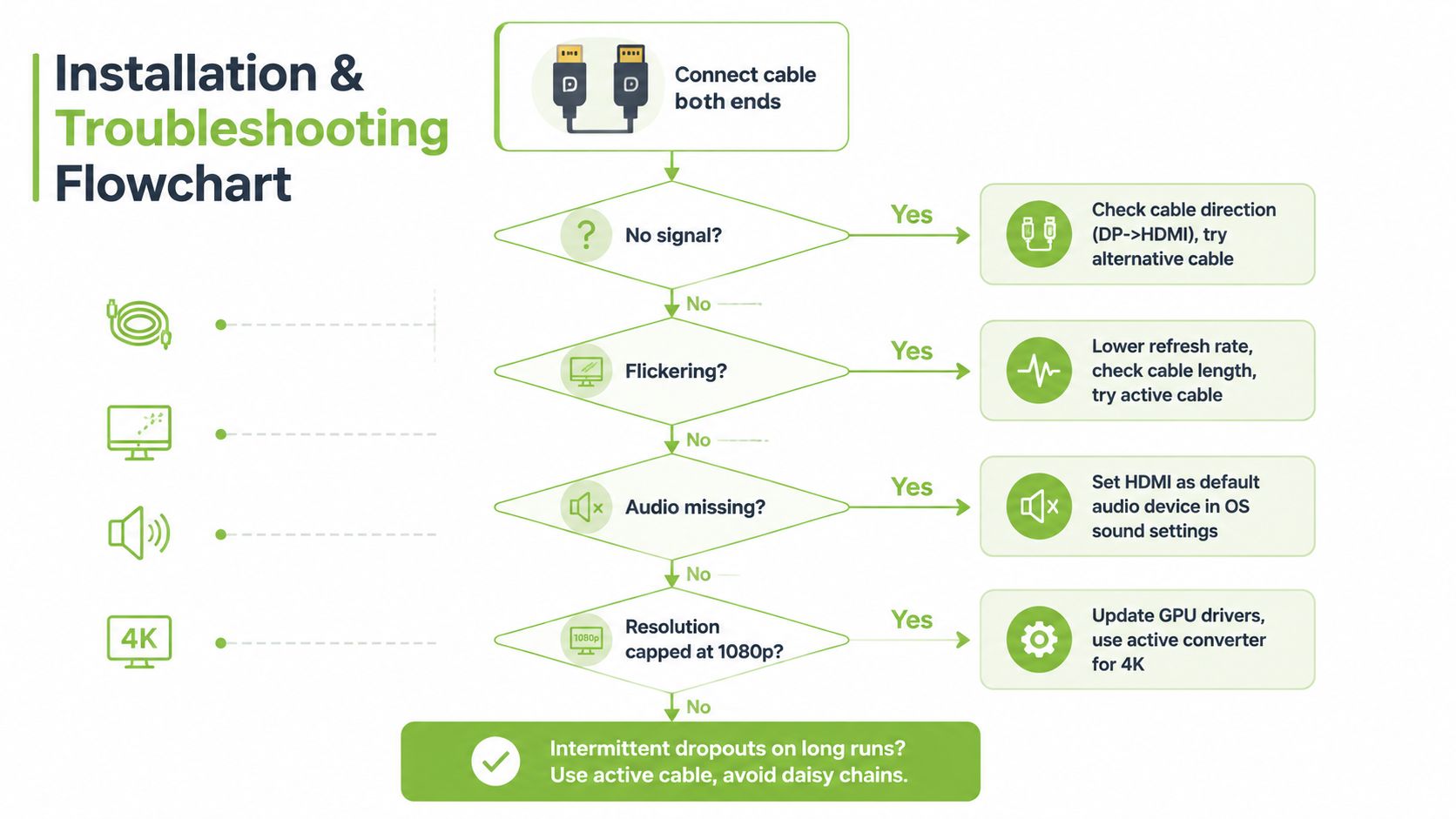
When a DP-to-HDMI link fails, people usually blame the GPU first. That's understandable, but the better habit is to check the chain in order, source first, cable second, display third. That avoids replacing healthy hardware just because the handoff between devices was wrong.
Start with the source, then the cable
If there's no signal, check whether the source is sending video through the right port and whether the cable direction matches DP source to HDMI display. If the picture is flickering, lower the refresh rate, test a shorter run, or switch to an active cable if you're already using a passive one. Those changes are often faster than digging through driver settings.
Audio missing is another common one. HDMI can carry video and audio together, but the operating system still needs to be pointed at the HDMI output as the default sound device. People often assume the cable has failed when the system is sending sound somewhere else.
Watch for resolution caps and long-run instability
If the display is stuck at 1080p, the issue may be a driver setting, the adapter class, or a conversion stage that only supports older HDMI modes. That's why some users only discover the limitation after they try a sharper display mode and find the option missing. Intermittent dropouts on longer runs usually point back to signal integrity, which is why active cables matter more once distance increases.
A good companion read for budget-conscious streamers is the StreamGen budget streaming post, especially if you're building a compact home setup and want to understand how display and capture choices affect the rest of the desk. It's useful context when your monitor connection has to work alongside mics, webcams, and a tight space.
If the cable works only sometimes, treat that as a signal-quality problem first, not a random software fault.
myhalo's repair support and lifecycle programmes, including e-Xtender and Protect, fit this mindset too. Extending the life of the hardware you already own only works when the connection layer is stable, and that starts with choosing the right cable rather than replacing the whole setup too early.
Smarter Cable Choices and Sustainable Tech
A cable choice looks small, but it shapes how long your existing tech stays useful. If the right DP HDMI cable lets you keep using a good monitor, laptop, or GPU for another season of work or play, that's real value creation. You avoid a premature upgrade, keep your desk stable, and spend only where the bottleneck is.
That's the circular-tech logic behind better accessory choices. A monitor that still does its job doesn't need to be replaced just because the port changed. A laptop that still handles your workload doesn't need a new machine if a proper active converter can bridge it cleanly to the display you already own.
myhalo approaches technology the same way across devices and services. Through Certified ReLoved, Certified Surplus, repair, trade-ins, and responsible recycling, the focus stays on extending usable life instead of treating every mismatch as a reason to buy fresh hardware. The same thinking applies to cables, a well-chosen one supports reuse, while a poor one creates avoidable waste through early replacement and missed performance.
A cheap cable can look efficient at checkout, but it's costly if it underdelivers, fails early, or forces a monitor or laptop upgrade that wasn't really necessary. A more considered choice protects both cash flow and device lifespan, which is exactly the kind of practical resilience Singapore homes and SMEs need.
If you're sorting out a monitor, dock, or workstation setup, myhalo can help you think through the whole device lifecycle, not just the next purchase. Visit myhalo to explore repair, reuse, Certified ReLoved devices, Certified Surplus options, and support that helps your existing tech keep earning its keep.