





Apple USB to USB C Adapter What It Does and How to Use It
A lot of people in Singapore are in the same spot right now. There's a newer iPad, MacBook or iPhone with USB-C on the desk, but the drawer beside it still holds useful USB-A gear like a thumb drive, wired keyboard, camera cable or office accessory that hasn't stopped working.
That's why the Apple USB to USB C adapter still matters. It isn't exciting, but it can be the small part that keeps older accessories useful while you decide what to replace, what to keep, and what still earns its place in your setup.
For households, that often means saving money by avoiding unnecessary replacements. For SMEs, it can mean stretching the value of existing peripherals, reducing disruption, and making better lifecycle decisions instead of swapping everything at once.
Table of Contents
- Introduction to the Apple USB to USB C Adapter in Singapore
- What the Apple USB to USB C Adapter Actually Does
- Compatibility Across iPhone iPad and Mac and When You Need It
- Genuine Apple Versus Third Party Adapters and Safety in Singapore
- How to Use Your Adapter for Fast and Reliable Connections
- Common Misconceptions and Troubleshooting Tips That Work
- Making a Smart Choice and Extending Device Lifespan with myhalo
Introduction to the Apple USB to USB C Adapter in Singapore
A familiar desk setup tells the story well. You've just moved to a USB-C iPad Air or a newer MacBook, then realise your presentation clicker, USB thumb drive, barcode scanner or old keyboard still uses the rectangular USB-A plug. The new device works fine. The old accessory works fine. They just don't fit together.
That mismatch is exactly where an Apple USB to USB C adapter comes in. It helps one generation of hardware talk to another, without forcing you to replace every older accessory immediately. In Singapore, that's especially relevant because Apple's ecosystem has been moving in a clear direction for years.
Apple introduced the Lightning connector in 2012 with the iPhone 5, then shifted more of its lineup towards USB-C over time. The iPhone 15 series in 2023 became Apple's first iPhone family to use USB-C, and by 19 February 2025 all iPhone models sold used USB-C after the iPhone SE lineup was discontinued, based on Apple's Singapore product transition described in its local storefront context for accessories like the Apple 20W USB-C Power Adapter.
Why this tiny accessory still matters
For many buyers, the question isn't “Is this adapter compatible?” It's “Do I even need it anymore?”
That's a better question. If your daily workflow already uses cloud storage, USB-C drives and wireless transfers, you may not need an adapter at all. If you still depend on older USB-A tools, the adapter can buy you time and avoid waste.
Practical rule: Buy an adapter when it keeps a useful accessory in service. Skip it when your workflow has already moved fully to USB-C.
A lifecycle mindset helps. Instead of treating accessories as disposable, you can decide whether to reuse, repair, replace or retire each item based on actual need. That's also why topics like charging abroad and travel power often get mixed up with data adapters. If your problem is really power at the airport or hotel, a guide to choosing a universal travel adapter is often more relevant than a USB data adapter.
What Singapore buyers usually want to know
Most confusion comes down to three simple questions:
- Do I need this for charging? Usually, no. That depends on your charger and cable.
- Do I need this for file transfer? Possibly, if your older device uses USB-A.
- Should I replace the accessory instead? Sometimes. It depends on how often you use it and whether it still fits your workflow.
What the Apple USB to USB C Adapter Actually Does
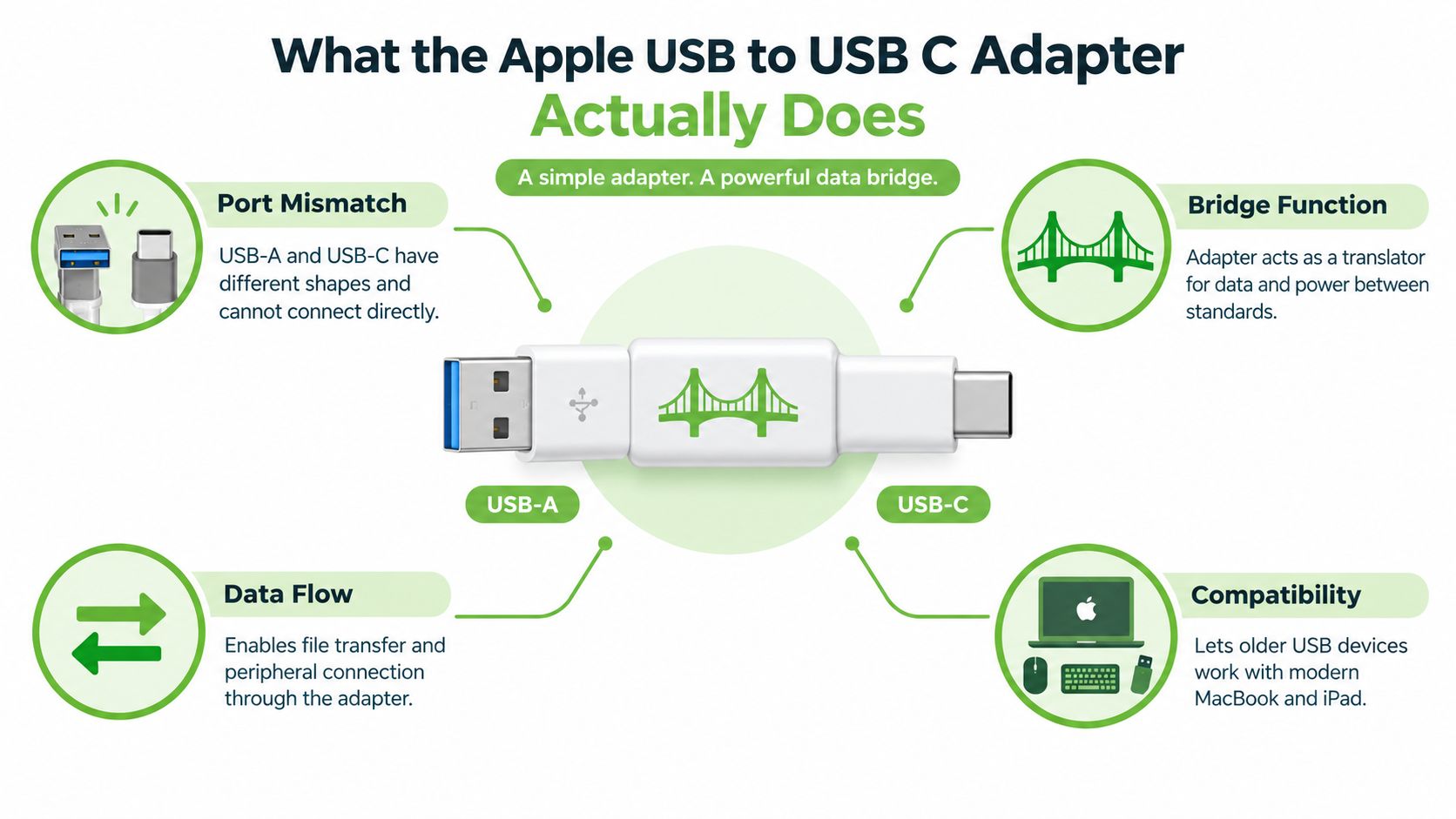
The easiest way to understand this adapter is to think of it as a bridge. On one side is an older USB-A accessory. On the other side is a newer USB-C device like a Mac, iPad or iPhone. The adapter doesn't upgrade the old device. It helps the two sides connect physically and communicate.
It solves a port mismatch
USB-A is the older rectangular plug that many keyboards, thumb drives and printers still use. USB-C is the smaller, rounded connector now common on current Apple devices. Without an adapter, those plugs can't connect.
The Apple USB-C to USB Adapter sold in Singapore is mainly for that exact job. It lets you plug an older USB-A peripheral into a newer USB-C host device, such as a Mac or iPad.
It is a data bridge, not a magic performance upgrade
People often assume the adapter somehow makes everything faster because USB-C sounds newer. It doesn't work that way. The adapter's job is connection, not enhancement.
Apple's Singapore product information indicates that the Apple USB-C to USB Adapter supports data transfer speeds up to 5 Gbps through USB 3.1 Gen 1, which you can verify through Apple's local accessory references in the Apple Singapore USB power adapter and adapter listings. In everyday terms, that's suitable for moving large files from many older USB peripherals, but the actual result still depends on the slower part of the chain.
If your external drive, enclosure or cable is slower than the adapter, the whole setup runs at that lower speed.
What this means in daily use
A few simple examples make this clearer:
- Thumb drive use: If you have an older USB-A thumb drive with documents or photos, the adapter can let you open it on a USB-C iPad or Mac.
- Keyboard or mouse connection: If your wired accessory uses USB-A, the adapter may let you continue using it instead of buying a new one immediately.
- Camera import: If your camera cable ends in USB-A, the adapter can act as the middle piece between old and new ports.
It doesn't decide charging wattage
Another common misunderstanding is charging. The adapter itself doesn't determine how much charging power your device receives. Apple's support guidance says Apple USB power adapters are designed for 100V AC to 240V AC input at 50 Hz to 60 Hz, which makes them compatible with Singapore's mains supply, as shown in Apple's 140W USB-C Power Adapter support and product information.
So if you're asking whether the adapter charges fast, the answer is to look at the wall charger and cable, not the USB-C to USB adapter. The adapter is primarily a path for connection.
Compatibility Across iPhone iPad and Mac and When You Need It
Compatibility sounds like a technical topic, but many are really trying to make a decision. They want to know whether the adapter belongs in their bag, or whether it's just another small accessory that will sit unused in a drawer.
Apple's current Singapore accessory pages make that decision more important because newer Apple workflows are increasingly USB-C native. The adapter is still sold locally, but it's most useful when you need to connect an older USB-A peripheral to a newer Apple device, rather than for routine charging or everyday USB-C to USB-C use. Apple's local product context for the USB-C to USB Adapter in Singapore reflects that practical role.
Where it usually makes sense
If you use a newer Mac or iPad with older office accessories, the adapter can still be practical. The same goes for iPhone users who occasionally need a USB-A thumb drive, card reader or specialised accessory that hasn't been replaced.
But if your workflow is already wireless or USB-C based, you may be better off skipping the adapter and simplifying your setup. For many people, file syncing now happens through cloud storage, direct USB-C drives or wireless handoff. If that's your habit, a guide on using iCloud and AirDrop with AccountShare may solve the problem more neatly than buying another dongle.
Do You Need the Adapter or a Different Solution
| Your Setup | Recommended Option | Why |
|---|---|---|
| USB-C MacBook with old USB-A thumb drive | Apple USB to USB C adapter | Keeps the drive usable without replacing it |
| USB-C iPad with USB-A keyboard or camera cable | Adapter, if you still use the accessory often | Useful when the older accessory still does a real job |
| iPhone, Mac and storage already using USB-C | No adapter needed | Your workflow is already aligned |
| Team desk with many USB-A devices | Dock or hub may suit better | One connection point is often neater for shared peripherals |
| Staff travelling between desks and monitors | Consider a broader dock setup | More practical than juggling multiple small adapters |
When a dock is the better answer
An individual adapter is fine for one or two accessories. It becomes awkward when a user needs Ethernet, display output, power and several USB-A ports all at once. In that case, a dock can be more organised than carrying multiple single-purpose adapters. One example of a broader desk setup option is this Lenovo USB-C universal dock, which fits users who need a workstation-style connection rather than a simple port bridge.
A good rule for SMEs is simple. If one person connects one older accessory, use an adapter. If one person connects a whole desk, use a dock.
Genuine Apple Versus Third Party Adapters and Safety in Singapore
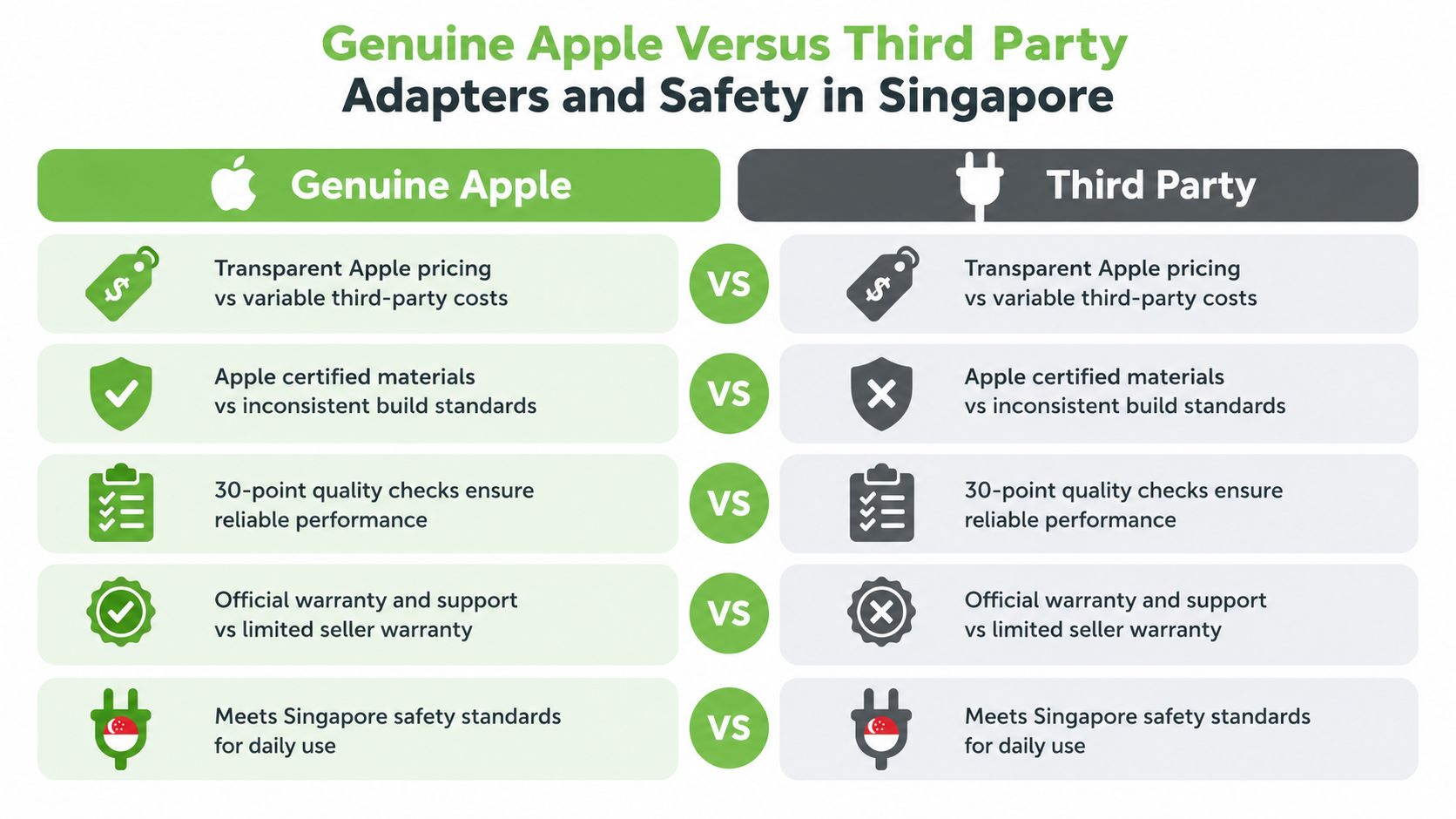
There's nothing wrong with comparing options carefully. In fact, you should. An adapter looks simple, which is why many buyers assume every version on the market is basically the same. The differences usually show up later, through fit, reliability, support and safety confidence.
Start with the genuine Apple reference point
Apple's Singapore storefront lists the USB-C to USB Adapter at S$29.00 in its local adapters collection, which gives buyers a clear benchmark for the official accessory in this market through Apple's Singapore adapters catalogue.
That price matters because this isn't just a tiny piece of plastic. For some users, S$29.00 can be a sensible way to keep several older USB-A devices in use instead of replacing each one immediately. For SMEs, that can support better resource utilisation and avoid rushed accessory purchases across a team.
What to compare beyond price
A balanced comparison should look at more than the sticker price:
- Fit and consistency: A well-made adapter should connect firmly and behave predictably with common accessories.
- Support path: Official accessories usually come with clearer compatibility information.
- Intended use: A simple data bridge is different from a charger, travel adapter or multiport dock.
- Lifecycle value: The cheapest option isn't always the most economical if it fails quickly or causes downtime.
For buyers who don't want to default to brand-new every time, myhalo is one option to consider when comparing accessories and broader device decisions. It approaches technology as a lifecycle partner, with Certified ReLoved, Certified Surplus, RescueAdvise, mylo AI Assistant, ISO 9001 Certified and ISO 27001 Certified processes, along with 30-point quality checks and transparent device grading and battery health disclosure across relevant categories. That matters when an adapter purchase sits inside a bigger question about reuse, repair or replacement.
Safety matters more for powered adaptors and chargers
Not every adaptor category carries the same safety concern. A data bridge adapter is one thing. A powered charger or AC adaptor is another. Singapore's regulatory framework states that certain regulated goods must be registered and labelled before they can be supplied in Singapore, and the official regulatory material includes adaptors among covered product types in relevant categories, as outlined in the Singapore regulatory requirements document.
For homes and SMEs, the practical lesson is simple:
- Check powered accessories carefully: Chargers and AC adaptors deserve closer scrutiny than a simple plug converter.
- Don't assume online listings are equal: A product that physically fits your device may still be a poor procurement choice.
- Think in service life, not just upfront cost: A reliable accessory can support business continuity and avoid unnecessary replacement.
Reliable accessories help devices stay useful for longer. That's good for budgets, rollout planning and day-to-day resilience.
How to Use Your Adapter for Fast and Reliable Connections
Most adapter problems aren't caused by the adapter alone. They come from the full chain. The device, the cable, the port and the peripheral all matter.
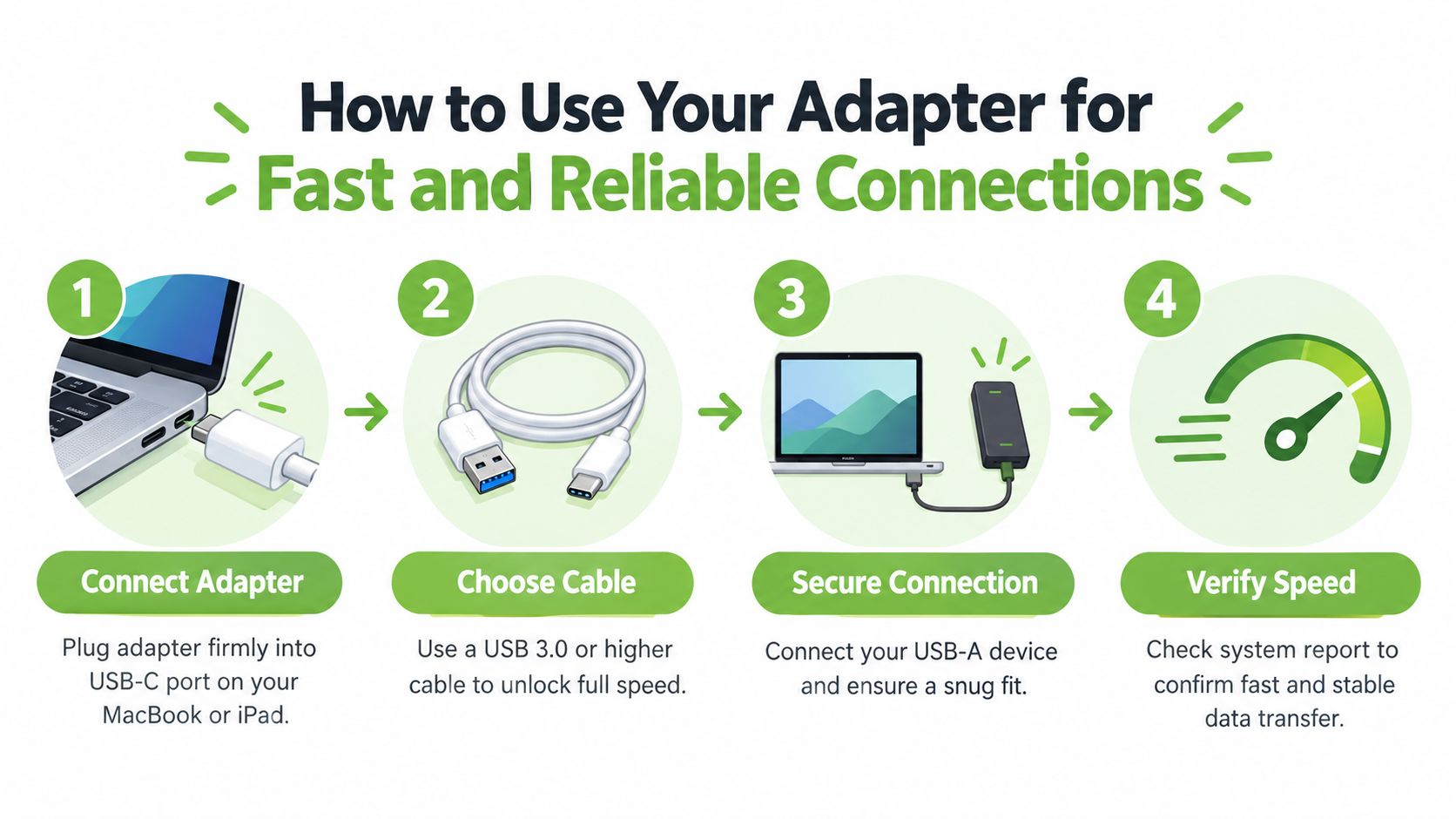
Start by connecting the adapter firmly into the USB-C port on your Mac, iPad or iPhone. Then connect your older USB-A device, such as a thumb drive, card reader or keyboard. If the device is recognised quickly, you're done. If not, the next thing to check is usually the cable or peripheral.
Speed depends on more than the plug shape
A common mistake is assuming every USB-C cable performs the same way. Apple's support guidance says that a USB 3 device should be used with a compliant USB 3 cable that supports 10 Gbit/s, as explained in Apple's USB-C support guidance for Apple devices. The important takeaway isn't the wording. It's the practical reality.
If you connect a fast external drive with a weak or older cable, file transfers can feel much slower than expected. This is especially noticeable when moving large video files, backup folders or a photo library.
A simple way to think about the chain
You can picture the connection like a road with several checkpoints:
- The host device: Your Mac, iPad or iPhone has to support the task you're trying to do.
- The adapter: It handles the port mismatch.
- The cable or peripheral connection: This often limits speed more than people expect.
- The storage device itself: An old thumb drive won't suddenly perform like a newer SSD.
A quick explainer can help if you want a visual walkthrough of connection basics and expectations:
Charging and travel are separate questions
People often buy the wrong accessory because they mix up data transfer with charging. If your issue is battery top-up speed, focus on the charger and the cable, not the data adapter. If you're comparing cables for that job, this guide to a fast charging cable is the more relevant starting point.
Travel adds another layer. Apple's support documentation for the World Travel Adapter Kit identifies Singapore as a Type G three-prong market, which is useful if your real problem is hotel or airport charging compatibility rather than USB data transfer, as shown in Apple's World Travel Adapter Kit support information.
Common Misconceptions and Troubleshooting Tips That Work
A small adapter attracts big assumptions. Most of the frustration comes from expecting it to do jobs it was never meant to do.
Misunderstandings that cause the most trouble
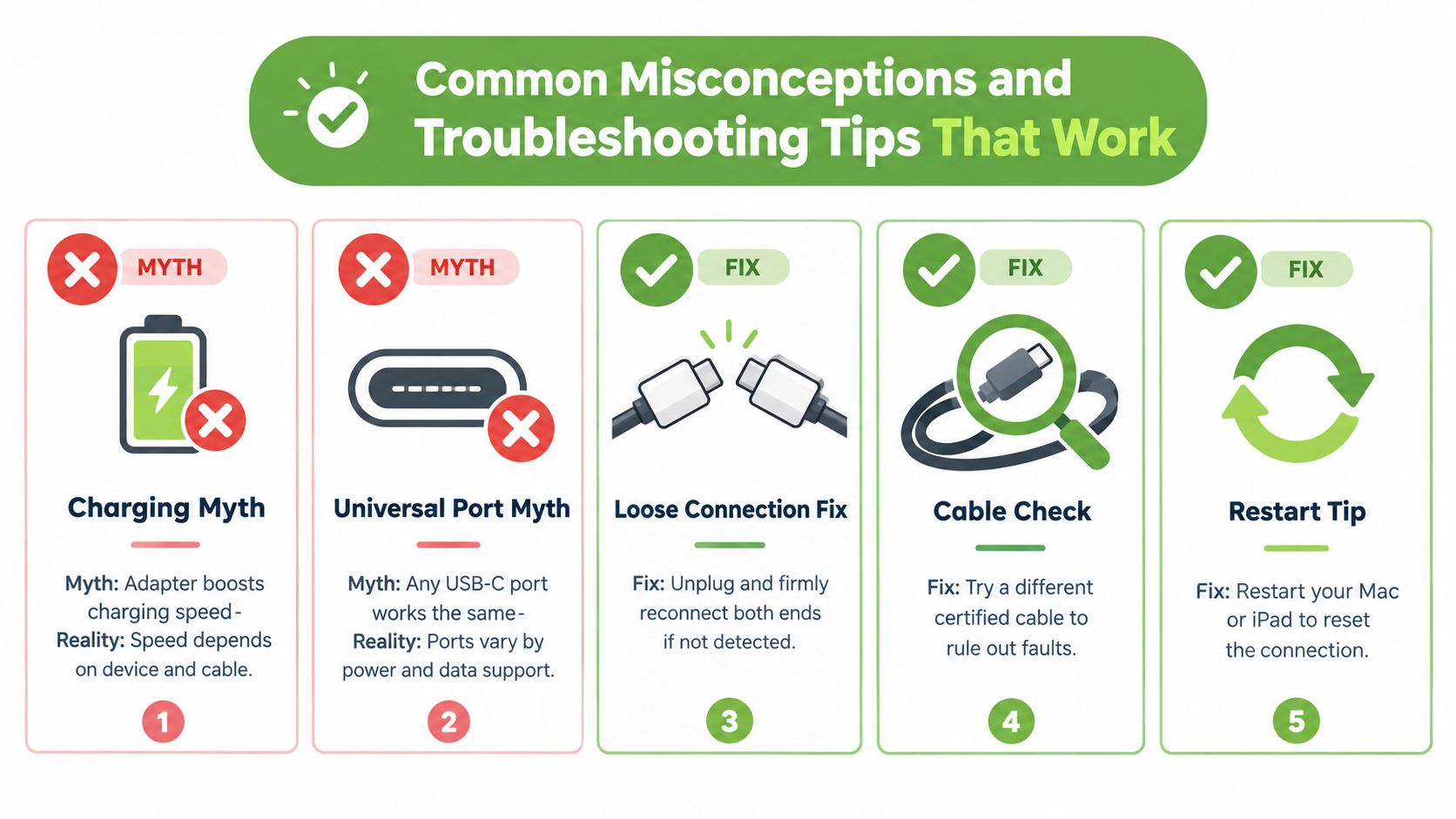
The first myth is that the adapter boosts charging speed. It doesn't. The second is that any USB-C cable gives the same data performance. It won't. The third is that if the plug fits, the accessory should work perfectly in every situation.
Those assumptions lead people in the wrong direction. A data adapter can solve a port mismatch, but it can't fix an unsuitable cable, a slow old drive, or a power-related issue.
Don't diagnose by connector shape alone. Check the role of each part in the chain.
Quick checks when something isn't working
If your device isn't recognised, start with the basics before replacing anything.
- Reconnect both ends firmly: Small adapters can sit loosely if they weren't fully inserted.
- Try another cable or peripheral: This is often the fastest way to rule out a faulty accessory.
- Check whether the issue is power or data: A charging problem points you towards the charger or cable. A file transfer problem points you towards the peripheral chain.
- Restart the host device: Macs and iPads sometimes need a fresh connection attempt.
- Test with a simple device first: A basic thumb drive is easier to troubleshoot than a specialised accessory.
When the adapter may not be the real answer
Sometimes the adapter is fine, but the setup no longer makes sense. If a team relies on several legacy USB-A tools every day, repeated dongle use can become messy. If a user travels often and keeps asking about plugs, wattage or hotel charging, that's a power-accessory question, not a USB data question.
A good troubleshooting habit is to ask one plain question first. What job am I trying to complete? Once that's clear, the right accessory becomes much easier to identify.
Making a Smart Choice and Extending Device Lifespan with myhalo
The Apple USB to USB C adapter is best understood as a lifecycle bridge. It helps useful older accessories keep working while your devices move further into a USB-C-first world. That's why it can be a sensible purchase for some people and completely unnecessary for others.
For a home user, the smart choice often comes down to frequency. If you still use that USB-A thumb drive, wired keyboard or camera cable often enough, a small adapter can save money and reduce clutter from duplicate replacements. If the accessory only appears once a year, or your workflow is already wireless and USB-C based, you may be better off skipping it.
A practical way to decide
Use this quick filter:
- Keep the accessory and buy the adapter if the older device still works well and still gets regular use.
- Replace the accessory if it slows you down, creates repeated connection issues or no longer fits your workflow.
- Move to a broader setup if you're managing several older peripherals at one desk.
- Retire responsibly when the accessory no longer adds value and isn't worth troubleshooting.
Why this matters beyond convenience
This kind of decision is really about resource use. Reusing a functional peripheral can improve value from past purchases, reduce unnecessary spend and make rollout planning easier for families and SMEs. Replacing only what no longer serves a purpose is often the most resilient choice.
That's also where a lifecycle partner becomes more useful than a simple checkout page. Whether you're evaluating an adapter, a replacement cable, a Certified ReLoved device, a Certified Surplus option, repair support, RescueAdvise guidance, or help from the mylo AI Assistant, the better question is always the same. What keeps your setup useful for longer, with less waste and less disruption?
For many Singapore buyers, that's the right frame. Not “What accessory should I buy next?” but “What is the most sensible way to keep my devices and peripherals working well?”
If you're deciding whether to keep older USB-A accessories in service or move on, myhalo can help you compare the practical options, from accessories and replacement devices to repair, reuse and responsible recycling. You can explore warranty-backed tech choices, including lifecycle-focused support and professionally assessed products, by visiting myhalo.