





Choosing a USB C Cable: The Complete 2026 Guide
You buy a new USB-C cable because the old one looked tired. It fits your phone, your tablet, and your laptop, so you expect it to do everything. Then the laptop charges painfully slowly, your external monitor stays black, or a file transfer crawls along like it's stuck in another decade.
That's the part people don't tell you. A USB-C cable can look right and still be wrong for the job. The connector shape is shared across many different capabilities, and that's where the confusion starts.
At myhalo, we talk to customers in Singapore who run into this every day. A student wants one cable for a laptop and phone. A small business owner wants a desk setup with charging, display, and accessories through one connection. A parent wants a replacement cable that lasts longer than the cheapest option in a marketplace listing. All of them are asking the same question in different ways. Which USB-C cable should I buy?
Table of Contents
- The Confusing World of the USB-C Cable
- The Connector vs The Standard
- Decoding Data Speeds From USB 2.0 to Thunderbolt
- Understanding Power Delivery Wattage and E-Markers
- Video Output and Device Compatibility Explained
- How to Choose the Right USB-C Cable for Your Needs
- The Sustainable Choice Buying Smart With myhalo
-
Frequently Asked Questions About USB-C Cables
- Can any USB-C cable charge my laptop
- Why does my USB-C cable charge but not show video on my monitor
- Is Thunderbolt the same as USB-C
- Does a longer cable always mean worse performance
- Are right-angle USB-C cables worth it
- If two cables look identical, how do I choose
- Is the most expensive cable always the best choice
- What's the safest buying mindset
The Confusing World of the USB-C Cable
You grab a USB-C cable from your bag because the plug fits your phone, laptop, and tablet. Your phone charges. Your laptop charges so slowly it still loses battery. Then you connect that same cable to a monitor and get a blank screen.
That experience is frustrating because the connector looks universal. The job a cable can do is not.
USB-C spread quickly because one small, reversible plug replaced a pile of older connector shapes. That convenience solved one problem and created another. Many cables now share the same ends while supporting very different levels of charging, data transfer, and display output.
Practical rule: A USB-C cable that charges a phone can still be the wrong cable for fast laptop charging, external displays, or large file transfers.
A helpful way to picture it is a water pipe. Two pipes can have the same tap on each end, but one may carry only a trickle while the other can handle far more flow. USB-C cables work in a similar way. The outside shape tells you what fits. It does not tell you how much power or data can move through the cable, or whether it can carry video at all.
That is why buying by appearance often leads to disappointment. It is also why the cheapest replacement can cost more over time. A poorly matched cable gets replaced sooner, creates a drawer full of unused extras, and adds to e-waste. At myhalo, we see a better cable choice as a practical one. Buy for the job you need, choose for longevity, and you are more likely to save money and keep one more cable in use for years instead of months.
The Connector vs The Standard
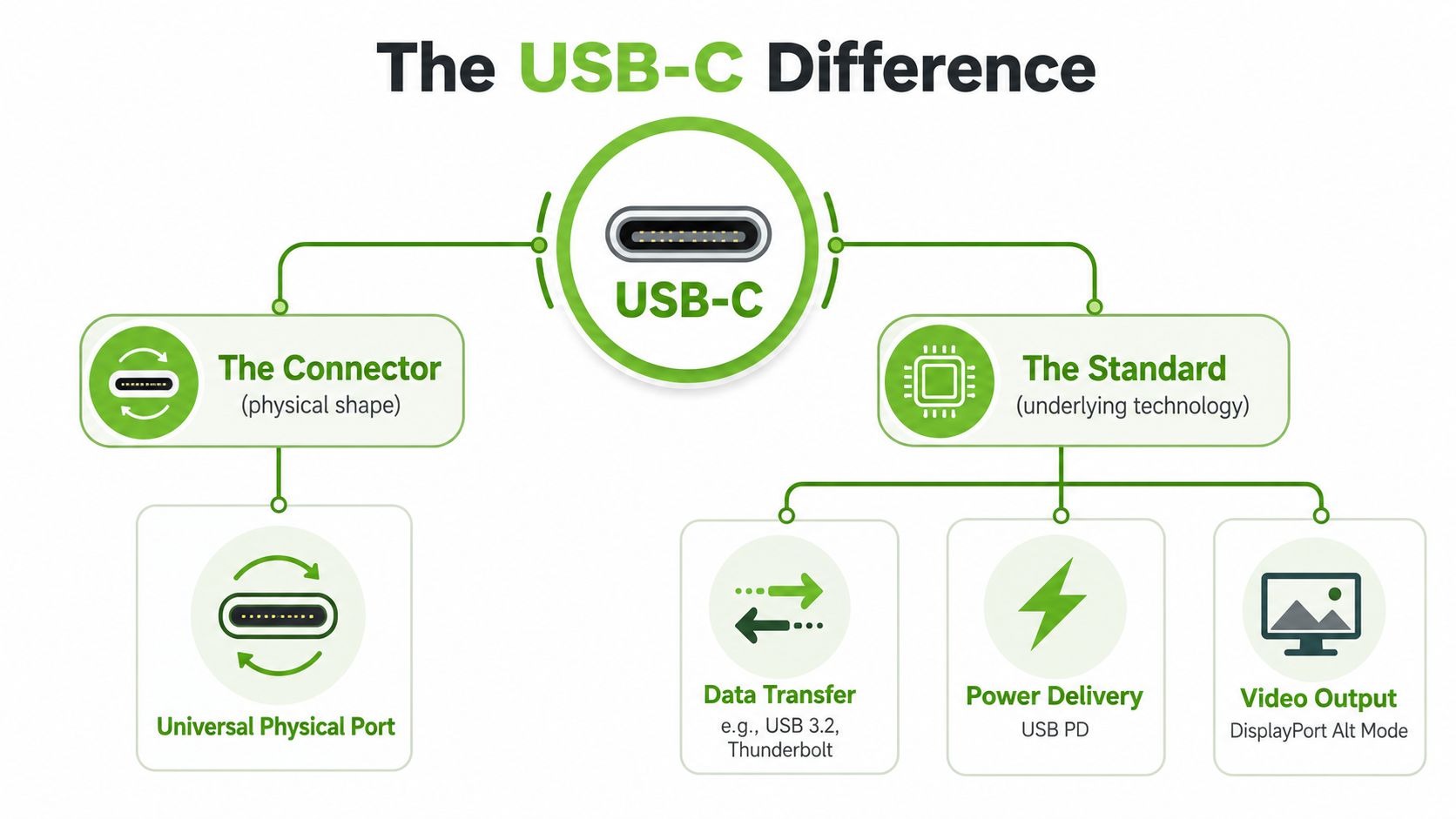
One shape, many different jobs
A lot of USB-C confusion starts with one simple mix-up. People use "USB-C" to mean both the plug shape and everything the cable can do. Those are related, but they are not the same thing.
The connector is the physical plug on the end of the cable. It is small, reversible, and designed so it fits either way up. That part answers one question only: will it plug in?
The standard answers the harder questions. Can this cable move files quickly? Can it charge a laptop properly? Can it carry video to a monitor? Those abilities come from the cable's internal wiring and the standards supported by the devices at each end, not from the shape alone.
That distinction matters in real life.
A USB-C cable for a basic charger can have the same connector as a cable built for a dock, a fast external drive, or a high-resolution display. On your desk, they may look interchangeable. In use, they can behave very differently. At myhalo, this is one of the biggest reasons customers end up buying replacements they did not really need.
Why the same cable can behave differently
The easiest way to judge a USB-C setup is to break it into four parts:
- Connector shape tells you the cable will fit the port
- Cable construction determines which features the cable can physically support
- Port support determines which features the device can use
- Power source determines how much charging power is available
The whole connection works at the level of the weakest part. If your charger can supply high power but the cable is basic, charging drops to what that cable can safely handle. If the cable supports video but the laptop port does not, the monitor stays dark.
A USB-C setup only performs as well as its least capable part.
This is why labels matter more than appearance. Terms such as USB 3.2, USB4, Thunderbolt, Power Delivery, and DisplayPort Alt Mode describe the actual job the connection can do. If those terms feel abstract, a network cable comparison can help. SES Computers' network cable advice shows a similar idea. Two cables can look close enough to swap, yet their real capabilities differ because of what they are built to carry.
For buyers who want fewer wasted purchases, this is the key takeaway: choose the cable for the task, not for the plug shape. A slightly better-matched cable often lasts through more devices and more upgrades, which is better for your budget and better than cycling through cheap cables that end up unused in a drawer.
Decoding Data Speeds From USB 2.0 to Thunderbolt
You plug a USB-C cable into an external SSD, start copying a big folder, and the progress bar barely moves. Then you swap the cable and the same drive suddenly feels quick. That is the moment many people realise USB-C shape does not tell you data speed.
A helpful way to read this is to treat the cable like a road. Some cables only have a narrow single-lane route for older USB 2.0 traffic. Others are built with the extra lanes needed for faster standards and more demanding jobs. The connector on the outside looks the same, but the path inside is very different.
A full-featured USB-C cable uses 22 pins and includes the lanes needed for higher-performance modes such as USB 3.2, USB4, DisplayPort Alt Mode, and PCIe tunnelling, while a basic USB 2.0 Type-C cable lacks those extra high-speed lanes, as explained in this USB Type-C guide.
That difference matters most with external SSDs, docks, cameras, and large media libraries. A basic cable can still be fine for charging or a keyboard, but it creates a bottleneck for tasks that need fast data transfer. If you are also comparing charging performance, our guide to a fast charging cable for everyday devices helps separate speed for power from speed for data, because those are not always the same thing.
Thunderbolt adds another layer, because it sits at the high end of the USB-C world and is aimed at heavier workloads. If USB 2.0 is a local road and USB 3.x is a highway, Thunderbolt is an express route built for fast storage, capable docks, and desk setups where several devices share the same connection.
USB-C Data Transfer Standards at a Glance
| Standard | Max Speed | Also Known As | Best For |
|---|---|---|---|
| USB 2.0 | 480 Mbit/s | Basic USB-C data | Charging, simple accessories, light file movement |
| USB 3.2 | 5 Gbit/s, 10 Gbit/s, or 20 Gbit/s in later variants | Various USB 3 naming schemes | External storage, everyday productivity, faster backups |
| USB4 | Up to 40 Gbit/s | High-performance USB-C mode | Advanced docks, faster storage, more demanding workflows |
| Thunderbolt | Up to 40 Gbit/s | Thunderbolt 3 or 4 in product listings | Pro workflows, desk setups, demanding peripherals |
The table gives you the headline numbers, but shopping gets easier when you match them to real tasks. Moving a few documents or charging a phone does not justify paying for a premium high-speed cable. Editing video from an external drive, backing up large photo libraries, or running a dock usually does.
That is where buying for longevity helps both your budget and the planet. A cable that matches your actual setup, with enough headroom for the next device you are likely to own, is less likely to end up forgotten in a drawer. At myhalo, that is the practical goal. Buy once with a clear purpose, use it longer, and replace fewer cables over time.
If you want a plain-English comparison mindset, the way people compare Ethernet categories can be useful too. SES Computers' network cable advice is about network cables rather than USB-C, but it illustrates the same buying lesson. Don't pay for a spec you'll never use, and don't expect an entry-level cable to handle a demanding setup.
Understanding Power Delivery Wattage and E-Markers
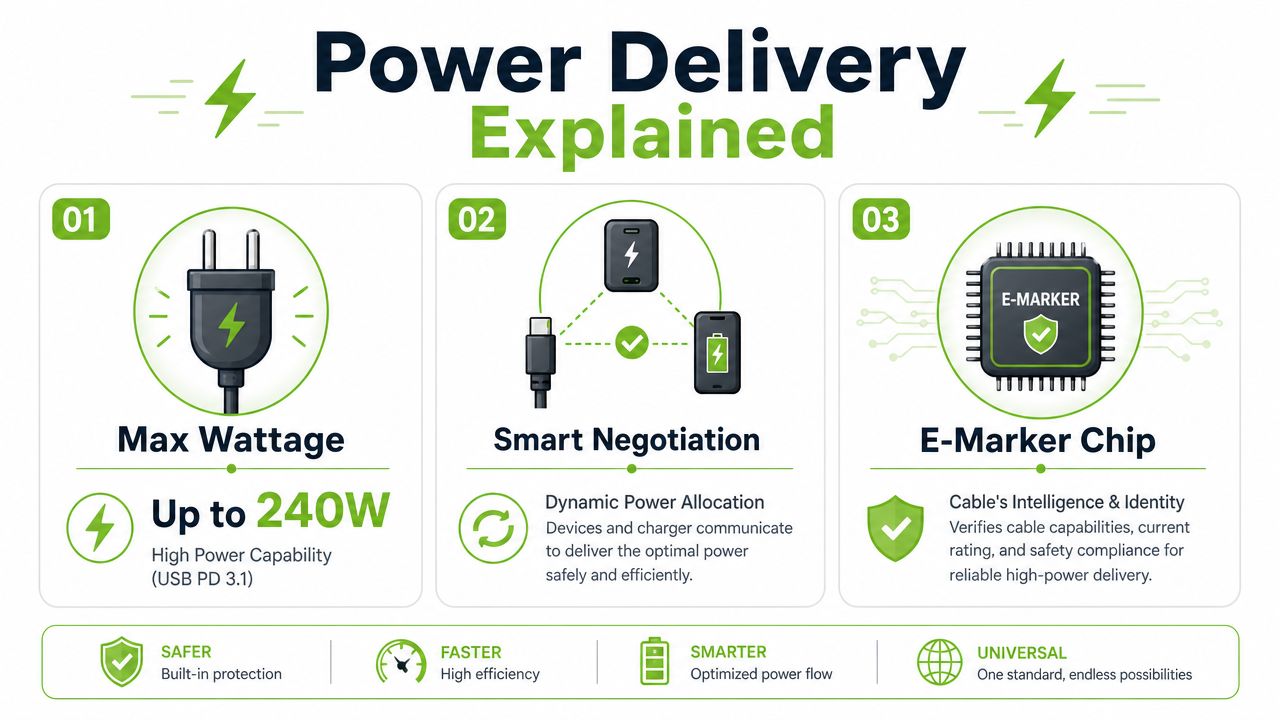
Power Delivery is a smart conversation
You plug a USB-C cable into a laptop, and one charger fills it quickly while another barely keeps up. The connector looks the same, but the charging result is completely different.
USB Power Delivery, usually shortened to PD, works like a clear agreement between the charger and the device. The charger offers a range of power levels. The device asks for the level it can use safely. The cable then has to carry that agreed load without overheating or dropping performance.
That is why wattage matters in real life, not just on packaging. Earbuds and phones usually ask for far less power than a laptop. A tablet may sit somewhere in the middle. If your setup includes a portable monitor or a laptop connected through a hub, choosing a cable with enough headroom can save you from slow charging, battery drain during use, or an early replacement.
A good way to picture it is a water system. The charger is the supply, the device is the tap, and the cable is the pipe. If the pipe is too limited for the flow you need, the whole system is held back.
Power Delivery does not mean maximum power all the time. It means the charger and device agree on the right level for that moment.
If you are comparing cable charging with fixed desktop charging options, this innovative magnetic charging dock is an example of a different setup for devices that support wireless charging.
Why cable rating and e-markers matter
USB-C power has grown a lot over time. USB PD 3.1 expanded the top end from 100W to 240W, as outlined in this history of USB charging standards. That sounds impressive, but it also makes cable quality and rating more important.
Here is the part that trips people up. A USB-C cable can fit physically and still be the wrong choice electrically. Some cables are built for lower charging levels. Others are designed to carry much more power and may include an e-marker.
An e-marker is a small chip inside certain USB-C cables. Its job is to identify the cable's capabilities to connected devices, especially for higher power or more demanding features. You do not need to study chip behavior to shop well. You only need to know the practical takeaway. If you want higher-wattage charging, especially for laptops, look for a cable that clearly states its power rating and support.
This is also where buying the cheapest cable can cost more later. An under-specced cable may charge slowly, may not support your next device, and often gets replaced sooner. A well-matched cable that you can keep through several device upgrades is usually better for your wallet and creates less waste.
If you are sorting out charging needs across phones, tablets, and laptops, myhalo also has a practical guide to fast charging cables for different everyday devices.
Video Output and Device Compatibility Explained
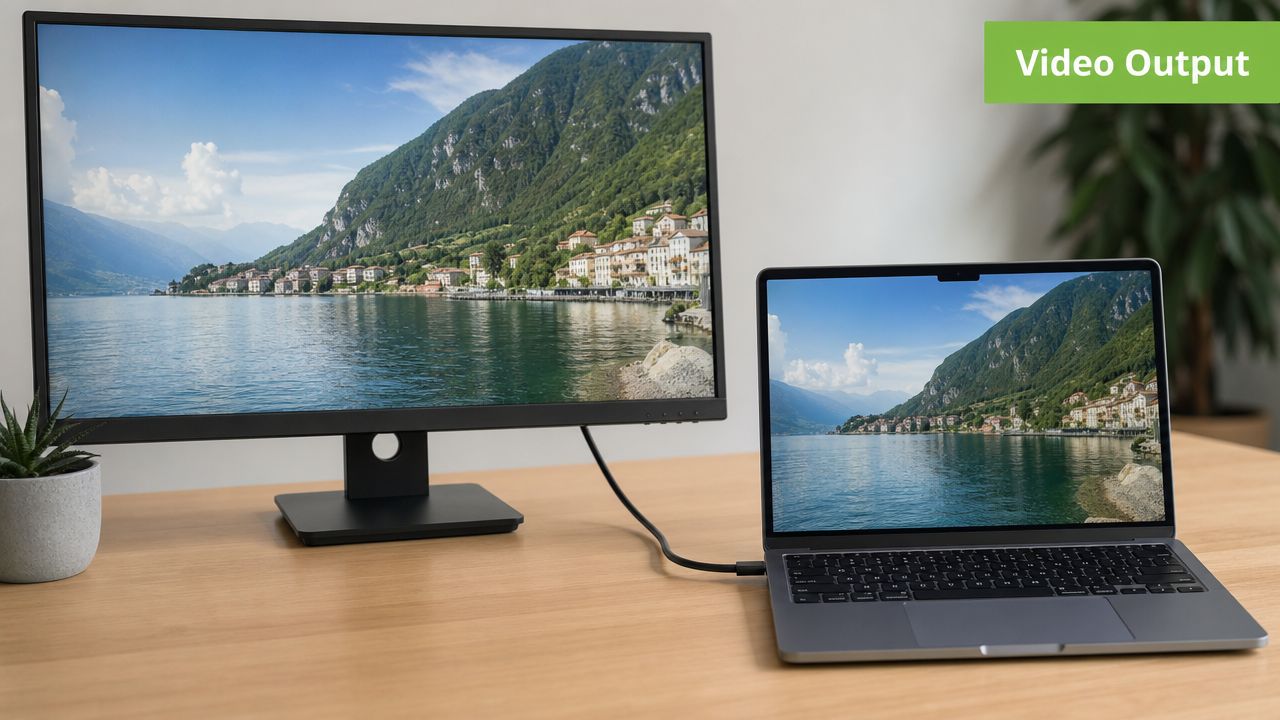
Why one monitor setup works and another fails
A USB-C cable can sometimes carry video to a monitor, but not always. This catches people out because the plug fits perfectly, the laptop port looks modern, and the monitor cable says USB-C. Yet the screen stays blank.
The missing piece is usually DisplayPort Alt Mode, often shortened to DP Alt Mode. That's the feature that lets a compatible USB-C connection carry a display signal. If the port doesn't support it, or the cable isn't built to carry the necessary lanes, you won't get video output.
A basic way to think about it is this. Charging is one job. Data is another. Video is another again. Some USB-C setups do all three. Some do only one or two.
How to check before you buy
If you want to connect a laptop to a monitor through USB-C, check these points:
- Port support on the laptop. The device itself must support video over USB-C.
- Cable capability. Some cables are charging-first and not intended for display use.
- Dock or adapter support. A dock can't create video support if the laptop port doesn't provide it.
- Monitor input expectations. Some displays accept USB-C video directly, while others expect HDMI or DisplayPort through an adapter.
A fully featured desk setup can feel almost magical when all the pieces line up. One cable can connect a laptop to a dock, power the laptop, drive a monitor, and attach storage or accessories. But when one piece is limited, the whole setup becomes confusing fast.
If a USB-C monitor connection fails, check capability before replacing your device. The issue is often the cable or port feature set.
How to Choose the Right USB-C Cable for Your Needs
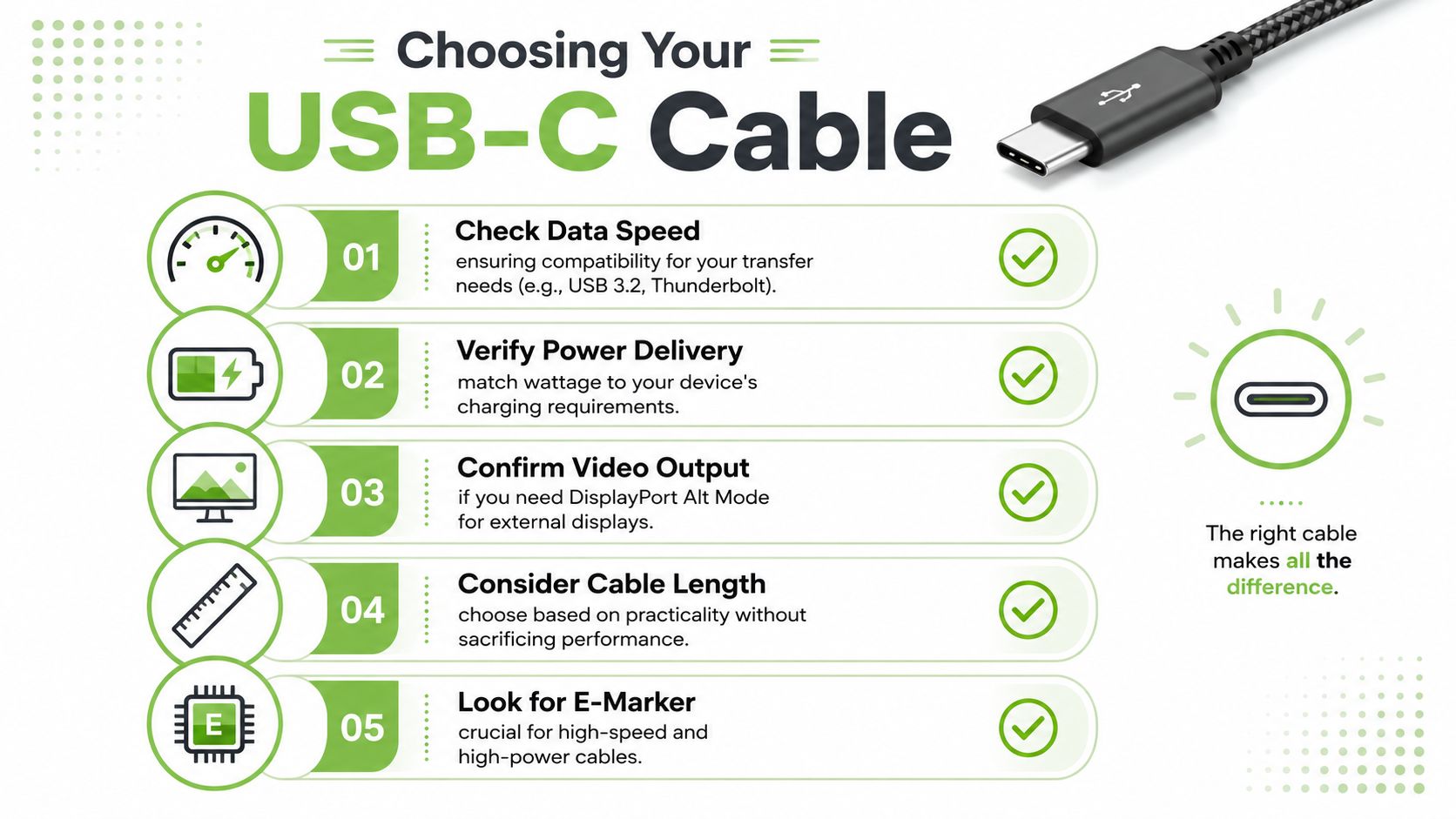
You are standing in a store or scrolling through a product page. Every cable has the same oval USB-C tip, but the labels say different things, and the prices jump around. The easiest way to choose well is to stop looking at the shape first and start with the job.
A USB-C cable works a bit like a road. Some roads are built for bicycles. Some carry heavy trucks. Some add express lanes for speed. Two cables can look identical on the outside and still handle very different workloads.
Start with the job you need done
Ask yourself what this cable will do on an ordinary day, not on its most ambitious day.
If it will mostly charge your phone at night, you do not need to pay for top-tier data and display features you will never use. If it will live at your desk connecting a laptop, dock, storage drive, or other gear, buying the cheapest cable usually creates problems later.
A simple way to choose is to match the cable to one of these use cases:
-
Charging a phone, tablet, or earbuds
Look for a cable with the right charging support for your device and a build quality that will survive daily bending. -
Charging a laptop
Check the wattage your laptop expects, then choose a cable clearly rated to support it. A cable that is fine for a phone can be under-specced for a larger device. -
Transferring files
If you regularly move photos, video, or backups to an external SSD, data speed matters. A basic charging cable can turn a quick transfer into a long wait. -
Using one cable for several jobs
A cable for travel or desk use often needs a better balance of charging, data support, and durability. In such cases, spending a little more can mean buying less often.
Cable length matters too. Longer cables are convenient, but they can be a poor fit for higher-speed or higher-power setups. For demanding use, a shorter, clearly rated cable is often the safer choice.
Here's a useful video if you prefer a visual explanation before buying:
A practical buying checklist
When you compare listings, packaging, or in-store options, check these points:
- Main purpose. A bedside cable, work-desk cable, and travel cable often need different specs.
- Power rating. Match the cable to the device you charge most often, especially for laptops.
- Data support. If you use external drives, cameras, or creator gear, confirm the transfer capability.
- Length. Shorter cables are often a better fit for higher-performance charging or data use.
- Connector shape. A right-angle connector can reduce strain in tight spaces like car mounts or small desks.
- Build quality. Look for clear strain relief, solid connector housing, and specifications that are easy to verify.
- Future use. If you expect to upgrade devices soon, buying one cable that covers your likely next setup can save money and reduce waste.
- The rest of your carry kit. If you travel often, pairing the right cable with backup power helps. This guide to choosing a power bank in Singapore can help with that part of the setup.
At myhalo, we encourage customers to buy the cable they will keep using, not the cable they will replace in three months. That usually means choosing for real daily use, avoiding feature claims you do not need, and favoring durability over impulse buys. A smarter cable choice is often better for your wallet and better for the planet.
The Sustainable Choice Buying Smart With myhalo
Cheap cables often cost more in the long run
A cable can be inexpensive and still be a poor buy. If it frays early, charges inconsistently, or can't support your next device, you'll replace it sooner. That means more spending, more frustration, and more waste.
From a sustainability point of view, the smartest cable isn't the one with the loudest marketing claim. It's the one you'll keep using across several devices without needing to replace it every few months. Versatility matters. Durability matters. Clear specifications matter.
That's especially true with USB-C because one well-chosen cable can serve multiple roles. If it supports the power and features you need, you're less likely to build up a drawer full of almost-right cables.
What a responsible purchase looks like
A better buying habit looks like this:
- Choose for your real devices. Buy for your laptop, phone, monitor, or dock setup as it exists today.
- Leave some room for future use. A cable that supports your likely next device can reduce replacement cycles.
- Prefer durable construction. Connector strain relief and solid materials usually matter more than flashy branding.
- Reduce duplicates. One dependable cable is often better than several throwaway backups.
If you want a modular option for lighter-duty everyday use, the myhalo sustainable bamboo 60W cable kit is one example of a cable kit that includes USB-C among its interchangeable connectors. It won't be the answer for every high-power laptop or display setup, but it fits the idea of buying with longevity and reuse in mind.
A sustainable purchase is rarely about buying the fanciest cable. It's about choosing one that stays useful.
Frequently Asked Questions About USB-C Cables
Can any USB-C cable charge my laptop
Not always. The connector may fit, but the cable still needs to support the required power level. Some cables are fine for phones and accessories yet unsuitable for larger laptops.
Why does my USB-C cable charge but not show video on my monitor
Charging and video are different functions. A cable can handle power without supporting the features needed for display output. Your device port also has to support video over USB-C.
Is Thunderbolt the same as USB-C
No. USB-C is the connector shape. Thunderbolt is a higher-performance technology that can use that same connector shape.
Does a longer cable always mean worse performance
Not for every simple use case, but for demanding setups, longer cables can make high-speed data and high-power charging harder to maintain reliably. For critical desk setups, shorter certified cables are often the safer choice.
Are right-angle USB-C cables worth it
Sometimes. They can reduce strain and fit better in tight spaces such as bedside charging, cars, or cramped desks. They're most useful when connector direction affects comfort or cable wear.
If two cables look identical, how do I choose
Check the rating, supported functions, and intended use. Don't judge by appearance. A USB-C cable should be chosen for charging level, data need, and video support, not just plug shape.
Is the most expensive cable always the best choice
No. A premium cable only makes sense if you need its capabilities. Overspending on features you'll never use isn't efficient or sustainable.
What's the safest buying mindset
Buy once for the job you need. If your setup includes a laptop, dock, external storage, or monitor, confirm each requirement before checkout. That habit saves money and cuts waste.
If you're sorting through chargers, cables, refurbished devices, or accessories and want practical advice instead of guesswork, myhalo is a useful place to start. You can compare options based on how you use your tech, then choose a cable or device setup that lasts longer, works properly, and creates less waste over time.