





Type C Cable Guide: Speeds, Power and Specs
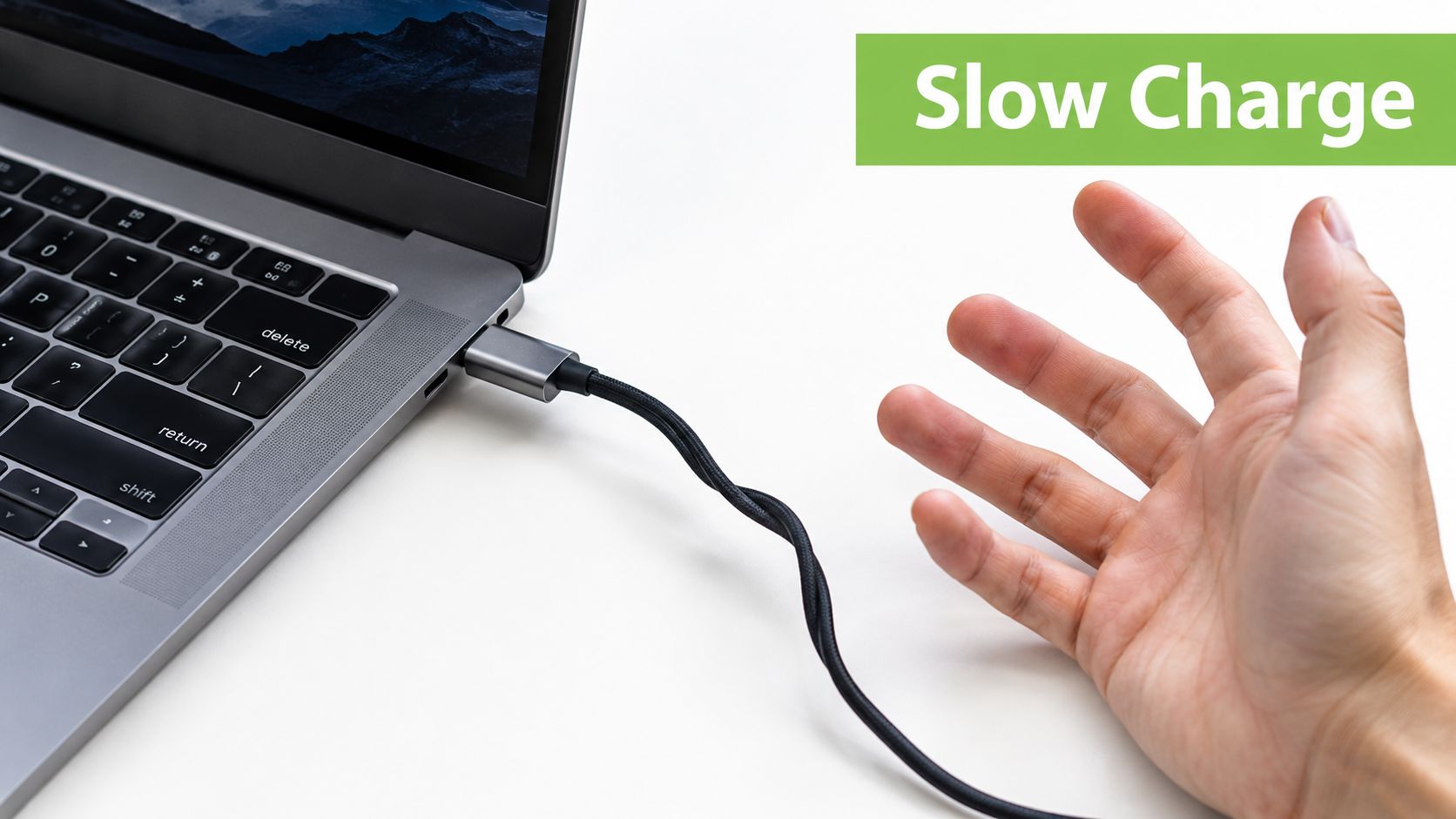
You plug a USB-C cable into your laptop, feel the familiar click, and expect everything to work. Instead, the battery charges slowly, the external monitor stays blank, or a file transfer takes far longer than it should. The connector fits, but the result doesn't match the promise on the packaging.
That confusion exists because USB Type-C describes the connector's shape, not the cable's full capability. Two cables can look identical while supporting very different charging power, data speeds, display functions and safety features. This guide helps Singapore consumers and SMEs choose a type c cable by matching its specifications to the devices and tasks that matter.
Table of Contents
- Why Your Type C Cable Might Be Bottlenecking Your Devices
- Decoding USB Generations and Data Transfer Speeds
- Understanding Power Delivery and Wattage Limits
- When Alternate Modes and Thunderbolt Are Worth Paying For
- Cable Quality, Length Tradeoffs and Singapore Safety Standards
- Matching the Right Cable to Your Specific Devices
- Protecting Your Tech and Extending Device Lifespans
Why Your Type C Cable Might Be Bottlenecking Your Devices
A small cable bundled with a mouse or budget accessory may be perfectly suitable for charging that accessory. It doesn't automatically become suitable for a laptop, external SSD or docking station. The reversible Type-C plug only tells you that it can enter the port in either orientation. It doesn't confirm how much power the cable can carry or how quickly it can move data.
The internal wiring, electronic identification and shielding determine what happens after connection. A basic USB 2.0 Type-C cable may handle ordinary charging and syncing, while a full-featured USB4 cable can support much faster data movement and more advanced setups. Singapore listings reflect this range, with Type-C products spanning basic charge-and-sync cables to USB4 models marketed for high-speed data and high-power charging, as shown by StarTech's USB-C cable specifications.
The connector is only the starting point
Think of the Type-C plug as the entrance to a building. Every entrance may have the same shape, but the rooms behind it can contain different equipment. One cable may have only the wiring needed for basic USB 2.0 data, while another may include additional high-speed pathways for external storage or display functions.
That's why a cable can charge a phone but fail to run a monitor. It may also charge a laptop, but at a lower rate than the charger supports. The charger, device port and cable must agree on the same operating requirements.
Practical rule: If a listing only says “USB-C” and doesn't state power, data or display support, you don't yet know what the cable can do.
For consumers, the result of choosing poorly is inconvenience. For SMEs, it can become a workflow problem across laptops, monitors, meeting-room equipment and shared storage. A cable that repeatedly forces slower charging or unreliable connections can waste staff time and lead to unnecessary accessory replacement. The sensible approach is to identify the task first, then select the cable specification that supports it.
Decoding USB Generations and Data Transfer Speeds
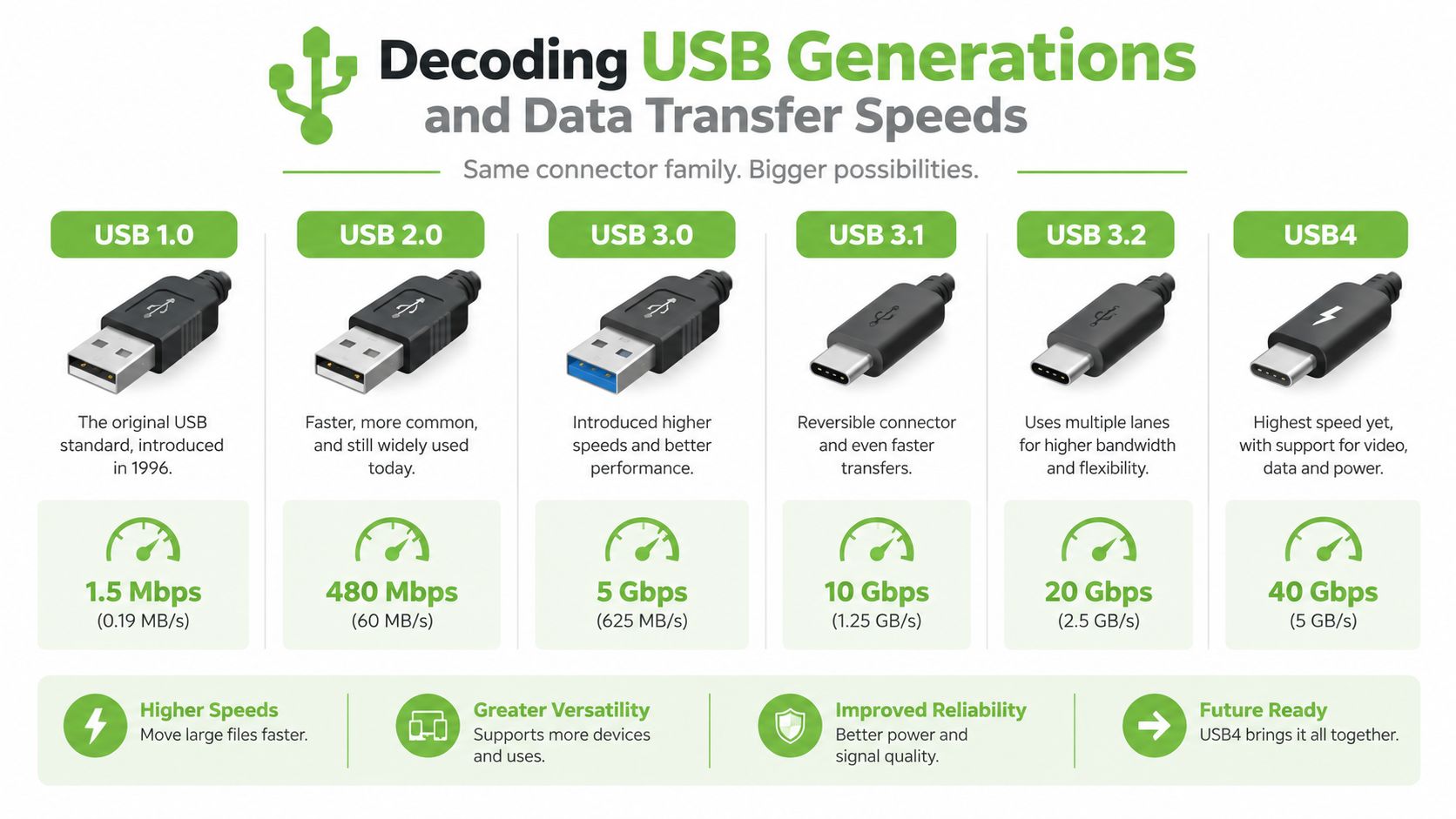
USB naming feels confusing because manufacturers use the same Type-C connector across multiple generations. A useful analogy is a road. The connector is the road entrance, while the USB generation determines how many lanes are available behind it. A one-lane road and a multi-lane expressway may have similar entrances, but they won't move traffic at the same rate.
Read the data label, not just the plug
USB 2.0 Type-C cables are commonly suitable for basic charging, keyboards, mice and ordinary phone syncing. They can still be useful, especially when moving small files or charging devices overnight, but they aren't the natural choice for frequent large transfers.
USB 3.2 cables provide a more suitable path for workflows involving external SSDs, large photo libraries or regular backups. The exact performance still depends on the device, port and storage hardware. A high-speed cable connected to a slower port won't create speed that the device doesn't support.
USB4 sits at the higher end of the Type-C ecosystem and is intended for demanding connectivity, including advanced docks, high-speed storage and certain display arrangements. Product listings may distinguish between different USB4 capabilities, so buyers should read the stated data rate and supported functions instead of assuming every USB4 cable performs identically.
The key point is that the cable and both connected devices form one system. If your laptop supports high-speed storage but your cable is limited to USB 2.0, the cable becomes the bottleneck. If your cable supports a faster standard but the laptop's port doesn't, the connection will operate at the lower capability.
Use the task to choose the lane
Ask what you'll connect.
- Phone charging and occasional syncing: A basic Type-C cable may be sufficient.
- External SSD work: Look for a stated USB 3.2 or USB4 data specification.
- Docking and display use: Check the cable's display and data support, not only its charging label.
- Creative or operational workflows: Confirm the full specification for both the computer and peripheral before buying several cables for a team.
This short video provides a visual explanation of how USB-C capabilities can differ across devices and cables.
A listing that says “100W charging” may still use USB 2.0 data wiring. That can be perfectly reasonable for a charging-only setup, but unsuitable if you expect fast SSD transfers. Always separate power capability from data capability.
Understanding Power Delivery and Wattage Limits
Charging speed depends on more than the charger's headline wattage. The device negotiates with the charger, and the cable must be designed to carry the agreed current safely. The USB Type-C specification distinguishes between standard passive cable assemblies rated for 3 A and a Type-C receptacle specified for 5 A capability, as described in the USB Type-C specification.
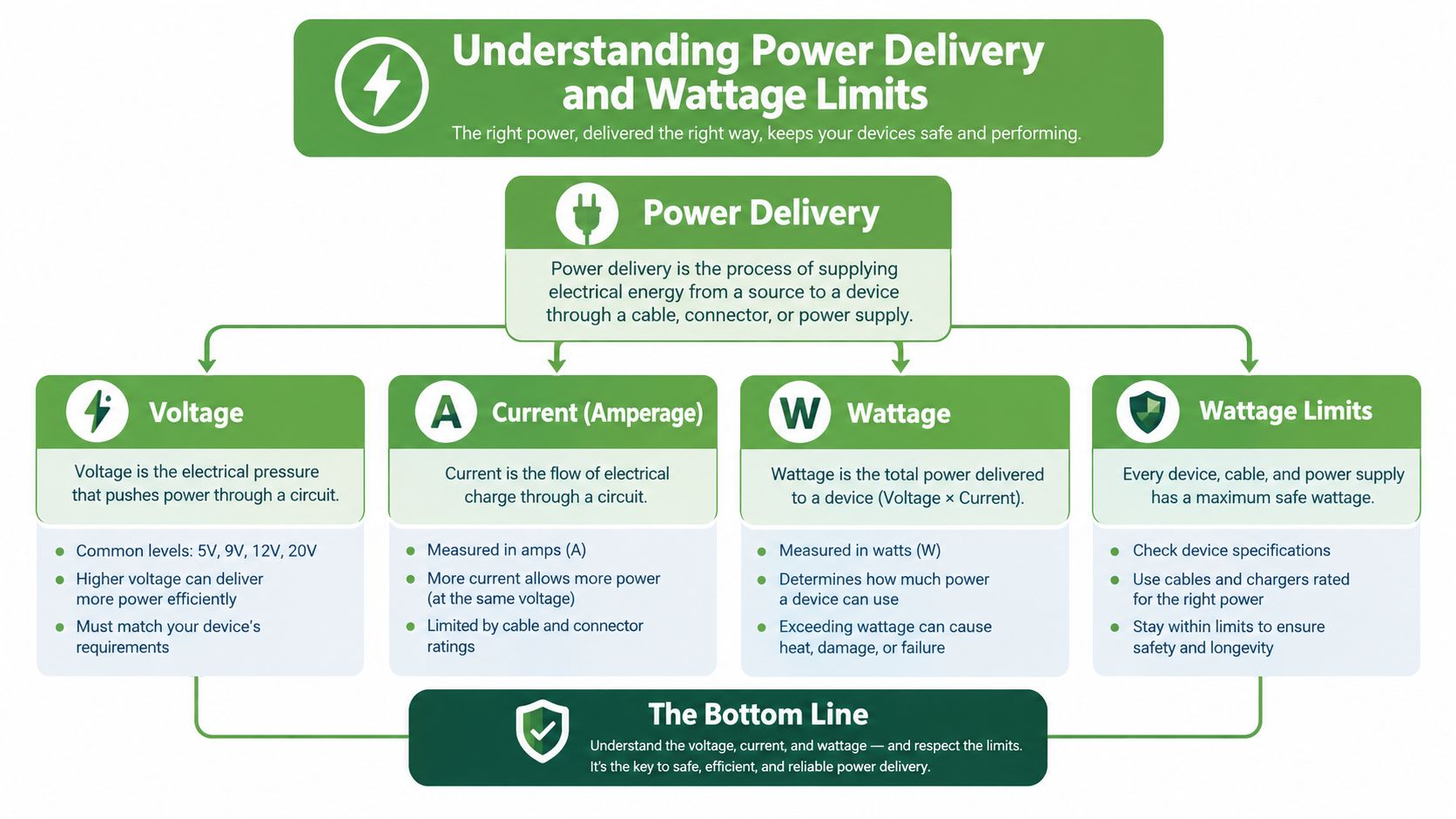
A 5 A-capable charger doesn't guarantee 5 A delivery through every cable. If the cable isn't designed and identified for the required current, the system can fall back to a lower current. Your laptop may still charge, but it can charge more slowly or have less power available while you're working.
From 100W to 240W
USB Power Delivery Revision 3.1 expanded Type-C charging beyond the earlier 100W limit to support up to 240W over a full-featured Type-C cable and connector, according to this USB Power Delivery Revision 3.1 technical document. The Extended Power Range profiles use fixed voltages of 28 V, 36 V and 48 V, enabling up to 140W, 180W and 240W respectively.
That capability matters for high-performance laptops, mobile workstations and other equipment with substantial power requirements. It doesn't mean every laptop should use a 240W cable. A device draws power according to its design, and a higher-rated cable won't force unsuitable power into a compatible device. It does mean the cable must match the requirements of the charger and computer if you want the intended charging behaviour.
Look for verified identification
USB-IF updated the Type-C specification to Release 2.1 for 240W cable requirements and introduced certified logos showing whether a cable supports 60W or 240W, as explained by USB-IF's charger and power-delivery information. These markings make capability easier to check at purchase.
For a 240W cable, certification matters. The 240W packaging logo is reserved for cables rated for that power, tested for USB Power Delivery 3.1 Extended Power Range and the relevant Type-C connector and cable assembly requirements, and listed on the USB-IF Integrators List, as detailed in this USB-IF-certified 240W cable description.
Charging insight: Treat wattage as a shared agreement between the charger, device and cable. The highest number printed on one component doesn't define the result by itself.
Singapore's standards catalogue lists IEC 62680-1-3:2024 as the current Type-C cable and connector specification, covering receptacles, plugs, cables and detection mechanisms. For procurement, the exact standard and device requirement are more useful than the phrase “fast charging” alone. The Singapore Standards e-shop listing also distinguishes the 2024 specification from older editions.
When Alternate Modes and Thunderbolt Are Worth Paying For
A laptop can use one Type-C port for charging and data while sending no video. DisplayPort Alternate Mode, often called DP Alt Mode, lets a compatible USB-C port and cable carry DisplayPort video and audio to a monitor. The laptop, display and cable must all support the feature, so the connector shape alone cannot confirm it.
A laptop with DP Alt Mode may connect directly to a compatible USB-C monitor, reducing desk clutter by combining display, charging and selected USB functions in one connection. A charging-only Type-C port cannot output video, regardless of the cable used.
Match the cable to the setup
| Setup | What to verify | Sensible cable direction |
|---|---|---|
| Phone charging | Power requirement and connector at each end | Charging-focused Type-C cable |
| Laptop to monitor | DP Alt Mode on the laptop and display | Full-featured Type-C cable with display support |
| One-cable desk dock | Charging, data and video requirements | Cable matched to the dock's stated specification |
| High-speed storage array | Data standard and host port | USB4 or certified Thunderbolt cable where required |
Thunderbolt is a stricter connectivity system for demanding combinations of data, display and peripherals. A certified Thunderbolt cable can suit a workstation with a high-performance dock, external storage and several peripherals. Phone charging, keyboard connections and occasional document transfers generally do not require its added capability.
Use the monitor and laptop specifications as the starting point. A USB-C monitor such as the Certified ReLoved Dell P2422HE monitor with a USB-C hub may simplify a desk setup, but confirm that the computer supports the monitor's required video mode and power delivery before buying the cable.
For SMEs, this check prevents paying for specifications that sit unused across a desk fleet. For a home user, it can also reduce unnecessary cable replacements and electronic waste. Select the cable by the job it must perform, then keep the same requirement in mind when replacing or reusing equipment.
Avoid the premium by default: Pay for Thunderbolt or full-featured USB4 capabilities when your hardware and workflow need them. For simple charging, extra bandwidth can add cost without adding value.
Cable Quality, Length Tradeoffs and Singapore Safety Standards
Longer cables are convenient, but distance makes signal integrity harder to maintain. A longer high-speed cable needs appropriate conductors, shielding and construction to carry signals reliably. A cheap long cable may physically connect two devices while producing intermittent drives, unstable displays or inconsistent charging.
The tradeoff becomes clearer with demanding workloads. A short cable can be easier to engineer for high-speed data, while a longer cable may require more careful design. Length isn't automatically bad, but it should be considered alongside the data standard, power rating and intended use.
Separate cable compliance from charger compliance
Singapore's Consumer Product Safety Office states that consumer products sold locally must meet applicable safety standards and requirements, as set out in the Consumer Product Safety Regulations. The connector shape doesn't replace those obligations.
Multi-way adaptors are especially relevant because they often sit in the same charging setup as a Type-C cable. From 11 February 2024, all multi-way adaptors of all shapes and designs sold in Singapore must display a valid Safety Mark, according to the same Singapore regulatory source. This rule concerns the adaptor, not the Type-C cable, but both components influence the safety of the complete charging arrangement.
Singapore Airlines' safety guidance also illustrates a practical point for travellers, charging setups can require both an adaptor and a charging cable when using in-seat power. A cable alone isn't a complete power solution.
What responsible buying looks like
- Check the product description: Look for explicit power and data ratings, not only “fast charging”.
- Inspect the physical condition: Frayed insulation, bent plugs or loose connectors justify replacement.
- Match length to purpose: Use the shortest practical cable for high-speed desk connections, and choose longer cables only when the design supports the requirement.
- Buy from accountable providers: Clear specifications, transparent support and recognised quality processes make troubleshooting easier.
A cheaper cable becomes a false economy when it repeatedly causes failed transfers, slow charging or replacement purchases. myhalo's fast charging cable guide provides a practical starting point for comparing charging-focused Type-C options without treating every cable as interchangeable.
For SMEs, documenting approved cable types can reduce support friction. Pairing compatible cables with properly regulated adaptors also helps teams manage equipment more consistently, which supports operational resilience and smarter resource use.
Matching the Right Cable to Your Specific Devices
A phone charging at a café, a laptop connected to a dock and an external SSD moving large files all use Type-C ports, yet their cable requirements differ. Start with the task, then match the cable to the devices involved. The highest wattage label or newest logo does not automatically make a cable suitable.
A practical matching framework
Check these points in order:
- What are you connecting? Identify the source device, charger, display, dock or storage device.
- Is the cable for charging, data or both? A charging-focused cable may not support high-speed data.
- Does video output matter? Confirm DP Alt Mode or Thunderbolt requirements on both connected devices.
- What power does the device require? Match the cable with the charger and device specifications.
- What length fits the workspace? Avoid unnecessary length for high-speed connections, especially around desks and docks.
| Device Type | Recommended Spec | Power / Data Needs |
|---|---|---|
| Smartphone | Type-C charging cable, with power rating matched to the charger | Charging and occasional syncing, usually no advanced display requirement |
| Everyday office laptop | Type-C cable with suitable Power Delivery support | Charging, with data capability matched to ordinary peripherals |
| High-performance gaming laptop or workstation | Higher-rated full-featured Type-C cable, potentially 240W where the hardware requires it | High-power charging and, where supported, fast data or display connectivity |
| External SSD | USB 3.2 or USB4 cable matched to the drive and computer | Data performance is the priority, charging may be secondary |
These recommendations are starting points, not universal rules. A phone may need only charging support, while an office laptop connected to a dock may also require display and data capabilities. A cable rated for 100W can still use USB 2.0 data wiring, so its power label does not confirm storage performance.
For a charging-focused setup, the WEKOME WDC-11 100W USB-C to USB-C fast charging cable may fit when its stated power capability matches the devices involved. Confirm the data and video specifications separately before using it with an SSD, monitor or dock.
Buying habit: Write down “charging”, “data”, “display” or a combination before comparing listings. This simple check prevents many mismatched purchases.
For an SME device fleet, record the port requirements of each laptop model and standardise cables only where the specifications overlap. Basic desks can use suitable charging-focused options, while specialist users receive the bandwidth and power their work requires. This keeps purchasing focused on actual use instead of paying for features that a particular workstation cannot use.
Protecting Your Tech and Extending Device Lifespans
The right cable supports more than immediate convenience. It helps the device and charger negotiate an appropriate charging arrangement, maintains a reliable connection and reduces the temptation to keep using damaged accessories. A correctly specified cable also makes it easier to reuse a laptop, monitor or dock when the surrounding equipment changes.
That fits a broader technology lifecycle approach. myhalo supports device longevity through repair, reuse, Certified ReLoved devices, Certified Surplus products, RescueAdvise and the mylo AI Assistant. Its ISO 9001 Certified and ISO 27001 Certified processes, transparent device grading, battery health disclosure and 30-point quality checks are relevant when consumers and SMEs assess technology beyond its initial purchase.
Accessories are part of lifecycle planning
A good cable won't prevent every battery or port problem, but poor matching can create avoidable friction. Replacing a device because the accessory setup is unreliable wastes money and reduces the value of the hardware already owned. Maintaining compatible cables, chargers and docks helps organisations get more useful service from existing equipment.
Responsible recycling matters when equipment and accessories reach the end of their useful life. Singapore's e-waste framework includes ICT equipment as regulated products, with a reported material recovery target of 70%, and recyclers receiving e-waste must permanently erase or destroy stored data before reuse, recycling, disposal or transfer, as stated in Singapore's e-waste reporting material. That connects accessory decisions to secure retirement, reuse and resource planning.
Choose a type c cable by matching its power, data, display and length requirements to the device. The result is a more dependable setup today and a better chance of keeping the surrounding technology useful for longer.
myhalo offers charging cables, Certified ReLoved and Certified Surplus devices, repairs, trade-ins and responsible technology lifecycle support for Singapore consumers and SMEs. Visit myhalo to compare compatible accessories and explore practical ways to extend the life of your devices.