





Logitech Master 2S: A 2026 Guide for SG Professionals
You're probably in one of two situations right now. You've been using a basic office mouse and you're tired of wasting small pockets of time on scrolling, tab switching, and repetitive clicks. Or you already know the Logitech Master 2S by reputation, and you're wondering if it still makes sense to buy one in Singapore when newer models exist.
That question still comes up because the Master 2S sits in an unusual spot. It isn't the newest productivity mouse, but it remains one of the few older models that people still actively seek out for work, especially when they want a shape that supports long hours and controls that go beyond left and right click. It also raises a more practical question than most reviews answer. Is this a smart long-term tool, or are you buying into an ageing device with avoidable compromises?
For Singapore buyers, that decision isn't only about features. It's about value, repairability, how it fits into a multi-device setup, and whether buying new is the best use of money and resources. That matters even more for freelancers, SME teams, and professionals who want equipment that stays useful instead of becoming another short-lifecycle purchase.
Table of Contents
- Why the Logitech Master 2S Still Matters in 2026
- Decoding the Key Features and Specifications
- Ergonomics and the Ideal User Profile
- Real-World Performance and Battery Endurance
- Unlocking Productivity with Advanced Customisation
- Comparing the Master 2S to the Master 3 and Common Issues
- Smart Buying in Singapore New vs Certified ReLoved
Why the Logitech Master 2S Still Matters in 2026
A standard mouse works until your workload gets layered. Open a spreadsheet, browser, Slack, PDF, design file, and a second laptop beside your main machine, and suddenly a cheap mouse starts to feel slow. You scroll more than you should. You reach for the keyboard for tasks that could've been one thumb movement. You keep losing momentum.
That's why the Logitech Master 2S still gets attention. It was built around workflow reduction, not just pointer movement. People didn't remember it because it looked premium. They remembered it because it removed friction from everyday work.
A productivity tool, not just a peripheral
The Master 2S has the kind of feature set that still maps well to actual desk work in Singapore. Analysts can use the side controls to move through wide sheets. Designers can map zoom or undo. Developers can jump between long files and browsers without awkward hand repositioning. Managers moving between desktop and laptop setups can benefit from a mouse built for multi-device use.
That's different from a gaming-first mouse or a budget wireless model. Those can be fine, but they often optimise for one thing. The Master 2S was designed for broad professional use.
Practical rule: If your mouse is only a pointing device, almost any mouse will do. If your mouse is part of how you work faster, shape and custom controls matter a lot.
Why the buying decision is more nuanced now
The primary issue in 2026 isn't whether the Master 2S was good. It clearly was. The better question is whether it still fits your setup better than a newer alternative, and whether the age of the device changes the risk profile enough to affect your purchase.
For some users, the answer is still yes. The shape, controls, and workflow features remain useful. For others, especially tablet-heavy users or buyers who want the latest charging standard and newer hardware refinements, the compromises are more obvious. That's where this mouse becomes less of a simple recommendation and more of a smart decision based on usage pattern, repair tolerance, and budget discipline.
Decoding the Key Features and Specifications
A spec sheet can make the Master 2S look dated or ordinary. Day-to-day use tells a more useful story. This mouse still holds up because the core hardware choices were aimed at office productivity, multi-device work, and long sessions, not short-term novelty.
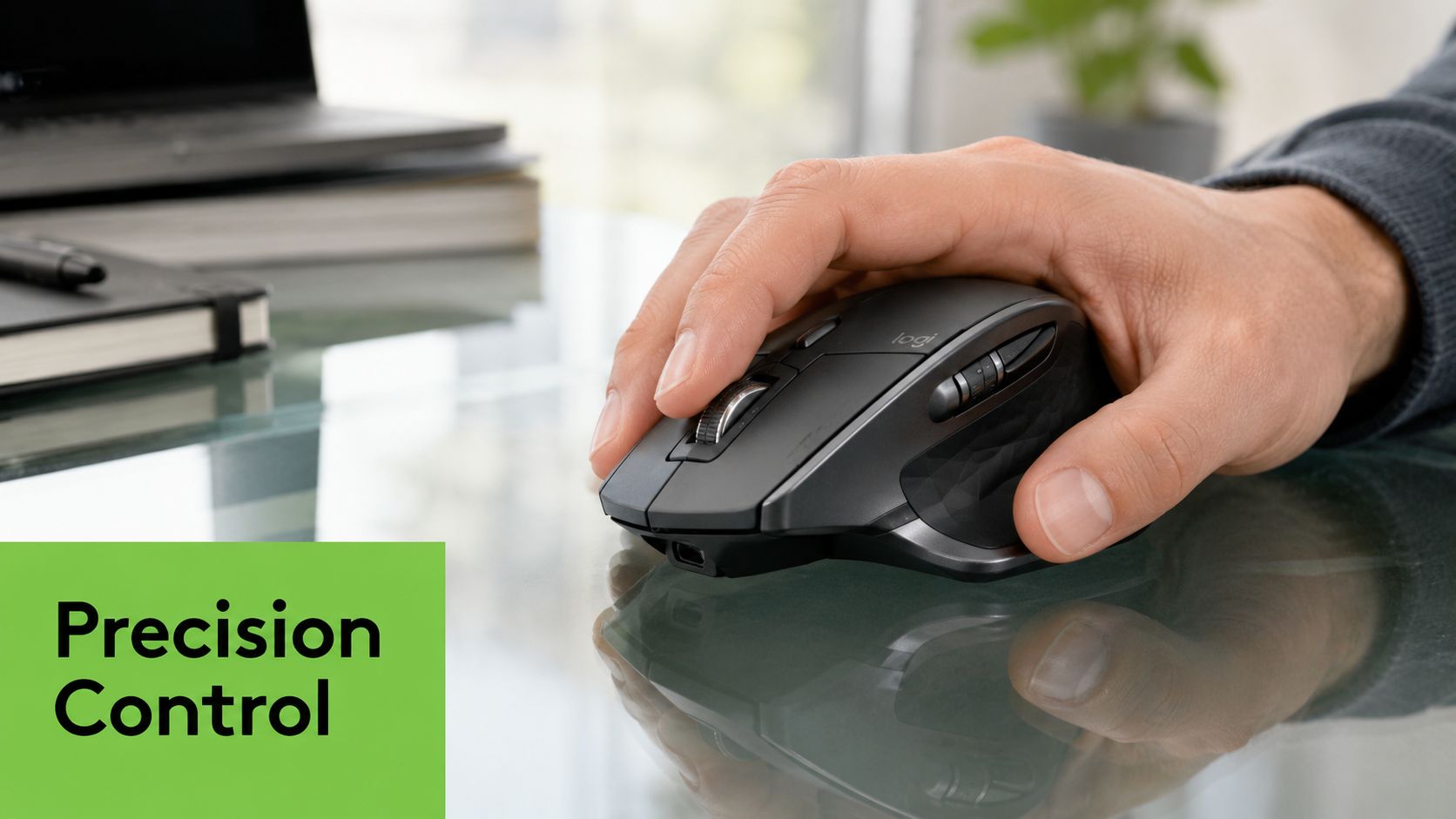
At a glance, the key points are straightforward. You get a Darkfield sensor with adjustable sensitivity, seven programmable buttons, dual scrolling controls, and support for switching across up to three paired devices. Those features matter because they affect how often you reach for the keyboard, how well the mouse tracks on different desk surfaces, and whether the device still fits a modern hybrid setup in Singapore a few years after launch.
How the Sensor Impacts Your Work
The sensor is not about chasing a headline DPI number. It is about control.
On a cramped desk with a 27-inch monitor, higher sensitivity reduces the amount of wrist travel needed to cross the screen. On detailed tasks such as cell selection in Excel, timeline edits, or masking work, lower sensitivity gives better stopping precision. The fine adjustment steps help because you can tune cursor speed to your monitor, mouse pad, and hand movement instead of settling for a setting that feels slightly off all week.
Darkfield tracking also matters more than many buyers expect. In real offices and home setups here, people use wood desks, laminate tops, and sometimes glass tables. The Master 2S handles these surfaces better than cheaper wireless mice that become inconsistent once the surface changes.
The Controls Are the Real Productivity Feature
The reason many users keep the Master 2S for years is the control layout. The main scroll wheel covers fast vertical movement. The thumb wheel handles horizontal navigation. The extra buttons can be assigned to common actions that shave time off repetitive work.
Typical mappings that hold up in real use include:
- Back and forward for browser-heavy work
- Copy, paste, or app switching for admin and operations tasks
- Undo, zoom, or timeline scrubbing for design and editing
- Mission Control or desktop switching for users moving between windows all day
This is also why the mouse appeals to users looking at expert recommendations for palm grip mice. Shape matters, but button placement matters just as much once the mouse becomes part of your workflow rather than a basic pointer.
Multi-Device Support Still Has Practical Value
Flow and multi-device switching were ahead of their time, and they are still useful now. A user with a work laptop, home desktop, and secondary machine can move between systems without keeping multiple mice on the desk. For Singapore buyers working in small home offices or hot-desk environments, that reduces clutter and keeps the setup simpler.
There is a trade-off. Older wireless hardware always carries more purchase risk than a current model, especially if battery wear, switch wear, or scroll wheel issues have already started. That does not make the Master 2S a poor buy. It means the value depends on condition. A well-kept or properly refurbished unit can still make sense. A cheap but worn unit often does not.
The practical takeaway is simple. The Master 2S remains attractive because its core specification set still supports real work. The smarter question is not whether the features sound good on paper. It is whether the unit in front of you is in good enough condition to deliver those benefits for another few years, or whether repair or a Certified ReLoved option gives better long-term value than buying blind.
Ergonomics and the Ideal User Profile
The Logitech Master 2S is one of those mice that people either settle into quickly or reject almost immediately. That isn't because the design is poor. It's because the shape is opinionated.
It's a large, sculpted, right-handed mouse with a strong palm-supporting profile. If your hand naturally rests on the mouse and you prefer your palm to carry most of the contact, it can feel stable and controlled over long sessions. If you prefer a smaller, flatter, or more fingertip-oriented mouse, it may feel bulky.
Who will like the shape
The physical design suits users who spend many hours in front of a screen and want the mouse to support the hand rather than disappear under it. The thumb rest gives your hand a consistent anchor point. The raised body reduces the collapsed hand posture that cheaper flat mice often encourage.
The wheel layout also contributes to comfort. The mouse includes a thumb wheel with tilt functionality and a dedicated scroll wheel with both line-by-line and hyper-scroll modes, which supports navigation through long documents, code files, and web pages used in SME and enterprise work, as described in this Logitech Master 2S product listing.
That means the ergonomics aren't only about shape. They're also about reduced repetition. Less reaching for keyboard shortcuts. Less dragging the scroll bar. Less awkward side-to-side wrist repositioning in large sheets.
For readers comparing fit and shape across similar designs, these expert recommendations for palm grip mice are useful because they show how hand position changes comfort more than many buyers expect.
Who should think twice
This isn't a universal fit. Left-handed users should skip it. Users with small hands may find the thumb controls less natural. Anyone who uses a fingertip grip and likes light, agile mice may feel that the Master 2S asks too much of the hand.
A simple filter helps:
| User type | Likely fit |
|---|---|
| Spreadsheet-heavy office user | Strong fit |
| Designer or editor using shortcuts often | Strong fit |
| Programmer reading long files | Good fit |
| Casual user with short sessions | Possible overkill |
| Left-handed user | Poor fit |
Comfort is less about whether a mouse is “ergonomic” in marketing language, and more about whether your hand can rest on it naturally without compensating.
Real-World Performance and Battery Endurance
Monday starts at a hot desk, the afternoon meeting shifts to a glass conference table, and the evening wrap-up happens at home. That kind of routine is common in Singapore. The Master 2S still holds up well in it because its performance is less dependent on a perfect desk setup than cheaper office mice.
Where it performs best
Its strongest day-to-day advantage is tracking consistency. The Logitech Master 2S uses a 4,000 DPI Darkfield sensor that tracks on virtually any surface, including glass up to 4mm thick, according to this article on the Master 2S and device longevity. In practice, that means fewer moments where the cursor skips, stalls, or forces you to reach for a mouse pad before you can get work done.
That matters more than buyers expect. On a polished meeting room table or a temporary café setup, reliable tracking saves time and reduces irritation. It also makes the mouse better suited to hybrid work than many lower-cost models that feel fine at one fixed desk and inconsistent everywhere else.
Connection is similarly practical. You can use the USB receiver for a fixed workstation and switch to Bluetooth when USB ports are limited on a laptop or tablet setup. The receiver tends to be the safer choice if you want the least fuss at a permanent desk. Bluetooth is the better fit for mobile users who would rather keep one port free.
Battery endurance in normal use
Battery life is one of the reasons many owners keep the Master 2S for years instead of replacing it early. Logitech markets it for long stretches between charges, and in everyday office use it usually behaves like a mouse you recharge occasionally, not another device that demands weekly attention.
That distinction matters. Good battery endurance is not only about convenience on day one. It affects long-term ownership value. A peripheral that still lasts well between charges after extended use stays in rotation longer and is less likely to be thrown into a drawer once the battery becomes annoying.
The smarter buying question in Singapore is not only "how long does it last on a charge?" It is also "how well does the battery age, and what are my options if it does not?" The same ownership logic applies across smaller electronics, which is why a guide on how battery ageing affects how long wireless accessories stay useful is relevant here too.
The long-term trade-off buyers should factor in
After extended use, the actual issue is rarely raw sensor performance. It is wear. Battery degradation, switch fatigue, and scroll wheel problems are the failure points that tend to decide whether a Master 2S remains worth keeping.
The Master 2S still makes sense in a sustainability-focused buying decision. If the shape suits your hand and the core performance still fits your work, repair can be a better move than replacement. If the battery is weak or a button starts misbehaving, that does not always mean the mouse has reached the end of its useful life.
For buyers weighing a new unit against a Certified ReLoved one, this section is the practical filter. If you need the latest charging standard or the newest refinements, buy newer. If you want a proven productivity mouse with strong battery habits, dependable tracking, and a realistic path to longer service life through repair, the Master 2S still makes a solid case.
Unlocking Productivity with Advanced Customisation
The Master 2S isn't impressive out of the box because of raw hardware alone. It becomes useful when you take half an hour to tailor it properly. People who never customise it often end up underusing what they paid for.
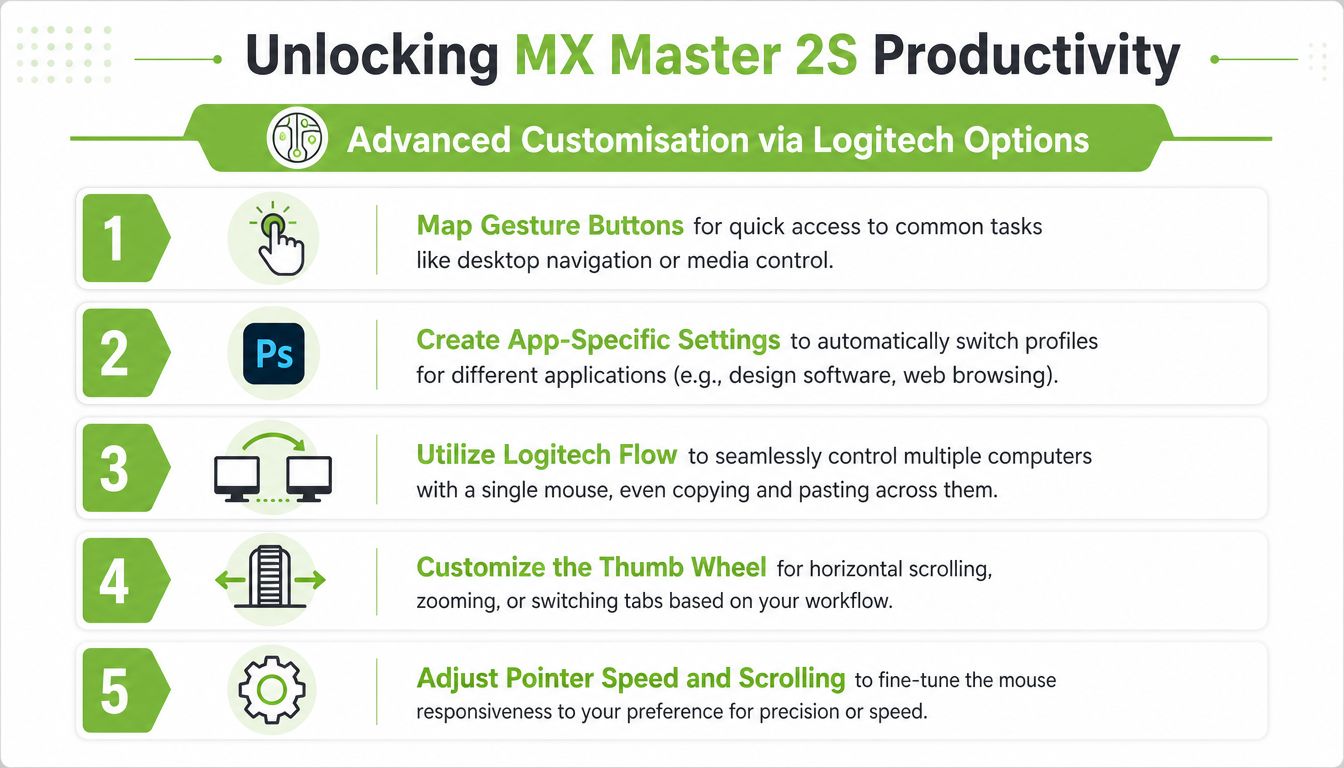
The core advantage is straightforward. The Master 2S has seven programmable buttons and Logitech Options customisation, allowing assignments such as clipboard management, zoom, and app switching for workflow efficiency, as noted in this Logitech Master 2S listing.
High-value button mappings
Start with the actions you already repeat all day. Don't begin by creating clever shortcut layers you'll forget. The most effective setup is usually the least flashy one.
A good first pass looks like this:
-
Back and forward for browser navigation
This is the easiest win for anyone working in web apps, documentation, dashboards, or research tabs. -
App switcher on a thumb control
If you move between Excel, Chrome, Teams, PDF viewers, and file explorers all day, this reduces keyboard hopping. -
Zoom or undo for creative work
Designers, editors, and presentation builders usually benefit quickly from one-command access. -
Clipboard-related actions
If your work involves repeated transfer of text, values, filenames, or snippets, assigning clipboard tasks helps more than one might initially realize. -
Horizontal scroll on the thumb wheel
Leave this intact if you work with timelines or wide sheets. It's one of the mouse's most practical differentiators.
Don't map every button at once. Set up the three actions you use most, work with them for a few days, then refine.
For professionals building a broader work setup, this guide to choosing a reliable business laptop is a useful companion read because mouse customisation pays off most when paired with a workstation that already supports multi-app, multi-device work well.
A walkthrough helps if you want to see the controls in action:
When Logitech Flow is worth setting up
Logitech Flow is one of the reasons the Master 2S remains relevant. It supports effortless switching and file transfer between up to three computers, as covered earlier from the Logitech-linked product summary. If you use one desktop and one laptop, or a work machine beside a personal one, this can make the mouse feel more valuable than its age suggests.
The best use cases are specific:
- Laptop plus monitor desk setups: Move from your main machine to a secondary one without changing mice.
- Work and personal separation: Keep separate devices but use one pointing setup.
- File handoff between systems: Copy text, images, and files across supported machines when Flow is configured properly.
Flow is worth the effort when you use multiple computers every day. If you only occasionally connect a second machine, it may be more setup than benefit.
The same principle applies to gesture functions. They can be excellent when tied to actions you already perform repeatedly. They're less useful when configured as a novelty. Good customisation should remove effort, not create a new memory burden.
Comparing the Master 2S to the Master 3 and Common Issues
Choosing between the Master 2S and Master 3 isn't only about which one is better on paper. It's about whether the newer model's refinements solve a problem you personally have.
Where the newer model pulls ahead
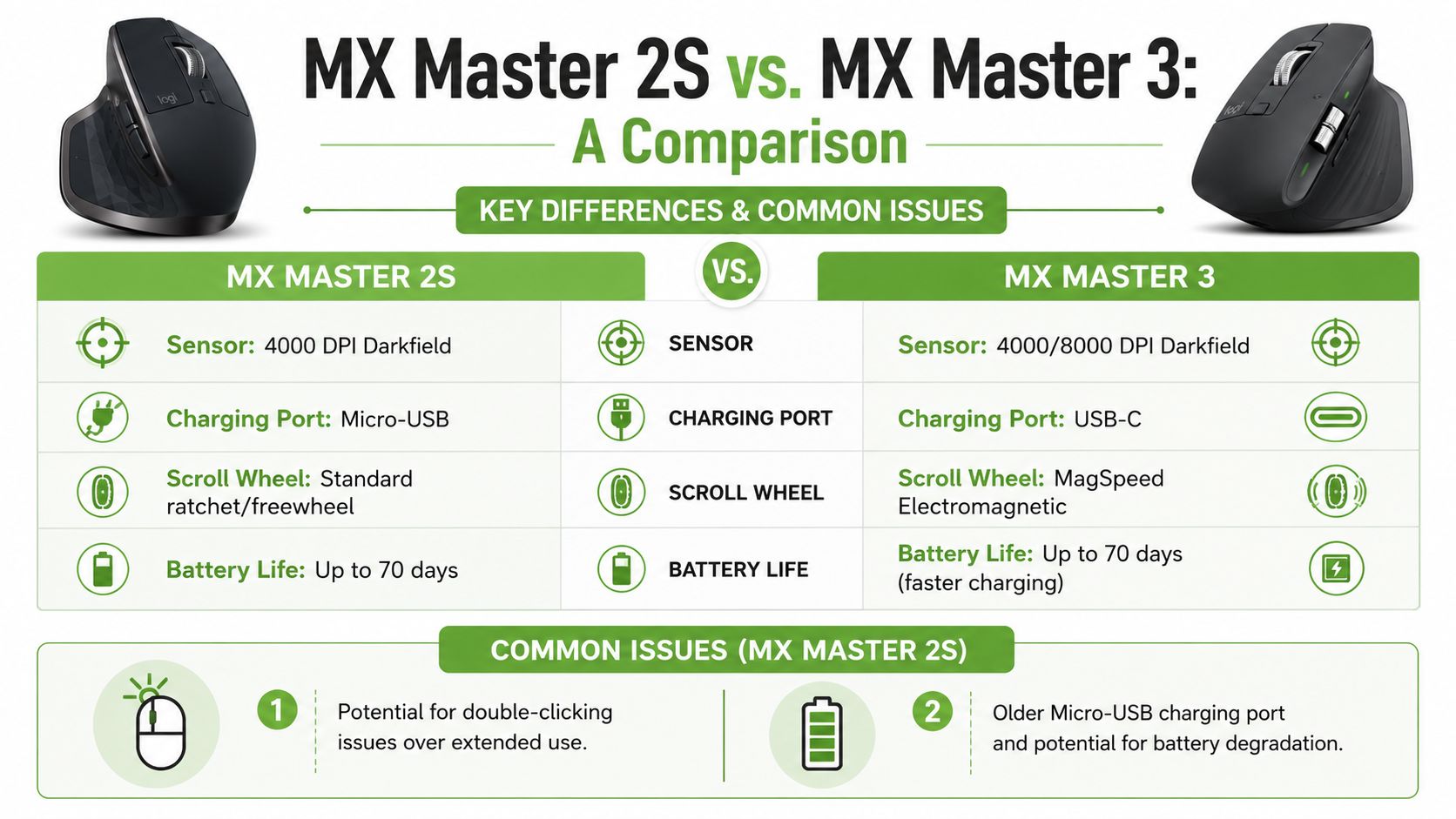
The Master 3 line improved charging, scrolling feel, and overall refinement. If you care a lot about a more modern charging standard, a more advanced wheel mechanism, and a slightly updated control layout, the newer mouse will feel more current.
That said, the Master 2S still covers the fundamentals well for many office and productivity users. If your core needs are ergonomic support, custom buttons, multi-device control, and reliable tracking, the older model can still make sense. The gap matters most to users who are sensitive to hardware polish and want the most up-to-date daily experience.
Here's the practical comparison:
| Consideration | Master 2S | Master 3 |
|---|---|---|
| Core productivity features | Strong | Stronger overall refinement |
| Charging convenience | Older standard | More current approach |
| Scroll feel | Good | More advanced |
| Value if bought wisely | Often compelling | Usually higher-cost choice |
Known limitations you should factor in
Buyers need a clear-eyed view. A known issue with the Master 2S is the gesture button stuck failure, described as a common hardware defect in this iFixit Logitech MX Master 2S page. The same source also notes a platform limitation that matters for tablet users. On iPadOS, users report only basic three-button functionality, without advanced gestures such as Mission Control.
Those two points change the recommendation depending on the buyer.
If you plan to use the mouse heavily with an iPad, don't assume the desktop-style experience carries over. It doesn't. If you're buying an older unit, don't treat hardware condition as a minor footnote. It matters directly to long-term value.
A good deal on an ageing productivity mouse isn't good if a known hardware issue turns it into a replacement problem soon after purchase.
The more sustainable and financially sensible approach is often to evaluate supportability, repair options, and tested condition before deciding that “cheaper now” is cheaper overall.
Smart Buying in Singapore New vs Certified ReLoved
A lot of buyers in Singapore reach the same point with the Master 2S. The mouse still fits the hand well, still handles long workdays, and still does the job. The question is whether paying for a brand-new unit makes sense in 2026, or whether a properly restored one is the smarter long-term buy.
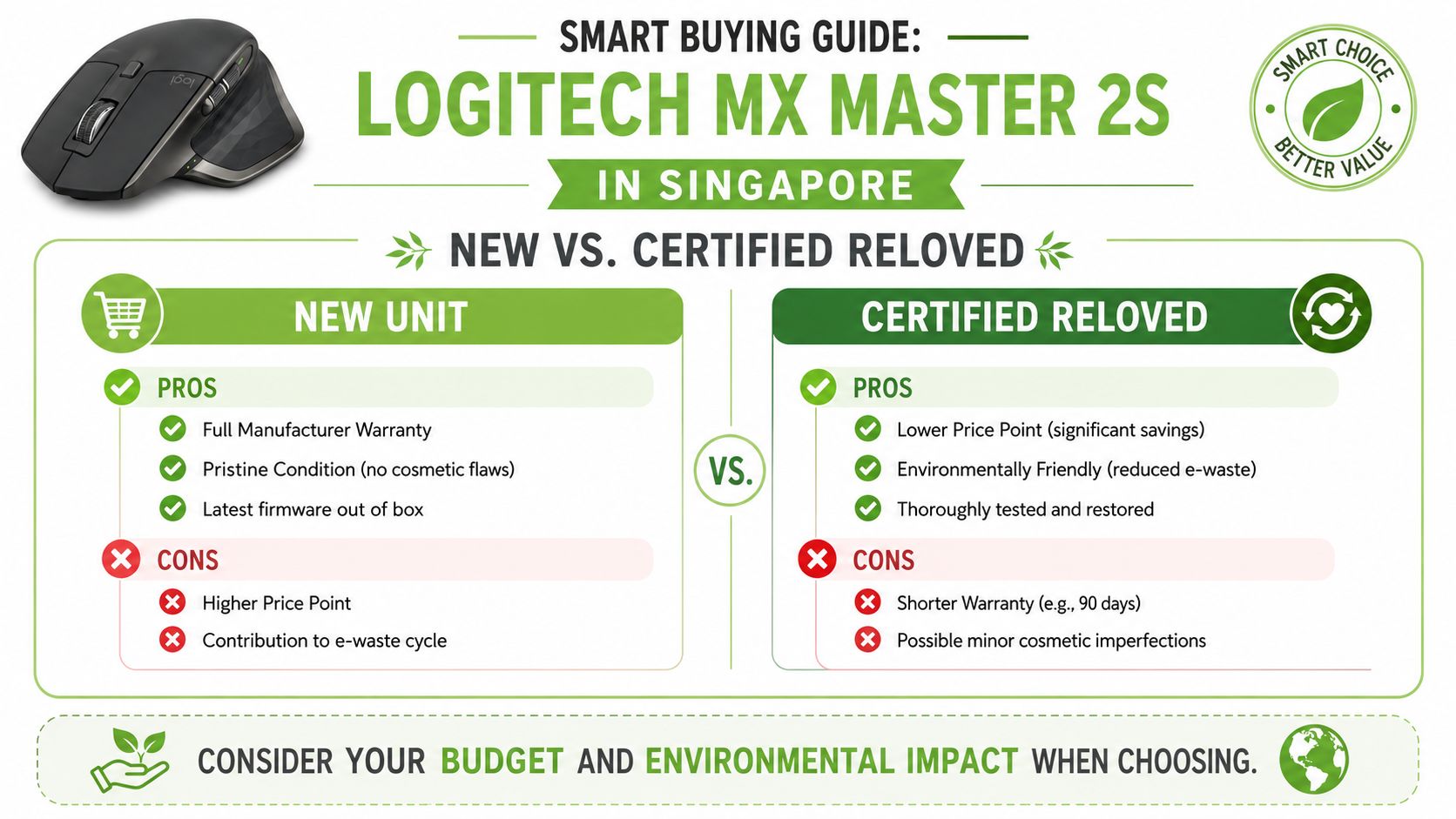
For this mouse, the buying decision is less about headline features and more about ownership risk. The Master 2S is an older premium model. That can work in your favour if you buy with clear eyes. It can also become false economy if you chase the lowest price and ignore condition, testing, and repairability.
When buying new makes sense
A new unit suits buyers who want the cleanest starting point. There is no prior wear, no uncertainty about battery age, and no questions about how heavily the switches or gesture button were used before sale.
That matters in a few specific cases:
- You need predictable deployment: Good for a main work setup where downtime is costly.
- Your company procurement policy prefers new equipment: Common in some SMEs and larger organisations.
- You care about pristine condition: Cosmetic wear is a deal-breaker for some buyers.
- You plan to keep it for years: Starting from zero can justify the higher cost if the price gap is small.
The trade-off is simple. With an ageing model, new stock can be harder to justify if the premium over a tested restored unit is too wide.
When Certified ReLoved is the better value
For many freelancers, students, home-office users, and budget-conscious teams, a Certified ReLoved Master 2S is the smarter purchase. You still get the core experience that made the mouse popular, but you avoid paying top dollar for shrink-wrap on older hardware.
This is also the more sustainable path if the unit has been checked properly. A mouse like the Master 2S does not lose its usefulness just because it is no longer current retail stock. If the switches, scroll wheel, battery behaviour, and buttons are verified, a restored unit can deliver strong daily value without pushing another device into early disposal.
The same buying logic applies across older productivity hardware. This guide on how to assess refurbished laptop options in Singapore explains the broader principle well. Match the condition and support level to the importance of the device in your workflow.
What to check before you buy
Labels are not enough. Process matters more than marketing.
Look for:
- Clear grading standards: You should know what cosmetic condition to expect before paying.
- Meaningful testing: Buttons, scroll wheels, wireless pairing, charging, and battery behaviour should be checked, not just powered on.
- Battery health disclosure where relevant: Older wireless devices live or die on battery condition.
- After-sales support or repair pathways: This matters more for the Master 2S than for a newer model because known wear points can show up over time.
- Consistent handling standards: Providers using ISO 9001 Certified and ISO 27001 Certified processes usually inspire more confidence than generic marketplace sellers.
- End-of-life options: Trade-in, recycling, and repair support improve the actual value of the purchase.
That last point is easy to overlook.
In Singapore, where buyers often compare prices across marketplaces, the cheapest listing can look attractive until a button issue or battery problem appears a few months later. At that stage, a seller with no testing discipline and no support is not cheaper. It is just a faster route to replacement.
Logitech Master 2S Buying Options in Singapore
| Attribute | Brand New | myhalo Certified ReLoved |
|---|---|---|
| Condition | Unused | Professionally restored and graded |
| Upfront cost | Higher | Usually more value-focused |
| Cosmetic appearance | Pristine | May vary by grade |
| Suitability | Buyers who want untouched stock | Buyers who want balanced value |
| Sustainability impact | Shorter path to another new purchase later | Supports repair, reuse, and longer device life |
| Buying mindset | Maximum freshness | Maximum practical value |
My advice is straightforward. Buy new if you want the lowest uncertainty and the price still feels reasonable for an older model. Choose Certified ReLoved if you care more about tested function, better budget efficiency, and extending the usable life of good hardware.
If you are comparing sellers in Singapore, myhalo is worth considering for this reason. The value is not just in selling another mouse. It is in the full lifecycle approach, including repair, reuse, Certified ReLoved and Certified Surplus devices, transparent grading, battery health disclosure where relevant, RescueAdvise support, mylo AI Assistant guidance, and structured quality processes. For the Master 2S, that approach makes more sense than treating every used unit as interchangeable.