





HP Workstation Guide: Choose Your Best Model
Your computer probably still works. It opens email, handles spreadsheets, and gets through lighter design tasks. Then the serious work starts. A render drags for ages. Revit crashes when the model gets dense. A simulation runs so long that you stop trusting the machine to finish overnight.
That's the point where many people realise they're not dealing with a “slow PC” problem. They're dealing with a mismatch between professional workloads and consumer hardware.
An hp workstation exists for that gap. It isn't just a desktop with a bigger price tag. It's a machine built for people who earn from compute-heavy work and can't afford random instability. If you edit large video files, build 3D scenes, run CAD, analyse large datasets, or keep multiple demanding apps open all day, the difference shows up in fewer bottlenecks and fewer nasty surprises.
In Singapore, that matters more than people sometimes admit. Small teams often wear multiple hats, which means one machine may need to support design, reporting, client presentations, rendering, and collaboration without drama. When that machine stalls, the whole day gets pushed back.
This guide looks at hp workstation options in practical terms. Not just model names and specs, but what matters when you're choosing for a business, a studio, or your own professional setup.
Table of Contents
- Introduction When Your PC Hits a Wall
- What Makes an HP Workstation Different
- Exploring the Core HP Workstation Lines
- Matching the Model to Your Workflow
- Buying Your HP Workstation New vs Refurbished
- Servicing Trade-Ins and Extending Device Lifecycles
- Your Partner for HP Workstations in Singapore
Introduction When Your PC Hits a Wall
A lot of upgrade decisions start with irritation.
An editor scrubs through footage and the timeline hesitates. An architect rotates a detailed model and watches the viewport stutter. A finance or data team kicks off a heavy analysis job and hopes the system won't freeze before lunch. None of those people need a gaming machine with flashy parts. They need a computer that stays stable under load and keeps moving when the work gets serious.
That's where the workstation category earns its place.
Consumer PCs are built for broad use. They're fine for office apps, web work, meetings, and lighter creative jobs. But once the workload becomes sustained, memory-heavy, or dependent on certified professional hardware, the compromises start to show. Cooling becomes a limit. Memory errors matter. Storage throughput matters. Long-session stability matters.
A workstation pays for itself when delays stop being occasional and start affecting deliverables.
HP's Z line is designed for this professional tier. You'll see that in the processor options, memory support, graphics choices, thermal design, and the way these systems are validated for demanding environments. The point isn't only faster peak performance. The point is predictable performance on the kind of work that small businesses and creators bill for.
Two buyers often hesitate here. The first is the SME owner who needs proper computing power but doesn't want to overspend. The second is the creator or engineer who wants performance without being trapped in a spec-sheet rabbit hole. Both need the same thing. Clear guidance on what matters, what doesn't, and where the money should go.
Here's the practical lens to use. Buy for your actual workload, your likely upgrade cycle, and the cost of downtime. That will usually lead you to a better hp workstation decision than chasing the newest part number.
What Makes an HP Workstation Different
Some differences are obvious the moment you open the side panel. Others only show up after months of heavy use.
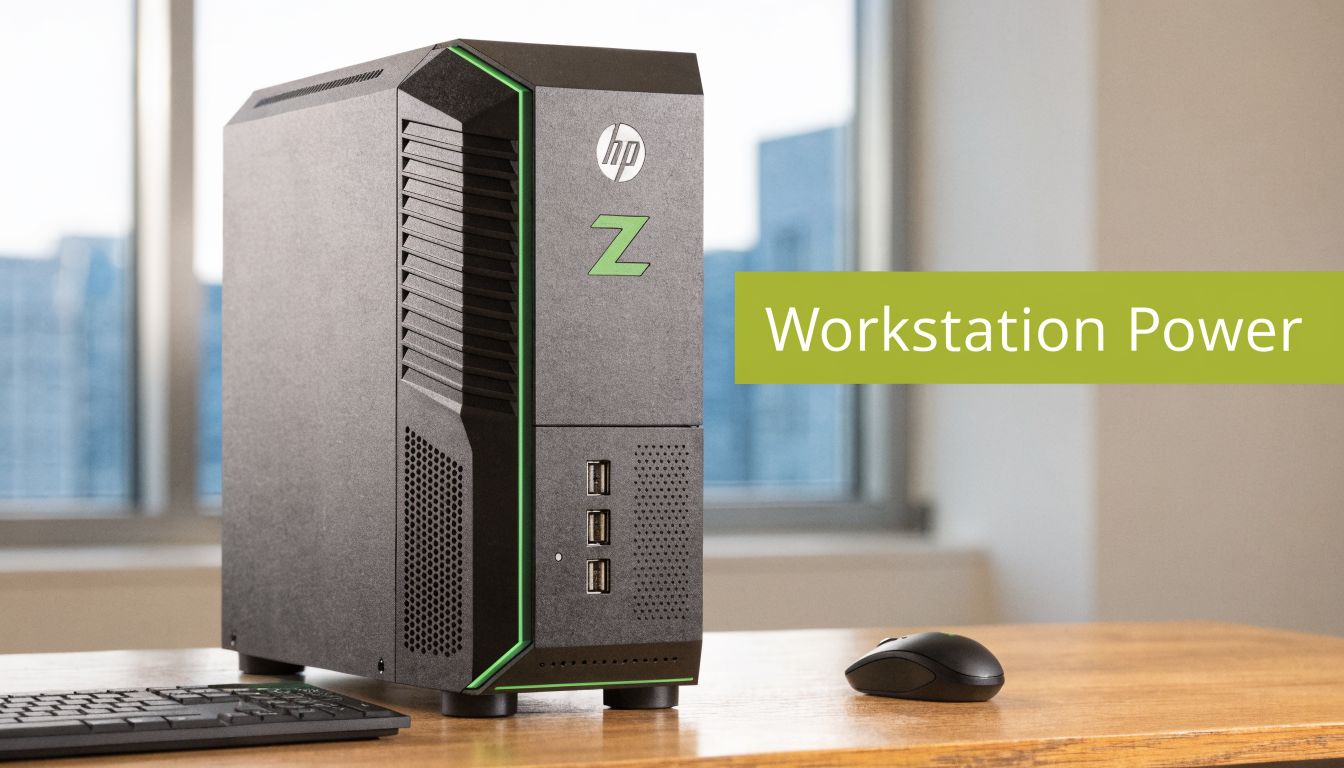
The parts are chosen for reliability first
A workstation isn't just a powerful PC. It's a system assembled around stability, sustained load, and professional compatibility.
HP notes that Z Workstations use enterprise-grade components such as Intel Xeon processors and ECC memory, and that ECC memory corrects errors to help prevent data corruption. The same HP review also states that this engineering supports stability under extreme conditions and can deliver 5x faster rendering in 3D modelling workflows compared to consumer PCs in the right setup, as described in HP's workstation review.
The easiest way to understand ECC memory is to think of it as self-checking memory. Normal RAM stores and retrieves data. ECC RAM also checks for certain errors and corrects them before they become a problem. If you're running a large scene, a complex simulation, or a long render, that extra layer matters. On a casual home machine, a rare memory error may go unnoticed. On a professional machine, it can mean corrupted output, a crash, or time wasted hunting a fault that shouldn't have happened.
The same logic applies to workstation-class processors. A gaming or enthusiast CPU may look impressive on paper, but workstation platforms are built for long sessions, heavier memory support, and more predictable behaviour in demanding software.
Why that matters in real work
If your apps are open for ten minutes at a time, almost any decent computer can feel quick. If they're open all day and handling large files, poor component choices start costing you money.
Here's where a proper hp workstation usually makes the difference:
- Long render or export sessions: Better sustained performance matters more than short benchmark bursts.
- Large design files: Stable memory and stronger platform support reduce the risk of crashes when projects get complex.
- Professional software stacks: Workstation hardware is built with serious application use in mind, not only general consumer use.
- Multi-app workflows: Designers, editors, and analysts rarely run one thing at a time.
Practical rule: If your workload breaks because of instability, not just slowness, you're already in workstation territory.
Cooling and validation also matter more than buyers expect. A machine can have good components and still perform poorly if the thermals aren't controlled well. Workstations are designed to run under load without turning into noisy, throttled boxes halfway through the day.
This short overview gives a useful visual sense of the category and who it suits:
The takeaway is simple. You're not paying only for speed. You're paying for fewer interruptions, cleaner scaling under pressure, and hardware that fits professional software instead of merely running it.
Exploring the Core HP Workstation Lines
HP doesn't approach every professional workload with one chassis and one formula. That's a good thing. A fixed studio workstation, a mobile creative rig, and a compact office deployment don't need the same design priorities.
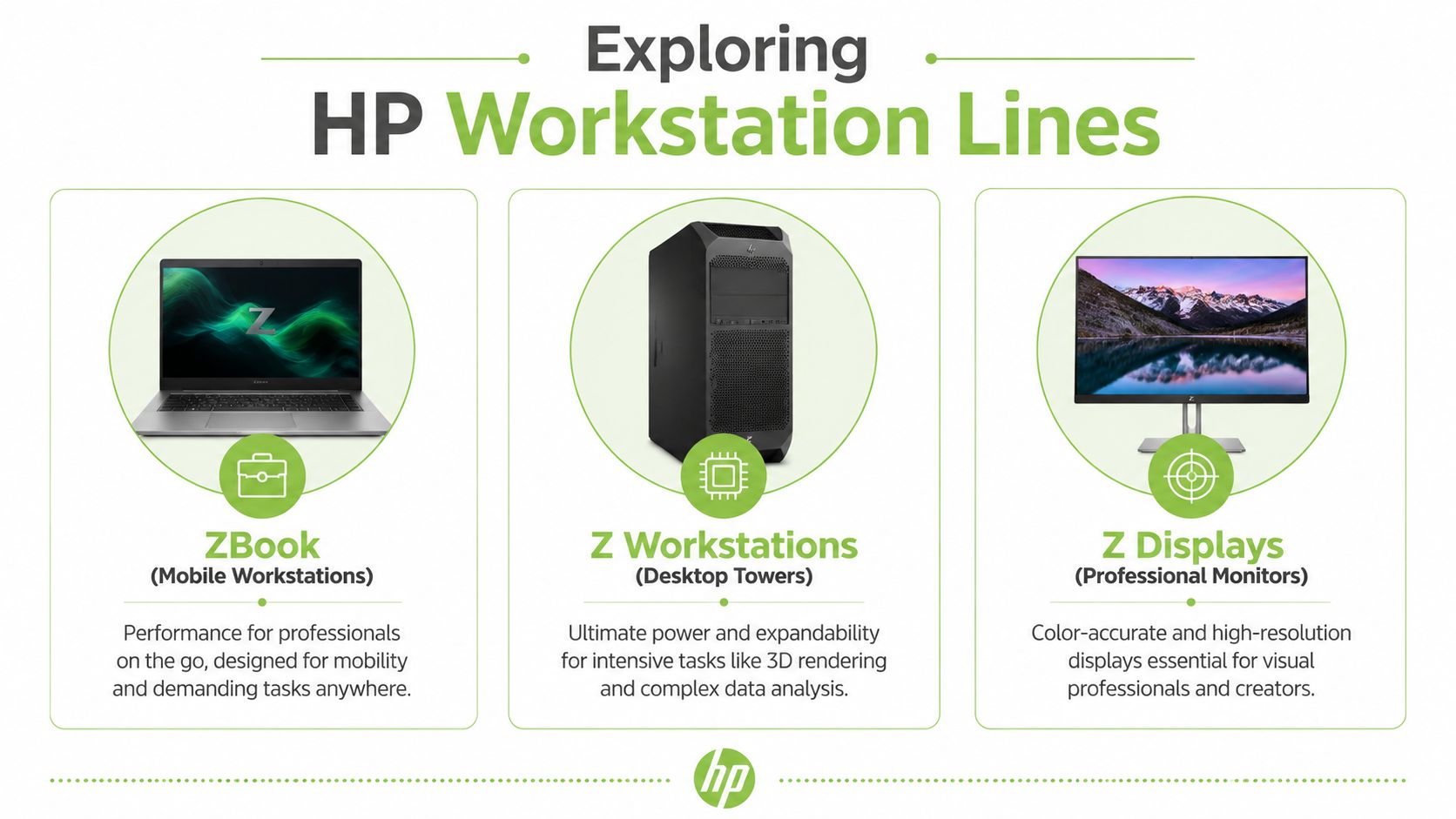
Three ways HP approaches professional performance
Desktop towers are the classic answer for buyers who want headroom. These machines make sense when your work benefits from expandability, stronger cooling, more storage, and room for future upgrades. If you're considering a tower-class setup, a model such as the HP Z6 G4 Workstation PC represents the type of machine people choose for heavier rendering, design, and analysis workloads.
ZBook mobile workstations are for professionals who move between office, home, client site, and meeting room. The trade-off is straightforward. You gain portability and lose some upgrade freedom. For many architects, consultants, field engineers, and creators, that's still the right compromise because the machine has to travel with the work.
Compact systems, including Mini and Small Form Factor models, fit teams with tighter desks, reception counters, smaller studios, or multi-seat environments where space matters. They won't match larger towers for expansion, but they solve a genuine business constraint without dropping into ordinary office-PC territory.
A long ownership cycle matters here as well. HP Z series workstations, including towers and mobile ZBook models, undergo over 300,000 hours of MIL-STD testing for reliability, according to the HP statistics summary. For buyers planning to keep a system in service for years, that's not a minor detail.
HP Z Workstation Lines at a Glance
| Model Line | Primary Use Case | Key Strength | Ideal For |
|---|---|---|---|
| Z desktop towers | Heavy fixed-location workflows | Expandability and sustained power | Studios, engineers, data teams |
| ZBook mobile workstations | Professional work on the move | Portability with workstation capability | Architects, consultants, mobile creators |
| Z Mini and SFF systems | Space-constrained professional setups | Compact footprint | Small offices, front desks, tight studios |
A simple way to choose among these lines is to start with where the machine will live.
- Mostly desk-bound: A tower usually gives the strongest long-term value.
- Frequently moving between locations: A ZBook is easier to justify than remote-work compromises.
- Limited workspace: Mini or SFF models solve physical constraints cleanly.
What doesn't work is buying a mobile workstation because it “might be useful” and then leaving it plugged in at one desk for years. If mobility isn't a real requirement, the desktop route is usually the more sensible hp workstation purchase.
Matching the Model to Your Workflow
Specs only become useful when tied to actual work. A buyer choosing between ZBook, Z tower, or a compact model should think less about headline parts and more about what the machine must do at 10.30 on a busy Tuesday.
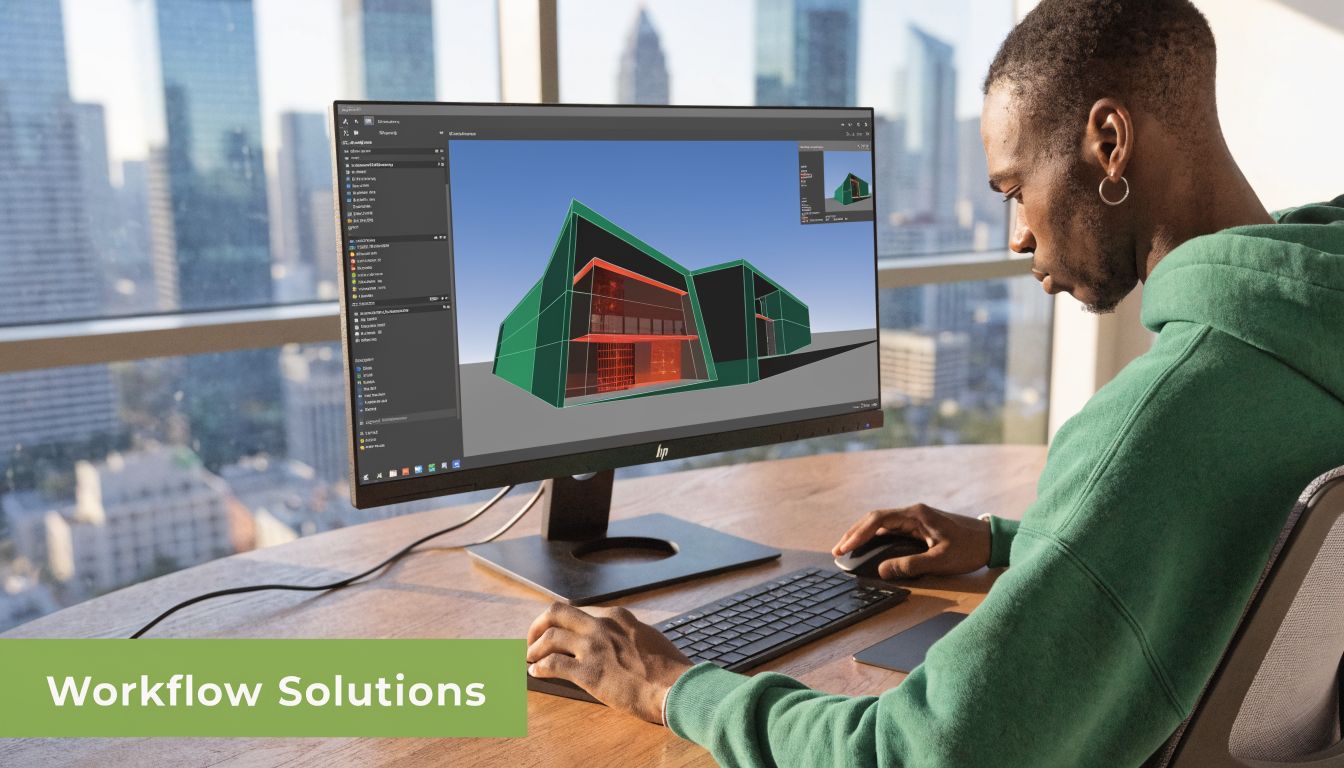
Architects and product designers
An architect's workload often looks uneven from the outside. Some tasks care about smooth single-session responsiveness. Others punish weak graphics or limited memory once the model grows.
For CAD and BIM users, a balanced workstation usually works better than a spec monster in the wrong areas. A machine with a capable CPU, enough memory for large projects, and professional graphics support tends to feel better in daily work than an overbuilt system with poor storage planning. If you spend your day jumping between AutoCAD, Revit, PDFs, browser tabs, and meetings, responsiveness matters as much as brute force.
Product designers and 3D modellers have a different pressure point. They need stable viewport performance, dependable handling of larger assemblies, and enough storage speed to keep assets moving. If the project files live locally and change often, fast internal storage helps more than buyers expect.
Buy for the slowest part of your daily workflow, not the fastest benchmark on the box.
Editors creators and data teams
Video editors usually notice bottlenecks before anyone else. Playback issues, slow exports, lag during effects work, and media cache headaches all stack up. For them, storage layout matters a lot. Fast working storage, enough RAM, and a GPU that matches the editing software make a bigger real-world difference than chasing processor prestige alone.
A motion designer or 3D artist leans harder on rendering and simulation. That's where stronger GPUs and sustained cooling matter. Long jobs expose weak thermals quickly. A machine that looks fine during a short demo can become frustrating once it's asked to run serious work repeatedly.
Data and AI teams have their own pattern. They often need more cores, more memory, and hardware that can stay stable while handling prolonged compute jobs. In Singapore, 68% of SMEs seek affordable high-performance computing for AI, but only 22% consider refurbished options due to reliability concerns, based on the verified dataset provided for this brief. That gap says a lot about how many teams need capability but still hesitate on buying strategy.
A quick workflow check helps:
- Architecture and BIM: Prioritise CPU responsiveness, stable graphics, and memory capacity.
- Video editing: Prioritise storage speed, GPU fit, and smooth playback.
- 3D rendering: Prioritise sustained cooling, stronger graphics, and memory headroom.
- Data analysis and AI: Prioritise multi-core performance, RAM, and system stability under long loads.
What doesn't work is buying a generic “high-end” machine and assuming every demanding workflow benefits equally. Different creative and technical jobs stress different parts of the system. The right hp workstation is the one that removes your actual bottleneck first.
Buying Your HP Workstation New vs Refurbished
At this point, many sensible buyers pause. They know they need more capability, but they don't want to spend blindly.
New and refurbished both make sense in the right situation. The mistake is treating refurbished as a compromise by default. In the workstation market, it can be a very rational purchase if the device has been properly checked, graded, and supported.
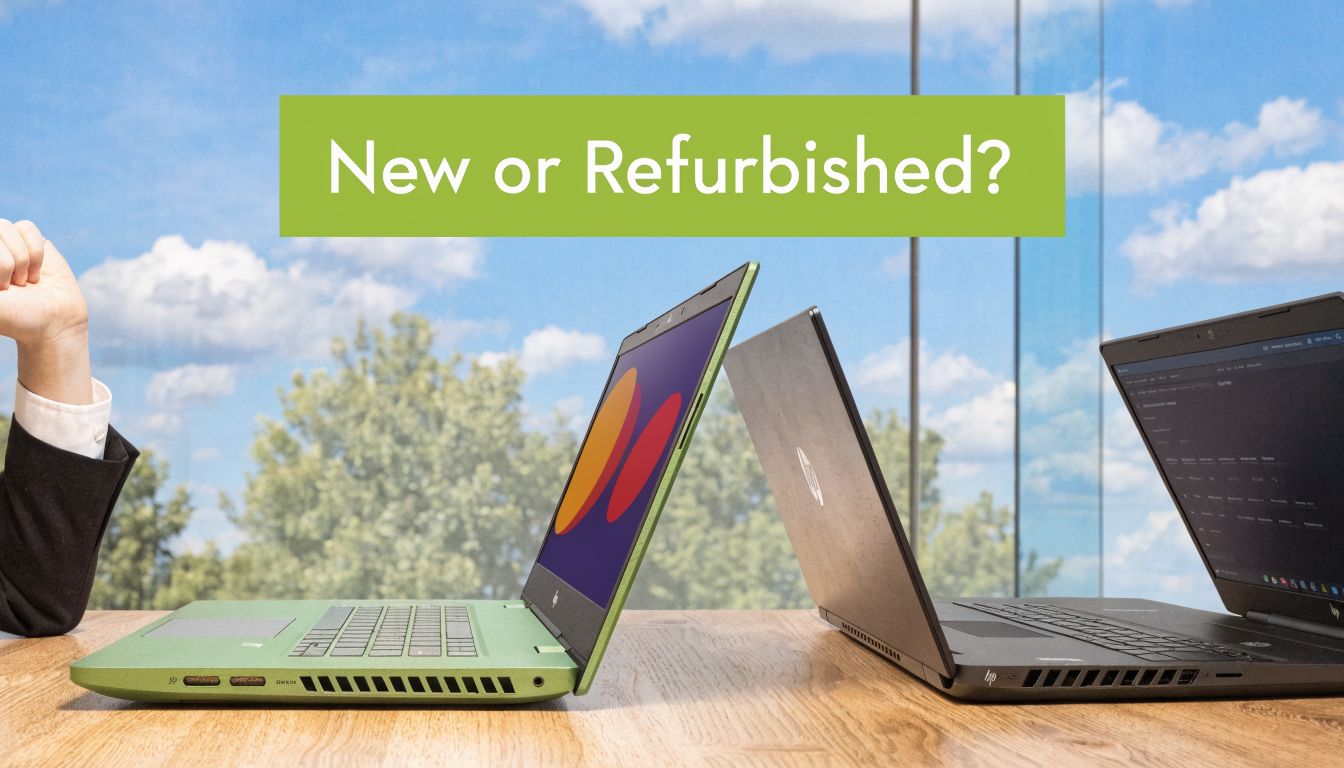
When new makes sense
Buy new when one of these is true:
- You need the latest platform features: Some workflows benefit from the newest processor generation, newer GPU options, or current warranty structures.
- You're standardising across a team: If IT wants identical images, identical support windows, and straightforward fleet management, new units simplify that.
- Your clients or compliance policies require it: Some organisations prefer or require fresh procurement cycles.
New systems are also easier to justify when you know the machine will be pushed hard from day one and folded into a wider procurement plan.
When refurbished is the smarter buy
Refurbished usually wins when value matters more than being first in line for the latest release.
In Singapore, 68% of SMEs seek affordable high-performance computing for AI, but only 22% consider refurbished options due to reliability concerns. The same verified dataset states that ISO-certified checks and 6-month warranties on ReLoved HP Z-series models address that gap, which is exactly the issue most cautious buyers raise first.
For anyone weighing that route, this overview of refurbished laptop computers is useful background on how grading and inspection affect risk.
The practical benefits are straightforward:
- More performance for the budget: You can often move into workstation-class hardware instead of stretching a consumer laptop beyond its intended role.
- Better value for fixed-location users: If portability or latest-generation features aren't critical, a professionally refurbished tower can be a strong fit.
- Lower waste: Extending the life of capable hardware aligns with the way many Singapore buyers now think about tech purchases.
Refurbished makes sense when the machine's condition, testing process, and warranty are clear. It doesn't make sense when those details are vague.
One retailer operating in this space is myhalo, which offers HP workstation options under an ISO 9001:2015-certified process with 30 quality checks and transparent grading, including warranty-backed ReLoved models. That matters because the workstation category is less forgiving than casual consumer tech. If refurbishment is sloppy, problems show up quickly under load.
What doesn't work is buying an unknown used workstation based on specs alone. On paper, it can look like a bargain. In practice, unclear battery health, poor thermals, worn storage, or hidden faults can erase the savings fast.
Servicing Trade-Ins and Extending Device Lifecycles
A workstation shouldn't be treated like a disposable gadget. If you buy well, maintain it properly, and plan the exit before the machine becomes a liability, the total cost of ownership looks very different.
Think beyond purchase price
Most buyers focus on the initial bill. That's understandable, but it misses where value is actually created. A workstation keeps earning its keep after purchase through uptime, serviceability, and residual value.
That's where trade-ins matter. In the verified data for this brief, trading in an older workstation can yield meaningful credit, including S$800 for a ZBook Power G11 at myhalo. If you're already planning an upgrade, that kind of offset changes the maths of replacing a machine before failure becomes disruptive.
A practical starting point is to understand how the laptop trade-in process in Singapore typically works and what affects value.
Why lifecycle planning matters
Servicing matters just as much as acquisition. The same verified dataset states that proactive maintenance services can reduce failure rates by up to 35%, which is the sort of figure owners should pay attention to when a machine supports billable work.
Singapore's sustainability push also changes the conversation. The verified data notes that extending device life is important amid efforts to cut e-waste. That makes servicing and trade-ins more than just budget decisions. They also shape how much useful hardware gets kept in circulation instead of discarded too early.
A sensible lifecycle plan for an hp workstation usually includes:
- Regular health checks: Catch thermal, storage, or battery issues before they disrupt work.
- Planned upgrade timing: Replace when performance starts limiting output, not only when the machine fails.
- Trade-in evaluation: Recover value while the device still has market appeal.
- Protection and maintenance: Use aftercare if the workstation is central to revenue-generating work.
The cheapest year of ownership is often the one where the machine is maintained well enough to avoid emergency replacement.
What doesn't work is squeezing every last month out of ageing hardware with no plan. That often leads to rushed buying, data migration stress, and lost productivity at exactly the wrong time.
Your Partner for HP Workstations in Singapore
Choosing an hp workstation gets easier when you stop thinking in terms of “most powerful” and start thinking in terms of fit.
A tower makes sense when you want expansion, cooling headroom, and a long service life at one desk. A ZBook makes sense when the work moves with you. A refurbished workstation makes sense when you want professional-grade performance without paying solely for newness. Servicing and trade-ins make sense when you care about long-term value, not just the checkout price.
That's the practical view most small businesses and creators need. Not every workload needs a high-end workstation. But once your software, files, or deadlines start exposing the limits of a consumer machine, buying the right class of hardware can remove a lot of friction from the day.
For Singapore buyers, support matters as much as selection. Advice is more useful when it's tied to real workflows, realistic budgets, and what you plan to do with the machine over time. That includes whether you should buy new, buy refurbished, add protection, or prepare a trade-in path for your current device.
If you're comparing options seriously, bring your actual workflow into the decision. List the apps you use, how large your files get, whether the machine travels, and where your current system struggles. That usually reveals the right direction very quickly.
If you want help narrowing down the right setup, browse the current range at myhalo or speak with the team at Bugis Junction or via WhatsApp for practical advice on workstation models, refurbished options, trade-ins, and aftercare.