





External GPU for Laptop in Singapore: A 2026 Guide
You've got a slim laptop that travels well, but it struggles the moment you open Blender, launch a demanding game, or work with GPU-assisted creative software. An external GPU for laptop use can solve part of that problem, but it isn't automatically the smartest upgrade in Singapore. In 2026, buyers can also choose from powerful gaming laptops, compact systems with high-end graphics, refurbished workstations, repairs and trade-ins.
The right choice depends on your laptop's port, your workload, your desk setup and how much hardware you're prepared to carry. An eGPU can be excellent for a portable computer that becomes a desktop workstation at home. It can also be an expensive enclosure attached to an ageing machine that still has a weak processor, poor cooling or limited memory.
Table of Contents
- What an External GPU for Laptop Actually Does in 2026
- Ports and Bandwidth Explained Without the Jargon
- eGPU vs a New Laptop vs a Refurb Workstation
- Compatibility Checks and Setup Walkthrough
- Real Performance, Bottlenecks and Benchmarks
- Extending Your Laptop Instead of Adding Hardware
- Singapore-Focused Next Steps and Common Questions
What an External GPU for Laptop Actually Does in 2026
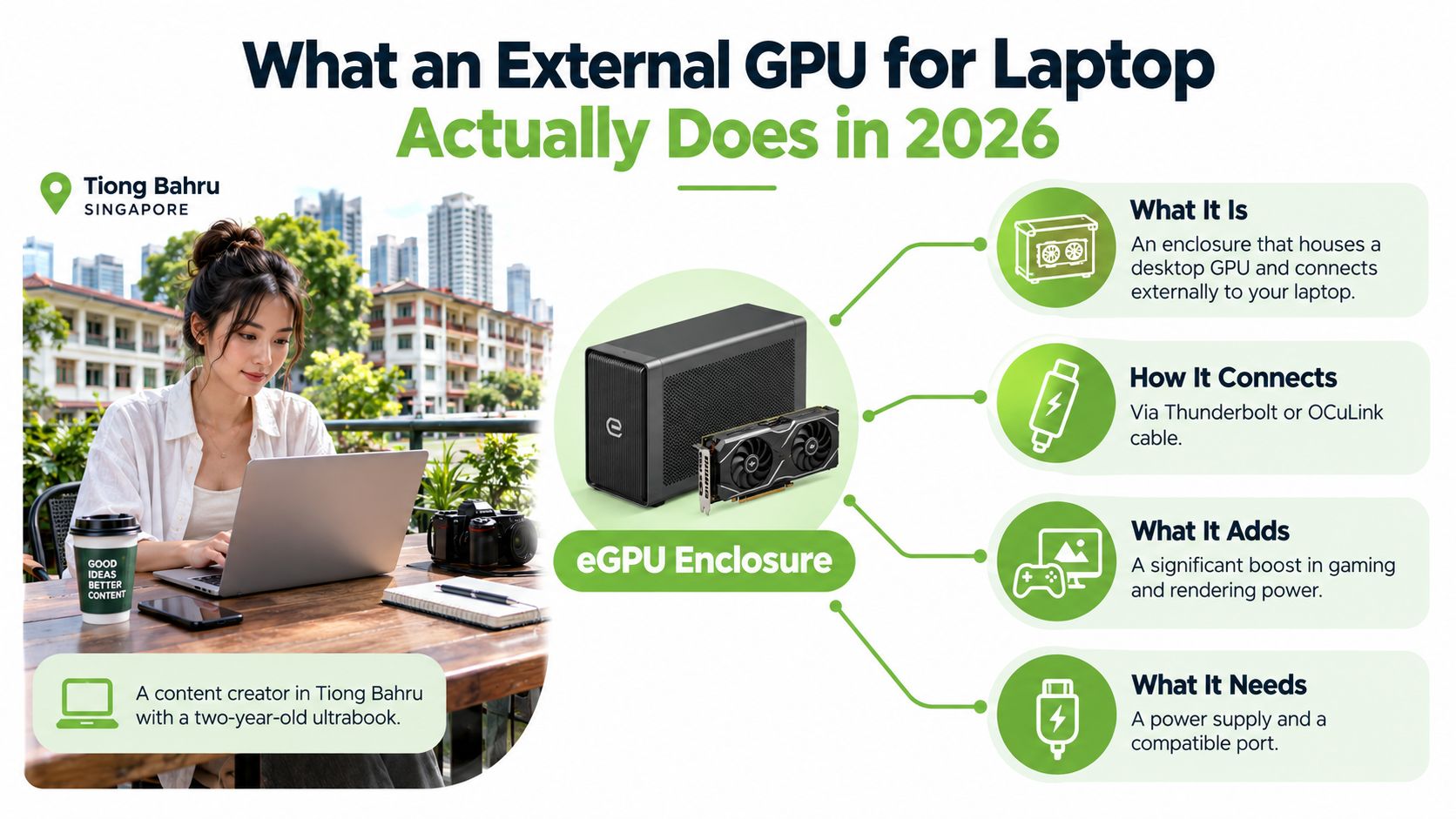
A creator in Tiong Bahru can keep using a two-year-old ultrabook for cafés, meetings and travel, then connect a graphics enclosure at home when DaVinci Resolve effects, 3D work or demanding games exceed the laptop's built-in graphics. That setup can make sense, but it is not automatically better than buying an RTX 5080 or RTX 5090 laptop, choosing a mini-PC, or finding a refurbished workstation in Singapore.
An eGPU is a desktop graphics card installed inside an external enclosure. The enclosure connects to a compatible laptop through a suitable high-speed port and handles graphics processing without requiring you to open the computer. Most enclosures do not include the graphics card, so you normally buy the chassis and GPU separately. Some products combine both parts.
What the enclosure improves
The external card takes over workloads that benefit from parallel graphics processing. These include many modern games, GPU-rendered scenes, selected video effects and some AI-assisted creative tools. Your laptop can remain a light travel machine while becoming a stronger desk system at home.
Connect the monitor directly to the eGPU for the cleanest setup. Sending the finished image back through the laptop's display makes the connection carry extra work, which can reduce performance.
For the Tiong Bahru creator, the practical result is straightforward: keep the ultrabook for travel, then connect one cable at home to drive an external monitor for effects and rendering instead of replacing the entire computer.
What it cannot repair
An eGPU does not improve the laptop's processor, memory or storage. A weak CPU can still restrict simulation, compilation and CPU-based rendering. Limited RAM can still cause slowdowns, and an old SATA SSD can still make applications and project files feel sluggish.
The enclosure also adds a power supply, cable, desk space and another device to switch on. It suits a fixed workstation, not someone seeking a lighter everyday carry. If the laptop already has poor cooling or struggles with ordinary tasks, an eGPU will not solve the underlying problem.
Practical rule: Choose an eGPU when your laptop remains fast for everyday work and graphics performance is the main limitation at a fixed desk. Choose a new high-end laptop, mini-PC or refurbished workstation when you also need a stronger processor, more memory or a complete replacement.
That distinction matters in Singapore's 2026 market. An eGPU extends a good portable computer, while the alternatives replace more of the system. Compare the total cost, desk space and portability before buying the enclosure and graphics card.
Ports and Bandwidth Explained Without the Jargon
Bandwidth determines how quickly data moves between your laptop and graphics card, while the port type sets that limit. Thunderbolt 3 and Thunderbolt 4 provide a 40Gbps-class connection. Thunderbolt 5 raises the headline link to 80Gbps, as specified by Razer's Singapore Core X V2 listing. A powerful GPU still depends on the connection delivering data efficiently.
USB4 requires closer checking. A USB-C-shaped port does not automatically support an eGPU, and USB4 implementations vary. GIGABYTE's Singapore graphics product page tells buyers to confirm eGPU support with the laptop manufacturer instead of assuming that every USB4 port works.
The main connection types
Thunderbolt 3 and 4 remain the familiar eGPU choices for compatible laptops. They support a convenient single-cable setup and appear on many business and premium notebooks.
Thunderbolt 5 offers a wider data path, making it the stronger choice for a new eGPU system if the laptop also supports Thunderbolt 5. A Thunderbolt 5 enclosure connected to an older port remains limited by that older connection.
USB4 can work, but verify the laptop's implementation and firmware support before buying hardware. The connector shape provides no guarantee.
OCuLink is a more specialised option on some mini-PCs and enthusiast docks. It can provide a direct, lower-latency path, but gives up some of Thunderbolt's convenience and broad laptop compatibility.
| Standard | Bandwidth | Typical Laptop Ports | Real-World eGPU Loss |
|---|---|---|---|
| Thunderbolt 3 | 40Gbps-class link | USB-C port with Thunderbolt symbol | Noticeable, workload-dependent |
| Thunderbolt 4 | 40Gbps-class link | USB-C port with Thunderbolt symbol | Noticeable, workload-dependent |
| Thunderbolt 5 | Up to 80Gbps | USB-C port with Thunderbolt 5 support | Lower than older Thunderbolt links |
| USB4 | Varies by implementation | USB-C port marked USB4 | Cannot be assumed |
| OCuLink | Depends on dock and implementation | Dedicated OCuLink connector | Often lower latency, less convenient |
Port labels matter more than connector shape. A Lenovo USB-C universal dock is not an eGPU because it uses USB-C. It replicates display, network and USB connections. It becomes an eGPU only if it contains a discrete GPU and explicitly supports eGPU operation. For Singapore buyers comparing a new RTX 5080 or RTX 5090 laptop, a mini-PC or a refurbished workstation, check the laptop port first. The wrong port can make an eGPU enclosure a poor investment.
eGPU vs a New Laptop vs a Refurb Workstation
In Singapore, an eGPU is one option among three practical upgrades: keep your laptop and add a desktop GPU, replace it with a new gaming or creator laptop, or buy a refurbished workstation for fixed-location work. Choose based on where you work, how much sustained graphics performance you need, and whether you already own a suitable laptop.
An eGPU makes sense when your laptop has a compatible high-speed port, a capable processor and a healthy battery. You retain a light machine for commuting and connect one cable to a home graphics setup. The enclosure and desktop GPU cost extra, however, and the laptop still limits the connection and part of the overall performance.
A new laptop gives you the cleanest setup. ASUS announced the ROG NUC 16 in Singapore with up to an RTX 5080 Laptop GPU, while Razer's Singapore Blade 18 pages position the model around up to RTX 5090 laptop graphics. These systems put substantial graphics capability, cooling and battery management into one portable device. If you need high performance in several locations, compare them directly with the cost and inconvenience of an eGPU dock.
A refurbished workstation suits buyers who work from one desk. A Dell Precision or Lenovo ThinkStation can provide strong sustained performance, upgrade access and larger cooling hardware. It cannot replace a commuting laptop, but it can suit a freelancer rendering all day or an SME setting up a dependable graphics workstation.
| Option | Cost position | Performance profile | Portability |
|---|---|---|---|
| eGPU enclosure plus desktop GPU | Separate enclosure and GPU purchase | Depends on laptop link, GPU and display setup | Laptop travels, eGPU stays at desk |
| New gaming or creator laptop | One integrated device purchase | Depends on cooling and power limits | Fully portable |
| Refurbished workstation | Often lower-cost route to desktop hardware | Strong sustained performance when properly configured | Desk-bound |
The profiles are clear. A condo gamer with a good ultrabook and a permanent home monitor can justify an eGPU. A Blender freelancer who needs predictable all-day rendering should choose a desktop or workstation instead. An office knowledge worker probably needs neither. Repair, storage expansion or a replacement laptop may solve the actual problem more cheaply. For general replacement advice, read myhalo's refurbished laptop buying guide.
Compatibility Checks and Setup Walkthrough
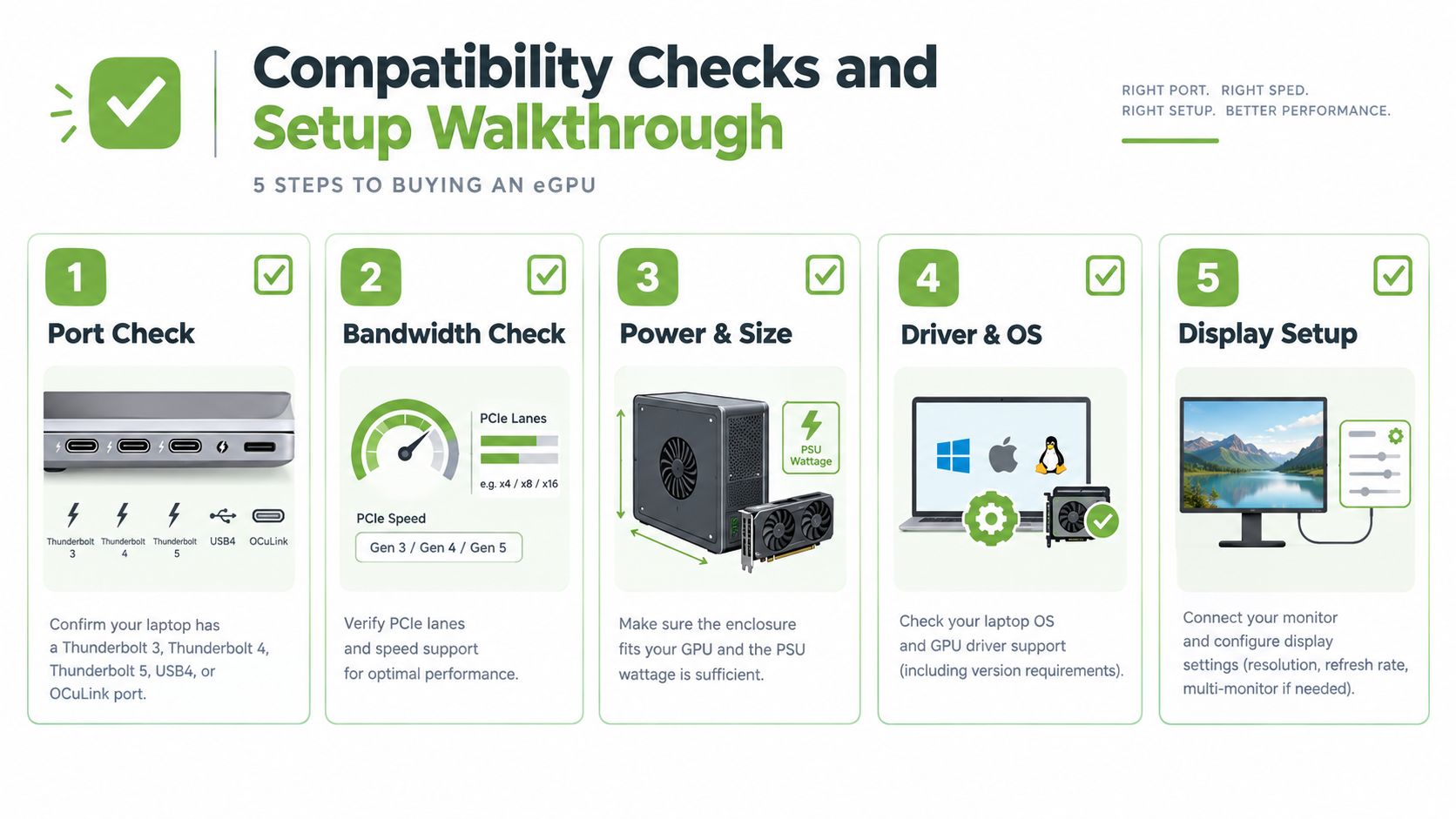
A laptop can have the right-looking USB-C port and still reject an eGPU. Before paying, check the manufacturer's specification sheet, firmware notes and enclosure vendor's supported-device list. In Singapore, this verification matters even more when you are comparing an eGPU with an RTX 5080 or RTX 5090 laptop, a mini-PC or a refurbished workstation. An eGPU is only worthwhile if your existing laptop is explicitly supported and remains useful for travel.
Check the hardware first
Confirm the exact connection standard, such as Thunderbolt 3, Thunderbolt 4, Thunderbolt 5, USB4 or OCuLink. Then confirm explicit external GPU support. USB4 alone does not guarantee compatibility, as GIGABYTE's Singapore guidance states. Check the enclosure's internal clearance, graphics card length and thickness, required power connectors and power supply capacity. If the laptop cannot provide the expected charging power, budget for its normal charger as well.
Install the enclosure's recommended drivers before connecting the GPU if the vendor requires that order. Fit the card, connect every PCIe power cable, attach the Thunderbolt or OCuLink cable, connect the enclosure to mains power and update the graphics driver. Follow the enclosure manual rather than relying on a generic setup video.
Fix the common setup problems
Slow charging usually means the enclosure's Power Delivery cannot meet the laptop's normal requirement. Display flicker points to the monitor cable, refresh-rate settings or the passthrough route. Sleep and wake failures often require firmware, BIOS or driver updates.
Windows may continue assigning games to integrated graphics. Select the external GPU for the game in Graphics settings, then connect the monitor directly to the enclosure when possible. Linux needs a separate check because distribution-specific drivers and display settings can affect GPU selection.
Use this checklist before ordering:
- Port: Confirm the exact standard in the laptop's official specifications.
- Support: Verify explicit external GPU support with the laptop maker.
- Enclosure: Check card dimensions, power connectors and the included PSU.
- Software: Confirm operating system, firmware and driver support.
- Display: Plan a direct monitor connection for demanding work.
This eGPU installation walkthrough can clarify the sequence, but the enclosure vendor's instructions take priority.
Real Performance, Bottlenecks and Benchmarks
An eGPU earns its place only when your workload benefits from a desktop-class graphics card and your laptop remains suitable for the rest of the system. A flagship card in an enclosure will not perform like the same card installed in a desktop tower. The connection, processor, memory and display path all shape the result.
As outlined in Ports and Bandwidth, Thunderbolt 5 offers more headroom than Thunderbolt 3 and 4, but it still does not provide the same path as a direct PCIe slot. That limitation matters most when a game or application repeatedly moves data between the GPU, processor and system memory.
Lower-resolution gaming can expose the limitation because the GPU completes frames quickly and waits more often on data transfers. Higher-resolution work may keep the GPU busier, yet large assets, scene updates and frequent CPU instructions can still reduce performance.
Use workload tests, not the graphics card's desktop reputation, to judge an enclosure. Run your own Blender scene, editing project or game at the resolution and settings you use. Record frame pacing, export time, render completion and application responsiveness, then compare those results with an RTX 5080 or RTX 5090 laptop, a mini-PC, or a refurbished workstation available in Singapore.
| Connection Type | Practical Result | Gaming Performance | Compute Performance |
|---|---|---|---|
| Thunderbolt 3 | More restricted after protocol overhead | Data-heavy games can lose performance | Depends strongly on the application |
| Thunderbolt 4 | Consistent connection, still limited versus a desktop slot | Noticeable gap in some workloads | Often stronger when work stays on the GPU |
| Thunderbolt 5 | More headroom, subject to the laptop and enclosure | Better potential than older Thunderbolt | Still not equivalent to direct PCIe access |
| OCuLink | Direct PCIe-style connection, with less convenience | Potentially lower latency | Depends on dock design and software support |
Frame pacing, driver behaviour and monitor routing can matter as much as peak throughput. A direct display connection to the enclosure can reduce unnecessary frame transfers, so include that arrangement in testing rather than treating it as a universal performance guarantee.
VR needs stricter testing because latency and consistency affect comfort. I would not choose an eGPU for VR until the exact laptop, enclosure, headset and games have been tested together. A refurbished workstation or a high-end gaming laptop is often the cleaner choice if the eGPU requires too many compromises.
Extending Your Laptop Instead of Adding Hardware
If your laptop now takes longer to start, runs hot during routine work or loses battery quickly, an eGPU is probably the wrong first purchase. Inspect the laptop before comparing enclosure listings. Dust, worn cooling parts, failing storage and overloaded memory can make a capable machine feel outdated, while a powerful graphics card will not repair those weaknesses.
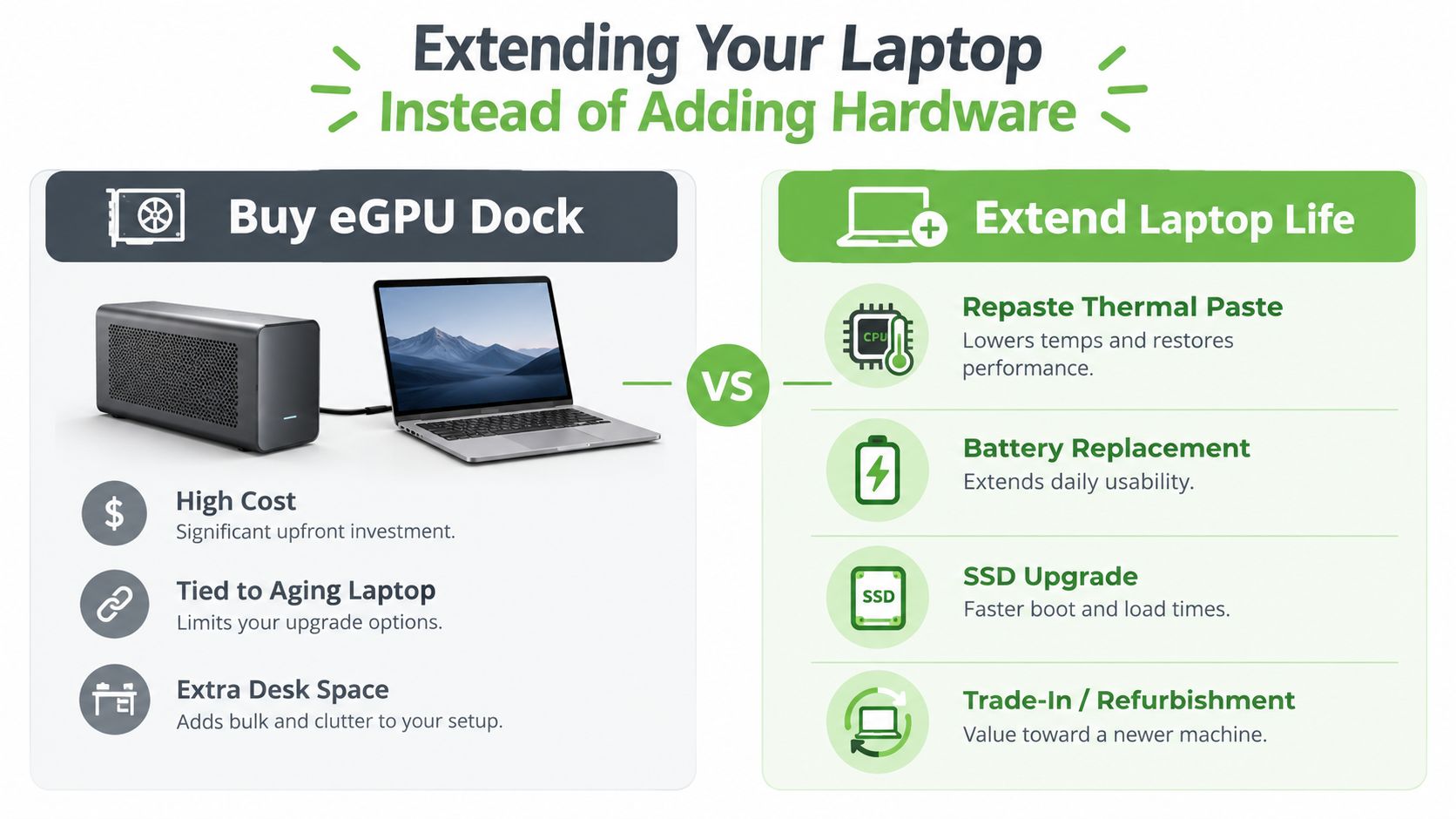
A thermal service, battery replacement, SSD upgrade or RAM upgrade can extend useful life where the design supports it. The processor still controls many office, coding and simulation tasks, and a clean cooling system helps the existing components sustain their intended speed. For a Singapore user, that may be the better value than adding an eGPU to a laptop whose CPU, screen or chassis is already near retirement.
Match the fix to the failure
Repasting thermal paste can help an older laptop that throttles under sustained load. Use it when temperatures and fan behaviour indicate a cooling problem. It will not add graphics capability.
A battery replacement restores mobility and reduces dependence on a charger. It does not increase GPU speed, but it can make the laptop practical again for meetings, classes and travel.
An SSD upgrade improves boot times, application response and project-file handling. Game graphics performance generally stays the same, but daily work can feel considerably less frustrating.
A RAM swap helps only when the laptop supports it and existing memory limits the applications you use. Check the service manual before buying modules.
Choose trade-in or refurbishment when the chassis, screen or keyboard is failing, or when the CPU lacks features required by current software. A properly assessed ThinkPad, EliteBook, MacBook or workstation can offer a more balanced system than pairing a graphics enclosure with a laptop close to retirement. In Singapore, compare that option with an RTX 5080 or RTX 5090 laptop, a mini-PC or a refurbished workstation before committing to an eGPU.
This decision affects budgets and sustainability. Extending a device spreads the original purchase across more working time, reduces replacement disruption and gives SMEs more predictable equipment planning. Companies also benefit from a documented process for repair, reuse, secure data handling and responsible recycling.
myhalo handles this lifecycle through Certified ReLoved and Certified Surplus devices, RescueAdvise, the mylo AI Assistant, transparent grading and battery-health disclosure. Its devices undergo 30-point quality checks under ISO 9001 and ISO 27001 certified processes. That makes a lifecycle partner relevant when repair, replacement, trade-in or reuse is the sensible answer instead of an eGPU.
Singapore-Focused Next Steps and Common Questions
Start with the laptop, not the enclosure. Find the manufacturer's specification page, confirm the exact USB-C port, and check for Thunderbolt support and explicit eGPU compatibility. Windows Device Manager may identify Thunderbolt hardware, but the official model specification is the safer reference.
Then confirm the graphics card and enclosure requirements. Ask the retailer whether your precise laptop model is supported, whether the enclosure accepts your chosen card, what the return process covers, and how soon testing must be completed. Keep the packaging until you have checked charging, external displays, sleep and wake behaviour, and your main applications.
Common questions
Do eGPUs work with MacBook Air models using Apple silicon? External displays work, but gaming-focused eGPU acceleration is limited on M1 to M4 Macs. Do not buy an enclosure expecting the same result as a compatible Windows laptop.
Does a docking station count as an eGPU? No. A normal dock expands ports. It is an eGPU only when it contains or connects to a discrete graphics card and explicitly supports that function.
Are Thunderbolt 5 enclosures worth paying more for? Only if your laptop also has Thunderbolt 5 and your workload benefits from higher throughput. A newer enclosure cannot improve an older laptop port.
What should I do with the old laptop? Singapore's NEA e-waste guidance lists ICT e-waste routes. Recycle.gov.sg's laptop guidance identifies designated collection points and 3-in-1 ICT bins. ALBA E-Waste and StarHub's RE:PC programme are also options, subject to their current collection arrangements. Laptops must fit through the 500mm x 250mm slot for the relevant ICT bins, as stated by Recycle.gov.sg.
Use this decision rule: if your laptop is under three years old and your workload is GPU-bound, investigate an eGPU first. Otherwise, compare repair, trade-in, a Certified ReLoved device, a refurbished workstation, a mini-PC, or an RTX 5080 or RTX 5090 laptop. myhalo's laptop trade-in guidance helps assess whether the machine should be reused, traded in, or recycled.
If you are unsure, visit myhalo with your laptop model and workload requirements. Ask about compatible devices, repairs, Certified ReLoved and Certified Surplus options, trade-ins, and responsible recycling before adding another box to the desk.