





Your 2026 Guide to Display Port to Hdmi in Singapore
You've got a laptop with DisplayPort. Your monitor or TV has HDMI. The cable looks simple enough, so you plug it in and expect it to work.
Then nothing happens.
Or it works, but the screen is stuck at a lower refresh rate than you expected. Or your 4K display only feels smooth at desktop use until you realise it's running at a lower mode than the panel can handle. That's the point where a lot of people in Singapore start wondering whether they need a different cable, a dongle, a dock, or a completely different monitor input.
The confusion is understandable. DisplayPort and HDMI are both common video connections, but they weren't built for the same device world. If you're trying to make a DisplayPort source talk to an HDMI display, the right adapter matters just as much as the ports themselves. A cheap mistake can leave a perfectly good laptop, monitor, or TV underused.
Table of Contents
- Why Is Connecting DisplayPort to HDMI So Confusing
- The Fundamental Difference Between DisplayPort and HDMI
- Passive vs Active Adapters The Most Important Choice
- What Resolution and Refresh Rate Can You Expect
- How to Choose the Right Adapter for Your Needs
- Troubleshooting Common Connection Problems
- Smart Buying and Eco-Friendly Reuse in Singapore
Why Is Connecting DisplayPort to HDMI So Confusing
A common situation goes like this. Someone buys a refurbished business laptop for home study or work. It has DisplayPort because that's normal on many office machines. At home, there's already a good HDMI monitor or TV on the desk. So they grab a random cable online, connect everything, and end up staring at “No Signal”.
That problem usually isn't caused by bad luck. It comes from the fact that DisplayPort and HDMI grew up in different device ecosystems. DisplayPort is built around PCs and monitors, with a locking 20-pin connector, while HDMI uses a 19-pin connector and is more common on TVs, consoles, and consumer AV gear, as explained in this technical comparison of DisplayPort and HDMI. That split is why adapters are such a normal purchase for Singapore homes, offices, classrooms, and gaming setups.
Same job, different language
The easiest way to think about it is this. Both ports move video and audio, but they don't always “speak” in the same way. So a cable isn't always just a cable. Sometimes it's only changing the plug shape. Sometimes it also needs to convert the signal.
That difference is where people get caught out.
If a connection fails, the first question isn't “Is the monitor broken?” It's “Does this adapter actually match the signal coming from the source device?”
Why the mistake costs more than inconvenience
A wrong adapter doesn't only risk a blank screen. It can also subtly reduce what your setup can do. You might lose the higher refresh rate you paid for. A sharp office monitor might fall back to a lower mode. A large TV might show a picture, but not in the smoothness you expected.
For students, professionals, and gamers in Singapore, that matters because many setups mix old and new gear. A newer desktop with DisplayPort often ends up connected to an older HDMI display. A laptop dock may add another layer of compatibility issues. Once you understand the translation problem, the rest becomes much easier.
The Fundamental Difference Between DisplayPort and HDMI
A lot of confusion starts here. Both ports can carry digital video and audio, but they were built for different jobs.
DisplayPort grew up in the PC world. HDMI grew up in the TV and home entertainment world. That difference affects more than connector shape. It affects how devices identify displays, what features they prioritise, and how reliably a simple adapter will work.
At myhalo, this is usually the point where customers realise why an old cable from a TV box does not always behave properly with a desktop monitor setup. On paper, both standards move a picture. In practice, they often expect different rules on each end.
DisplayPort is built around monitor flexibility
DisplayPort works like a connection designed for desks with changing needs. A user might swap monitors, connect through a dock, or care about sharper text and higher refresh rates for work or gaming.
That PC-first design shows up in features such as Multi-Stream Transport, which allows one DisplayPort output to support more than one display in certain setups. More broadly, DisplayPort is usually the port you see on desktops, graphics cards, and business-class monitors where flexibility matters more than living-room convenience.
HDMI is built around broad screen compatibility
HDMI is the format many displays already expect. TVs, projectors, soundbars, AV receivers, consoles, and plenty of household monitors use it because it keeps consumer devices speaking a common language.
That is why HDMI often feels simpler. If your screen sits in a meeting room or living room, HDMI is usually the default port. In Singapore homes, that also means many people already own an HDMI cable before they ever buy a DisplayPort adapter.
Reusing that cable can be a smart choice. It saves money and reduces e-waste, as long as the rest of the setup can support the signal path you need.
| Connection | Typical device world | What it's known for |
|---|---|---|
| DisplayPort | PCs, business desktops, workstations, monitors | Monitor flexibility, PC-focused features, multi-display support in some setups |
| HDMI | TVs, projectors, consoles, consumer AV gear | Wide compatibility with household and meeting-room displays |
The real difference is signal behaviour
The easiest comparison is language. DisplayPort and HDMI can both deliver the same message, a video signal with audio, but they do not always speak in the same dialect.
So a cable can do one of two jobs. It might only change the plug shape. Or it might need to translate the signal itself.
That is why two adapters that look nearly identical can behave very differently. One may work immediately with a laptop and projector. Another may give you a blank screen, no audio, or a lower refresh rate than the monitor can handle.
Why this matters before you buy anything
For many buyers, the risk is not just “will I get a picture.” The bigger problem is getting a picture that is worse than expected.
A setup might connect, but only at a lower refresh rate. A sharp monitor might fall back to a softer resolution. An older HDMI display may be fine for office work, but disappointing for fast games or smoother scrolling. This is one of the most common failure points, and it is easy to miss until the adapter is already unpacked.
So the practical rule is simple. Do not judge a DisplayPort to HDMI product by the plug alone. Check whether your source device is sending a signal the display can understand, and whether the adapter is only passing that signal through or actively converting it.
Passive vs Active Adapters The Most Important Choice
This is the part that saves people the most money and frustration.
When you shop for a DisplayPort to HDMI product, you'll usually run into two types: passive and active. They may look similar in photos. They don't work the same way.
Think of passive as a plug shape changer
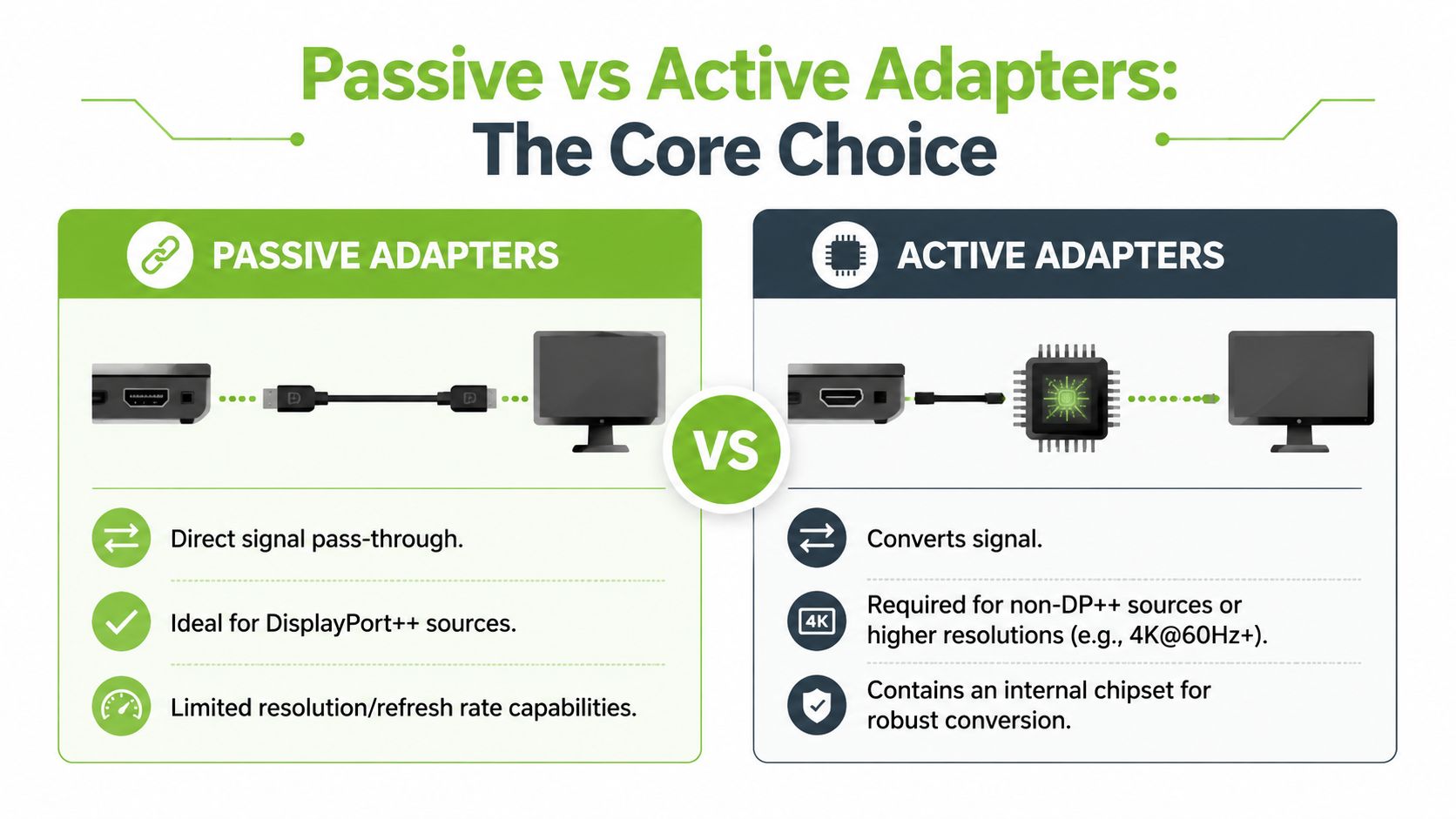
A passive adapter is like a travel plug adapter. It's useful only if the power coming from the wall already matches what the device can use. In video terms, a passive DisplayPort-to-HDMI adapter only works when the source device supports DP++, also called dual-mode DisplayPort.
That means the GPU itself can emit an HDMI-compatible signal through the DisplayPort output. The adapter isn't translating much. It's mostly passing through what the source is already capable of sending.
A published product explanation from Tripp Lite states that a passive DisplayPort-to-HDMI adapter relies on DP++, and if the source port is pure DisplayPort without that feature, the passive adapter will fail. In that case, an active converter is required because it performs the signal translation in hardware. You can read that in this DP++ and adapter compatibility note.
Active adapters do real translation
An active adapter includes electronics that convert the DisplayPort signal into HDMI. It's closer to a language interpreter than a plug converter. If your source doesn't support DP++, this is often the product that makes the connection possible.
This is why active adapters are often the safer buy when:
- Your source specs are unclear. Many people don't know whether their laptop, mini PC, or dock supports DP++.
- You're connecting to a higher-spec display. More demanding setups leave less room for weak links.
- You want fewer surprises. Active conversion adds compatibility where passive products can fail outright.
Passive vs. Active Adapter At a Glance
| Feature | Passive Adapter | Active Adapter |
|---|---|---|
| Signal handling | Relies on the source outputting HDMI-compatible signal | Converts DisplayPort signal to HDMI in hardware |
| DP++ required | Yes | No |
| Best fit | Simpler setups when source compatibility is known | Mixed devices, uncertain specs, higher demands |
| Typical risk | No picture if the source is pure DisplayPort | Higher cost, but broader compatibility |
A passive adapter can still be the right choice. If you've got a straightforward desk setup and you know the source supports DP++, there's no reason to overspend.
But if you're buying for a work-from-home desk, a meeting room, or a refurbished business machine with incomplete port documentation, active is often the more cost-effective choice in the long run. Spending less on the wrong accessory isn't saving money.
Buy passive only when you're confident about the source device. Buy active when you want compatibility insurance.
What Resolution and Refresh Rate Can You Expect
The most common disappointment isn't “no signal”. It's getting a picture that doesn't run as well as the screen should.
A user buys a 4K monitor. The panel is sharp, the colours look fine, but motion feels off. Menus lag slightly. The mouse pointer doesn't feel as smooth. The monitor isn't necessarily the problem. The cable chain may be limiting the output.
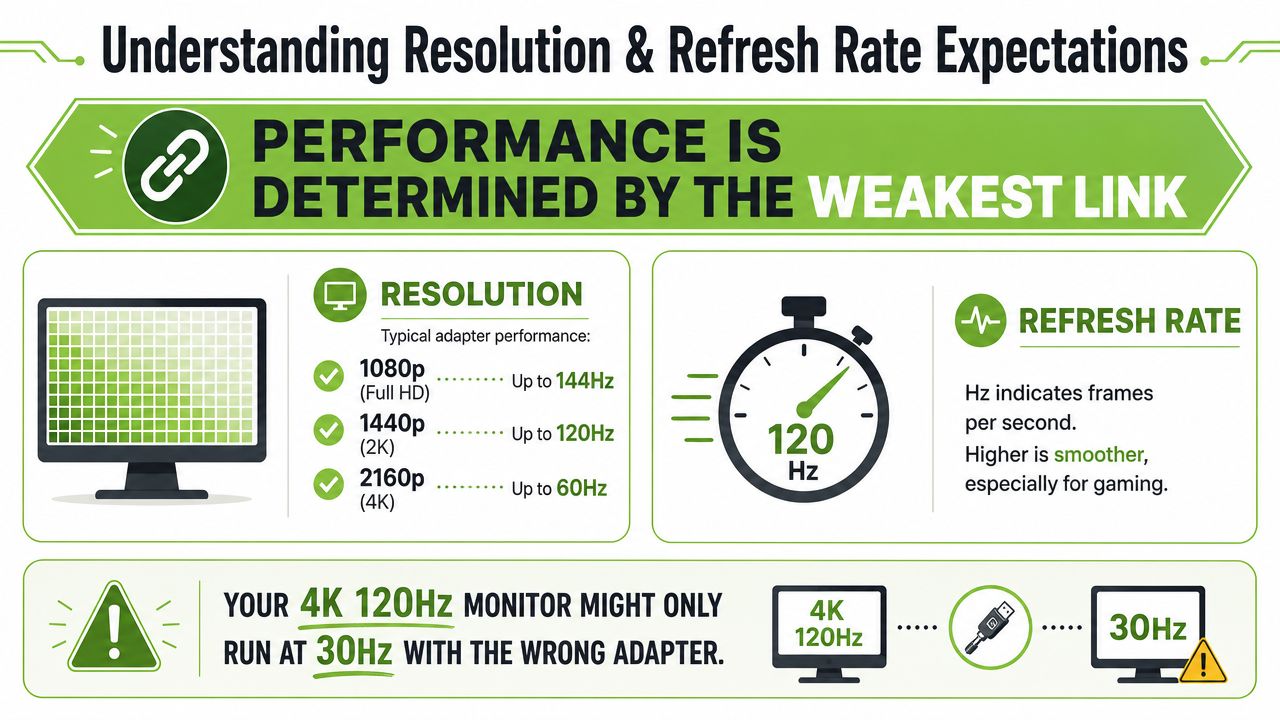
The weakest link decides the result
For DisplayPort to HDMI, performance depends on the whole chain:
- Source device. Laptop, desktop GPU, dock, or mini PC
- Adapter type. Passive or active
- Cable quality and version match
- Display input capability
If one part of that chain is limited, the entire setup falls back to that lower level.
A Manhattan product specification for an active DisplayPort-to-HDMI cable explicitly rates it for 3840 × 2160 at 60 Hz, while the same guidance notes that passive adapter examples may be limited to 1080p. That's why an active adapter is often the safer path when you need 4K at 60 Hz, as shown in this 4K60 active adapter product reference.
What the standards allow in principle
The standards themselves set the ceiling. According to HP's technical overview, DisplayPort 1.4 supports up to 32.4 Gbps, while HDMI 2.1 supports up to 48 Gbps, and both can handle 4K at 120 Hz or 8K at 60 Hz when the source, adapter, and display all support the needed mode. That's useful context when shopping for monitors such as this LG 27-inch 4K UHD IPS monitor, because the panel can only show what the whole connection path successfully delivers.
What matters in practice is not just the monitor's spec sheet. It's whether every link in the chain matches.
For people comparing office docks and conference-room accessories, it also helps to look at reliable display solutions for business with clear version support listed, rather than buying a cable that only says “4K” without saying under what conditions.
A screen can only be as fast and as sharp as the slowest part between the GPU and the panel.
A simple buying rule works well here. If you only need basic office output, an existing cable may be enough. If you care about smooth 4K desktop use, video editing, or gaming, check the adapter specification before you assume the display is at fault.
How to Choose the Right Adapter for Your Needs
An expensive adapter isn't always necessary. The key factor is finding the correct one for the display already owned and the device used daily.
That means buying by scenario, not by marketing words.
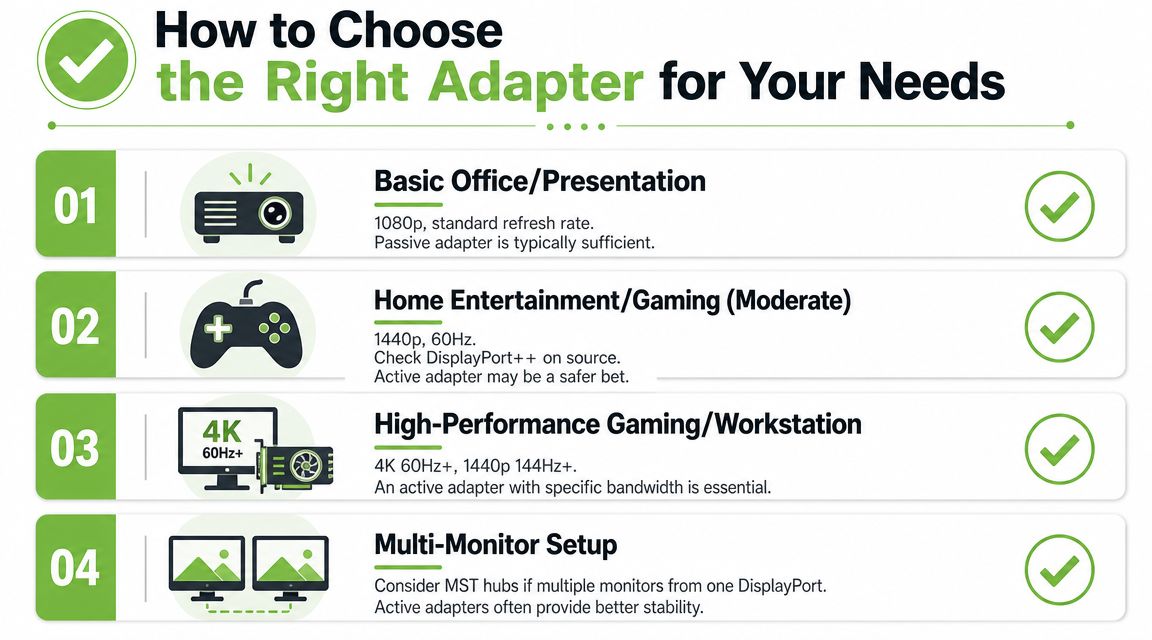
Three buying decisions that matter most
First, identify the source. Is it a business desktop, a gaming GPU, a docking station, or a refurbished laptop with limited documentation?
Second, decide the target performance. Are you only presenting slides on a projector, or are you trying to run a 4K monitor smoothly at everyday desktop settings?
Third, check whether you're using a single direct connection or a hub-based setup. Once docks and travel hubs enter the picture, compatibility becomes more sensitive. If you need a compact accessory for mixed work environments, a product such as this Lenovo USB-C travel hub with HDMI, VGA, USB-C PD, USB 3.1, USB 2.0 and RJ45 can make sense because it's designed for flexible display output and common office connectivity.
Simple scenarios for Singapore buyers
Here's the practical version.
-
Student or home office user with a basic monitor
If you're connecting a laptop to a standard HDMI monitor for documents, web browsing, and classes, a passive adapter may be enough if the source supports DP++ and your setup is simple. -
Work-from-home professional using a 4K monitor
If your monitor is 4K and you want it to feel properly smooth for spreadsheets, side-by-side windows, and video calls, go straight to an active adapter rated for the display mode you want. -
Gamer connecting a PC to a large TV
In this situation, vague listings become risky. You need to verify the versions supported across the source, adapter, and display. If you care about high refresh output, don't buy based on price alone. -
Desk setup with older reused accessories
Reuse first. If your current HDMI cable is working and only the source side has changed, you may only need the right adapter. Replacing every part at once is often unnecessary.
A cost-effective rule of thumb
Buy the cheapest adapter only if failure is low impact. A classroom projector, spare monitor, or temporary desk can justify a simpler purchase.
Buy the more compatible adapter when troubleshooting time is expensive. That includes office users who need the display to work every morning, students who can't afford a failed presentation, and anyone sharing a desk with mixed devices.
Troubleshooting Common Connection Problems
When a DisplayPort to HDMI setup fails, users often start swapping cables randomly. A better approach is to test the connection in order.
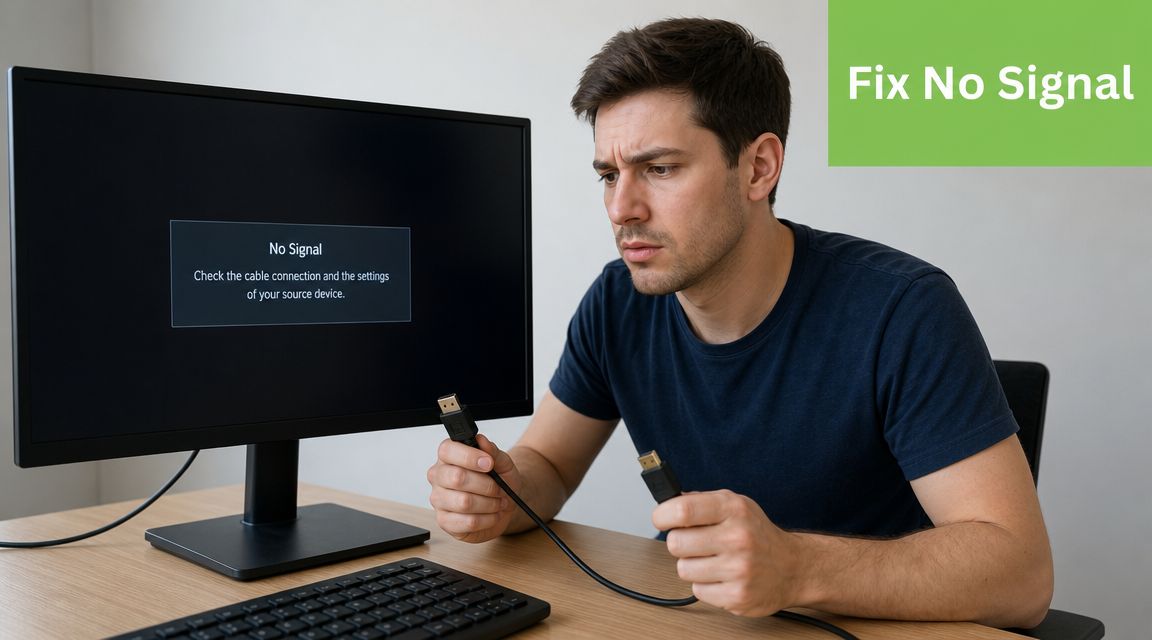
Start with direction and input selection
One of the biggest hidden traps is directionality. Many DisplayPort-to-HDMI products are unidirectional. They are made for a DisplayPort source to HDMI display path only. If you try to run them the other way around, they won't work.
Plugable's guidance on video cables makes this point clearly. Most DisplayPort-to-HDMI cables are designed to work in one direction only, and reverse use will fail because the conversion hardware is built for a one-way path. That's explained in this guide to uni-directional and bi-directional video cables.
If you get no image, check these first:
- Correct direction. The source must be the DisplayPort side, and the display must be the HDMI side, unless the product explicitly states otherwise.
- Monitor input. Many monitors won't auto-switch cleanly. Manually select the HDMI input.
- Firm seating. DisplayPort connectors can feel inserted when they're not fully locked in.
- Test without the dock. If a dock is involved, connect directly once to isolate the issue.
When the picture works but performance is wrong
If the display shows an image but it's stuck at a low resolution or lower refresh mode, the adapter is a likely suspect. This often happens when a basic passive product is used in a more demanding setup.
Check these in order:
- Display settings on the computer. Make sure the desired resolution and refresh rate are selected.
- Adapter specification. If the adapter doesn't explicitly support the mode you want, the system may drop to a lower one.
- Cable reuse. Reused HDMI cables can be perfectly fine, but if the rest of the chain is upgraded, the cable may become the unnoticed bottleneck.
- Driver and dock firmware. Especially on business laptops, display behaviour can improve after updates.
This walkthrough can help if you want to see a physical troubleshooting example in action:
If you see a picture, you've only solved half the problem. You still need to confirm the display is running at the mode you intended.
Audio issues can also happen. If video appears but sound doesn't, verify that the HDMI display is selected as the playback device in your operating system. Many users assume the cable failed when the system is still sending sound to laptop speakers or a headset.
Smart Buying and Eco-Friendly Reuse in Singapore
A sensible DisplayPort to HDMI purchase starts with a simple question. What do you already have that still works?
If you've already got a good HDMI monitor, projector, or TV, you may only need the correct adapter rather than a whole new display setup. That's the most practical and eco-conscious option for many households and SMEs in Singapore. Reusing an existing cable or monitor is often smarter than replacing parts blindly.
Reuse first, replace only the weak link
Before buying, check:
- Your current HDMI cable. If it's stable and your needs are modest, keep using it.
- Your laptop or desktop ports. A business machine with DisplayPort can still pair perfectly well with an HDMI display if the adapter is chosen properly.
- Your future plans. If you may upgrade to a sharper or smoother display later, buying an active adapter now can reduce future waste.
For buyers who are also comparing laptop upgrades, it helps to understand the practical value of professionally checked second-hand hardware. This guide to refurbished laptop computers in Singapore is useful if you're trying to balance budget, reliability, and lower e-waste.
The wider lesson is simple. Don't throw away a good monitor because of a bad adapter decision. In many cases, the display is fine. The connection path just needs the correct translator.
If you're matching a laptop, desktop, monitor, or accessory and want a setup that avoids unnecessary replacement, myhalo is one local option to check for new and refurbished devices, monitors, hubs, and support services that help extend the life of the tech you already own.