





Affordable Gaming Monitor: A 2026 Buyer Guide
You're trying to turn one Singapore bedroom into a study, gaming station and sometimes a work-from-home desk. The monitor has to fit an HDB-sized tabletop, deliver smooth gameplay after class, and remain useful when your current graphics card is eventually replaced. A low sticker price looks attractive, but a panel that arrives damaged, runs at only 60Hz, or has no practical warranty can become the most expensive option.
An affordable gaming monitor in Singapore now means more than finding the cheapest listing. It means matching size, resolution, refresh rate, ports, support and expected lifespan to the money you're spending. The local market has moved well beyond basic sub-S$100 screens, with budget-friendly gaming displays commonly spanning about S$118 to S$499 according to Singapore gaming-monitor listings. The right purchase is the one that stays useful, repairable and supportable, not merely the one that wins checkout by a few dollars.
Table of Contents
- Gaming in a Compact Singapore Home: Real Costs
- Key Monitor Specs Explained in Plain English
- Where Affordable Pricing Starts and Stops in Singapore
- New, Refurbished, or ReLoved: A Straight Comparison
- Setting Up Your Monitor for the Smoothest Picture
- Why Buying From a Local Lifecycle Partner Pays Off
- Your Smart Shopping Checklist Before You Pay
Gaming in a Compact Singapore Home: Real Costs
A student in a compact bedroom may use one desk for lecture notes, a laptop and late-night matches. A 24-inch screen leaves more room for a keyboard and notebook, while a larger curved display can crowd the tabletop. Once the monitor serves both study and gaming, its stand, viewing angle and reliability deserve as much attention as its refresh rate.
Singapore pricing has widened the meaning of “affordable”. Local listings show a PRISM+ gaming monitor at S$118, a 22-inch 120Hz model at S$89, a 25-inch 144Hz model at S$119, and a 27-inch 240Hz model at S$217. Another local pricing guide places budget gaming monitors at about S$249 to S$499. These examples come from Singapore monitor listings. Treat them as market reference points, not guarantees of permanent stock or pricing.
The screen is only the first invoice. You may also need a suitable HDMI or DisplayPort cable, a monitor arm for a shallow desk, surge protection, or a stronger broadband plan if online gaming exposes weaknesses in your connection. A poor stand can place the panel too low, forcing you to raise your chair or crane your neck through long sessions.
The hidden cost of a cheap listing
Cross-border listings can appear cheaper after you account for GST, delivery surcharges, return shipping, dead-on-arrival risk and the difficulty of proving a warranty fault from Singapore. Overseas return handling can leave your study desk without a usable display while support teams exchange messages across time zones.
Judge value across the period you expect to use the monitor. A locally supported unit with clear grading, accessible repairs, trade-in options and a usable warranty can make more financial sense than an anonymous listing, because a panel with a lower sticker price can carry hidden costs. Certified ReLoved devices with warranty coverage also deserve consideration when a new model offers little extra for the money.
For SMEs, the same calculation applies at scale. Downtime affects staff productivity, while repair, reuse and trade-in routes preserve value that would otherwise disappear when devices are replaced.
Practical rule: If the price only works after ignoring cables, delivery, support and failure risk, it is not your final cost.
For a value-focused setup, target 24 to 27 inches, FHD, IPS and 144Hz. That combination suits a compact desk, supports smooth gaming and avoids paying for specifications your hardware may not use. Verify the stand footprint, ports, warranty terms and repair process before paying.
Key Monitor Specs Explained in Plain English
Start with the desk, not the product page. A 24-inch display usually suits a compact study table and a close viewing position, while 27 inches gives more room for games and multitasking but needs a little more distance. On a shallow desk, a deep stand or aggressive curve can matter more than the diagonal measurement.
Size and resolution
Resolution is the amount of detail the screen can show. 1080p is the kopi option, familiar, affordable and easy for modest gaming hardware to drive. 1440p is more like a better teh, sharper and more spacious, but it asks more from the graphics card. 4K is the specialty coffee choice, beautifully detailed but less sensible if the rest of the system can't produce the frame rates you want.
A Singapore buying guide recommends 1080p for 25- to 27-inch displays, 1440p for 27- to 35-inch displays, and 4K for panels of at least 32 inches, with roughly 100 to 120 pixels per inch as a useful viewing target. The BenQ Singapore monitor buying guide provides that size-to-resolution framework. For most budget systems, 24- to 27-inch FHD remains the cleanest balance between text sharpness, desk fit and achievable frame rates.
If you're curious about extreme resolution rather than practical value, NeoTeo's article on 8K displays offers useful context. An 8K screen may be fascinating, but it isn't the sensible default for an affordable gaming desk.
Refresh rate and response time
Refresh rate tells you how often the monitor can update the image. A 60Hz panel refreshes less frequently than a 144Hz or 165Hz panel, so movement looks less fluid when your computer supplies enough frames. A Singapore buying guide identifies 120Hz to 144Hz as the current gaming standard, while 240Hz is aimed more at competitive esports players. It also treats 1ms to 4ms response time as a good gaming range, as explained in this Singapore gaming-monitor buying guide.
Response time is different. It describes how quickly a pixel changes colour. Slow transitions can leave a faint trail behind moving objects, known as ghosting. At 144Hz, each frame interval is 6.94ms, so a panel with a slow real-world response can still look smeared despite its high refresh rate. This distinction is explained in Pixle's response-time guide.
Panel type and adaptive sync
IPS is my default for mixed use because it generally offers consistent viewing angles and clean colour for games, study and content work. VA panels can produce deeper-looking blacks, which helps in dark game scenes, but you should inspect motion behaviour because some models show dark smearing. OLED delivers strong contrast and fast transitions, but it costs more and deserves a careful discussion of long-term use, static desktop elements and warranty coverage.
Adaptive sync matches the display's refresh behaviour to the graphics card's output. It reduces tearing, the visible split that appears when the screen begins a new frame before the previous one has finished. Check whether the monitor supports FreeSync, G-Sync compatibility or another adaptive-sync mode that works with your GPU.
Ports and ergonomics
A 144Hz label doesn't guarantee 144Hz through every input. Dell Singapore's specification for the 24-inch S2425HSM supports 1920×1080 at 144Hz, while its HDMI 1.4 note limits that operation to 1080p over that input. The Dell Singapore product specification shows why you must check the actual port standard and cable path.
Look for height adjustment, tilt and a VESA mounting pattern if your desk is tight. Ergonomics determines whether the display remains comfortable through a long raid or a full day of assignments. A monitor that looks impressive but can't sit at a sensible eye height isn't a good bargain.
| Spec | What It Actually Means | Sweet Spot for Budget Buyers |
|---|---|---|
| Size | How much physical desk and viewing space the panel needs | 24 to 27 inches |
| Resolution | How much detail the screen renders | FHD for value systems, 1440p when the GPU can support it |
| Refresh rate | How often the screen can update the image | 120Hz to 165Hz |
| Panel type | How the display handles colour, contrast and viewing angles | IPS for mixed gaming and study |
| Response time | How quickly pixels change colour | 1ms to 4ms stated range, with real motion testing preferred |
| Adaptive sync | How the monitor reduces tearing | FreeSync or compatible adaptive sync |
| Inputs | Whether your device can deliver the advertised mode | DisplayPort or a suitable HDMI standard |
| Ergonomics | How comfortably the monitor fits your body and desk | Tilt, height adjustment or VESA support |
Where Affordable Pricing Starts and Stops in Singapore
A monitor that looks cheap can become costly once you add a weak stand, limited warranty support or an early replacement. Singapore's market has a clear price ladder. Entry-level office monitors sit at S$129 to S$199, mid-range gaming monitors at S$249 to S$499, and high-end gaming models at S$699 to S$1,799, according to this Singapore monitor pricing guide. Use those bands to compare like with like, not an office panel against a gaming display because both show a desktop.
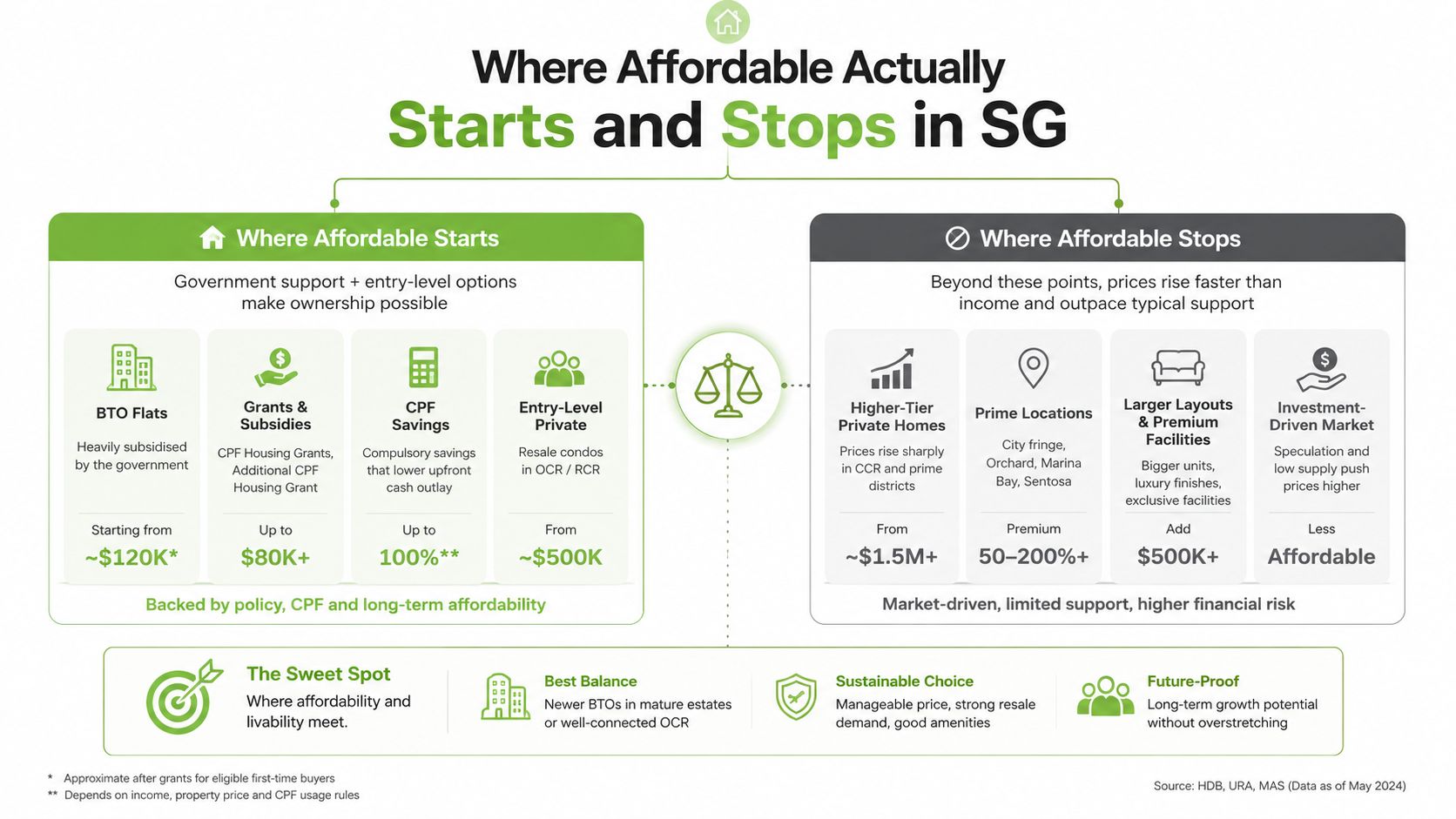
Entry tier below S$200
Below S$200, capable FHD gaming screens are available. Local examples include S$109 to S$169 for 24- to 27-inch 144Hz IPS models. Best Denki lists the Acer KA242Y P6 at S$109, an LG UltraGear 24-inch FHD IPS 144Hz model at S$129, and 27-inch FHD 144Hz IPS options around S$169 to S$176, as shown in its Singapore monitor listings.
Choose this tier for a student desk, casual gaming or an older graphics card. The usual trade-offs are limited stand adjustment, basic speakers, no USB connectivity, uneven panel quality or lighter construction. It makes sense as a secondary screen, or when your system is built specifically for 1080p. Check dead-pixel and warranty terms before paying, because a low upfront price does not cover a difficult replacement process.
Mid tier from roughly S$200 to S$450
This is the practical value zone for most buyers. Singapore retailer listings show gaming monitors at S$339, S$349, S$369, S$389, S$399, S$419 and S$459, including discounts of 17% to 35% from regular prices, such as S$369 reduced from S$569 and S$389 from S$599. The figures appear in local retailer monitor listings.
At this level, you can reasonably expect a sturdier stand, better tuning, IPS panels, adaptive sync and a clearer after-sales route. 1440p also becomes more practical if your graphics card can drive it. For a complete budget setup, myhalo's guide to affordable laptops in Singapore is useful when comparing the display with the rest of your hardware spend.
Above S$450
Pay more only when your system and desk can use the extra capability. Singapore listings place 27-inch 1440p 240Hz and 32-inch 4K 144Hz models typically at S$700 to S$1,800. Newer launches include a 300Hz 27-inch model at S$429 and a 34-inch 250Hz ultrawide at S$529, according to Singapore gaming-monitor launch coverage.
These monitors suit competitive players, demanding creative workflows and buyers who value premium ergonomics. Skip them if your games rarely reach the refresh rate, or your desk cannot fit the panel comfortably. In that case, spend on a supported, repairable unit instead of paying for unused specifications.
New, Refurbished, or ReLoved: A Straight Comparison
A sealed box gives you the simplest buying process, not automatically the lowest ownership cost. Open-box stock, overstock, professionally refurbished monitors and older ReEco devices each suit a different buyer. Choose based on warranty support, panel condition, required specifications and the cost of replacing the unit if it fails.
| Pathway | Warranty | Cosmetic Grade | Typical SG Price | Best For |
|---|---|---|---|---|
| Factory-sealed new | Manufacturer or retailer terms | New | Check current local listing | Buyers who want untouched packaging |
| Open-box or overstock | Confirm in writing | May show handling marks | Check condition and landed cost | Buyers who want newer hardware at a reduced price |
| Certified ReLoved | Confirm the specific coverage | Transparent grade | Check current local listing | Buyers who want tested hardware and support |
| ReEco | Confirm available support | Functional with cosmetic wear | Check current listing | Buyers prioritising reuse and low upfront cost |
Factory-sealed suits buyers who need the latest panel, a complete accessory set and a simple return process. Open-box stock can cut the upfront cost, but ask why it was opened, whether every cable is included and whether warranty coverage starts on your purchase date.
What refurbishment should prove
A refurbished monitor needs more than a clean exterior. Ask for testing evidence covering the panel, ports, backlight, stand and controls. Older TN panels, tired capacitors and uneven backlights can wipe out the saving, particularly when the monitor is near the end of its useful life.
A properly graded Certified ReLoved device should state its cosmetic condition and functional status before payment. myhalo's process includes 30-point quality checks, transparent device grading and battery health disclosure where relevant to supported devices. Its lifecycle services also cover repair, reuse, trade-ins and responsible recycling, giving you a support route beyond the initial sale.
That approach matters for monitors because a lower purchase price is poor value if a fault leaves you buying another screen. Compare the full warranty terms, repair process and likely replacement cost. myhalo's guide to refurbished laptop computers explains the same reuse principle: check condition, written coverage and realistic after-sales support before choosing refurbished hardware.
A ReLoved monitor with cosmetic marks can suit a bedroom gaming desk where stable performance matters more than a flawless casing. ReEco makes more sense for a secondary display, schoolroom or SME workstation, where extending the life of a functional device reduces unnecessary replacement.
Inspect the physical condition and connections yourself. Do not rely on the carton alone.
Setting Up Your Monitor for the Smoothest Picture
Many affordable screens are blamed for poor performance when the problem is setup. The monitor may support 144Hz or 165Hz, but Windows, the graphics driver or the cable can leave it running at a lower mode.
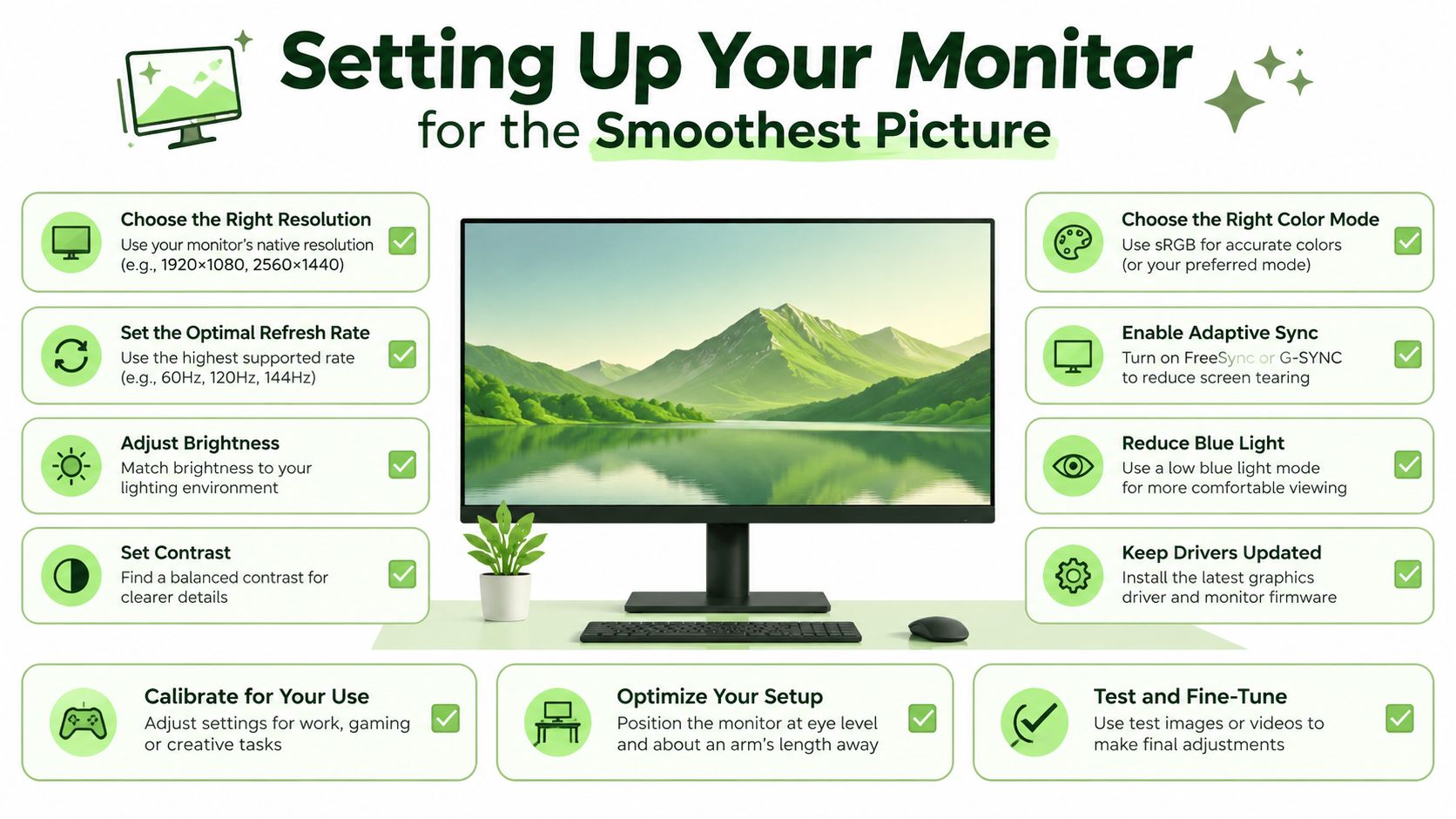
Match the signal path
Use the port that supports your required resolution and refresh rate. DisplayPort is often the cleanest choice for a gaming PC, but the monitor specification remains the authority. HDMI capability varies by version and implementation, so don't assume that an HDMI-shaped plug can deliver every advertised mode.
After connecting the cable, open Windows display settings and select the monitor's highest supported refresh rate. Check the GPU driver panel as well. If the operating system shows only 60Hz, investigate the cable, input selection and graphics output before blaming the panel.
Enable the useful features
Open the monitor's on-screen display and enable adaptive sync. Then turn on the matching feature in your GPU software. Set overdrive conservatively. The fastest setting can create bright inverse trails around moving objects, which looks worse than moderate ghosting.
Start calibration in the room where you'll use the monitor. A bright Singapore HDB room usually needs enough brightness for comfortable reading, but excessive brightness causes fatigue. Adjust brightness, gamma and colour temperature gradually, then check a white document, a dark game scene and a colourful image.
Place the screen properly
Set the top of the display near eye level and tilt it so you're looking slightly downward towards the centre. A 24-inch screen can sit closer on a compact desk, while a 27-inch panel benefits from more breathing room. Keep the display centred with your chair rather than angled towards one shoulder.
A monitor arm can reclaim desk space and make height adjustment easier. If your table is shallow or shared with study materials, a full-motion monitor desk mount arm can be more useful than paying for decorative RGB features.
Run this ten-minute check before your first serious session:
- Confirm the input: Select the correct HDMI or DisplayPort source.
- Set refresh rate: Choose the advertised mode in Windows.
- Enable adaptive sync: Turn it on in both the monitor menu and GPU software.
- Test overdrive: Reduce it if moving text or objects show bright halos.
- Set brightness: Match the room rather than copying a showroom setting.
- Fix posture: Adjust height, tilt, chair position and viewing distance.
Why Buying From a Local Lifecycle Partner Pays Off
A monitor that costs less upfront can cost more when it fails outside an easy return route. Singapore buyers should value same-island delivery, clear exchanges, repair access and a documented warranty because the display may support gaming, schoolwork and business calls every day.
Local accountability also changes the economics of upgrading. A service-led retailer can connect the original purchase to repair, trade-in, data and device migration, protection plans and responsible recycling. That keeps the device in use for longer and gives the buyer more than one exit route when a newer model becomes worthwhile.
Support has practical value
For an individual, a working return process avoids a long dispute over a dead-on-arrival panel. For an SME, faster resolution reduces staff downtime and keeps a workstation available. These benefits are difficult to measure from a product thumbnail, but they directly affect total cost of ownership.
myhalo operates as a Singapore technology lifecycle partner with new and professionally refurbished devices, including Certified ReLoved and Certified Surplus options. Its service framework includes RescueAdvise, the mylo AI Assistant, ISO 9001 and ISO 27001 certifications, 30-point quality checks, transparent grading, warranty support, repairs, trade-ins and responsible recycling.
A 10 percent saving isn't a saving if the first fault leaves you paying for return shipping and a replacement screen.
The local route also supports smarter resource use. Repairing a viable monitor, reusing an older unit as a secondary display or trading it in for credit can preserve useful hardware and reduce unnecessary replacement. For a business, that's resilience and cost control. For a household, it's a more disciplined upgrade cycle.
Your Smart Shopping Checklist Before You Pay
Take this checklist to the shop, product page or refurbished-device counter. It prevents a fast purchase from turning into a slow troubleshooting project.
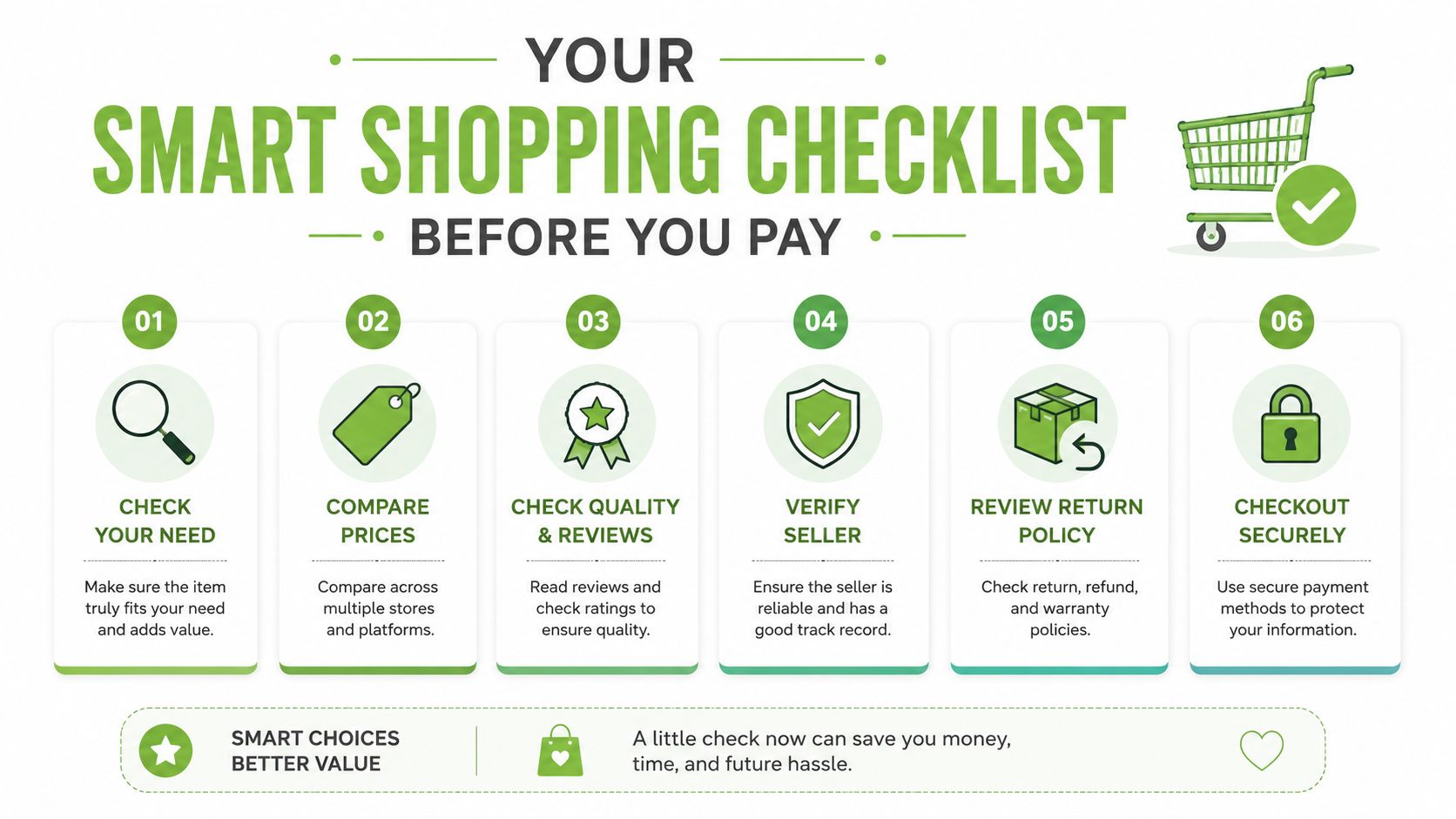
Check the physical fit
Measure the desk depth, not just the available width. Confirm that the stand won't push the screen too close, and look for height or tilt adjustment if the monitor will double as a study or work display.
Check the performance path
Verify the native resolution and refresh rate together. A 24- to 27-inch FHD IPS display at 144Hz remains a strong value target, while a higher-resolution or faster panel should match the graphics hardware you own.
Check the ports
Confirm that your computer or console can deliver the advertised refresh rate through the included or purchased cable. Dell's Singapore specification example shows why an HDMI 1.4 connection can limit 144Hz operation to 1080p, even when the monitor supports that mode.
Check compatibility and mounting
Look for FreeSync or G-Sync compatibility that matches your GPU. Confirm the VESA pattern if you're using an arm, and check the stand's adjustment range if you're keeping the supplied base.
Check the total price
Compare the full local cost, including GST, delivery and any required cable or mount. Use Singapore market bands as a sanity check: entry-level office monitors sit around S$129 to S$199, mid-range gaming monitors around S$249 to S$499, and high-end models around S$699 to S$1,799. A large discount doesn't matter if the warranty or condition is unclear.
Check the after-sales path
Ask for written local warranty terms, exchange conditions and delivery or collection timing. For a refurbished or Certified ReLoved unit, request the grading report and confirm what testing was completed. Inspect the panel for dead pixels, uneven lighting and port faults as soon as it arrives.
Ask whether the monitor, or the wider device purchase, can be traded in when you upgrade. That question connects your current spend to future value and encourages reuse rather than disposal. SMEs should also ask about repair turnaround and support escalation before placing a multi-unit order.
myhalo offers new, professionally refurbished and lifecycle-supported technology for Singapore buyers, with Certified ReLoved and Certified Surplus options, transparent grading, 30-point checks, repairs and trade-ins. If you want an affordable gaming monitor without ignoring support and long-term value, visit myhalo and compare the available options before you pay.