





Wireless Mouse with Keyboard in Singapore: Buying Guide
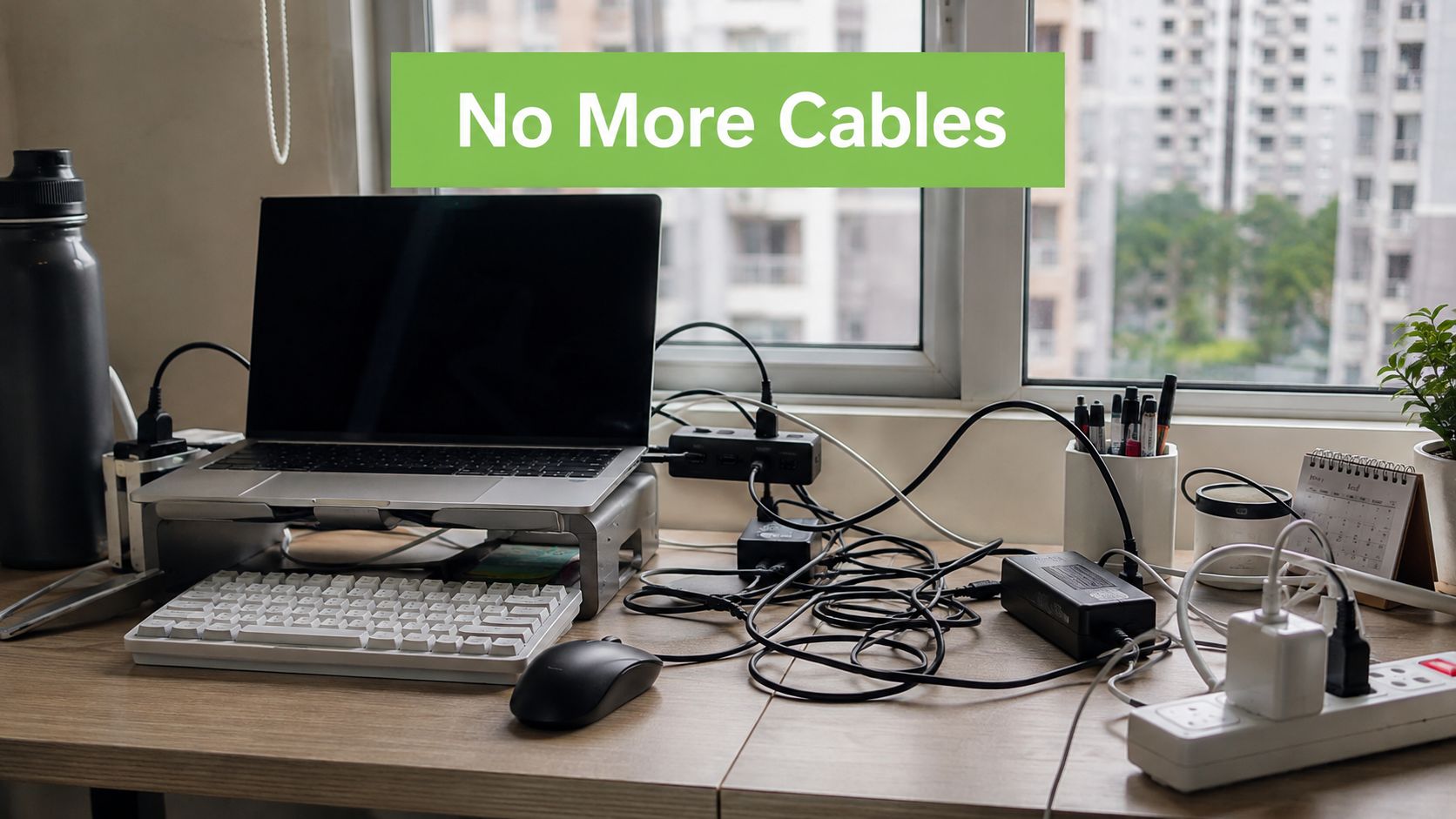
You know the drill. You sit down in your HDB study room or office cubicle, open the laptop, and the first thing you notice is the cable mess, the charger brick fighting for the only spare socket, and the mouse and keyboard that need to be plugged in, moved around, and tidied up every day. A wireless mouse with keyboard stops that daily friction from becoming part of your routine, and in Singapore that matters because most desks are already small, shared, and built around laptops rather than full towers.
That is why I treat this as a daily-driver decision, not a gadget indulgence. The right setup makes hot-desking easier, keeps a home workstation cleaner, and reduces the port conflict that thin laptops create when you still need to connect displays, storage, and power at the same time. It also makes video calls look calmer, because fewer cables are hanging in frame and fewer peripherals are fighting for space on the desk.
Singapore's retail market reflects that reality. You can find wireless keyboard-and-mouse combos at entry prices as low as S$18.90 for a 2.4GHz combo and around S$29.44 for a wireless keyboard-and-mouse set at local listings, which shows how mainstream this category has become for budget-conscious users and SMEs alike (combo listings in Singapore). A mature product range is there, and the question is no longer whether to buy wireless. It is which connection, which layout, and which lifecycle path fits the way you work.
Table of Contents
- Why a Wireless Mouse with Keyboard Setup Makes Sense in 2026
- How Bluetooth and 2.4 GHz Dongles Actually Work
- Key Features Worth Comparing Before You Buy
- Combo Kits Versus Separate Keyboard and Mouse Purchases
- Matching the Combo to Your Daily Workflow
- Setup, Compatibility and Connection Tips
- Battery Care, Cleaning and Long Term Maintenance
- Buying Refurbished, Trading In and Recycling in Singapore
Why a Wireless Mouse with Keyboard Setup Makes Sense in 2026
A wireless desk setup earns its place when the desk itself is already under pressure. In a Singapore flat, that might mean a study corner squeezed beside a fan and bookshelf. In an office, it usually means a cubicle or hot-desk where the user wants to sit down, connect once, and get moving without sorting out a tangle of leads first.
The real benefit is not novelty, it is fewer daily interruptions
The best reason to buy a wireless mouse with keyboard is simple. It removes small annoyances that compound over time. You stop reaching behind the monitor for a cable. You stop sacrificing a USB port just to make basic input work. You also stop leaving a desk in a half-set state because the keyboard has to be moved for charging or because the mouse cable keeps catching on the edge of the table.
Practical rule: If a peripheral forces you to think about it every day, it is costing you attention.
That matters more now because work patterns have changed. Hybrid workers shift between home, office, and café setups. Students move between dorm rooms, libraries, and classrooms. SMEs also care about repeatable workstation setup, because one standard combo is easier to deploy than three different input styles across the same team.
A clean setup also helps with perception. When you are on video, fewer loose cables and fewer mismatched accessories make the desk look more deliberate. That is not vanity. In client calls and internal reviews, a tidy working area signals that your setup is stable and repeatable.
Pick for the ownership journey, not just the first day
A good purchase should still make sense after the first week, after the battery needs attention, and after the first firmware update. You want to know whether you are buying a combo kit, separate devices, or a refurbished set that can be repaired, reused, or recycled later.
Singapore buyers should also think in terms of lifecycle value. A device that lasts longer, gets serviced properly, and can be resold or recycled responsibly creates more room in the budget for other things. That is the right way to think about wireless input gear, especially if you are buying for a team or kitting out a shared home office.
How Bluetooth and 2.4 GHz Dongles Actually Work
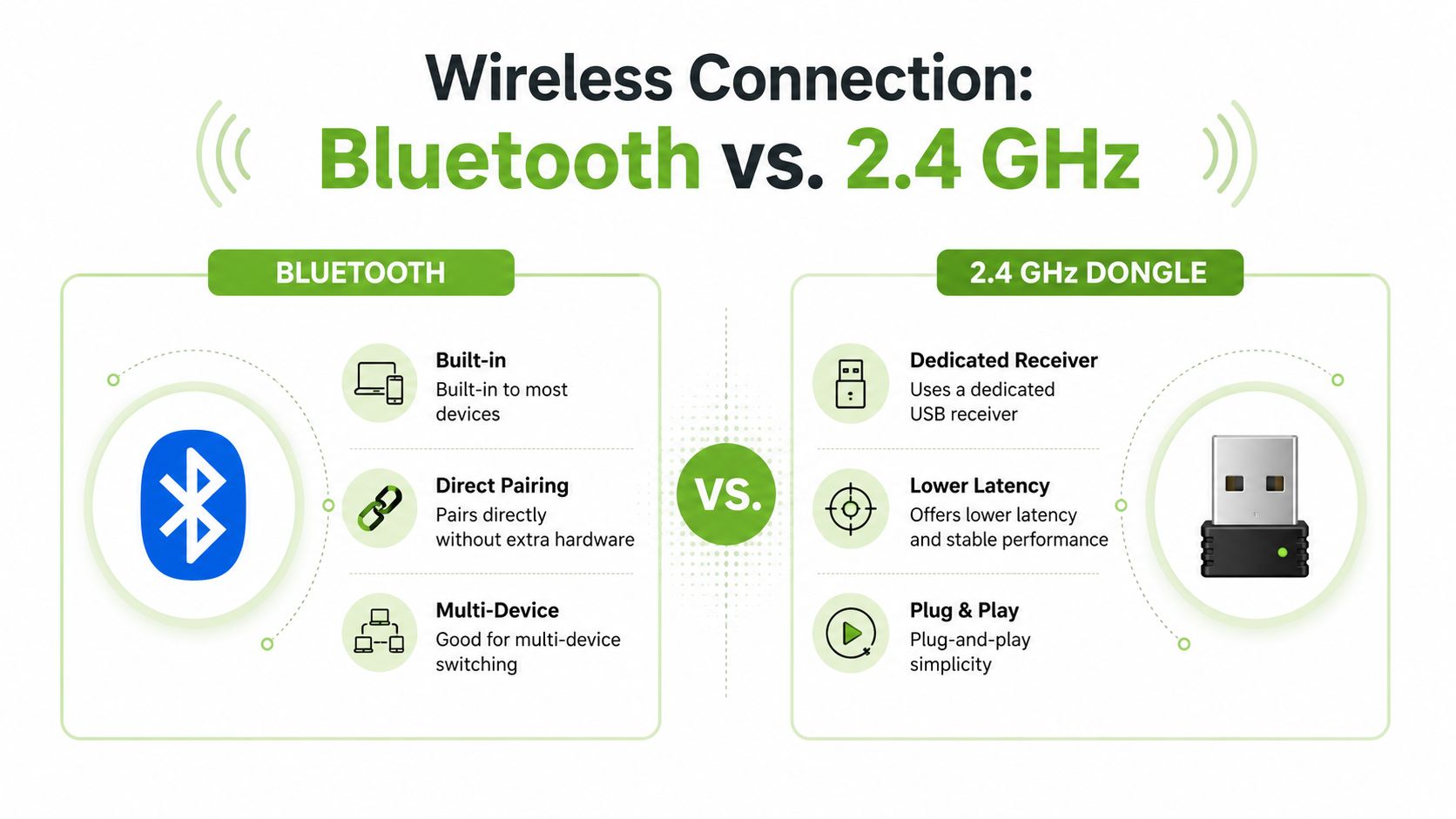
Bluetooth and 2.4 GHz dongles solve the same problem in different ways. Bluetooth connects directly to the laptop, tablet, or phone that already has a wireless radio built in. A 2.4 GHz dongle uses a tiny USB receiver, and the keyboard or mouse talks to that receiver instead of pairing directly to the computer.
Bluetooth suits device-hopping, dongles suit simple low-lag use
If you switch between a work laptop, a personal notebook, and a tablet, Bluetooth is usually the cleaner choice. You pair once, then jump between devices through the operating system or the peripheral's own switch key. That is handy for people who keep one keyboard at the desk and use the same set across different screens.
A dongle is simpler in a different way. Plug it in, wait for the peripheral to connect, and get back to work. The link is direct, which is why it remains the preferred route for users who care about responsiveness. Logitech's enterprise wireless white paper says its Logi Bolt devices typically achieve under 8 ms latency in clean environments, and it describes Bluetooth Low Energy parameters such as a 2 Mbit/s data rate and a 7.5 ms connection interval to reduce lag (Logitech Logi Bolt white paper).
Use the connection that matches your day, not the one that sounds best on paper
Bluetooth is the better fit if you need to move across devices often and you value not using up a USB port. The trade-off is that it can feel a little less immediate when waking from sleep or reconnecting. A dongle is better if your priority is cursor feel, typing response, and a straightforward one-device desk setup.
In Singapore homes, crowded wireless environments are normal. That does not make either option bad, but it does mean placement and signal hygiene matter. If you are buying for a clean laptop-only workstation, a 2.4 GHz combo is usually the easier answer. If you are juggling a laptop, tablet, and phone, Bluetooth gives you more flexibility.
Keep the receiver close to the desk, and keep the connection path simple. Most wireless complaints start with poor placement, not bad hardware.
Key Features Worth Comparing Before You Buy
The mistake most buyers make is fixating on the word “wireless” and ignoring the parts of the combo that change daily use. Battery type, key feel, mouse sensor behaviour, and layout all shape whether the device feels right after a month of use, not just on day one.
Battery, feel and layout matter more than marketing language
Rechargeable battery packs suit office users who sit at the same desk and can top up regularly. Replaceable AA or AAA cells suit travellers and students who do not want to depend on a charging cable every few days. Neither is automatically better. The better choice is the one that fits the way you move.
Key feel is just as important. Quiet scissor switches suit open offices and shared rooms where noise carries. Mechanical switches suit typists and gamers who want a firmer response. Low-profile travel keyboards feel closer to laptop typing, which helps if you already spend all day on a notebook.
The mouse side needs the same scrutiny. Most productivity users do not need anything exotic. A sensible sensor range is enough for documents, web work, and spreadsheets. Designers and gamers need a mouse that can be adjusted more precisely, because they notice cursor feel faster than most office users do.
| Feature Priorities by Use Case | Student | Office | Gaming | Travel |
|---|---|---|---|---|
| Battery type | Lightweight, easy to charge | Rechargeable for desk use | Rechargeable with stable performance | Replaceable cells or slim internal battery |
| Key feel | Quiet, low-profile | Quiet, reliable, comfortable | Tactile or mechanical | Thin, laptop-like |
| Mouse focus | Basic accuracy | Comfortable all-day use | Adjustable precision and response | Compact and portable |
| Layout | Compact or tenkeyless | Full-size if spreadsheets matter | Customisable | Small footprint |
| Multi-device pairing | Helpful for laptop and tablet | Very useful for work and personal devices | Nice to have, not essential | Useful for phone and tablet |
Match the feature set to the job
Students should prioritise compactness and durability. Office buyers should care about a full-size layout and simple device switching. Gamers should ignore office-style marketing and focus on response, switch feel, and mouse control. Travellers should strip the decision down to weight, charging convenience, and whether the combo fits inside a bag without adding bulk.
If you want a local place to compare mice by form factor, this mouse collection is a practical starting point. For keyboard-first browsing, the keyboard range helps when you already know what layout you need.
Combo Kits Versus Separate Keyboard and Mouse Purchases
Buy a combo kit when you want the desk to work with the least effort. Buy separate devices when your hands, workflow, or existing gear demand a more exact fit. That is the split, and it matters more than the sticker price alone.
Combo kits are about simplicity, separates are about precision
A combo kit usually gives you one receiver, matched charging behaviour, and a cleaner desk. That helps in small home offices, and it makes IT deployment easier when an SME wants one standard setup for multiple seats. You install fewer things, manage fewer accessories, and spend less time on compatibility questions.
Separates make more sense when one half of your setup is already good. If you already own a mouse with a shape you like, or you need a left-handed keyboard, a split keyboard, or an ergonomic trackball, then buying a bundle just means compromising for the sake of matching packaging. Separate purchases also let you stagger upgrades, which is smarter if you do not want to replace both devices together.
For buyers who want to scan a wider range of bundled options, browse keyboard and mouse combos can help as a reference point for what the market usually packages together.
My rule: if you do not already know what you want to change, buy the combo. If you know exactly what you need to fix, buy the parts separately.
| Criterion | Combo Kit | Separate Purchase |
|---|---|---|
| Setup effort | Lower | Higher |
| Desk tidiness | Better | Depends on mix |
| Fit for existing gear | Limited | Strong |
| Upgrade flexibility | Lower | Strong |
| IT rollout simplicity | Better | More complex |
The hidden cost is compromise
Bundled kits often hit a target price by using mid-grade switches or a very basic sensor. That is fine for general use, but heavy typists and serious gamers often notice the difference quickly. A curated pair costs more planning, but it usually fits the user better.
If you just want a dependable desk and fewer decisions, a combo wins. If you care about feel, shape, and future upgrades, separate purchases are the safer route.
Matching the Combo to Your Daily Workflow
Different users need different compromises. A student, a spreadsheet-heavy office worker, a gamer, and a café-hopping freelancer are not buying the same thing, even if the box says wireless on the front.
Students need compact, quiet, and hard to break
For NUS hall rooms, polytechnic tables, and backpack life, a tenkeyless or compact keyboard makes sense. It saves space and keeps the whole kit easier to move. Silent or low-noise switches also help when you are studying late in a shared space.
Students should look for a combo that survives constant packing and unpacking. A slim 2.4 GHz set is often the most forgiving because it is quick to set up on a library desk and simple to move between devices. If the keyboard feels too bulky before you have even put it in your bag, it is the wrong one.
Office and hybrid users need a stable desk anchor
CBD desks, home offices, and shared workstations usually reward a full-size keyboard with a numpad. If you handle spreadsheets, accounts, or admin work, that numpad is not decorative. It is part of the workflow. Multi-device Bluetooth pairing also helps if you move between a work laptop and a personal phone.
For this group, the mouse should feel stable on larger displays and multiple windows. If you use a 4K monitor, a better mouse sensor and a comfortable shape matter more than flashy lighting or gimmicky buttons.
Gamers and creators should buy for response, not convenience
A home gaming setup should start with a low-latency 2.4 GHz dongle. Mechanical switches and a mouse with adjustable weight make sense here because the user feels every inconsistency more sharply. You can still go wireless, but you should not go casual.
Travellers and café users need the lightest setup that still works reliably. A slim keyboard with an internal battery and a dongle that tucks into the chassis is easier to live with than a fuller desktop-style set. A small case or sleeve also matters, because you do not want loose parts in a bag.
A sensible way to judge each profile is to ask one question. Does this combo help me work faster in my real environment, or does it just look neat in a product photo?
Setup, Compatibility and Connection Tips
A wireless combo only feels good if the setup is done properly. That means placing the receiver well, pairing the Bluetooth side cleanly, and making sure you know where the dongle lives when you move away from the desk.
Start with receiver placement and pairing discipline
For a 2.4 GHz receiver, use a front or top USB-A port on a desktop tower if you can. That keeps the receiver exposed and away from the back panel, where signal quality tends to suffer. If interference is obvious, move the receiver closer with an extension cable rather than leaving it jammed behind the case.
Bluetooth pairing is straightforward on the systems most Singapore users rely on. Windows, macOS, iPadOS, and Android all support quick pairing menus, so the trick is keeping one clear switching habit. Pair once, test the wake-up delay, and confirm that the keyboard or mouse returns cleanly after sleep.
Treat the dongle like a small asset, not a throwaway
Store the receiver in the keyboard's bay if the combo provides one. If it does not, keep it in a labelled pouch or a docking spot on your desk. That matters in coworking spaces, where a tiny receiver disappears fast and becomes a service issue instead of a convenience issue.
Firmware apps can help too. Tools from Logi Bolt, Rapoo, and Microsoft can enable shortcuts or let you reassign a connection channel when interference shows up. That does not replace good placement, but it gives you another layer of control.
If you are constantly chasing connection issues, fix the desk layout first. Software is usually the second fix, not the first.
The cleanest routine is simple. Keep the receiver close, pair across the devices you use, and make sure every move between home, office, and café starts with the same storage habit. That is how you avoid lost dongles and half-working peripherals.
Battery Care, Cleaning and Long Term Maintenance
A wireless combo lasts longer when you treat it like a working device, not a disposable one. Battery habits, cleaning habits, and storage habits all affect how long it stays reliable.
Build one simple weekly routine and stick to it
Rechargeable lithium packs suit regular desktop use because they're easy to top up at a predictable point in the week. AAA or AA cells suit portability, but they need a little more attention because a forgotten battery can fail at the worst time. In a Singapore office, there is no cold climate helping cells sit idle gently, so good charging discipline matters more than people think.
Avoid deep drains where you can. If the keyboard or mouse spends long periods unused, remove disposable cells instead of leaving them inside. Use a proper USB hub for charging, not a random wall wart with questionable output quality.
Cleaning is part of reliability, not just hygiene
Wipe the keycaps regularly with a suitable electronics-safe wipe, and use a sensible isopropyl level on matte surfaces rather than soaking the board. If you want practical guidance on wipe selection for electronics use, this reference on selecting wipes for payment terminals is useful because the same basic cleanliness logic applies to shared input devices.
Keep canned air away from powered boards. Blowing debris under keycaps while the device is live is a bad habit, not a maintenance trick. If dust has built up around the switches, power the device down first and clean it carefully.
Refurbished and Certified ReLoved units make sense when tested properly
For buyers who care about value and lifecycle, refurbished and Certified ReLoved peripherals are a credible option. myhalo's approach fits that mindset because it focuses on extending device use rather than treating every replacement as a fresh purchase. I'd still check the same basics on arrival, key travel, scroll-wheel feel, sensor tracking, and Bluetooth reconnection, because refurbished gear should earn trust from function, not from a box label.
You can also use the topic-specific guide on rechargeable battery and AA options to decide whether you want a built-in pack or replaceable cells. That choice affects cost, charging habits, and how long the combo stays useful in a shared office.
Buying Refurbished, Trading In and Recycling in Singapore
Refurbished peripherals are not second-rate by default. For a lot of households and SMEs, they're the smarter purchase because they keep value in circulation and reduce the need to buy new hardware every time a mouse or keyboard gets replaced.
Know what the grading really means
Grade A usually means the item looks close to new with minimal cosmetic wear. Grade B normally allows more visible marks, while Grade C is for heavier wear that is still functional. On keyboards and mice, that can show up as shiny keycaps, scuffed sensor areas, or a palm rest that has yellowed with time.
The important part is not the scratch itself. It is whether the device has been tested properly and whether the seller states what has been checked. Reputable refurbishers should be clear about condition, testing depth, and warranty terms. If a listing avoids those details, assume the inspection was shallow.
Test the unit fast when it arrives
Run a quick check before the return window closes.
- Key chatter: Press each key and make sure it registers once, not twice.
- Scroll wheel: Turn the wheel slowly and confirm that it moves smoothly without jumping.
- Sensor lift-off: Lift the mouse slightly and verify that tracking stops cleanly.
- Bluetooth pairing: Disconnect and reconnect once to make sure the link returns without drama.
Those four checks are enough to catch most hidden faults before they become your problem.
Use the Singapore disposal path properly
NEA classifies peripherals like keyboards, computer mice, docking stations, and cables as e-waste, and Singapore generates about 60,000 tonnes of e-waste a year (NEA e-waste guidance). NEA's donation, resale and repair guidance also groups ICT equipment into three practical paths, donate or resell if it is in good condition, repair if it needs repair, and recycle if it is spoilt or cannot be salvaged (NEA donation, resale and repair channels). Singapore's official guidance is direct about the order of thinking, repair instead of replace whenever possible, then recycle broken items at designated points if they cannot be used again (Towards Zero Waste e-waste guidance).
| Grade | Cosmetic Condition | Functional Checks | Typical Warranty |
|---|---|---|---|
| Grade A | Light wear, near-new appearance | Fully tested | Short refurbisher warranty |
| Grade B | Noticeable but normal wear | Fully tested | Short refurbisher warranty |
| Grade C | Heavier cosmetic marks | Function confirmed before sale | Short refurbisher warranty |
myhalo supports this topic as a technology lifecycle partner through Certified ReLoved, Certified Surplus, RescueAdvise, mylo AI Assistant, ISO 9001 Certified processes, 30-point quality checks, and transparent device grading with battery health disclosure. If you want a wireless mouse with keyboard setup that fits your desk today and still makes sense when you need repair, reuse, or recycling later, visit myhalo and compare options with that full lifecycle in mind.