





Tp Link Mesh
You're on a 10Gbps broadband plan, yet the bedroom laptop still buffers during an evening video call. In the living room, streaming works perfectly. Near the study, the signal drops whenever someone closes a door. It's easy to blame the internet provider, but Singapore homes often have a more local problem: one router is trying to push Wi-Fi through concrete walls, cabinets, corners and several rooms at once.
That's where TP-Link mesh becomes relevant. Instead of asking one router to cover the entire flat or condo, a mesh system uses multiple connected units that cooperate as one network. The important question isn't only which model has the highest headline speed. It's whether the system suits your floorplan, device load, wall density and installation constraints.
Table of Contents
- Why TP-Link Mesh Matters in Singapore Homes
- How TP-Link Mesh Works in Plain English
- TP-Link Deco Lineup and What Each Feature Actually Does
- Setting Up a TP-Link Mesh Network Step by Step
- Matching the Right Mesh System to Your Home and Use Case
- The 10Gbps Plan Problem and Honest Performance Expectations
- Buying Smart in Singapore and Getting the Most From Your Setup
Why TP-Link Mesh Matters in Singapore Homes
A four-room HDB household can have a television streaming in the living room, a child attending a Zoom class in the bedroom, phones charging in the kitchen and smart-home devices connecting in the background. When everyone gets online after work and school, the weak point may be the route between the router and the bedroom, not the broadband subscription itself.
Singapore has been familiar with mesh-style wireless networking for much longer than many consumers realise. Wireless@SG began deployment in November 2006, with a government-backed plan to provide free Wi-Fi across most public areas. One account of the eastern island rollout describes more than 1,000 indoor and outdoor mesh nodes and access points, with service planned at up to 512 Kbps and coverage intended to extend island-wide in major public spaces. The same account describes an estimated US$100 million network build, with the government subsidising the first US$30 million. TP-Link's Singapore mesh overview provides the local context.
That history helps explain why mesh is no longer an unusual networking concept here. For a Singapore home, it's often a practical way to bring an existing connection into rooms where a single router struggles.
Practical rule: Treat mesh as a coverage and placement solution first. Treat speed upgrades as a separate decision.
A Deco system is best understood as a team. One unit connects to your fibre equipment, while the others extend the same network into the parts of the home that need stronger coverage. In a compact flat with a clear layout, a single router may be enough. In an HDB with a hallway distribution box, or a condo with dense structural walls, additional nodes can be more useful than a faster plan.
If you're comparing smart-home equipment alongside networking hardware, myhalo's smart-home collection is a practical place to review compatible devices. The buying decision should begin with a walk around your home, not a glance at the biggest number on a box.
How TP-Link Mesh Works in Plain English
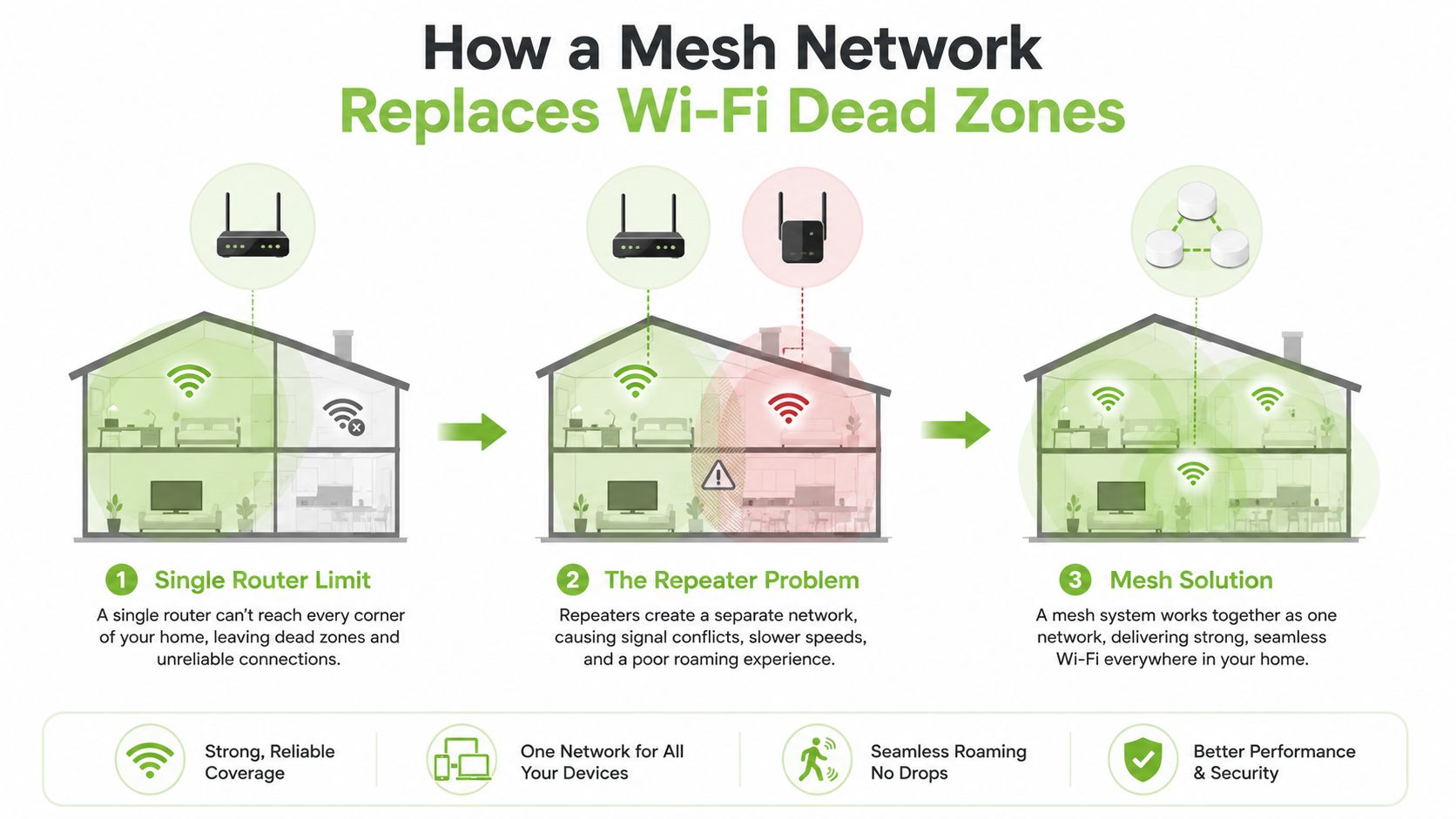
A normal Wi-Fi router performs several jobs from one location. It connects to your internet service, creates a wireless network and sends radio signals to phones, laptops, televisions and other devices. The signal is strongest near the router and becomes less reliable as it travels through walls and crowded areas.
Adding a second ordinary router often creates a separate network. You may see two network names, and your phone might stay attached to the weaker one as you move around the flat. A range extender can also create a second connection, depending on the equipment. Mesh solves this handoff problem by coordinating multiple units under one network identity.
The team behind one network
Think of the nodes as walkie-talkies sharing one channel. Your device doesn't need to decide which separate network to join each time you walk from the living room to the bedroom. The mesh system helps it move between nodes while keeping the same network name.
Four features matter in everyday use:
- Roaming: Your phone or laptop can move between rooms without you manually selecting another network.
- Band steering: The system can guide compatible devices towards the band that suits the current conditions.
- Self-healing: If a node or connection path becomes unavailable, the system can look for another route where the hardware supports it.
- Centralised management: The Deco app gives you one place to configure the network, check connected devices and apply updates.
Why backhaul changes the result
The nodes need to communicate with one another. That communication path is called the backhaul. It can run wirelessly, or through Ethernet if your home has suitable cabling.
A dual-band system shares its available wireless capacity between communicating with devices and communicating with other nodes. A tri-band system has another band available, which can give the mesh more room to handle client traffic and node-to-node communication at the same time. That's particularly useful in busy HDBs and condos where many networks compete for airtime.
Wi-Fi 7 systems add newer coordination features and, on suitable models, access to the 6 GHz band. The benefit isn't automatic in every room. It depends on compatible devices, distance, walls and interference. A strong installation still needs sensible node placement.
TP-Link Deco Lineup and What Each Feature Actually Does
TP-Link Singapore's Deco range covers Wi-Fi 5, Wi-Fi 6, Wi-Fi 6E and Wi-Fi 7, with speed tiers grouped from fast, at 1200 to 1800 Mbps, through to ultra-fast, above 3000 Mbps. Those labels help organise the range, but they don't predict the speed a device will receive in a bedroom behind several walls.
The older Deco M5 remains relevant for households that need broad basic coverage without chasing the latest standard. TP-Link Singapore states that it can provide lag-free connections for over 100 devices, using IEEE 802.11ac/n/a on 5 GHz and IEEE 802.11b/g/n on 2.4 GHz. The Deco M5 product page/) supplies those specifications. That capacity claim doesn't mean every device can transfer data at maximum speed simultaneously. It means the model is positioned for a connected household with phones, laptops, printers and smart devices.
The Deco X60 AX3000 sits in the Wi-Fi 6 category and lists coverage of up to 7,000 square feet on TP-Link's Singapore product page. That's a large headline coverage figure, so treat it as a planning reference rather than a guarantee for a concrete-walled home. TP-Link's Singapore Deco lineup shows how the range is positioned.
For newer, denser installations, the Deco BE25 is a Wi-Fi 7 dual-band option listing 4324 Mbps on 5 GHz and 688 Mbps on 2.4 GHz. The HB710 BE18000 is a higher-tier Wi-Fi 7 system listing up to 11,520 Mbps on 6 GHz, 5,760 Mbps on 5 GHz and 688 Mbps on 2.4 GHz. These are class specifications, not a promise that one wireless client will receive those rates.
| Deco tier | Band | Headline speed | Best for |
|---|---|---|---|
| Deco M5, Wi-Fi 5 | Dual-band | Product-specific | Basic connected homes and modest coverage needs |
| Deco X60, Wi-Fi 6 | Dual-band | AX3000 class | HDBs and condos needing stronger whole-home coverage |
| Deco BE25, Wi-Fi 7 | Dual-band | 4324 Mbps at 5 GHz, 688 Mbps at 2.4 GHz | Newer homes with compatible Wi-Fi 7 devices |
| HB710 BE18000, Wi-Fi 7 | Tri-band | Up to 11,520 Mbps at 6 GHz | High-density homes and demanding multi-room use |
| HB810, Wi-Fi 7 | Varies by bundle | Bundle-dependent | Telco-supplied whole-home installations |
The Singapore Wi-Fi 7 product page says one system can support 150 devices, while Singtel's Wi-Fi 7 plan includes one TP-Link HB810 whole-home mesh router, free installation and an additional mesh router option at 50% off for S$16.65 a month. The Singtel bundle coverage shows how mesh is moving into mainstream connectivity packages.
Security tools such as HomeShield or TP-Link HomeCare are designed to help with network protection, parental controls and device management. They're useful controls, but they don't replace strong passwords, firmware updates and sensible administration.
One compatibility detail deserves attention. TP-Link says the service-provider HB611-SGST is compatible with standardised EasyMesh technology but hasn't obtained Wi-Fi EasyMesh certification, and mesh networking requires two or more devices. The HB611-SGST product information matters if you're mixing retail Deco units with telco-bundled hardware. Compatibility on paper doesn't guarantee identical roaming behaviour across every product combination.
Setting Up a TP-Link Mesh Network Step by Step
Start by locating the fibre termination point, ONT or ISP router. In Singapore, this is often fixed inside a hallway distribution box or at an awkward living-room corner. The main Deco unit must connect to that equipment, so don't plan the whole installation around placing the primary node in the centre of the flat if the fibre point can't move.
Start with the main node
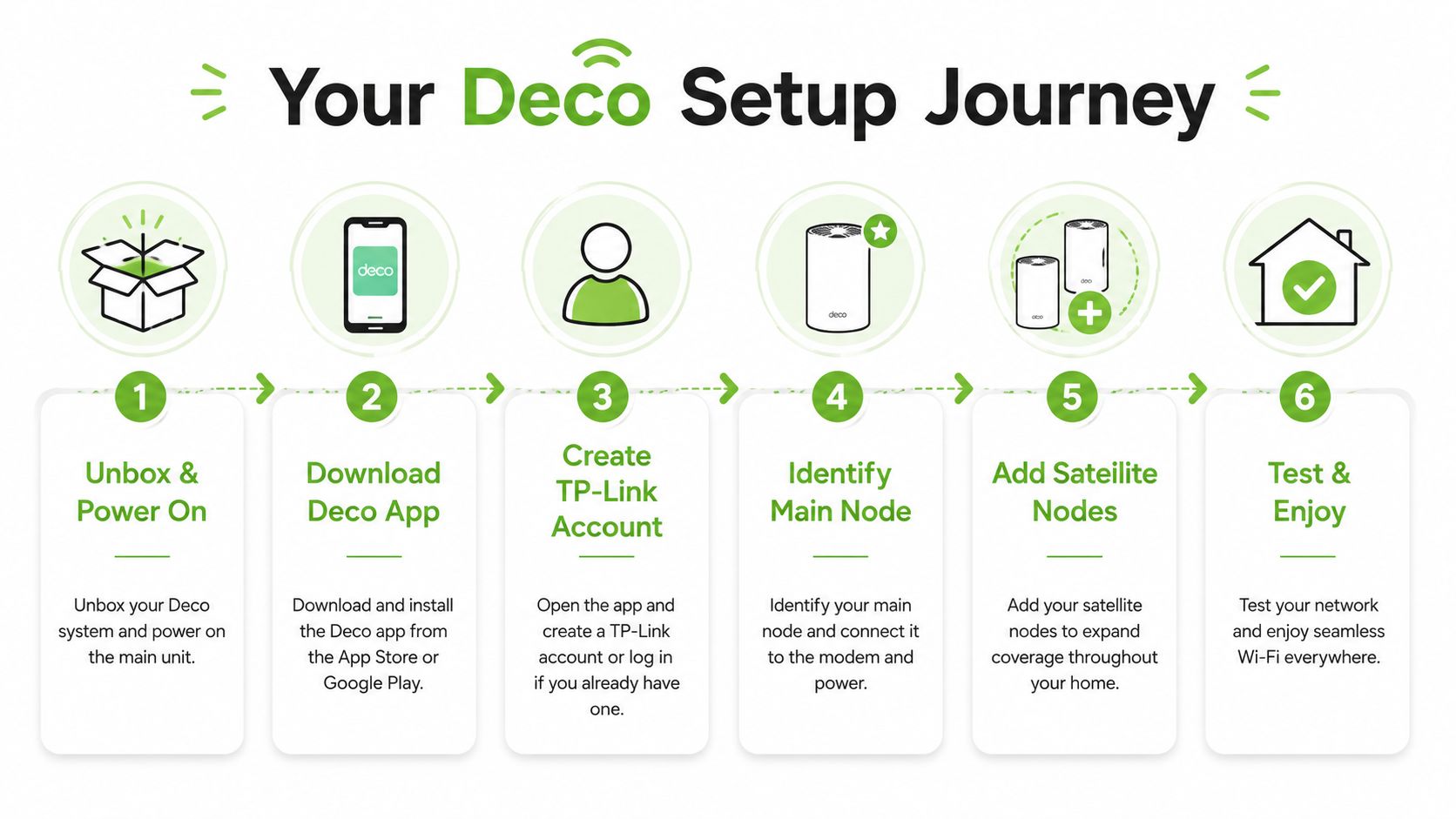
- Unbox and power the units. Keep the nodes on open surfaces while testing. Don't mount or hide them immediately.
- Install the Deco app. Use it to create or sign in to your TP-Link account and begin the network setup.
- Identify the main node. This is the unit connected by Ethernet to the ONT or ISP router.
- Scan the QR code when prompted. Follow the app's instructions for naming the network and setting a secure password.
- Add satellite nodes one at a time. Place the next unit roughly halfway between the main node and the weak room, not inside the dead zone itself.
- Run a room-by-room test. Check the bedroom, study, kitchen and any area where calls or streaming previously failed.
Keep nodes off the floor, away from metal cabinets and clear of microwaves. A node needs a usable connection back to the main unit, so placing it beside the weakest signal may leave it with too little capacity to help. If the app reports a poor link, move the node closer to the main unit before adding another one.
Placement advice: A visible node on an open shelf usually performs more consistently than one sealed inside a cabinet.
If the app can't detect a node, check power, Ethernet and the phone's connection to the intended network. A firmware update that appears stuck may need time, a stable connection and a restart of the app, but avoid repeatedly unplugging equipment during an active update. If the ISP router continues broadcasting Wi-Fi, disable its wireless function where supported, or ask the ISP whether bridge mode is available. Running two independently managed wireless networks can make troubleshooting harder.
For readers comparing installation approaches in other markets, this wireless network installation Chicago 2026 guide offers useful context on planning and deployment. The Singapore-specific lesson remains straightforward: map the physical route from the fibre point to the rooms that need coverage.
Matching the Right Mesh System to Your Home and Use Case
The right Deco system depends on three things: your layout, the number of devices active at the same time and the work those devices perform. A four-room HDB with the main node in a hallway box has a different problem from a condo where the living room and bedrooms are separated by thick structural walls.
For a typical household, Wi-Fi 6 is often a sensible middle ground. A model such as the X60 provides a stronger platform for several rooms without making every buyer pay for Wi-Fi 7 features that their devices may not use. TP-Link's Singapore guide says a Wi-Fi 6 mesh three-pack can cover up to 5,800 square feet, and says Deco works with major Singapore ISPs including Singtel, StarHub, M1, MyRepublic and ViewQwest. The HDB mesh guide is useful for checking those planning assumptions.
| Home or use case | Sensible starting point | Why |
|---|---|---|
| Four-room HDB with one or two weak bedrooms | Wi-Fi 6 Deco, such as X60 | Balances coverage and household traffic |
| Condo with dense walls and many active devices | Tri-band Wi-Fi 7 | Gives the mesh more wireless capacity |
| Content creator handling large 4K uploads | Wi-Fi 7 with wired backhaul where possible | Reduces dependence on wireless backhaul |
| Small office with five people and VoIP calls | Wi-Fi 6 or Wi-Fi 7, depending on traffic | Prioritises stable coverage and predictable roaming |
| Smaller flat with comfortable single-router coverage | Keep the existing router | Avoids spending without a coverage problem |
A creator uploading large files should look beyond the router label. If Ethernet can reach the study, a wired backhaul may improve consistency more effectively than moving to a higher tier. The same applies to a small startup relying on voice calls, shared drives and cloud applications. Stability in the working area matters more than a theoretical maximum in the living room.

Before buying, count devices that are actively used together, not only devices that have ever joined the network. Note where video calls happen, where large downloads run and whether the fibre point is trapped in a cabinet. For a second opinion on home networking hardware, you can also review available router and mesh options, but compare the product's ecosystem and compatibility before mixing brands.
The 10Gbps Plan Problem and Honest Performance Expectations
A 10Gbps broadband plan won't make every wireless device operate at 10Gbps. The mesh system, device radio, Ethernet port, distance, interference and wall construction all limit the result. In many consumer installations, the local wireless network becomes the practical bottleneck long before the fibre service reaches its advertised ceiling.
TP-Link Singapore's support guidance gives useful targets: 100 to 300 Mbps in the main usage area for everyday household use, 300 to 500 Mbps for 4K streaming and high-definition gaming, signal strength above -60 dBm across key rooms, average latency of 20 to 50 ms for ordinary use and below 20 ms for gaming. TP-Link's mesh performance guidance provides the benchmark.
Use those figures as a diagnostic tool rather than a sales trigger. If the bedroom signal is weaker than about -60 dBm, moving a node or adding wired backhaul may help more than changing the broadband plan. If a device already reaches the relevant household benchmark and the home has no dead zones, an upgrade may deliver little practical benefit.
Spend only when the symptom points to mesh
Upgrade the mesh when:
- Coverage fails: Rooms regularly lose connection or become unusable for calls and streaming.
- Signal is weak: Key rooms fall below the cited signal-strength benchmark.
- Traffic collides: Several people work, stream or game at the same time and the network becomes unstable.
- Placement is wrong: The main router is trapped at one end of the flat and cannot serve the far rooms reliably.
Leave the setup alone when a single router covers the home comfortably and devices already perform within the appropriate range. The best networking decision is sometimes not to buy anything.
Buying Smart in Singapore and Getting the Most From Your Setup
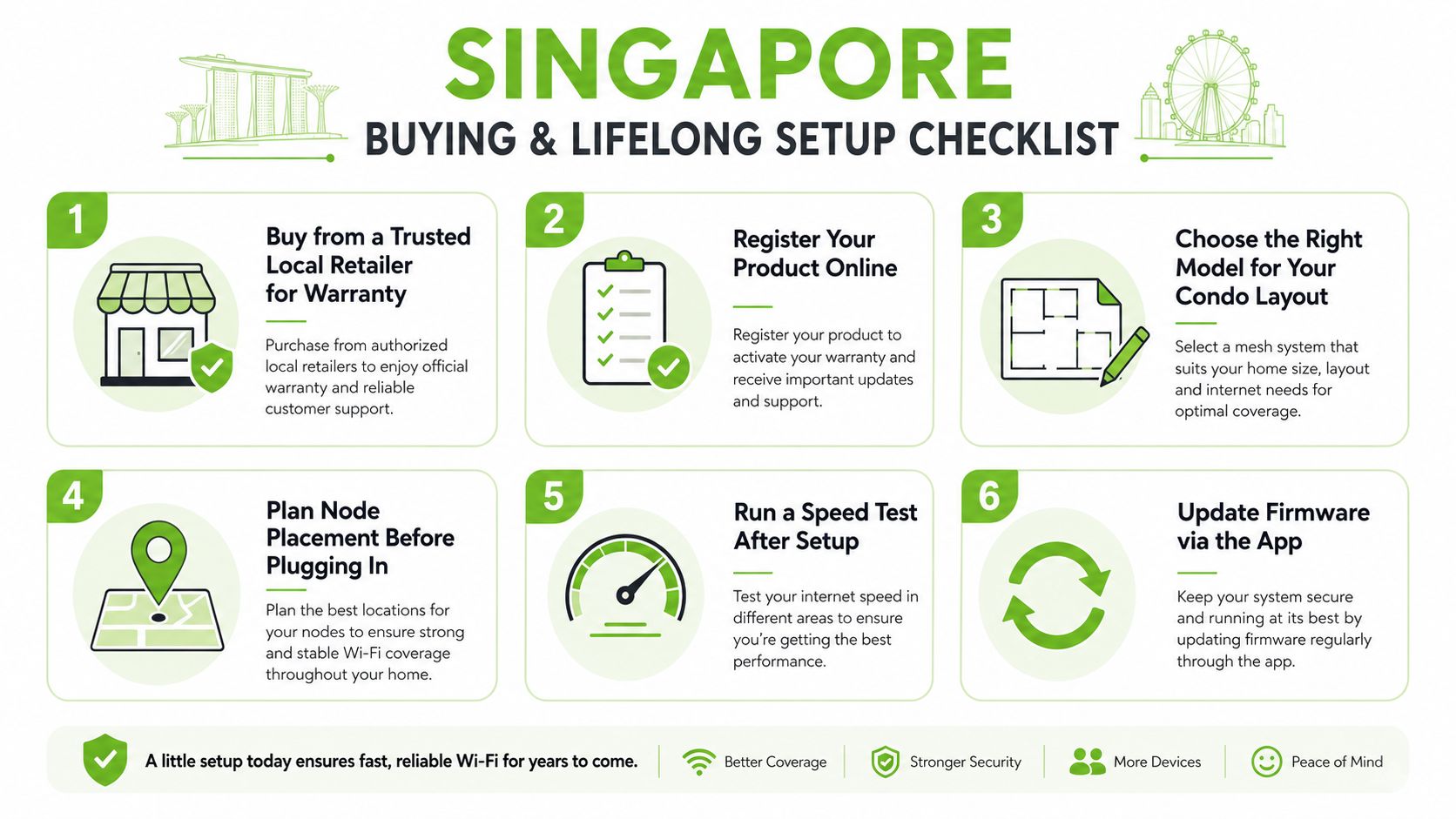
A mesh purchase should include the hardware, installation plan and future support. A trusted local retailer can make warranty handling and returns less stressful, particularly when the issue turns out to be placement, ISP configuration or compatibility rather than a faulty node.
myhalo approaches technology as a lifecycle partner rather than only a point-of-sale retailer. Its Certified ReLoved and Certified Surplus programmes can provide lower-cost routes into technology while supporting reuse. For networking equipment, the important questions are whether the condition is clearly disclosed, whether battery health is relevant to the product, whether the unit has been tested and what warranty applies.
The company describes 30-point quality checks within an ISO 9001-certified process, alongside ISO 27001 certification for information security practices. These details don't remove the need to check model compatibility, but they support a more deliberate total-cost decision. Extending the useful life of devices can improve business resilience, preserve working equipment for secondary roles and reduce unnecessary replacement spending.
Services such as RescueAdvise, the mylo AI Assistant, repairs, trade-ins and responsible recycling fit the same lifecycle approach. The myhalo e-Xtender and myhalo Protect plans are more closely associated with laptops and phones, but they reflect a broader preference for maintaining and protecting devices instead of replacing them whenever a newer specification appears.
Use this buying checklist
- Confirm ISP compatibility: Check your Singtel, StarHub, M1, MyRepublic or ViewQwest setup and understand whether the ISP router should remain in router mode or use bridge mode.
- Map dead zones: Walk through the home with a Wi-Fi analyser app and record where calls, streaming or work become unreliable.
- Choose the pack size: Start with a two-pack or three-pack according to the rooms that need coverage, not the size printed on the box.
- Plan before mounting: Test nodes on open surfaces before fixing them permanently or hiding them in cabinets.
- Measure after setup: Check speed, latency and signal in the rooms that matter most.
- Update through the app: Keep firmware current and review connected devices regularly.
For Singapore households comparing models and lifecycle options, myhalo's router and mesh collection is one place to begin. Wi-Fi 7 makes sense when you have a real high-density or multi-gigabit use case, compatible devices and a layout that benefits from its additional capacity. Otherwise, a well-placed Wi-Fi 6 system, or even an existing router that already covers the flat, may be the more responsible choice.
Visit myhalo to compare new, Certified ReLoved and Certified Surplus technology with transparent grading, quality checks and warranty information. If your TP-Link mesh decision involves placement, compatibility or extending the useful life of existing devices, contact myhalo for practical lifecycle advice before you commit to an unnecessary upgrade.