





VGA HDMI to HDMI Guide for Connecting Old and New Tech
You've got an older laptop with a VGA port, a newer TV or monitor with HDMI, and a cable or adapter that looked right when you bought it. Then you plug everything in and get a blank screen. That's one of the most common display problems people run into, especially when they're trying to keep older tech useful instead of replacing it too quickly.
The good news is that this usually isn't a mystery fault. It's a compatibility problem. Once you understand what VGA can do, what HDMI expects, and where active conversion fits in, the setup becomes much easier to get right. That matters if you're connecting a classroom projector, a home office monitor, a spare desktop screen, or an older family laptop that still works fine.
Table of Contents
- Why Your Old Laptop and New TV Dont Speak the Same Language
- Understanding the Two Types of Conversion
- How to Choose the Right Converter for Your Setup
- Your Connection Setup Checklist
- Troubleshooting Common Connection Problems
- The Final Verdict When to Convert and When to Upgrade
Why Your Old Laptop and New TV Dont Speak the Same Language
The reason a simple VGA-to-HDMI cable often fails is straightforward. VGA is analog video, while HDMI is digital video and audio. One sends an old-style signal. The other expects a digital one. Without a device that actively translates between them, they don't understand each other.
That mismatch became common because display standards changed quickly. VGA was introduced by IBM in 1987, while HDMI was first released in 2003, and by the end of 2009 all new HDTVs had at least one HDMI port, which shows how firmly HDMI became the default for modern displays people use today in Singapore homes, offices, and schools (historical shift from VGA to HDMI).
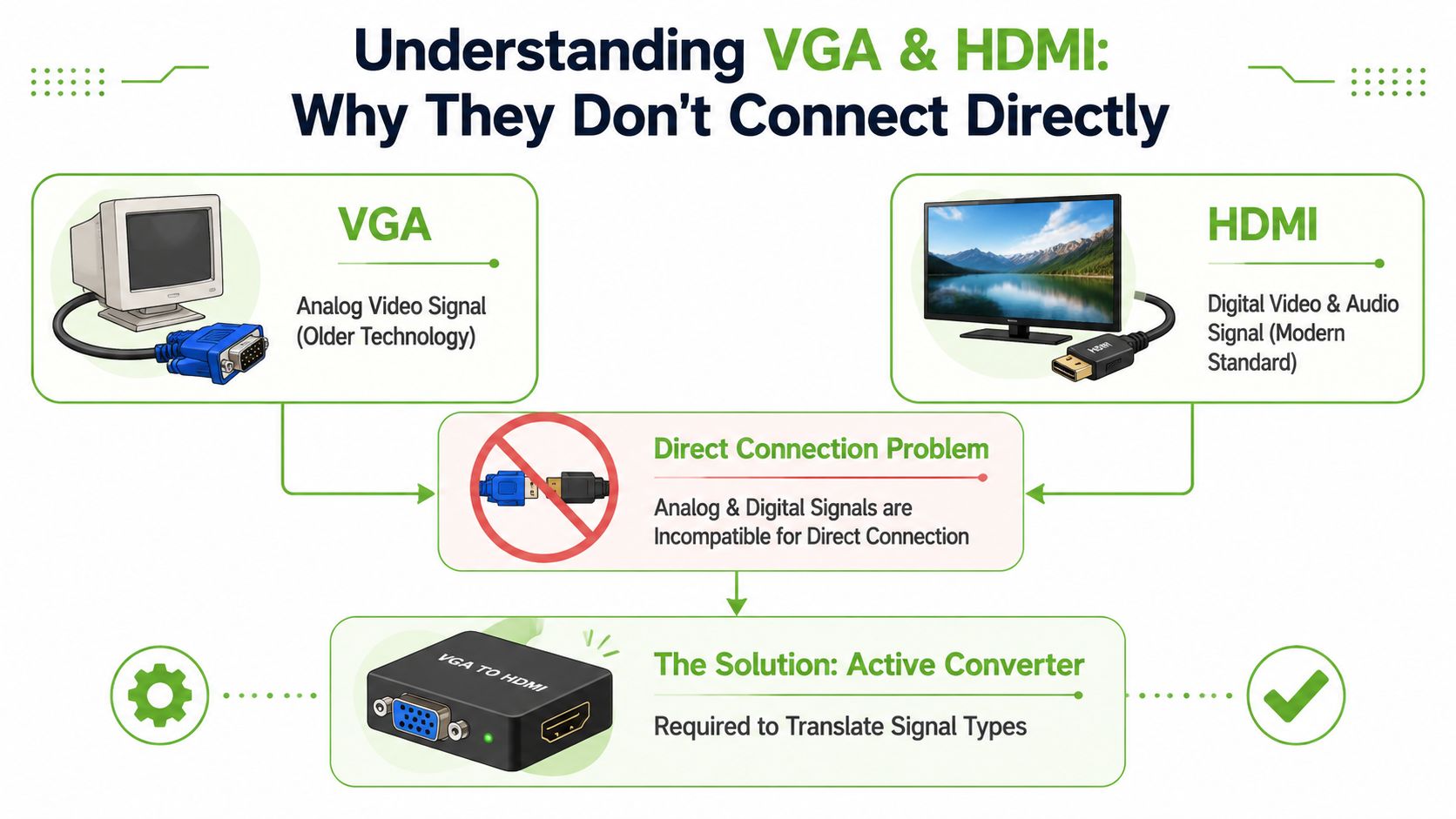
Analog and digital are not the same job
A VGA connection was built for older PC-era displays. It sends video only. HDMI was designed for newer screens and carries video and audio together through a digital link.
That's why the phrase VGA HDMI to HDMI can confuse buyers. It sounds like one standard cable path, but it usually means one of two practical situations:
- Old VGA device to modern HDMI screen
- New HDMI device to old VGA monitor or projector
Those are different problems. They need different converters.
Practical rule: If one end is VGA and the other is HDMI, assume a passive cable won't be enough unless the product clearly states it contains active conversion electronics.
Why this matters before you spend money
A lot of frustration starts with buying the wrong thing first. People search for a cheap cable, connect it, then assume the laptop, TV, or monitor is faulty. In most cases, the underlying issue is that the signal was never converted at all.
Once you know the devices are speaking different languages, the rest of the buying decision gets much easier. You stop guessing and start matching the hardware to the direction of the signal.
Understanding the Two Types of Conversion
Direction matters. A converter that works from VGA to HDMI usually will not work the other way around. If the product title is vague, don't trust it.
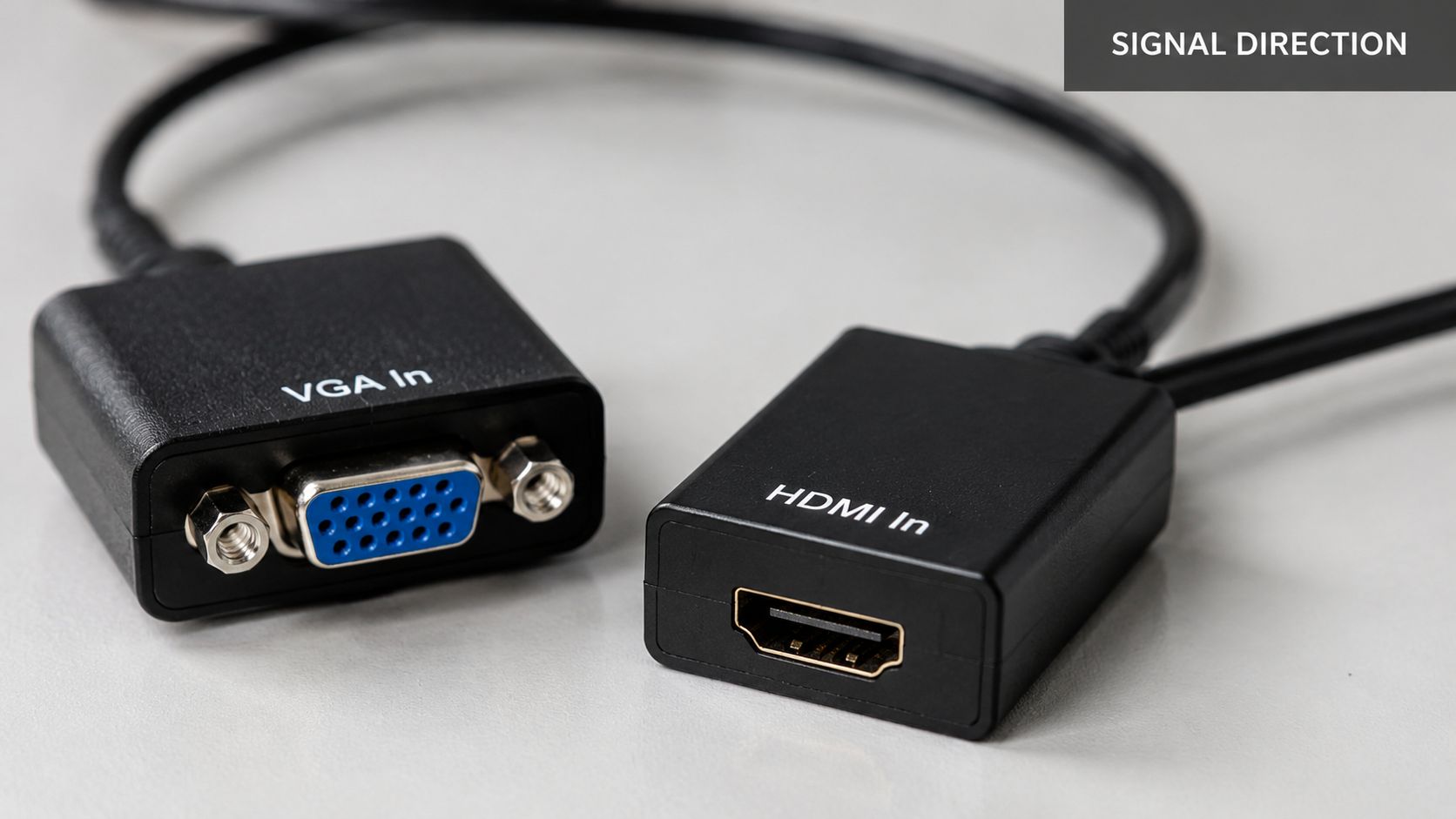
VGA source to HDMI display
This is the setup commonly implied when searching for VGA HDMI to HDMI. An older laptop or desktop sends VGA out. A newer TV, monitor, or projector accepts HDMI in.
In this case, you need an active VGA-to-HDMI converter. The converter takes the analog video signal and turns it into a digital HDMI signal the display can read. This isn't optional. A plain cable without conversion electronics usually won't work.
HDMI 1.0 supported 4.95 Gbit/s of bandwidth, enough for 1920×1080 at 60 Hz, while most common VGA-to-HDMI converters are also typically limited to 1920×1080 and usually do not pass audio through the VGA side, which is why a separate audio cable is often required (HDMI capability and common converter limits).
A practical VGA-to-HDMI kit often includes:
- The active converter box that handles the signal translation
- USB power because many converters need external power to operate reliably
- A 3.5 mm audio input if you want sound carried into the HDMI output
- Separate VGA and HDMI cables if they aren't built in
If your screen lights up only briefly, or not at all, the converter may be underpowered even when the cabling looks correct.
HDMI source to VGA display
This is the reverse problem. A newer laptop, streaming box, or desktop outputs HDMI, but the monitor or projector only accepts VGA.
You need a different active device here. The converter has to change a digital HDMI signal into an analog VGA signal. Buying a VGA-to-HDMI unit for this job won't help because the electronics are designed for the opposite direction.
A few practical points matter here:
- Audio won't magically appear on the VGA display because VGA does not carry sound
- Older projectors can be picky about supported timings and resolutions
- Power still matters on many low-cost adapters, especially if the HDMI source doesn't provide enough stable power for the converter circuit
The buying mistake that causes most returns
People often assume “adapter” means universal. It doesn't. With VGA and HDMI, direction is the first filter.
Use this quick check before buying:
| Your source device output | Your display input | What you need |
|---|---|---|
| VGA | HDMI | Active VGA-to-HDMI converter |
| HDMI | VGA | Active HDMI-to-VGA converter |
If the listing doesn't state the direction clearly, skip it.
How to Choose the Right Converter for Your Setup
A converter can be a sensible fix, but only if you buy for the actual setup and not just the connector shape.

Start with the job, not the adapter listing
The most useful question isn't “Which adapter do I need?” It's “What am I trying to keep in service?”
If you're connecting an older laptop once a month for slides, a converter makes sense. If you're building a daily workstation and relying on that setup for meetings, classes, or customer-facing work, small annoyances become permanent annoyances.
That's why the bigger decision matters too. Many buying guides focus only on how to convert, but the more realistic long-term question is whether you should convert at all. As HDMI-only devices have become the norm, many buyers and SMEs are choosing device replacement over long-term adapter dependence because native HDMI setups are generally more reliable (trade-off between temporary conversion and upgrade).
A simple buying checklist
Don't evaluate converters by title alone. Check the practical details.
- Direction first: Make sure the product says VGA-to-HDMI or HDMI-to-VGA clearly. Reversed direction is a common buying error.
- Power requirement: If the unit uses USB power, plan for a stable USB source. Unpowered or weakly powered units are more likely to behave unpredictably.
- Audio support: If your source side is VGA and you need sound on the HDMI display, look for a unit with a 3.5 mm audio input.
- Resolution target: For legacy use, aim for stable 1080p output rather than chasing features you won't use.
- Cable reality: Some products are adapter bodies only. Others include short leads. Confirm whether you still need separate VGA or HDMI cables.
When a converter is sensible and when it is not
A converter is sensible when the old device still has a clear purpose. Schools, spare rooms, meeting carts, home retro setups, and temporary desks are all good examples. In those cases, extending the life of working equipment is practical and aligned with lower-waste tech use.
For mixed modern setups, a dock or hub can be the cleaner answer. If you're dealing with newer laptops that already output digital video but still need flexibility, a travel hub such as the Lenovo USB-C travel hub with HDMI, VGA, USB-C PD, USB and RJ45 is a more direct fit than forcing an older-style converter chain.
Here's a useful rule of thumb:
A converter is a workaround for compatibility. It is not a substitute for a clean native connection when the setup is permanent.
If you want to see the connector types and usage patterns more visually, this clip helps clarify what to look for before buying.
Your Connection Setup Checklist
Even with the right hardware, setup order matters. A lot of blank-screen problems come from powering things in the wrong sequence, missing the audio lead, or selecting the wrong input on the display.
Before you plug anything in
Start by laying out every part you need. Don't begin with only the converter in hand and assume the rest is already covered.
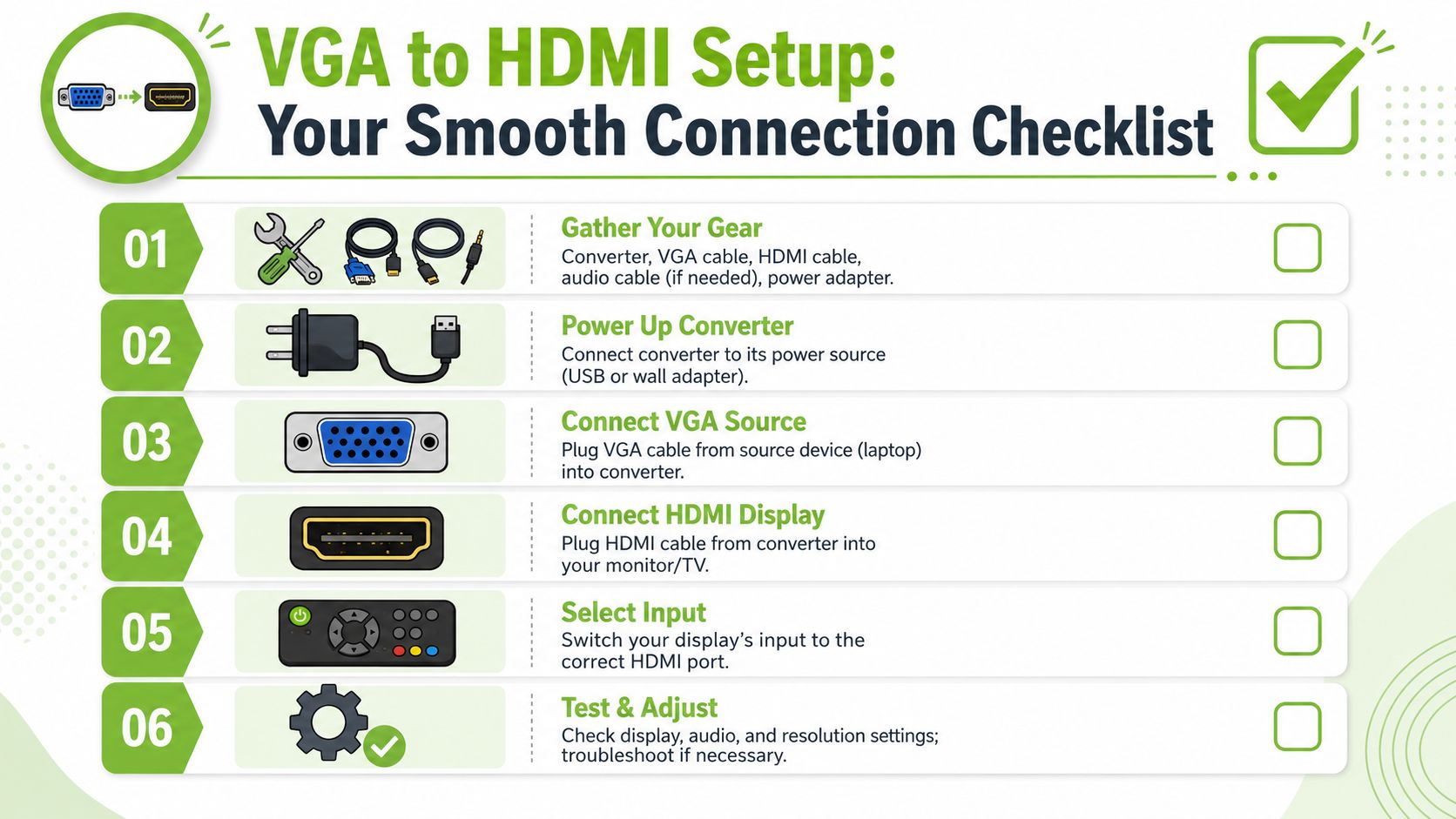
Gather these first:
- Source cable: VGA or HDMI from the computer, console, or media device
- Display cable: Usually HDMI to the monitor or TV
- Power lead: Commonly USB for active converters
- Audio lead: Usually 3.5 mm if your setup starts from VGA and you need sound
- Display access: Remote control or monitor buttons so you can switch to the correct input
If you work with mixed devices often, a proper docking setup can reduce repeated cable swapping. A quick browse through myhalo docking options gives you an idea of how people simplify desk setups when they're regularly moving between different ports and displays.
Connection order that avoids common issues
The cleanest method is simple:
- Power down the source device and display before connecting everything.
- Connect the converter fully, including VGA or HDMI on the source side, HDMI or VGA on the display side, plus any USB power.
- Attach the audio cable if your setup requires one.
- Turn on the display first and select the correct HDMI or VGA input.
- Then power the source device so it can detect the display path properly.
- Adjust display mode on the computer if needed, such as duplicate or extend.
A lot of older-video connection issues follow the same pattern as old game console setups. If you want another practical example of how input selection and cable direction can affect results, TechiePlus's advice for Wii setup is worth a look because it highlights the same real-world problem people hit with legacy hardware and newer televisions.
Final checks before you call it broken
Use this quick scan:
| Check | What to confirm |
|---|---|
| Input | The TV or monitor is on the correct HDMI or VGA input |
| Power | The converter's USB or adapter power is actually connected |
| Audio | The 3.5 mm lead is connected if VGA is part of the source path |
| Display settings | The computer is set to duplicate, extend, or second screen only |
| Resolution | The output is set conservatively if the display won't lock on |
Troubleshooting Common Connection Problems
When a setup still fails after everything is connected, the symptom usually tells you where to look. Blank screen, flicker, and missing audio each point to different causes.
No picture at all
Start with power. Many active converters look like simple adapter lumps, but they depend on external power to initialise properly. If the USB lead is unplugged, loose, or connected to a weak power source, the converter may not produce a usable output at all.
Then check the obvious but easy-to-miss items:
- Correct input selected on the display
- Converter direction matches your signal path
- Cables are seated fully
- Source device is outputting to the external display
If you've done all of that and still get nothing, the deeper issue may be signal compatibility. Some real-world VGA sources use sync formats that cheaper converters don't handle well, and low-cost units can also behave poorly without reliable external power and proper audio injection (common hidden causes of failed conversion).
Cheap converters can fail even when every plug is in the right place.
Flicker, cut-outs, or unstable image
An unstable picture usually points to one of three things:
- Weak converter power
- Poor signal handling in the converter
- A source and display combination that the adapter struggles to negotiate
If the image appears and disappears, try a better USB power source first. If the image has intermittent noise or won't stay locked, reduce the output resolution from the computer and test again. A stable lower setting is more useful than a nominally higher one that drops out during use.
Opting for the cheapest unit often backfires. For occasional emergency use, it may be enough. For repeated presentations or a permanent desk, instability becomes the actual cost.
Picture but no sound
This catches people all the time. If VGA is anywhere on the source side, don't assume audio is included. VGA is a video connection. If your converter accepts separate audio input, you need to run that cable from the source device's audio output into the converter.
Also check whether the computer is still sending sound to its own speakers or headphone output instead of the HDMI path created by the converter. In operating system sound settings, you may need to manually choose the correct playback device.
The Final Verdict When to Convert and When to Upgrade
A VGA converter is worth using when it solves a real problem cheaply and keeps working equipment in service. That fits well with a practical, lower-waste approach to tech. If you've got a legacy projector, an older home PC, or a spare office display that still does its job, conversion can be the right call.
But it's still a workaround. For everyday use, HDMI to HDMI is simpler, cleaner, and less fragile because you avoid signal translation, separate audio handling, and the quirks of converter power. If you're already thinking about broader hardware changes, expert advice from Steel City IT is a useful read on upgrade planning, especially when video output capability is part of the issue.
If your setup keeps needing adapters, repeated fixes, or input juggling, that's usually the sign to stop patching around the problem. A longer-term move to HDMI-native equipment will save time and reduce daily friction. For people comparing replacement options, myhalo's guide to affordable laptops in Singapore is a practical place to start.
If you're deciding between one more adapter and a cleaner long-term setup, myhalo is a useful place to compare sustainable tech options, accessories, and upgrade paths without rushing into unnecessary replacement.