





Guide to Usba to Usbc 2026: Connect Your Devices Right
You've just bought a refurbished laptop or tablet, brought it home, and hit the first annoying problem. Your old charger, thumb drive, or phone cable fits your older devices, but not the new one in front of you. The port is smaller, the plug looks different, and now you're wondering whether you need a new cable, a tiny adapter, or both.
That's where USB-A to USB-C comes in. For many people in Singapore, this isn't a nerdy spec question. It's a practical one. You're trying to keep older accessories useful while moving to newer devices without wasting money or damaging a port on a refurbished phone, tablet, or laptop.
Table of Contents
- The Bridge Between Your Old and New Tech
- Understanding the Two Worlds of USB
- Why The Connector Shape Is Not The Whole Story
- How to Choose The Right Cable or Adapter
- Safety First Protect Your Refurbished Devices
- Troubleshooting Common Connection Problems
- Frequently Asked Questions
The Bridge Between Your Old and New Tech
A lot of customers face the same moment. They upgrade to a newer phone or pick up a ReLoved laptop, then open a drawer full of perfectly usable accessories that all end in USB-A. The laptop or phone in their hand wants USB-C. Nothing seems to match.
That mismatch is exactly what a USB-A to USB-C cable or adapter solves. It acts as the bridge between older accessories and newer hardware, so you can still use an existing charger, power bank, keyboard, or desktop USB port with a more modern device.
This matters even more when you're trying to stretch the life of tech instead of replacing everything at once. Maybe your older wall charger still works fine. Maybe your office printer cable setup is still organised around USB-A ports. Maybe you've got a reliable old power bank that you don't want to throw away just because your phone changed connector type.
Practical rule: If the old side is the bigger rectangular plug and the new side is the smaller reversible plug, you're in USB-A to USB-C territory.
The trick is that not every USB-A to USB-C cable does the same job. Some are mainly for basic charging. Some handle faster file transfers. Some fit physically but won't deliver the speed or power you expected.
That's where people get frustrated. The plug fits, so it feels like it should just work fully. Sometimes it does. Sometimes it only half works. Understanding that difference saves money and helps you avoid buying the wrong accessory twice.
Understanding the Two Worlds of USB
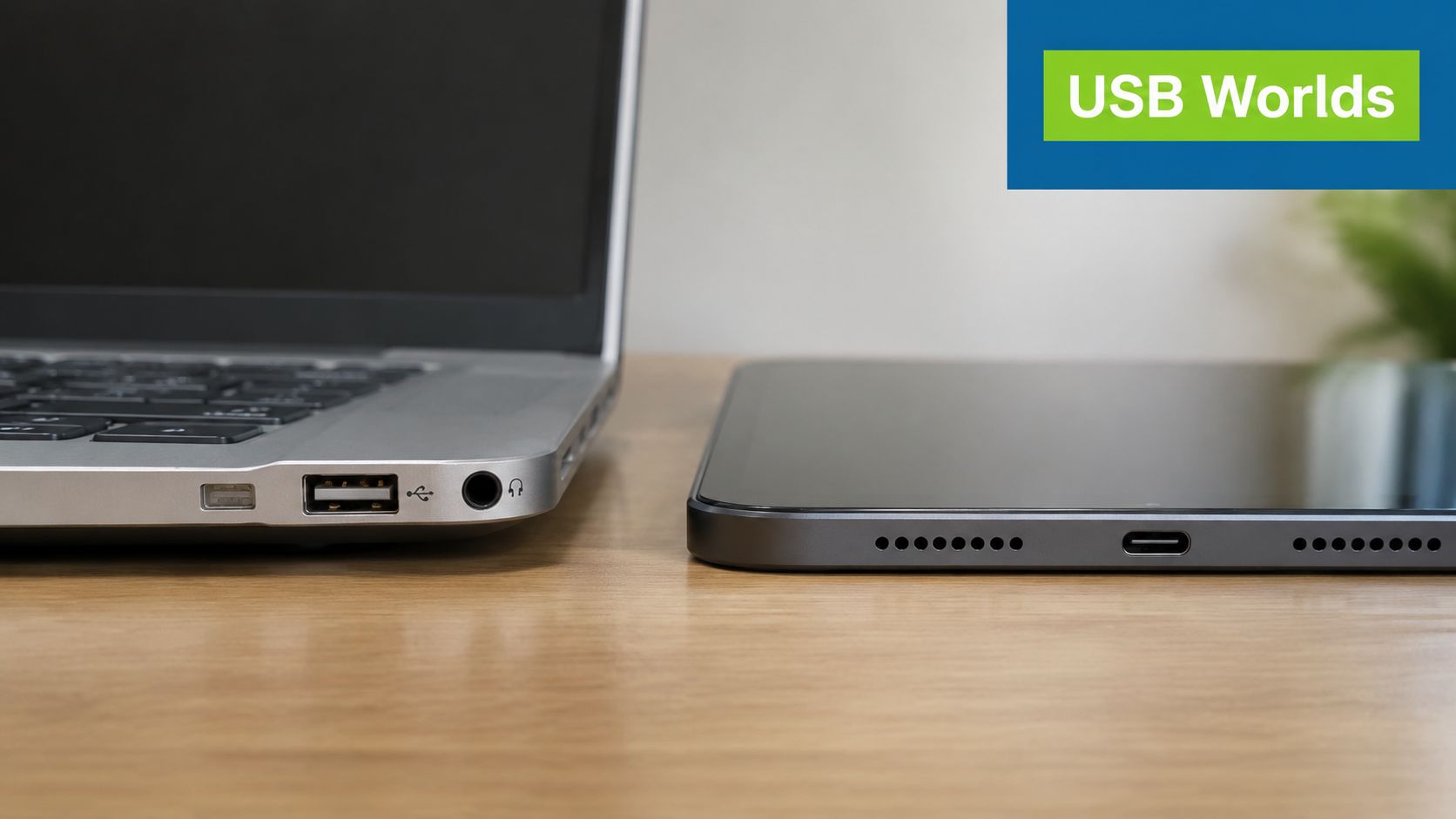
The easiest way to understand USB-A and USB-C is to stop thinking about specs first and look at the plugs themselves.
USB-A is the older shape many are familiar with. It's the larger rectangular plug you've used for years with keyboards, flash drives, printers, game controllers, and older charging bricks. It only goes in one way, which is why so many people still flip it around once, then twice, before it fits.
USB-A is the old familiar shape
USB-A belongs to the older side of the USB world. It's still very common on legacy chargers, office peripherals, older desktops, and accessories that remain perfectly usable.
That's why it hasn't disappeared. Plenty of households and small offices in Singapore still have a mixed setup. A newer tablet might have USB-C, while the charger beside the bed, the desktop at work, and the external keyboard still use USB-A.
According to Scosche's explanation of USB-A and USB-C differences, USB-C is designed for universal connectivity, while USB-A is tied to legacy compatibility. USB-C is smaller, reversible, and increasingly adopted on new devices, while USB-A remains widely used on older peripherals and chargers.
USB-C was built for newer devices
USB-C is the smaller rounded connector you now see on many newer phones, tablets, laptops, earbuds, and accessories. It's reversible, so you don't have to care which side faces up. That sounds like a tiny improvement, but anyone who plugs and unplugs devices daily knows it makes life simpler.
USB-C was built as a more flexible connector. It can support many different types of functions across modern devices, which is why manufacturers have moved towards it.
After you've seen the ports side by side, the shift makes sense visually too. USB-A looks like a legacy doorway. USB-C looks like a cleaner, more universal one.
If you want a quick visual walkthrough before buying anything, this video gives a useful overview:
For everyday buyers, the main takeaway is simple. USB-A and USB-C are not rivals where one is always better in every situation. They belong to different generations. A USB-A to USB-C cable exists because many people still live between those generations every day.
Why The Connector Shape Is Not The Whole Story
People often assume the connector tells them everything. If the cable ends in USB-C, they expect modern speed and fast charging. If it has USB-A on one side, they assume it's old and slow. Real life is messier than that.
The connector shape is only the outside. The actual capability depends on what the cable, device port, and internal controller support.
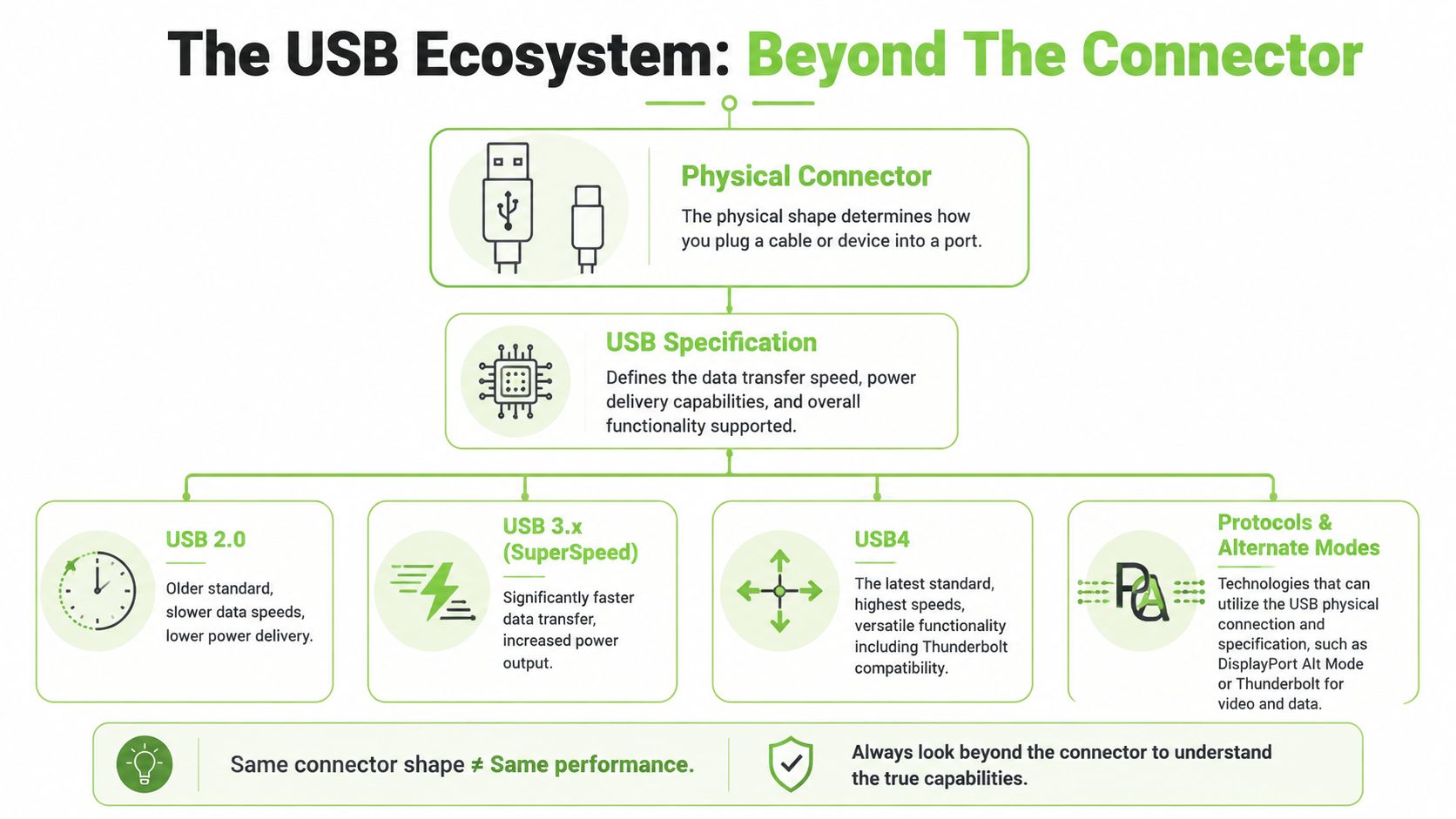
The plug shape and the performance are separate
A helpful way to think about this is road design. The connector is the road entrance. The USB version is the speed limit. Two roads can have the same entrance shape but allow very different traffic.
Texas Instruments notes in its USB Type-C engineering guide that USB-C is only the connector, not the underlying protocol. The same USB-C plug can carry USB 2.0, USB 3.2, USB4, Thunderbolt, video, and power, and the actual capability depends on the port, controller, and cable.
So a USB-A to USB-C cable can be physically correct but still limited in what it can do. One cable may only handle basic charging and slower data. Another may support much better transfer performance. That's why two cables that look almost identical can behave very differently when you copy photos, back up a phone, or connect an external drive.
A cable can fit perfectly and still be the wrong cable for the job.
This is also why buying by connector name alone leads to disappointment. If you need help sorting out charging expectations, it helps to understand how fast-charging cables differ in practice.
Charging and file transfer are different jobs
A second point that confuses people is that charging speed and data speed are not the same thing. A cable might be acceptable for overnight charging but poor for moving large files. Another might transfer files properly but still not provide the charging result you expected on a more demanding device.
USB-C can support very high capability ceilings, but that doesn't mean every USB-C cable reaches them. The same goes for USB-A to USB-C accessories. The older USB-A side can be the limiting factor in some setups. The port on your computer can be the limiting factor too. Sometimes the charger is the bottleneck. Sometimes the cable is.
Here's the practical lesson. Don't ask only, “Will it fit?” Ask three better questions:
- Charging use: Are you charging a phone, tablet, or laptop?
- Data use: Are you syncing small documents or moving large video files?
- Extra features: Do you expect display output or only power and data?
If a seller can't tell you what the cable supports beyond the plug shape, treat that as a warning sign. The cable may still be fine for simple jobs, but you shouldn't assume more than that.
How to Choose The Right Cable or Adapter
Buying the right USB-A to USB-C accessory gets easier when you start with the job, not the marketing words on the box.
If you only want to charge an older phone from a laptop USB-A port, your needs are simple. If you want to move large files from an external drive to a newer notebook, your requirements are different. If you're connecting a keyboard or mouse receiver, you don't need to overspend on features you'll never use.
Start with what you want to do
The broad capability gap between older and newer USB generations is real. According to Anker's comparison of USB-A and USB-C, USB-C can carry USB 3.1 and USB 3.2 data rates of up to 10 Gbps and 20 Gbps and deliver up to 100 W of power under USB Power Delivery, while common USB-A connections are often limited to earlier standards such as USB 2.0 at 480 Mbps or USB 3.0 at 5 Gbps.
That doesn't mean you must always buy the most advanced option. It means you should match the accessory to the task.
| Cable Type | Typical Data Speed | Typical Charging Power | Best For |
|---|---|---|---|
| Basic USB-A to USB-C charging cable | Lower-speed use, often suited to basic charging and simple syncing | Basic charging | Overnight phone charging, accessories, casual use |
| USB-A to USB-C cable with SuperSpeed support | Higher-speed use when supported by both devices | Moderate charging depending on setup | External drives, faster file transfer, office workflows |
| USB-A to USB-C adapter | Varies a lot by build and internal wiring | Varies a lot by charger and device | Temporary compatibility with existing cables |
A few quick buying checks help:
- Look at the device first: If your task is just charging a phone, a basic cable may be enough.
- Check the old port: A blue insert in a USB-A port often signals a newer high-speed USB-A port, though the device still needs matching support.
- Read the packaging carefully: If the listing only mentions the connector shape and says nothing about data or charging support, assume it's basic.
- Avoid guessing with laptops: Laptop charging over mixed USB-A and USB-C setups is where people most often expect too much from the wrong cable.
Store-counter advice: For keyboards, mice, and slow charging, simple works. For file transfer and heavier charging, details matter.
One factual option in this category is the myhalo Sustainable Bamboo 60W Cable Kit, which includes USB-A and USB-C related charging connections. It's the kind of product that makes sense for mixed-device households that don't want a drawer full of separate cables.
Cable vs adapter
A dedicated cable is usually the simpler choice. Fewer connection points often means fewer problems. If you regularly connect the same two device types, a proper USB-A to USB-C cable is usually neater and less fiddly than a tiny adapter attached to an older cable.
An adapter can still be useful when you travel or when you need a temporary fix. It lets you keep using a cable you already own. That's convenient, but it also creates an extra physical joint that can wobble, stick out, or put stress on the port if the fit is poor.
Choose the cable when the connection is part of your everyday routine. Choose the adapter when flexibility matters more than elegance, and when the physical fit feels secure.
Safety First Protect Your Refurbished Devices
When someone buys a refurbished device, they usually focus on battery health, storage, and cosmetic condition. They rarely think about the cable or adapter as a risk point. That's a mistake, especially with older or thinner ports.
A poor accessory can cause two kinds of trouble. One is electrical, such as unstable charging or inconsistent data transfer. The other is mechanical, and that's often overlooked until the port starts feeling loose.
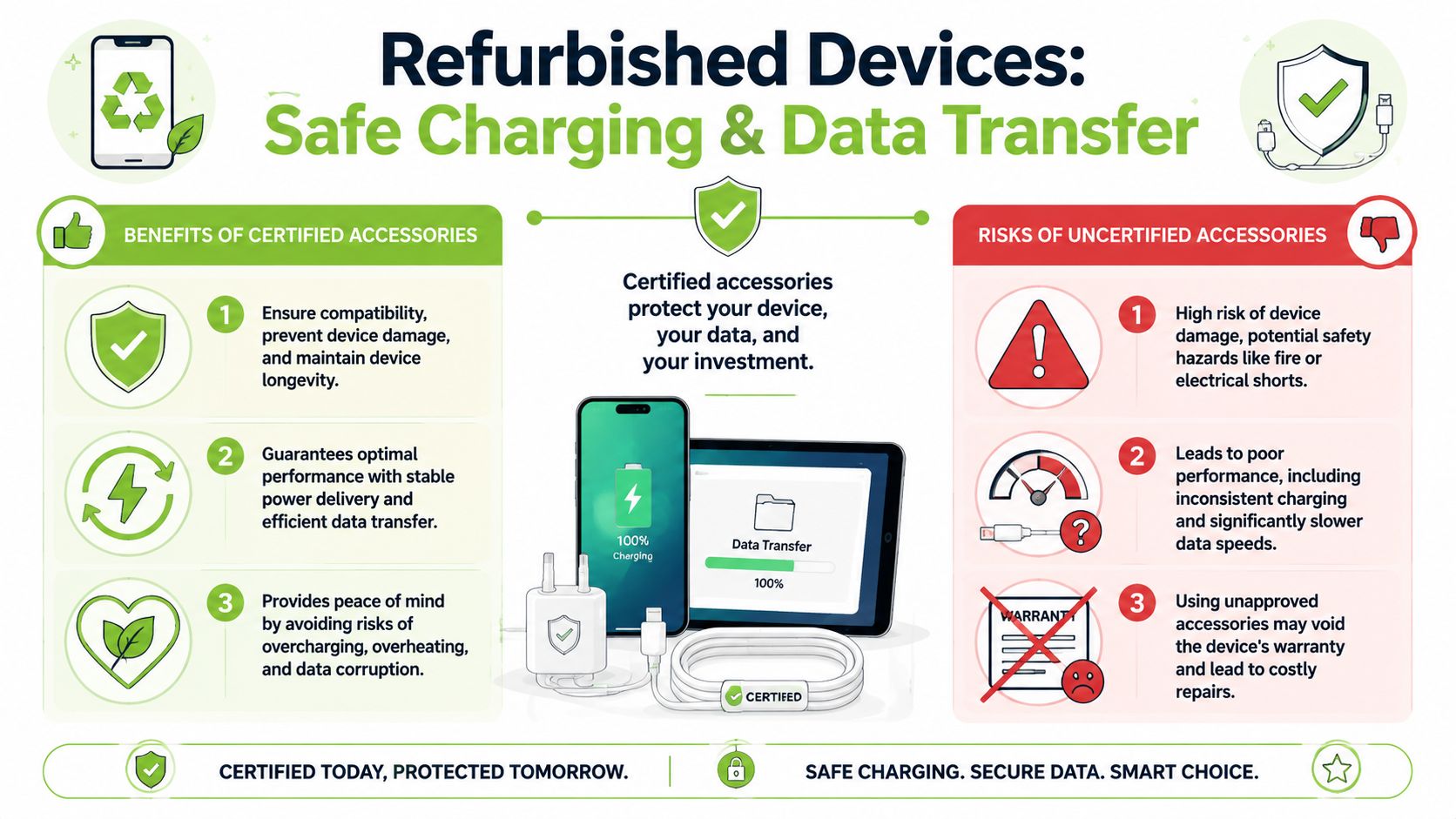
Why cheap adapters can cost more later
The mechanical side matters more than many people realise. The verified data for this article notes that the protruding size of cheap USB-A to USB-C adapters is often 2 to 3 mm, and a 2025 report attributes 15% of premature device failures in used laptops to port stress from poorly fitted adapters.
That matters for budget refurbished laptops and tablets because older ports may already have more wear than brand-new ones. Add a bulky adapter, let it stick out from the side, then bump it in a bag or on a crowded desk, and the stress goes straight into the port.
If an adapter wiggles, feels too tight, or sticks out awkwardly, don't keep using it just because it powers on.
This risk is worth keeping in mind when you're comparing pre-owned devices too. A careful buyer should also review what to look out for before buying a refurbished phone, because accessory quality and port condition affect long-term usability more than many listings explain.
What safer buying looks like
You don't need the most expensive cable on the shelf. You need one that feels properly made and suits the task.
Use this quick filter:
- Check the fit: The plug should insert smoothly without forcing.
- Notice the strain: A long, rigid adapter hanging from a side port is a poor everyday setup.
- Watch for heat: If the cable or adapter gets unusually warm during normal use, stop using it.
- Prefer purpose-built cables: A dedicated cable is often gentler on the port than a tiny converter stuck onto an older lead.
For refurbished devices, accessory quality is part of device care. Spending a bit more on a solid cable can be cheaper than dealing with a damaged charging port later.
Troubleshooting Common Connection Problems
Even a correct-looking USB-A to USB-C setup can behave oddly. Before assuming your device is faulty, check the basics in a calm order.
Slow charging
If your older phone or tablet charges far more slowly than expected, the issue may be the charging standard mismatch rather than the device itself. The verified data for this article notes that when a powerful USB-C charger is connected to an older USB-A device, power loss can sometimes reach 40%, which helps explain why mixed charging setups can feel much slower than advertised.
Try these checks:
- Swap the wall charger if possible. The charger may be the bottleneck.
- Try a different cable before blaming the phone or tablet.
- Charge from a wall outlet instead of a computer port if you need better charging consistency.
Phone connects but files do not appear
Many phones will charge when connected but won't automatically expose files to a computer. On the phone, look for a USB notification and change the connection mode to file transfer if that option appears.
If nothing changes, test another port on the computer. Then test another cable. Some cables are built mainly for charging and are poor choices for data transfer.
Intermittent connection
A connection that drops in and out usually points to movement, wear, or a poor fit.
Check these:
- Port cleanliness: Dust in the USB-C port can stop a firm connection.
- Cable movement: If the link drops when the cable shifts, the connector may be worn.
- Adapter looseness: Tiny adapters can create wobble that a direct cable would avoid.
Start with the cable, then the charger, then the port. That order solves a lot of everyday USB confusion.
Frequently Asked Questions
Can I use a USB-A to USB-C cable to charge my new phone from an old charger
Usually yes, if the charger and cable are compatible. But don't expect every old charger to charge quickly. Older USB-A charging setups are often fine for basic charging and less ideal for faster modern charging expectations.
Will every USB-A to USB-C cable transfer data
No. Some cables are far better at charging than data transfer. If file transfer matters, don't assume the cable supports it well just because it physically connects.
Is an adapter as good as a cable
Sometimes for light use, yes. For everyday use, a dedicated cable is often the cleaner and safer choice because it reduces extra joints and wobble.
Can I charge a laptop with USB-A to USB-C
Sometimes, but it happens most often that expectations are misguided. Many laptop charging situations need more power and more specific support than an older USB-A setup can provide comfortably.
Why does my cable fit but still feel slow
Because the plug shape doesn't guarantee the capability inside. The cable, charger, and port all need to support the result you want.
If you're mixing older accessories with newer devices and want help choosing the right cable, adapter, or refurbished device setup, myhalo is a practical place to start. You can compare compatible accessories, look at refurbished phones, tablets, and laptops, and get support that fits a real mixed-device setup instead of a perfect all-new one.