





USB Type-C to HDMI Adaptor: Your 2026 Singapore Guide
You’re probably here because a very modern device has just collided with a very ordinary screen.
Your laptop, tablet, or phone has a small oval USB Type-C port. Your monitor, TV, classroom projector, or meeting room display has HDMI. You plug things in, nothing happens, and suddenly a simple task like giving a presentation or extending your desktop becomes annoyingly unclear.
That’s where a usb type-c to hdmi adaptor comes in. It sounds simple, but the confusing part is that not every USB-C port can send video, not every adaptor supports the same display quality, and not every cheap option is worth buying if you want your gear to last.
This guide breaks it down in plain English for Singapore users. If you’re a student connecting an iPad to a projector, a professional setting up a second screen, or just trying to watch something on a bigger TV without guesswork, this will help you buy once and buy properly.
Table of Contents
-
- Can a usb type-c to hdmi adaptor charge my laptop too
- Will it work with my phone or tablet
- Why do I get no signal even though it fits perfectly
- Is a very cheap unbranded adaptor risky
- Do I need a 4K adaptor if my monitor isn’t 4K
- Is a dock always better than a simple adaptor
- Why do some adaptors work fine for presentations but feel bad for gaming
Connecting Modern Laptops to Any Display
A common scene goes like this. You arrive for class or a meeting, open a slim new laptop, and realise the old familiar HDMI port is gone. The projector is ready. The monitor is ready. Your device isn’t.
That gap between USB-C on your device and HDMI on the display is exactly why this adaptor has become such a normal accessory. It solves a very practical problem. It lets newer devices talk to older, still-useful screens without forcing you to replace the whole setup.
Why this matters more now
This isn’t a niche accessory anymore. The global USB-C to HDMI adapter market was valued at $1.12 billion in 2024 and is projected to reach $2.85 billion by 2033, while over 90% of new laptops sold in Singapore in 2024 featured USB-C ports, according to USB-C to HDMI market data and Singapore laptop adoption figures.
That lines up with what many users already notice in daily life. Newer laptops are thinner. Tablets are replacing some laptops. Phones can sometimes drive external displays. Meanwhile, office monitors, lecture hall projectors, hotel TVs, and meeting room screens still rely heavily on HDMI.
A familiar real-world example
A student with a USB-C iPad wants to present slides in a seminar room. A designer wants to connect a MacBook to a larger colour-accurate monitor at home. A sales team member wants to walk into a client site and plug into whatever display is already there.
In all three cases, the adaptor is doing the same job. It acts like a bridge between two generations of hardware.
Practical rule: If your display only has HDMI and your device only has USB-C, the adaptor isn’t a luxury. It’s the missing link.
Some people need more than a tiny adaptor, especially if they also want VGA or extra ports while travelling. In that case, a compact travel dock like this HP USB travel dock with HDMI and VGA support can make more sense than carrying separate dongles.
What most buyers get wrong
Many shoppers assume all usb type-c to hdmi adaptor products work the same. They don’t. Some only mirror at basic quality. Some can handle sharper output. Some work perfectly with one laptop and fail completely with another because the USB-C port itself doesn’t support video.
That’s why understanding the adaptor starts with one simple truth. The connector shape tells you almost nothing on its own. The capability behind the port is what matters.
How a Simple Adapter Speaks Two Languages
The easiest way to understand this is to stop thinking of USB-C as one single function.
A USB-C port is a shape, not a promise. It can carry charging, data, and sometimes video. The adaptor only works properly when your device’s USB-C port knows how to send video in the first place.
Think of USB-C as a multilingual port
A good analogy is this. Your laptop’s USB-C port is like someone who can speak several languages. One moment it’s speaking “charging”. Another moment it’s speaking “data”. When you connect the right display accessory, it can switch to “video”.
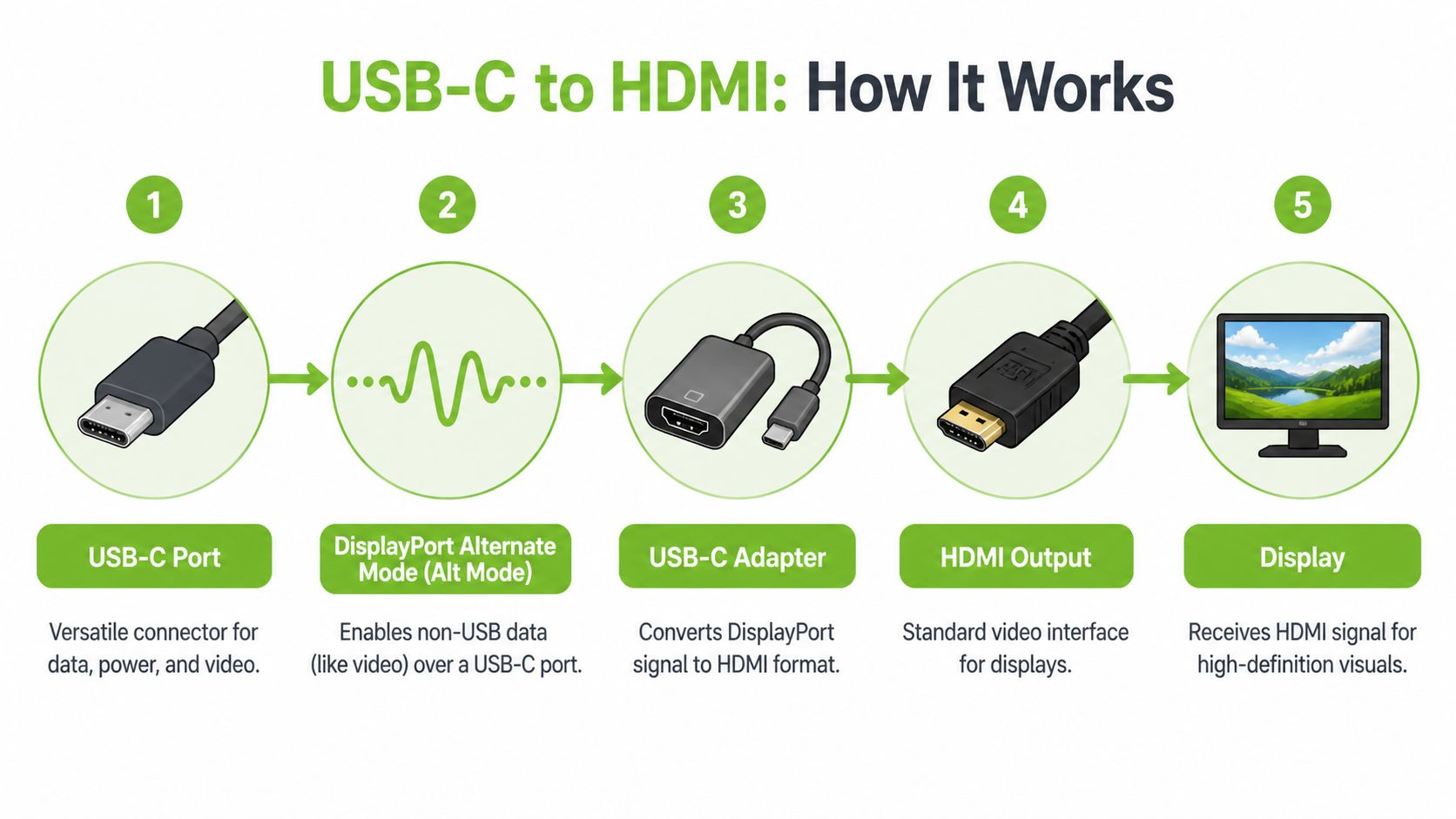
That video language is commonly called DisplayPort Alternate Mode, often shortened to Alt Mode.
What Alt Mode actually does
When your device supports Alt Mode, the USB-C port can send a video signal through the same physical connector you use for charging or data. The adaptor then converts that signal into a format an HDMI display understands.
In plain terms, the adaptor is not “creating” video from nowhere. It is translating an existing video signal from your device into HDMI output for your monitor, TV, or projector.
That’s why two adaptors can look nearly identical but behave very differently depending on the device they’re plugged into.
Where people get confused
The confusion usually comes from the connector itself. Since many devices use USB-C, people expect every USB-C port to do everything. But some ports are charge-only. Some are data-only. Some support video. Some support video and charging at the same time.
Here’s the simplest way to consider it:
- If the device can send video through USB-C, a suitable adaptor can convert it to HDMI.
- If the device cannot send video through USB-C, no adaptor can fix that.
- If the adaptor is too basic for your needs, you may get lower resolution or refresh rate than expected.
A usb type-c to hdmi adaptor works best when three parts agree with each other. The device, the adaptor, and the display.
Why this matters before you buy
This little bit of understanding saves a lot of frustration. If someone buys based only on price or connector shape, they often end up with the wrong accessory and assume the adaptor is faulty.
Usually, the main issue is compatibility. The adaptor can only translate a video language the port already knows how to speak.
Your Pre-Purchase Compatibility Checklist
Before buying anything, do these three checks. This is the difference between a smooth setup and a wasted trip back to the shop.
Check your device port first
This is the big one. Your USB-C port must support video output.
Look beside the port for symbols such as a DisplayPort icon, a Thunderbolt symbol, or wording in the device specifications that confirms display output over USB-C. If you don’t see a symbol, don’t panic. Some brands keep the chassis very minimal. In that case, check the product manual or official specs page.
A few examples help:
- Many newer laptops support display output through at least one USB-C port.
- Some tablets and phones support external display output, but not all.
- Some budget laptops include USB-C for charging or file transfer only.
If the port doesn’t support video, stop there. Don’t buy the adaptor yet.
Match the adaptor to your intended use
Now think about what you’re trying to do.
If you only need a classroom projector for slides, a basic adaptor may be fine. If you want a crisp desktop on a 4K monitor, smoother gaming, or clean movie playback on a TV, you need an adaptor rated for that level of output.
Buyers often underbuy. They focus on “will it connect?” and forget to ask “will it connect well enough for my screen?”
Quick check: Buy for your real use case, not just for the connector. Presentations, office work, films, and gaming don’t all need the same adaptor quality.
Don’t ignore the HDMI cable and display
The adaptor is only part of the chain. Your HDMI cable and display also need to support the signal you want.
Use this simple checklist:
-
Device check
Confirm the USB-C port supports video output. -
Cable check
Make sure the HDMI cable is suitable for the resolution and refresh rate you want. -
Display check
Confirm the monitor, TV, or projector can accept that resolution and refresh rate.
A weak link anywhere can cause a problem. You might own a very capable adaptor, but if the old HDMI cable can’t keep up, the result could still be flicker, lower resolution, or no signal.
A practical buying habit
If you’re shopping in person, bring your device model details. If you’re shopping online, keep the model page open in another tab. A usb type-c to hdmi adaptor is a compatibility purchase, not an impulse buy.
That small pause before checkout often saves the most time later.
Decoding Adapter Specs Like an Expert
Adaptor listings often throw a pile of terms at you. 4K, 60Hz, HDR, HDCP. If you don’t translate those into actual daily use, it’s easy to overspend or buy the wrong thing.
What resolution and refresh rate mean in practice
Resolution tells you how sharp the image can be. Refresh rate tells you how smooth it feels.
According to DisplayPort 1.4 USB-C to HDMI adaptor specifications, adaptors using DisplayPort 1.4 Alternate Mode can support up to 8K (7680x4320) at 30Hz or 4K (3840x2160) at 60Hz with HDCP 2.3 support. The same source notes that for gaming, 60Hz can reduce input lag to under 16ms, with a 25 to 30% improvement in motion clarity over 30Hz adapters.
That sounds technical, but the actual difference is easy to feel:
- 30Hz can be acceptable for slides, documents, and occasional use.
- 60Hz feels noticeably smoother for mouse movement, scrolling, video, and games.
- 4K at 60Hz is often the sweet spot for people who want a sharp and comfortable desktop experience.
Different users need different specs
For office users
If you mainly work with spreadsheets, web tabs, video calls, and presentations, prioritise stable output and a comfortable refresh rate. A 4K screen at 60Hz feels more polished than a sharper screen stuck at 30Hz.
For movie lovers
Look for HDR support if your screen supports it, and pay attention to HDCP. HDCP matters because streaming services often require content protection support for proper playback. Without it, you can run into black screens, handshake issues, or lower-quality playback on protected content.
For gamers and creators
You’ll care more about refresh rate, motion clarity, and signal stability. A sluggish adaptor can make a capable laptop feel worse than it is. If you also care about charging while using an external display, it helps to understand the difference between video accessories and charging accessories. A guide on fast charging cable basics is useful because many users assume every USB-C accessory handles power in the same way, when it doesn’t.
Better specs aren’t always about bragging rights. They’re about avoiding friction you can actually see and feel.
Don’t be distracted by numbers you won’t use
A lot of people shop for the highest possible spec and end up paying for performance their monitor can’t display. If your office monitor is Full HD, chasing 8K support doesn’t improve anything. If your TV tops out at standard 4K viewing, focus more on compatibility and reliability than maximum headline specs.
The smarter question is simple. What output does your display support, and what experience do you want on that display?
Choosing Your Form Factor Adapter vs Cable vs Dock
Not every setup needs the same hardware shape. Some people need something tiny for a laptop sleeve. Others want a permanent desk connection that feels tidy. Others still need one accessory to handle video, charging, and extra ports.
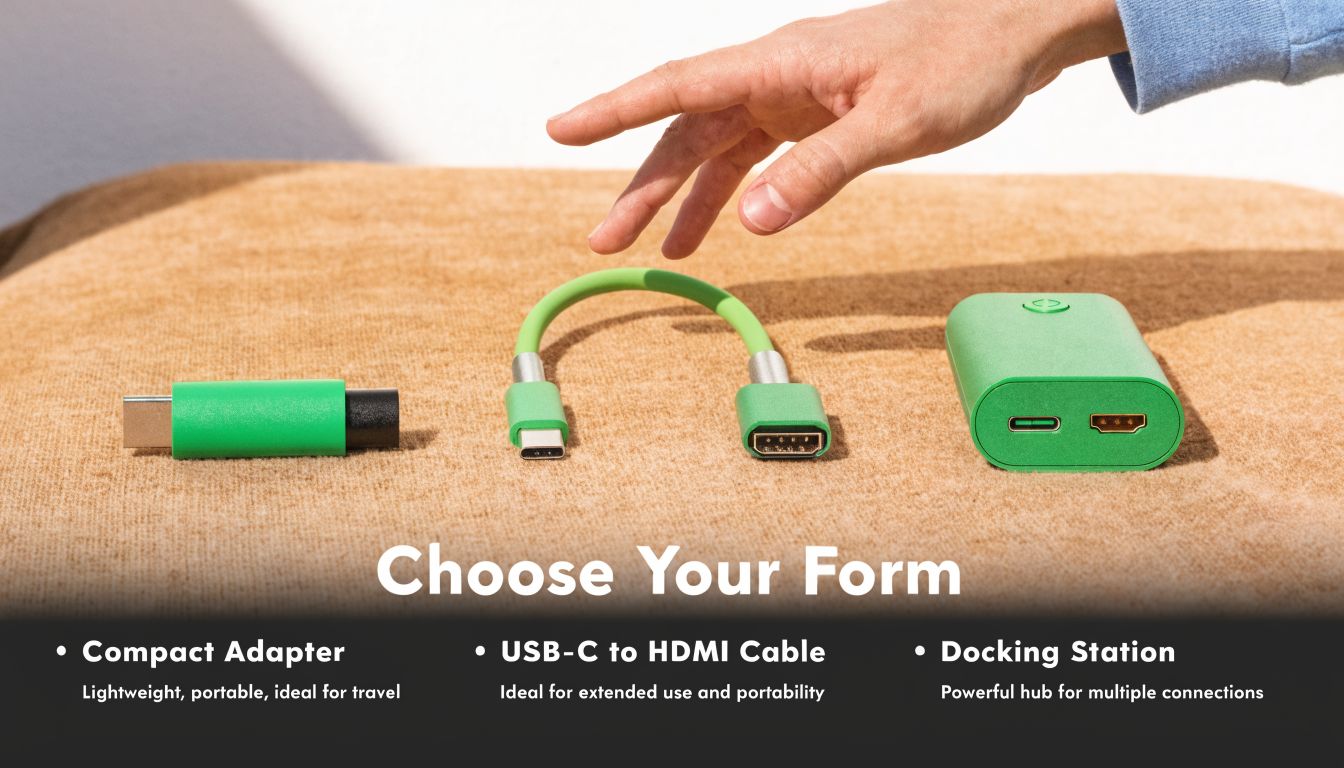
Three common forms
A simple adaptor is the classic small dongle. One end goes into USB-C, the other gives you an HDMI port.
An integrated cable has USB-C on one end and HDMI on the other, with no separate dongle plus cable combination.
A multi-port dock adds HDMI alongside other connections like USB-A, card readers, and pass-through charging.
Adapter vs Cable vs Dock
| Factor | Simple Adapter | Integrated Cable | Multi-Port Dock |
|---|---|---|---|
| Portability | Very easy to carry | Easy, but longer | Least portable |
| Desk clutter | Moderate, depends on HDMI cable | Usually tidier | Can reduce clutter if replacing several accessories |
| Flexibility | Works with different HDMI cable lengths | Fixed cable length | Highest flexibility |
| Best for | Travellers, students, occasional use | Permanent single-display setup | Workstations, hot desks, power users |
| Failure points | Adaptor plus separate cable | Fewer separate parts | More complex device |
| Charging support | Often absent | Usually absent | Often available on supported models |
Which one suits your setup
Choose a simple adaptor if
You move around a lot. This suits lecturers, students, sales staff, and anyone walking into shared rooms with unknown displays. It’s the easiest backup accessory to keep in a bag.
Choose an integrated cable if
You use one screen in one place. This is often the neatest answer for a home desk or TV corner because it removes one extra connection point.
Choose a dock if
You plug in and out all day and want one-stop connectivity. A dock is often the best fit for users who need HDMI plus power, keyboard, mouse, storage, or wired accessories.
One thing people overlook
The HDMI cable still matters. If you want a clear explanation without marketing noise, these facts about HDMI cables are a helpful reality check. It’s a good reminder that a poor cable can undermine a perfectly decent adaptor.
For users building a cleaner desk setup, accessory choice also overlaps with cable quality. A durable 100W USB-C cable with LED display makes sense if you’re also trying to streamline charging around the same workspace, even though charging and display are separate decisions.
The best form factor is the one that fits how you actually use your device every day, not the one with the longest feature list.
Sustainable and Smart Buying in Singapore
A usb type-c to hdmi adaptor is small, but it still reflects a larger buying choice. You can treat it as a throwaway add-on, or you can choose one that helps your devices stay useful for longer.
The second approach usually gives better value.
Buy for lifespan, not just for today
Cheap adaptors often fail in predictable ways. The cable strain relief weakens. The connector loosens. The housing traps heat poorly. None of that looks dramatic on day one, but it shows up after repeated packing, unplugging, and daily desk use.
That’s why build quality matters more than people expect. A sturdier adaptor can outlast multiple laptop cycles, especially if your display setup doesn’t change much.
Good buying questions include:
- How often will you unplug it? Daily travel puts more stress on connectors.
- Will it stay on a desk permanently? Then cable length and strain relief matter more.
- Do you need charging pass-through too? If yes, don’t assume every video adaptor supports it.
- Are you trying to reduce clutter? A better form factor can prevent damage from awkward cable bends.
Refurbished can be the smarter choice
For many users in Singapore, refurbished accessories make sense when they’ve been properly checked and graded. You get practical performance without paying purely for fresh packaging.
That matters even more if your goal is to stretch the life of a still-good monitor, TV, laptop, or tablet. A decent adaptor often keeps older displays useful in newer setups. That’s a sustainability win in simple, everyday terms. You use what you already own instead of replacing everything just because the ports changed.
Buying sustainably doesn’t mean settling. It means choosing gear that stays useful, repairable, and worth keeping.
A Singapore-specific form factor trend
Space changes what counts as “convenient”. In smaller rooms and tighter desk setups, a bulky straight connector can stick out awkwardly from a laptop or tablet.
That’s one reason right-angle adaptors are gaining popularity in Singapore, with Google Trends data from May 2025 to April 2026 showing a 35% rise in local searches for “right angle USB C HDMI”, as noted by right-angle USB-C to HDMI trend data.
In practical terms, right-angle designs can help when:
- Your desk is shallow and cables press against the wall.
- Your laptop sits on a stand and side cable overhang gets messy.
- Your device is used in a shared workstation where protruding adaptors are easier to knock.
A better-shaped adaptor can reduce strain, look neater, and last longer. That’s not flashy. It’s just sensible.
Setup Testing and Common Troubleshooting
Once you’ve got the adaptor, setup is usually simple. Plug the USB-C end into your device, connect the HDMI cable to the display, and choose the right input on the monitor or TV.
If everything is compatible, many devices will detect the screen automatically.
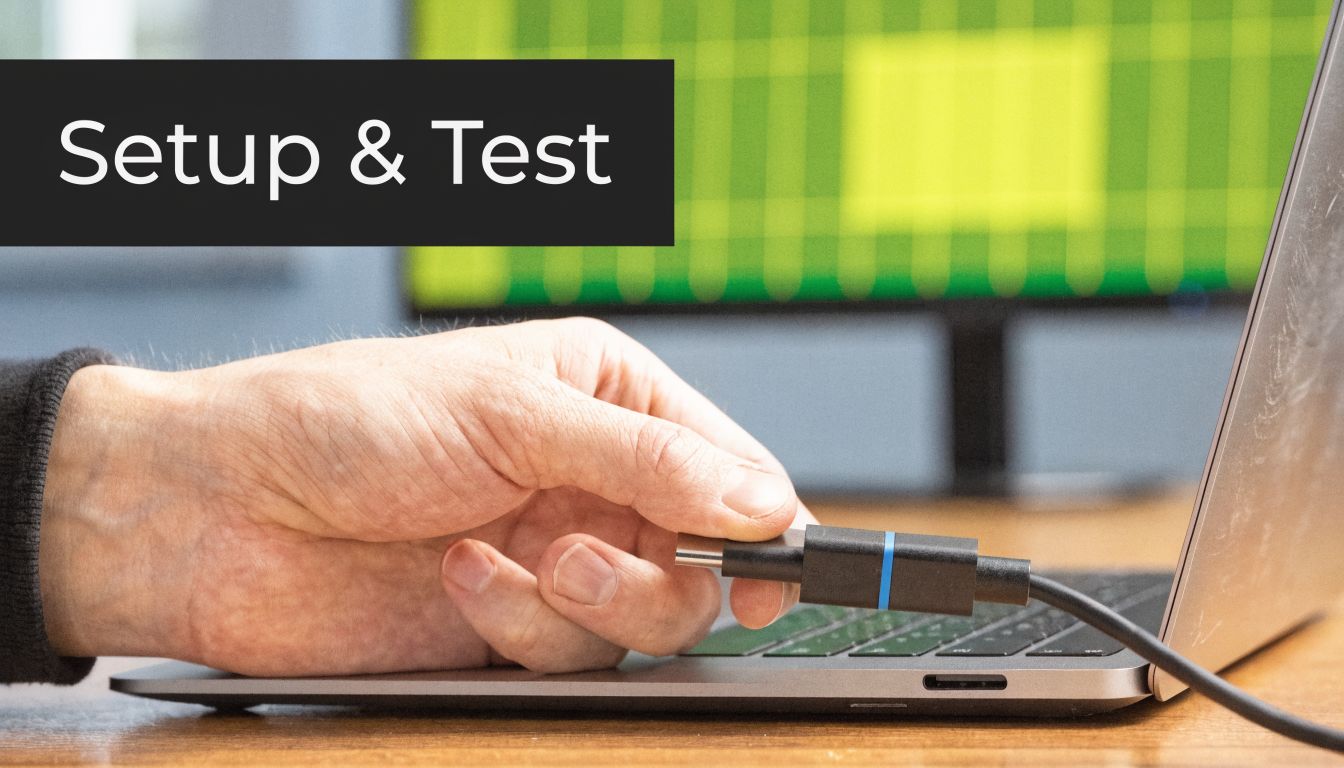
First setup checks
Before assuming something is broken, run through these basics:
- Check the display input. Many “no signal” problems are just the TV or monitor being on the wrong HDMI source.
- Reconnect everything firmly. USB-C and HDMI can look plugged in when they aren’t seated fully.
- Open display settings on your device. Choose whether you want to mirror or extend the screen.
- Restart with everything connected. Some devices detect displays more reliably during startup.
If the image appears but looks wrong, go into display settings and manually select the right resolution or refresh rate.
When the screen flickers or drops out
Intermittent signal loss is especially frustrating because it can look random. In Singapore, climate can be part of the story. With average relative humidity at 84%, oxidation on USB-C pins can contribute to signal issues, and a 2025 IMDA report noted that 28% of consumer tech complaints involved adapter-display connectivity failures, with Apple Silicon devices showing higher dropout rates, according to Singapore humidity and adapter connectivity issue data.
That means your troubleshooting shouldn’t stop at software.
Try this:
-
Inspect the USB-C connector
Look for dirt, dullness, or residue on the pins. -
Try another HDMI cable
A cable fault often looks like an adaptor fault. -
Test another display
This helps isolate whether the issue is the screen or the connection path. -
Check power behaviour on Apple devices
Some laptops and tablets are fussier when the accessory handles display but not power well.
If the problem comes and goes, think “connection quality” before “complete hardware failure”.
A practical walkthrough
This short video gives a useful visual reference for the connection process and basic behaviour to expect:
When to suspect the adaptor itself
If you’ve tested a second cable, a second display, and a second compatible device, then the adaptor becomes the likely issue. Cheap adaptors often fail under heat, movement, or repeated daily use.
If your setup is mission-critical, like class presentations, POS displays, or client meetings, it’s worth keeping a known-good spare. Not because adaptors are mysterious, but because any small connection device can become a weak point when used constantly.
Frequently Asked Questions
Can a usb type-c to hdmi adaptor charge my laptop too
Usually, a simple adaptor only handles video output. It does not automatically charge your laptop.
If you want charging at the same time, look for a dock or hub with power delivery pass-through and confirm your device supports charging through that USB-C port. Don’t assume every accessory with a USB-C plug supports both display and charging.
Will it work with my phone or tablet
Sometimes yes, sometimes no.
Some tablets and phones support external display output over USB-C. Others only use USB-C for charging and data. The key is still device compatibility. Check the manufacturer’s specifications for external display, video out, or DisplayPort Alt Mode support.
This is especially relevant for newer tablets used for lessons, note-taking, or portable presentations.
Why do I get no signal even though it fits perfectly
Because physical fit is not the same as feature support.
A USB-C plug fitting into a USB-C port only confirms the connector shape matches. It does not confirm the port can send video, the adaptor can convert the signal you need, or the display chain is configured correctly.
Is a very cheap unbranded adaptor risky
It can be.
The main risks are unstable output, poor heat handling, weak connectors, lower-than-claimed display support, and a shorter working life. Even if it works at first, it may become unreliable under regular use.
For expensive devices, it usually makes more sense to choose a properly specified adaptor with better build quality.
Do I need a 4K adaptor if my monitor isn’t 4K
Not necessarily.
If your monitor is Full HD and that’s all you plan to use, a higher-spec adaptor may not improve your experience. The better question is whether the adaptor supports your monitor’s real resolution and refresh rate comfortably and reliably.
Is a dock always better than a simple adaptor
No. It depends on your setup.
A simple adaptor is often the best choice if you only need one HDMI connection and want something easy to carry. A dock becomes worth it when you also need charging, USB accessories, storage, or a more permanent workstation setup.
Why do some adaptors work fine for presentations but feel bad for gaming
Because gaming is much more sensitive to refresh rate, latency, and signal stability.
An adaptor that feels acceptable for slides may feel choppy for gameplay or even basic cursor movement on a larger display. That’s why refresh rate and output support matter more for gamers and creators than for occasional presentation use.
If you want a reliable, warranty-backed adaptor or a professionally refurbished setup that helps your devices stay useful for longer, explore myhalo. You’ll also find sustainable tech options for laptops, tablets, cables, docks, trade-ins, and repairs, which makes it easier to build a setup that fits your budget and cuts unnecessary e-waste.