





USB to HDMI Adapter Guide for Singapore Setup
You're working from home in Singapore, and your laptop has USB-C ports but no HDMI socket. The monitor on your desk, or the wall-mounted TV in the living room, still expects an HDMI connection. A small USB to HDMI adapter appears to solve the problem, but the first question isn't which adapter costs less. It's whether your device can send video through that USB port at all.
That distinction matters for students attending lessons, families sharing a screen, and SMEs extending the usefulness of existing laptops and monitors. It also matters when a refurbished laptop has a different port configuration from the model you originally planned to buy. This guide explains how USB to HDMI adapters work, how to check compatibility, how USB-C Alt Mode differs from DisplayLink, and how to choose equipment that supports a practical device lifecycle.
Table of Contents
- Introduction to USB to HDMI Adapters in Everyday Use
- What a USB to HDMI Adapter Actually Does
- How USB-C Alt Mode and DisplayLink Differ
- Checking Device Compatibility Before You Buy
- Setting Up Your Adapter and Fixing Common Issues
- Choosing the Right Adapter and Extending Device Lifespan
- Making Your USB to HDMI Setup Work Smarter for Longer
Introduction to USB to HDMI Adapters in Everyday Use
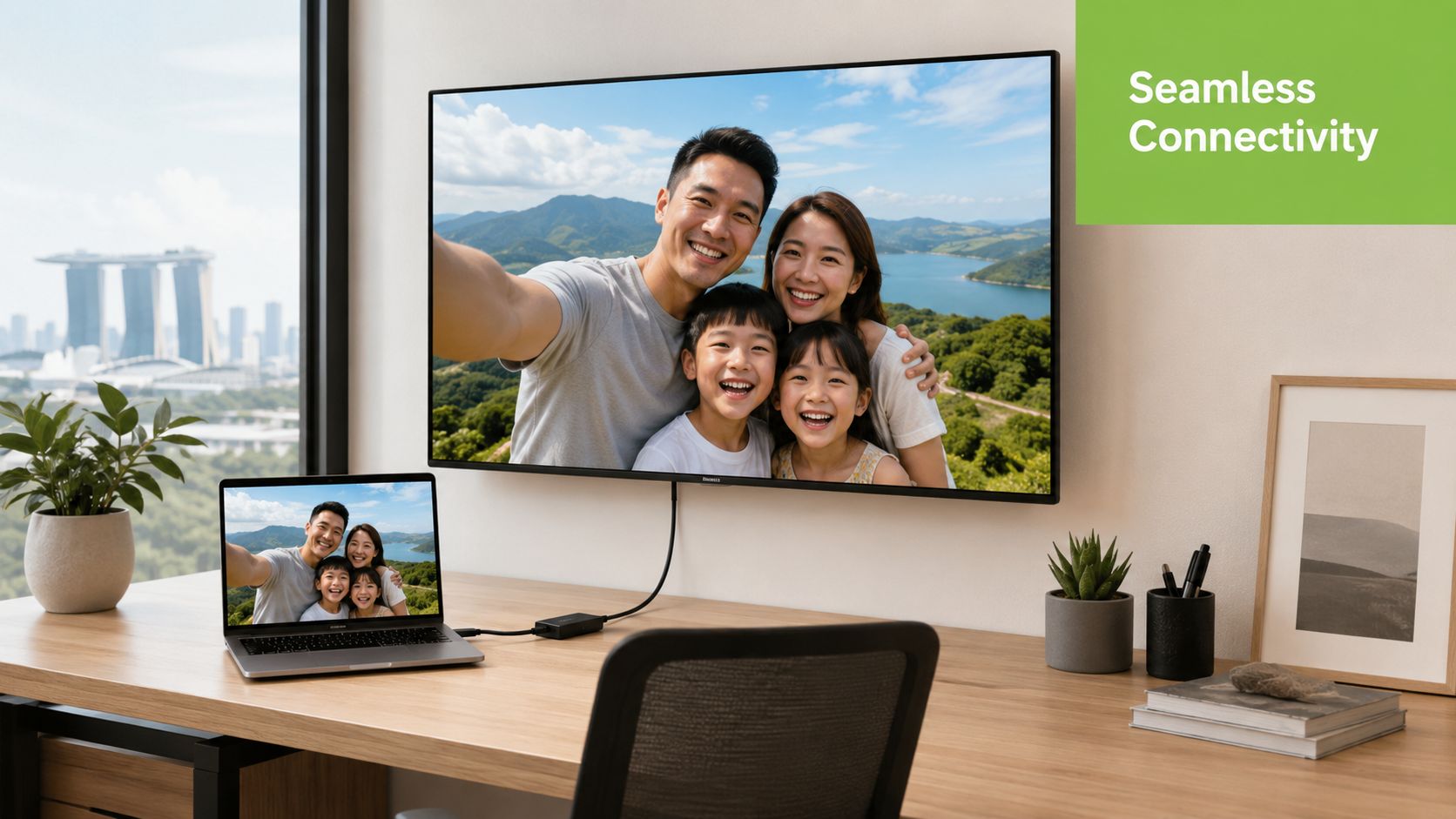
A typical Singapore home setup might include a laptop with USB-C, an older HDMI monitor, and an HDMI cable already connected to the desk. The laptop may be perfectly capable of running the display, but its manufacturer has removed the traditional HDMI port to keep the machine slimmer. A USB-C to HDMI adapter bridges that physical mismatch, provided the laptop's USB-C port supports video output through DisplayPort Alt Mode or Thunderbolt.
The same situation appears in offices and classrooms. An SME may have a collection of HDMI monitors that still work well, while newer laptops use USB-C. Replacing every display would create unnecessary cost and disruption. A suitable adapter can keep the existing screens useful, while a properly checked refurbished laptop can continue serving staff, students or home users for longer.
Why this connection is now common
Modern monitors sold in Singapore often retain HDMI inputs. Dell Singapore models, for example, include monitors with two HDMI ports, supporting up to 4K at 120 Hz or 100 Hz depending on the model, while ASUS Singapore lists one HDMI 2.0 input on a ProArt display. You can check a representative ASUS Singapore ProArt display specification when comparing monitor inputs.
At the device end, USB-C has become a compact connection for video, data and power delivery, with power delivery reaching up to 100W in the broader USB-C standard transition described in the supplied market reference. That doesn't mean every USB-C port supports every function. A port can handle charging and data while lacking the video capability an adapter needs.
myhalo approaches this issue from a lifecycle perspective. Repair, reuse, Certified ReLoved devices, Certified Surplus products and responsible recycling can help people make better use of equipment they already own. The right adapter may be a small purchase, but it can prevent a working monitor or laptop from becoming prematurely obsolete.
The core buying question: Does your device's USB port support video output, and does the adapter match the display you want to use?
What a USB to HDMI Adapter Actually Does
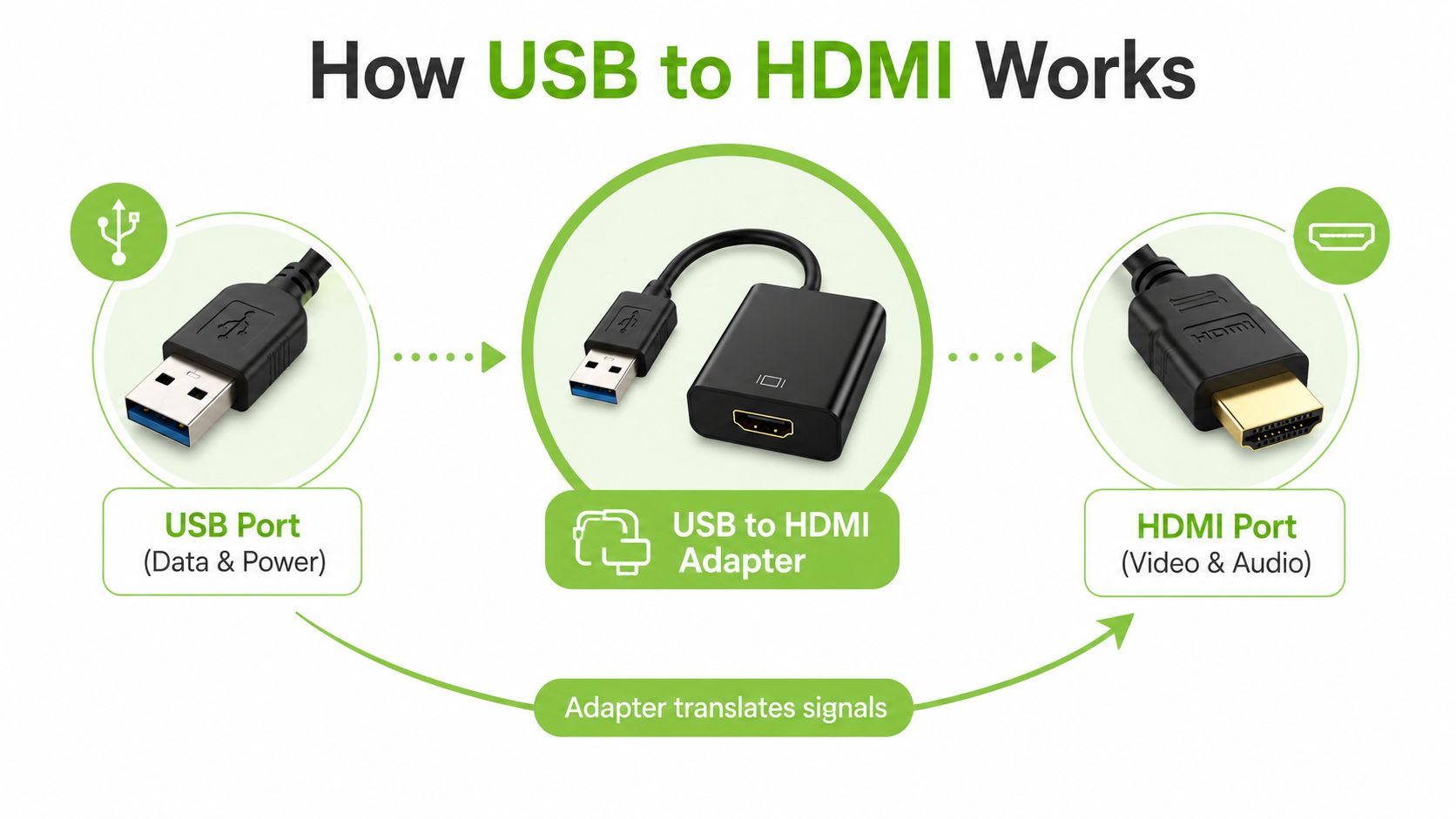
An HDMI port speaks directly to a display. It sends a video signal, along with audio, in a format the monitor or TV understands. A USB port is more flexible. Depending on the port and adapter design, it may carry ordinary data, power, or a video signal using a separate graphics pathway.
Think of HDMI as a language spoken by monitors and USB as a general-purpose transport system. A simple USB-C to HDMI adapter can translate a video signal already available through DisplayPort Alt Mode into HDMI. A USB-A DisplayLink adapter takes a different route, using software and USB data to create an external graphics output.
Passthrough is different from conversion over USB data
With USB-C Alt Mode, the laptop sends DisplayPort video through the USB-C connection. The adapter converts that signal into HDMI for the display. Thunderbolt systems can also provide a direct graphics path, subject to the capabilities of the computer, adapter and monitor.
DisplayLink works more like an external graphics system. The computer composes and compresses frames, sends them through USB data, and the adapter reconstructs them for HDMI output. This approach allows some USB-A laptops to add a screen, but it depends on drivers, system resources and available USB bandwidth.
Singapore listings illustrate the difference. A StarTech USB32HDPRO listing identifies DisplayLink certification, USB 3.1 and USB 3.0 compatibility, and HDMI output. An RS Singapore listing for this adapter class shows a maximum resolution of 1920 x 1200 on one display. The limitation comes from how the adapter transports frames over USB, not from the HDMI connector.
Direction matters
A standard USB-C to HDMI adapter is normally directional. It expects USB-C from the computer and HDMI at the display. Plugging an HDMI output from a laptop into the HDMI end of that adapter won't turn the display signal into USB-C.
Reverse connections need different equipment. If you want to bring HDMI from a camera, console or another computer into a laptop, you generally need capture hardware rather than an ordinary display adapter. This is why product listings that combine USB-A, USB-C, HDMI and capture categories can create confusion.
How USB-C Alt Mode and DisplayLink Differ
Two adapters can look almost identical while using completely different methods. A USB-C Alt Mode adapter generally passes a native display signal through the host device. A DisplayLink adapter creates an external graphics output over USB data, which gives it broader usefulness on devices without native video output but introduces driver and performance considerations.
Singapore marketplace listings show the practical split. USB-C and Thunderbolt products can advertise 4K at 60 Hz on one or two outputs, while some dual-monitor products combine 4K at 30 Hz with 1080p at 60 Hz. USB-A products commonly depend on DisplayLink and may support lower maximum resolutions, such as the 1920 x 1200 limit shown for the StarTech class of adapter in the Singapore RS listing. See the Singapore Wavlink dual-monitor adapter listing for an example of how mixed specifications appear in local product categories.
USB-C Alt Mode and DisplayLink at a Glance
| Feature | USB-C Alt Mode / Thunderbolt | DisplayLink over USB |
|---|---|---|
| Main connection | USB-C with DisplayPort Alt Mode or Thunderbolt support | USB-A or USB-C carrying USB data |
| How video travels | Native display signal is passed through and converted to HDMI | Frames are composed and compressed by the host, then reconstructed by the adapter |
| Drivers | Often works through the host operating system's normal display support | Usually requires DisplayLink software or drivers |
| Latency | Generally lower for ordinary display output | Can introduce additional delay because frames are encoded and transported over USB |
| Typical use | Everyday monitor use, presentations, editing and situations where responsiveness matters | Office productivity, extra screens and systems with limited native video output |
| Main limitation | The host USB-C port must support video output | Performance depends on USB bandwidth, driver support and system resources |
| Resolution example | Local products commonly advertise 4K at 60 Hz when the host and adapter support it | Singapore listings include products limited to 1920 x 1200, while higher-spec variants may offer more |
| Gaming suitability | Usually the more suitable route for latency-sensitive gaming | Less suitable when fast response and high-motion clarity are priorities |
Why bandwidth changes the result
A USB 3.2 Gen 2 setup is commonly used as a practical path towards 4K at 60 Hz, while USB4 or Thunderbolt 4 setups can target 4K at 120 Hz, depending on the complete device chain. The laptop, port, adapter chipset, HDMI version, cable and monitor must all support the intended mode.
A product that advertises 4K doesn't automatically provide 4K at 60 Hz. Some units fall back to 4K at 30 Hz, and the desktop can feel less responsive at that refresh rate. For documents and static slides, it may be acceptable. For scrolling, creative work or fast motion, the lower refresh can be more noticeable.
DisplayLink remains useful for office layouts where an SME needs extra screens from older laptops. It isn't the same as native video passthrough, so buyers should install the correct driver, check operating system support and avoid assuming that a USB 3.0 port will behave like USB-C Alt Mode.
Checking Device Compatibility Before You Buy
Compatibility starts with the host device, not the adapter packaging. A USB-C socket has the same physical shape whether it supports charging only, data and charging, or data plus video. Look for a DisplayPort symbol, Thunderbolt symbol, model specification, or manufacturer documentation that explicitly confirms video output.
A common USB-C to HDMI adapter works only when the host device supports DisplayPort Alt Mode. The D-Link DUB-V120 product information is useful context for this compatibility rule, because the adapter isn't a universal conversion device.
Apply this check to your device
- Windows laptops: Open the manufacturer's technical specifications and search for “DisplayPort over USB-C”, “DP Alt Mode” or Thunderbolt. If the laptop has only USB-A, native Alt Mode isn't available through that port, so a DisplayLink adapter may be the relevant category.
- MacBooks: Confirm the model's USB-C or Thunderbolt display capabilities and check the macOS requirements stated by the adapter maker. M1 and M2 Mac devices can differ by model and output configuration, so don't rely on the connector shape alone. If your main goal is improving video calls while using an external screen, this MacBook webcam upgrade guide can help you assess the wider desk setup.
- Chromebooks: Check the exact Chromebook model, not just the operating system name. Chrome OS support and the hardware's USB video capability both matter, especially for school or shared office devices.
- Phones and tablets: Look for DisplayPort Alt Mode or specific video-output support in the device specification. Many USB-C mobile ports handle charging and file transfer without sending a display signal.
Don't overlook older or refurbished devices
Older laptops may include USB 3.0 but not USB-C. In that case, a DisplayLink adapter can add a screen, though the driver and performance trade-offs described earlier still apply. A refurbished device may also have a port layout that differs from another configuration of the same product family, so check the exact unit details before ordering accessories.
For a monitor-based setup, a Certified ReLoved Dell P2422HE monitor illustrates why the full connection plan matters. The monitor, laptop, cable and adapter should be assessed together, rather than selected as isolated bargains.
The reverse-connection warning
HDMI-to-USB-C is not the mirror image of USB-C-to-HDMI. HDMI normally sends an output signal, while USB-C on a laptop may be receiving data or providing a video-capable output. To capture HDMI into a computer, use capture hardware designed for that direction.
Setting Up Your Adapter and Fixing Common Issues
Start with the simplest connection. Turn on the monitor or TV, select the HDMI input you intend to use, connect the adapter to the correct USB port, and then connect the HDMI cable. If you're using a hub, connect power delivery where required before attaching several peripherals.
A practical setup sequence
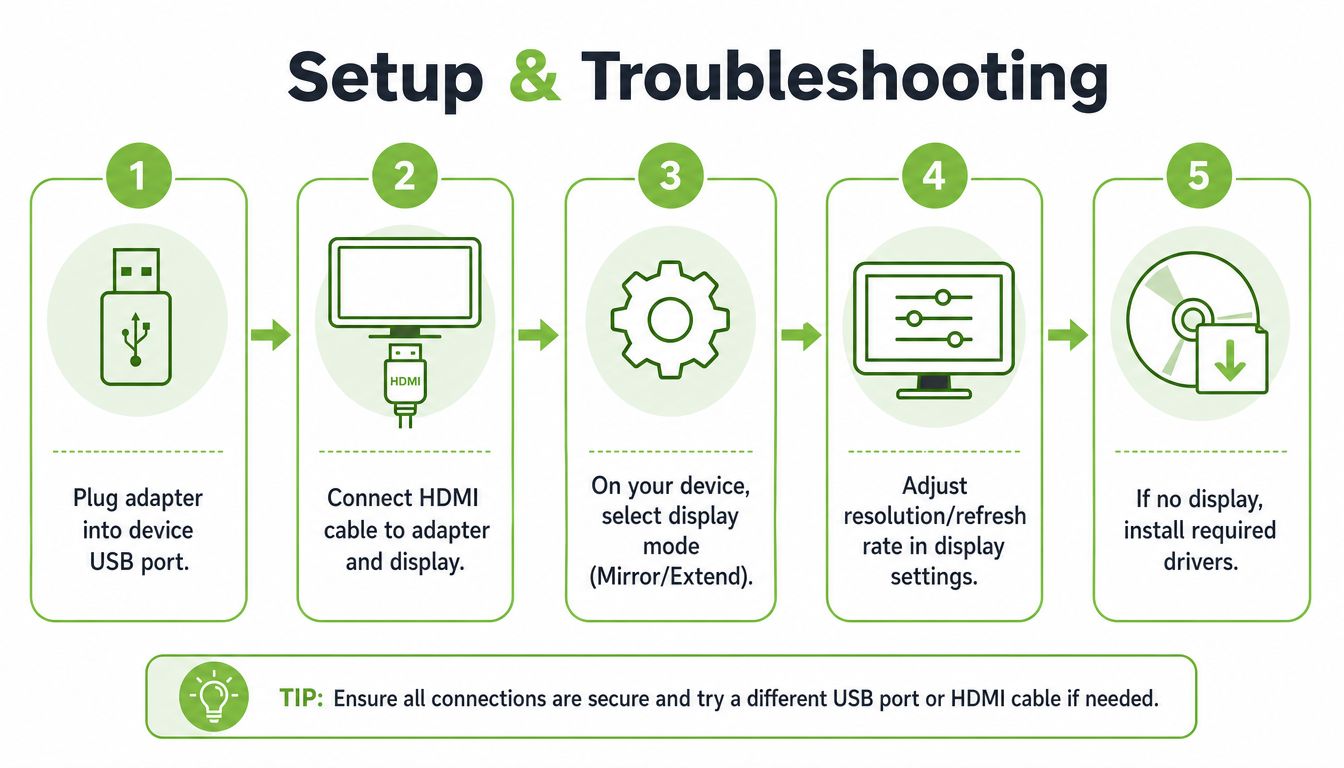
- Connect the host side. Plug the adapter into a USB-C video-capable port, or into the USB-A port required by a DisplayLink model.
- Connect the display side. Attach the HDMI cable to the adapter and the monitor, TV or projector. Select the matching HDMI source on the display.
- Choose the desktop mode. In Windows display settings, select duplicate or extend. In macOS, open System Settings and choose Displays. Extend mode gives you a second workspace, while mirroring shows the same content on both screens.
- Set a sensible resolution and refresh rate. Start with the display's recommended setting. If 4K at 60 Hz isn't available, the adapter, host port, cable or display may be limiting the connection.
- Install the driver if the adapter uses DisplayLink. Download the correct software from the manufacturer for Windows, macOS or Chrome OS. A DisplayLink adapter may show no image until its driver is installed and the device is restarted.
Use a sound output setting as well. HDMI can carry audio, but your operating system may continue sending sound to the laptop speakers. Select the HDMI display in the system's audio output menu, then check the monitor or TV volume.
Diagnose the symptom, then test the cause
- No signal: Check the display input first, then reseat both connectors. If the adapter is USB-C, confirm the port supports DisplayPort Alt Mode. If it is DisplayLink, install or update the driver.
- Black screen: Choose a lower supported resolution or refresh rate. The display may detect the connection but fail to show a mode the adapter chain cannot handle.
- Flickering: Test a different HDMI cable, avoid loose hub connections and check whether the adapter supports the monitor's chosen resolution and refresh rate.
- Lag or choppy motion: A DisplayLink adapter may be processing compressed frames over USB. It's often fine for documents and email, but native USB-C video is usually a better fit for fast motion or latency-sensitive gaming.
- Wrong resolution: Check the adapter specification and the upstream USB mode. A product labelled 4K may support 4K at 30 Hz rather than 4K at 60 Hz.
Choosing the Right Adapter and Extending Device Lifespan
Choose the adapter around the display task, not the connector alone. A presentation laptop connected to a Full HD projector has different needs from a creator's workstation driving a high-refresh monitor. Singapore retailers sell USB-C to HDMI products that commonly advertise 4K at 60 Hz, while higher-spec listings claim 8K at 60 Hz or 4K at 144 Hz, showing why the adapter chipset and HDMI version must be checked against the monitor specification. The TP-Link UA520C listing also states the requirement for DisplayPort Alt Mode on the host device.
Match the adapter to the job
For basic presentations or a single office display, a compact USB-C to HDMI dongle may be enough. If your monitor only needs a lower-resolution desktop, paying for a high-refresh specification may add no practical value. Check whether the listing states the exact combination you need, such as 4K at 30 Hz or 4K at 60 Hz.
A hub makes more sense when the desk also needs USB peripherals, Ethernet, SD readers or power delivery. It can reduce cable swapping, but it also creates more points to check, including power capacity, heat management and the hub's total bandwidth. A Lenovo USB-C travel hub with HDMI, VGA, USB-C PD, USB and RJ45 represents this broader hub category.
Think in terms of lifecycle value
A compatible adapter can keep an existing HDMI monitor useful with a newer laptop. It can also help an SME deploy Certified ReLoved or Certified Surplus devices without discarding working screens and accessories. That approach improves resource utilisation and can reduce the cost and disruption of replacing a complete workstation.
myhalo supports this lifecycle view through repair, reuse, device migration, trade-ins and responsible recycling. Its devices go through 30-point quality checks, with transparent grading and battery health disclosure, under ISO 9001 and ISO 27001 certified processes. The mylo AI Assistant and RescueAdvise can also help users think through a device and accessory combination before committing to an incompatible setup.
The sensible choice is the smallest reliable solution that meets the task. A simple dongle may suit a meeting room. A DisplayLink unit may suit extra office screens from a USB-A laptop. A native USB-C Alt Mode adapter or Thunderbolt path may suit users who value cleaner video output and lower latency.
Making Your USB to HDMI Setup Work Smarter for Longer
A USB to HDMI adapter is only as reliable as the complete connection chain. Confirm that the host port supports video output, identify whether the product uses USB-C Alt Mode or DisplayLink, and match the adapter's resolution and refresh specification to the monitor. That compatibility-first habit prevents many disappointing purchases.
Keep the HDMI input selected correctly, use a sound cable, install required DisplayLink software and avoid forcing a high-resolution mode the adapter cannot sustain. When a device or monitor still has useful service life, a suitable adapter can help you reuse it rather than replace it immediately.
For connected workstations, accessories also deserve basic care. A practical guide to fast-charging cable use and care can help you manage the wider cable setup around a USB-C desk.
myhalo's role extends beyond selling accessories. Through repair, reuse, Certified ReLoved and Certified Surplus devices, device migration, trade-ins and responsible recycling, it helps consumers and SMEs make more deliberate lifecycle decisions. Assess your laptop ports and monitor inputs first, then seek advice if the specifications are unclear.
Visit myhalo to explore compatible accessories, Certified ReLoved and Certified Surplus devices, plus lifecycle services that help keep your existing technology productive. If you're unsure whether a laptop, monitor and adapter will work together, contact myhalo with the exact model details before you buy.