





Best USB Cable Extension Cable: 2026 Buyer's Guide
A USB extension cable seems like a simple fix for a common problem: your device's cable is just too short. It's a male-to-female cord that bridges the gap, letting you connect peripherals that are just out of reach.
Table of Contents
- A Quick Guide to Extending Your USB Connections
- Passive vs. Active USB Extension Cables: What’s the Real Difference?
- Matching Your Cable to USB Versions and Connectors
- Common Problems and How to Avoid Them
- Troubleshooting Your USB Extension Connection
- Choosing a Cable That Extends Tech, Not Waste
- Your USB Extension Questions Answered
A Quick Guide to Extending Your USB Connections
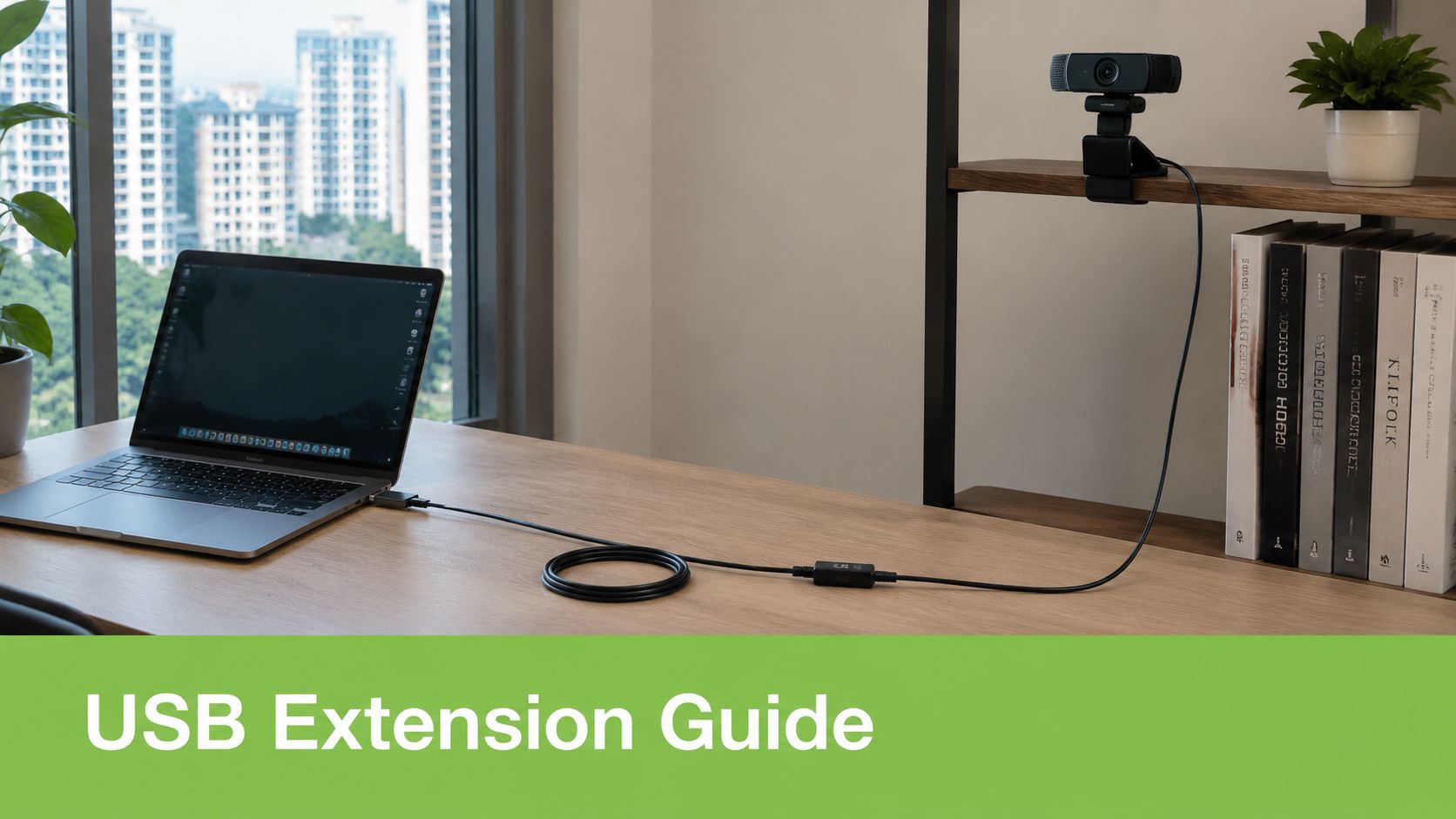
We’ve all been there. You get a new webcam, but the best angle is across the room. Your gaming controller won’t reach the sofa. Or the only spot for the office printer is on the other side of your desk. The go-to solution? A USB extension cable.
But here’s the catch most people don't realise until it's too late: extending a USB connection isn’t just about adding length. It’s a delicate balance of maintaining data speed, delivering enough power, and keeping the signal stable. A cheap extension that works for a keyboard might cause a high-resolution webcam to flicker, lag, or not work at all.
This is because different devices and distances demand very different solutions.
When Do You Actually Need a USB Extension?
USB extenders solve a lot of everyday frustrations in a typical Singaporean home or office. You've probably run into one of these scenarios:
- The Perfect Webcam Angle: Getting your webcam positioned for a flattering angle during video calls, not just wherever the short cable forces it to be.
- Living Room Entertainment: Connecting a gaming controller or keyboard to a media centre PC from the comfort of your couch.
- Flexible Office Setup: Placing a shared printer or scanner in a central spot, away from a single person’s desk.
Passive vs. Active Cables: The Most Important Difference
To solve these problems, you’ll find two main types of extension cables, and choosing the right one is critical.
A passive USB extension cable is just a simple, unpowered wire. It’s perfect for short distances (usually under 3 metres) and low-power devices like a mouse or keyboard. Think of it as simply making the original cable longer.
For anything more demanding—like longer distances or power-hungry devices like webcams and external hard drives—you need an active (or repeater) USB cable.
An active cable has built-in electronics that clean up and boost the USB signal. It's like having a mini-amplifier in the middle of the wire, preventing the data from getting weak or corrupted over a longer run. This ensures your device works reliably, every time.
Understanding this difference is the key to getting your setup right.
USB Extension Solutions at a Glance
To make it simpler, here’s a quick breakdown of the common USB extension solutions you'll find and what they're best for.
| Extension Type | Max Recommended Length | Best For | Key Limitation |
|---|---|---|---|
| Passive Cable | 3–5 metres | Keyboards, mice, basic webcams | Signal degrades quickly after 5m |
| Active Cable | 10–30 metres | HD webcams, external drives, VR sensors | More expensive, requires a powered hub for some devices |
| USB Over Ethernet | 50–100 metres | Security cameras, industrial sensors, long-distance setups | Requires a transmitter and receiver, more complex setup |
| USB Hub | (Not an extender) | Adding more ports in one location | Doesn't solve the distance problem on its own |
Essentially, as the distance and data needs increase, so does the complexity of the solution. For most home and office users, a choice between a passive and active cable will cover nearly every situation.
Passive vs. Active USB Extension Cables: What’s the Real Difference?
When you’re looking to stretch a USB connection, the single most important choice you'll make is between a passive and an active cable. Picking the wrong one is one of the most common—and frustrating—tech headaches. It all comes down to distance and power.
Think of a passive USB extension cable like trying to shout across a quiet room. Over a short distance, your voice carries perfectly. These are the simplest extension cables you can buy. They’re just copper wires with connectors on each end, with no fancy electronics inside to help the signal along.
This makes them cheap and perfect for quick, short-range connections.
When to Stick with a Passive USB Cable
Passive cables are a great, budget-friendly choice for very specific situations:
- Low-Power Peripherals: They work just fine for devices that don't need much power or data bandwidth. Think keyboards, mice, or a basic USB microphone.
- Short Distances: If you only need to add a couple of metres to your connection—like linking a scanner on your desk to the PC tower below it—a passive cable is all you need.
Here's the catch, though. The USB signal naturally gets weaker as it travels down the wire. This is called signal attenuation. If you push a passive cable too far or ask it to handle too much, you’ll get dropouts, painfully slow speeds, or your device might not even be recognised.
When You Need the Power of an Active USB Extension Cable
Now, what if you need to go further? That’s where an active USB extension cable—also called a repeater cable—steps in.
Going back to our analogy, an active cable is like having a friend halfway across a crowded hall who listens to your message, then shouts it again with perfect clarity.
An active cable has a tiny electronic chipset built in. This chip grabs the incoming USB signal, cleans it up, boosts it back to its original strength, and sends it on its way. It actively regenerates the signal, preventing data loss and ensuring your gear works flawlessly over much longer distances.
This is essential for high-bandwidth or power-hungry devices that a passive cable would choke on. We’re talking about gear like 4K conference room webcams, VR headsets, and external solid-state drives (SSDs).
For more complex setups, like connecting several devices through a high-performance docking station like the Lenovo USB-C Universal Dock, a quality active cable ensures everything gets the stable connection it needs to work properly.
As a rule of thumb, passive USB extensions are generally reliable up to about 5 metres. Beyond that, you’re in active cable territory. For a deeper dive into the technicals, you can read more about how cable length impacts USB performance.
Matching Your Cable to USB Versions and Connectors
Ever plugged in a USB extension cable only to find it doesn't work, or it’s frustratingly slow? It’s not just you. This common headache usually comes down to a mismatch between your cable, the USB version, and the connector type.
Getting it right means understanding that speed, power, and even the physical shape of the plug all need to align for your setup to work flawlessly.
Think of it like this: a high-speed train (like USB 3.0) needs a perfectly straight, high-grade track to hit top speed. A slower commuter train (USB 2.0) can handle more bumps and turns without issue. The same logic applies to your USB connection—the faster the data speed, the more sensitive it is to cable length and quality.
This is exactly why that old extension you used for a simple printer might fail completely with your new 4K webcam or external SSD.
Decoding USB Versions and Connectors
When you look at your devices, you'll mainly see two connector types today: USB Type-A and USB Type-C.
- USB Type-A: This is the classic, rectangular connector you know and love. It’s on most computers, chargers, and countless older gadgets.
- USB Type-C: This is the smaller, oval-shaped, and reversible connector found on nearly all modern laptops, phones, and peripherals.
Of course, there are other connectors too, like the older 6 ft black Micro USB cable that was the standard for years. Beyond the physical shape, the USB version dictates the performance. A handy tip for Type-A ports: look at the colour of the plastic inside. Black is usually the slower USB 2.0, while blue or teal almost always means you’re looking at the much faster USB 3.x standard.
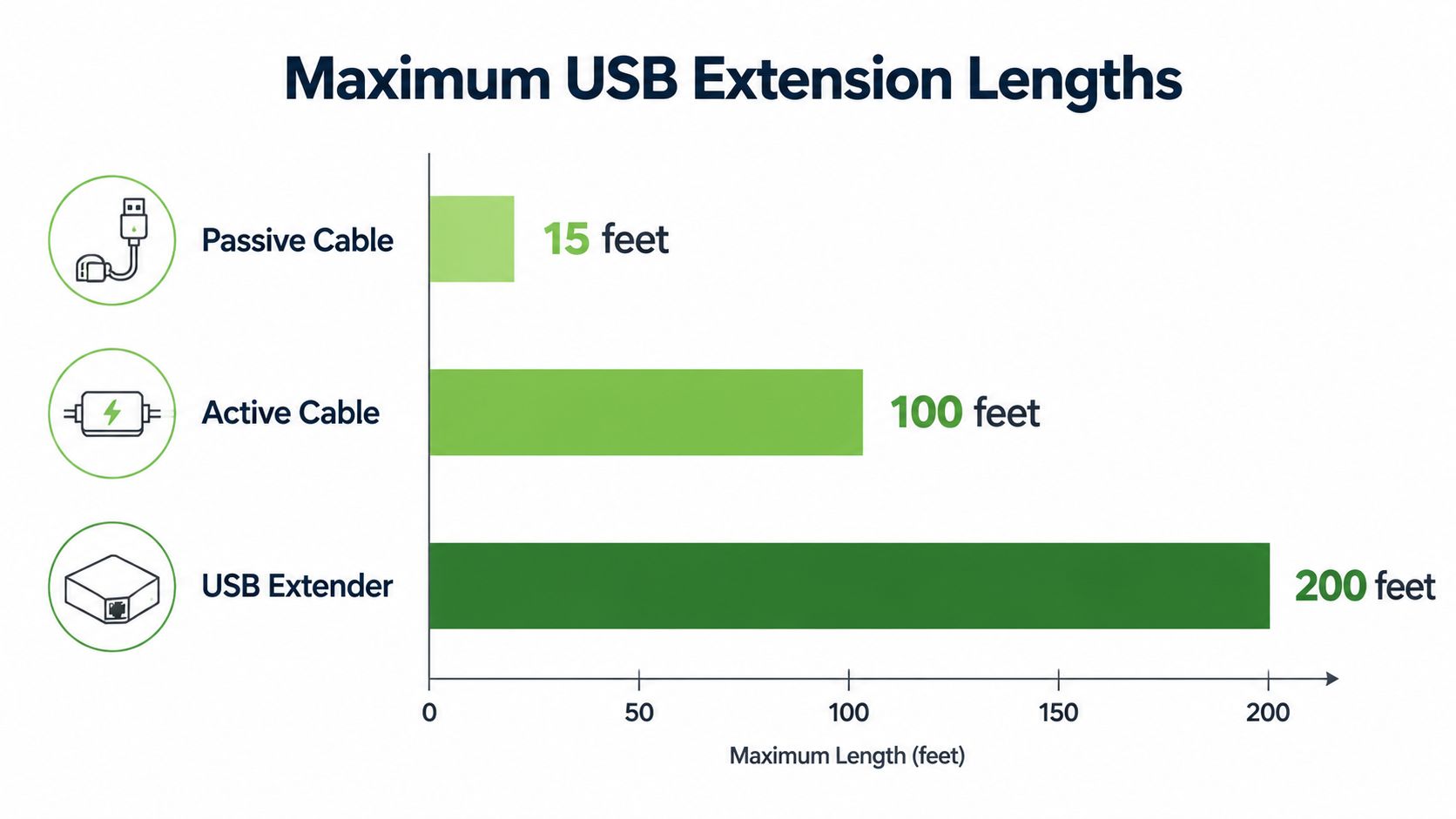
As you can see, the further you need to go, the more you have to move from simple passive cables to smarter active ones.
The Trade-Off Between Speed, Power, and Distance
For anyone in Singapore juggling multiple devices, the link between a cable's speed, its power delivery, and its maximum length is critical. It’s not just about data; power is half the battle. A standard USB 2.0 cable, for instance, provides up to 500 mA of power, while a USB 3.0 cable delivers a much healthier 900 mA. For today's power-hungry gadgets, that difference is everything.
This trade-off is governed by physics. The faster and more powerful the signal, the shorter the distance it can reliably travel over a standard (passive) cable.
USB Version vs Maximum Passive Cable Length
This table shows the relationship between a USB standard's speed and how long a passive cable can be before you start running into problems.
| USB Standard | Data Speed | Max Recommended Passive Length |
|---|---|---|
| USB 2.0 | 480 Mbps | Up to 5 m |
| USB 3.1 Gen 1 | 5 Gbps | Up to 3 m |
| USB 3.1 Gen 2 | 10 Gbps | Up to 1 m |
| USB4 (40 Gbps) | 40 Gbps | Up to 0.8 m |
The takeaway is clear: as speeds have skyrocketed, the maximum reliable length for a simple, unpowered extension cable has shrunk dramatically.
Key Takeaway: The faster the USB version, the shorter its maximum recommended passive cable length. This is an unavoidable physical limitation. Pushing beyond these limits without an active cable will lead to unreliable connections, data drops, and charging failures.
Understanding power delivery is vital. If you're curious about how cable choice impacts how quickly your devices charge, our guide on choosing a fast charging cable is a great next read. Making the right choice ensures your extension cable helps your setup, rather than becoming its weakest link.
Common Problems and How to Avoid Them
Knowing the difference between cable types is the first step. But putting that knowledge into practice is what stops you from pulling your hair out when something doesn't work.
A USB extension can be a lifesaver in a compact HDB flat or a busy retail shop, but a few common slip-ups can turn that convenience into a headache. Let's walk through the most frequent mistakes and how you can easily sidestep them.
The most common error? Using a passive extension for a device that needs a lot of power or data. You might plug in a new 4K webcam for your work-from-home setup, only to find the video is laggy or doesn't show up at all. This happens because the passive cable just can't deliver stable power or data speeds over the extra distance, causing your device to underperform or fail completely.
Another classic mistake is chaining multiple extensions together. It seems like a logical way to get more length, right? Wrong. It’s a recipe for signal problems. Each connection point adds a tiny bit of signal loss, and when you stack them, the problem multiplies. The result is slow performance and devices that randomly disconnect.
Mismatching Speeds and Standards
Here’s a pitfall we see all the time: buying a USB 2.0 extension cable for a USB 3.0 device and port. Sure, it’ll work—thanks to backward compatibility—but your connection will be choked down to the much slower USB 2.0 speed of 480 Mbps. You've paid for 5 Gbps or more that you can't even use.
To avoid this, always match your extension cable to the highest USB version in your setup. If your external SSD and laptop port are both USB 3.2, get a USB 3.2 extension cable. It’s the only way to get the full performance you expect.
Practical Pitfalls in Singaporean Setups
In real-world Singaporean homes and businesses, these issues pop up everywhere. Offices, retail counters, and home setups rely on USB extensions for printers, scanners, Point-of-Sale (POS) terminals, and webcams.
Once you need to go beyond a few metres, you need a more robust solution. For these longer runs, active USB cables or USB-over-Ethernet extenders are the standard fix. Many active USB extenders can push data up to 164 feet without signal loss, while some USB-over-Cat5/Cat6 systems can reach around 100 metres. For a deeper dive, you can explore the technical details of USB cable length limitations from Eaton.
The golden rule is simple: buy the right cable for the job the first time. A single, high-quality active cable of the correct length is always better than daisy-chaining cheaper passive ones. This approach, which myhalo champions, prevents e-waste and saves you from that "why isn't this working?" moment.
By understanding these common problems, you can make a smart choice that ensures your devices connect reliably, every single time.
Troubleshooting Your USB Extension Connection
Even after you’ve picked the perfect USB extension cable, tech gremlins can still show up. Your trusty webcam that worked fine yesterday might suddenly start disconnecting, or your computer just refuses to see a brand-new peripheral. Don't worry—these glitches are incredibly common and usually simple to sort out.
This guide will walk you through the most frequent issues, helping you diagnose the problem and find the right fix quickly. Getting your setup running smoothly is a core part of the myhalo approach, and that includes making sure your cables don't get in the way.
Symptom: Device Not Recognised or Randomly Disconnects
This is probably the most common headache. You plug in your device, and your computer either throws up an error like “USB Device Not Recognized” or the connection drops in and out without warning.
Likely Cause & Solution:
- Not Enough Power: The extension cable is likely too long, especially if it's a passive one. This often happens with power-hungry devices like webcams and external hard drives. The power just can't travel the distance. The fix: Try a shorter cable, switch to an active (repeater) cable to boost the signal, or plug the extension into a powered USB hub that has its own power source.
- A Loose Fit: Sometimes, the simplest answer is the right one. The male and female connectors might just not be seated properly. The fix: Unplug everything and reconnect both ends of the extension cable firmly. Give the device's own cable a good push, too.
- A Faulty Port: It’s possible the USB port on your computer is the culprit, either being faulty or not supplying enough power. The fix: Test this by plugging your device directly into a few different USB ports on your computer, completely bypassing the extension cable for a moment.
Symptom: Slow Speeds or Poor Performance
Your device works, but just barely. Maybe your super-fast external SSD is transferring files at a snail's pace, or your HD webcam feed looks choppy and pixelated. The connection is there, but performance has taken a massive hit.
Key Insight: This almost always points to a speed mismatch. Think of it like a sports car stuck in a traffic jam—a high-speed device connected through a low-speed cable gets throttled down to the weakest link in the chain.
Likely Cause & Solution:
- Speed Mismatch: You’re probably using an old USB 2.0 extension cable with a newer USB 3.0 device and port. You're creating a bottleneck. The fix: Make sure your extension cable matches the USB version of your device and port. An easy way to check is to match the colours—use a blue-tipped USB 3.0 extension for the blue USB 3.0 ports on your computer.
- Driver Issues: An outdated or corrupted driver can cause all sorts of performance problems, and adding an extension cable into the mix can make things worse. The fix: Head over to your device manufacturer's website and grab the latest drivers for your operating system. A quick driver reinstall is often all it takes to get back to full speed.
Choosing a Cable That Extends Tech, Not Waste
Picking the right USB extension cable is about more than just a technical fix—it’s a choice that impacts e-waste. At myhalo, our mission is to build a circular economy, and that starts with buying smarter in the first place. A ‘buy it right, buy it once’ mindset stops cheap, flimsy extensions from failing and ending up in a landfill.
Investing in a single, high-quality active cable for a long run, or a durable passive one for a short stretch, means you won’t have to replace it anytime soon. This simple decision directly reduces future waste and saves you from the frustration of a shoddy connection. It’s about getting a solution that extends your tech's reach, not our planet's waste problem.
But before you even buy an extension cable, it's worth asking if you truly need one. Often, a simple adjustment is the most sustainable option of all.
Rethink Your Setup First
Consider these alternatives before adding another cable to your collection:
- Rearrange Your Space: Can you move your desk, printer, or computer slightly closer together? A small furniture shift might eliminate the need for an extension altogether.
- Explore Wireless Solutions: Could a Bluetooth keyboard, a Wi-Fi printer, or a wireless webcam solve your problem more elegantly? While they come with their own considerations, they are a great way to reduce cable clutter.
The myhalo Approach to Sustainable Tech
Sometimes, the real issue isn't the distance—it's a faulty USB port on your device. Instead of patching over the problem with an extension, consider a direct repair.
Our myhalo repair services can fix broken or unreliable USB ports on your laptop or desktop. A professional repair can restore your device's original functionality, making an extension cable unnecessary and extending the life of your tech.
And if you're upgrading your setup, you can do it responsibly. When you trade in your old devices with us, you can include their now-unneeded cables. This ensures they are properly recycled, contributing to a circular economy right here in Singapore. You can learn more about how you can help build a zero e-waste world and make a real difference.
Your USB Extension Questions Answered
Even for something as simple as a cable, a few tricky questions pop up all the time. Let's clear up the most common ones you’ll face when trying to extend your USB connection.
Can I Chain Two Extension Cables Together?
This is a classic question, and the answer is a hard no. You should never do this.
Every connection point is a potential weak spot for signal loss. When you daisy-chain two passive extension cables, you’re practically guaranteeing slow speeds, data errors, or your device disconnecting randomly. The correct solution is to buy a single cable that’s the right length for the job. If you need to go further than 3-5 metres, skip the guesswork and get a single active extension cable.
Will a USB 3.0 Extension Work with a USB 2.0 Device?
Yes, absolutely. The entire USB system is designed to be backward compatible. You can plug an older USB 2.0 printer into a brand-new USB 3.0 extension cable, and it will work just fine.
Just remember, the connection will run at the slower USB 2.0 speed of 480 Mbps. The cable can't magically make your old device faster; it just ensures it works reliably at its own native speed.
Does a USB-C Extension Affect Charging or Video?
This is where things get messy, and you need to be careful. A USB-C extension cable can definitely interfere with high-performance features like fast charging and video output.
Cheap, uncertified USB-C extensions are notorious for causing problems:
- Slower Charging: They often aren’t built to handle high-wattage Power Delivery (PD), meaning your laptop or phone will charge at a snail's pace.
- No Video Output: Many cheap cables don't support DisplayPort Alternate Mode, the tech that lets USB-C carry a video signal. Plug it in, and your external monitor simply won’t work.
When it comes to USB-C, you get what you pay for. It is critical to buy a high-quality extension that is specifically rated for the features you need, like 100W PD or 4K video support.
How Do I Know if I Need an Active Cable?
Here’s a simple checklist. You almost certainly need an active USB extension cable if any of these apply to you:
- You need to cover a distance over 3 metres for a USB 3.0 device.
- You need to go over 5 metres for a USB 2.0 device.
- You’re connecting something that needs a lot of bandwidth, like a 4K webcam, VR headset, or an external SSD.
- The device you're connecting draws a lot of power from the USB port itself, like some portable hard drives or multi-port docks.
When in doubt, just get the active cable. It's the safer bet for a stable and reliable connection, every time.
At myhalo, we believe in making tech accessible and sustainable. Whether you need a brand-new device or a professionally refurbished one, our goal is to provide reliable solutions that last. Explore our range of quality tech products at https://shop.myhalo.com.sg and join us in reducing e-waste.