





Laptop Upgrade Singapore How to Boost Speed Safely
Your laptop used to open work files before the coffee was ready. Now a video call, browser tabs and a spreadsheet are enough to make the fan race and the screen pause. Replacing the machine feels wasteful, but spending money on the wrong upgrade can leave you with a faster drive inside a laptop that still struggles.
That's the practical question behind a laptop upgrade in Singapore. Singapore has an estimated 70.6% household laptop ownership, according to the SingStat HES 2023 infographic, so many households and SMEs already have devices that may be repairable or upgradeable. Business laptops commonly follow a 3–4 year refresh cycle, while power users and developers may replace them every 2–3 years, based on Singapore-focused lifecycle guidance from Aggasys.
The decision also sits within Singapore's wider e-waste and data-protection framework. The country generates about 60,000 tonnes of e-waste annually, equivalent to roughly 11kg per person, while only about 6% of household e-waste is recycled, according to a National Environment Agency-backed study reported by CNA. A laptop upgrade is therefore more than a speed fix. It can be a way to extend useful life, protect business data and delay replacement, provided the hardware is suitable.
Table of Contents
- Introduction Is Your Laptop Worth Upgrading in Singapore
- How to Check If Your Laptop Can Be Upgraded
- Choosing the Right Upgrade for Speed Battery and Everyday Use
- Backing Up and Migrating Data Without Losing Anything
- DIY or Professional Service What to Choose in Singapore
- After the Upgrade Warranty Care and Sustainable Next Steps
Introduction Is Your Laptop Worth Upgrading in Singapore
A student's laptop may still boot, display clearly and handle lecture notes, cloud documents and research, yet pause whenever several applications are open. An SSD or memory upgrade could address that specific slowdown. An SME laptop used for heavier software may face a different situation, with soldered memory, a worn battery and an ageing processor. Replacing it with a refurbished model could provide better value over the next 12–24 months than paying for several separate repairs.
Compare the full ownership cost, not just the price of one part. Singapore repair guidance places laptop part repairs broadly between SGD 60 and SGD 900, while an SSD upgrade combined with data migration, battery work or screen repairs can bring the total into the mid-hundreds, depending on the model and parts required, as outlined by iDevice Singapore. Ask what the laptop will cost to keep reliable over the next year or two, including likely follow-up work.
Practical rule: Upgrade when the laptop's main weakness is replaceable. Consider a refurbished replacement when several core components are ageing together.
A simple comparison helps. If one repair solves the main problem and leaves the laptop suitable for daily work, upgrading may spread its cost across the next 12–24 months. If the machine still needs battery, display or processor-related attention, compare that combined risk with a refurbished replacement before committing. The lower upfront quote is not always the lower ownership cost.
Singapore's regular refresh cycle also supports a secondary market. A business laptop replaced after a few years may retain a capable processor, durable construction and enough life for study, administration or light business tasks. Refurbished laptop computers therefore belong in the same comparison as RAM, SSD and battery repairs, rather than being treated only as a last resort.
Handover must be part of the decision. Singapore's ICT e-waste arrangements include a 10-tonne supply threshold for laptops and desktop computers, introduced when the national system launched on 1 July 2021, according to the CNA report. Before resale, refurbishment or recycling, back up required files, sign out of accounts and arrange secure data sanitisation or drive destruction where appropriate. This protects business information while keeping a usable device in circulation when its hardware still has value.
The rest of this guide examines that lifecycle choice: check upgrade compatibility, match the part to the slowdown, migrate data safely, choose DIY or professional help, then verify the work and preserve warranty coverage.
How to Check If Your Laptop Can Be Upgraded
The safest upgrade begins with the model number, not the part you want to buy. Look for the exact identifier on the underside of the laptop, in Windows System Information or in the manufacturer's support application. A product family name alone isn't enough because the same series may ship with different memory arrangements, storage interfaces and internal layouts.
Confirm memory and storage limits
Check whether the RAM is removable or soldered. Removable RAM sits in a small slot and can usually be replaced with a compatible module. Soldered memory is fixed to the motherboard, so you can't increase it by opening the back cover. Thin ultrabooks often prioritise compact size and may have limited upgrade options, while larger business and gaming laptops are more likely to provide accessible slots.
Storage needs a similar check. Find out whether the laptop uses a 2.5-inch drive, an M.2 SATA SSD or an M.2 NVMe SSD. M.2 describes the physical shape, not the complete specification. Two M.2 drives can use different interfaces, and a drive that fits physically may still be incompatible with the laptop's connector or firmware.
A gaming laptop may offer more than one M.2 slot, whereas an older or entry-level machine may have only one usable storage position. If the replacement removes the original drive, you'll need a migration or Windows recovery plan before you start.
Check space, heat and recovery options
Physical fit isn't the only issue. A faster SSD can produce more heat, and a laptop with limited airflow may reduce performance to manage temperature. Check the manufacturer's specifications for supported drive sizes, RAM capacity and thermal guidance. For a device used on a desk, cleaning dust from the cooling system may matter as much as the new component.
Use this pre-purchase checklist:
- Record the exact model: Include the full model code, not just the brand and series.
- Identify the current parts: Check installed RAM, storage type and capacity in Windows.
- Confirm slot availability: Look for accessible RAM or M.2 slots in the service manual.
- Check firmware support: Confirm BIOS compatibility and whether the laptop supports the intended drive.
- Prepare recovery access: Keep your Windows account, BitLocker recovery key and manufacturer recovery method available.
- Ask before buying: Use RescueAdvise and mylo AI Assistant for compatibility guidance when the specifications are unclear.
The final step is to set realistic expectations. More RAM won't repair a damaged screen or weak battery, and an SSD won't turn an old processor into a new workstation. Compatibility checks prevent wasted parts, but the right upgrade still depends on the task that feels slow.
Choosing the Right Upgrade for Speed Battery and Everyday Use
A laptop can feel slow for different reasons. A staff member may wait through a long startup, while another laptop freezes during video calls, spreadsheets and many browser tabs. Identify the symptom first, then choose the part that addresses it. This approach also helps households and SMEs compare an upgrade with a refurbished replacement over the next 12–24 months, including data protection, handover and disposal needs.
For a broader explanation, how to speed up a sluggish computer separates storage, memory, heat and battery issues before money is spent.
Match the bottleneck to the part
RAM helps when applications slow down as several tasks stay open. It provides more working space, much like adding another desk for active files. Singapore upgrade guidance places RAM work around S$60–S$150, depending on the device and part, as explained in the ASUS ROG Singapore upgrade guide. For modern AI-assisted workflows, 16GB of RAM is a practical baseline mentioned in Singapore market commentary, provided the laptop supports that capacity.
An SSD is usually the clearest choice when an older hard disk causes slow booting, application launches or file access. SSD upgrades with data migration commonly fall between S$80 and S$400 in Singapore, depending on capacity and service complexity. A PCIe 4.0 NVMe SSD can reach sequential speeds of up to 7000MB/s in supported Predator-class machines, but the laptop, controller, cooling and workload must support that performance. A faster specification may therefore produce little extra benefit in everyday work.
A battery replacement suits a laptop that works properly while plugged in but loses charge quickly away from the charger. It does not increase processing speed, yet it can restore practical mobility and delay replacement of an otherwise capable machine.
Cleaning and thermal servicing can help when fans stay loud, the chassis becomes hot or performance falls during sustained work. Removing dust and refreshing thermal materials may improve consistency, but it will not add processing power. GPU upgrades are rarely practical in laptops because the graphics processor is commonly integrated into, or permanently attached to, the motherboard.
Use the decision matrix
| Symptom | Best Upgrade | Expected Benefit | Typical Cost in Singapore |
|---|---|---|---|
| Slow boot and long application loading | SSD | Faster startup and file access | S$80–S$400 for SSD upgrade with data migration, depending on capacity and service complexity |
| Freezing during multitasking | RAM | More room for simultaneous applications | S$60–S$150 |
| Short runtime away from the charger | Battery | Longer practical mobility | Varies by model and part, with Singapore repair ranges available from iDevice Singapore |
| Loud fan and heat under load | Cleaning or thermal service | More stable sustained performance | Varies by model and service scope |
| Modern games or heavy video work exceed capability | Refurbished or new replacement | A newer platform and graphics solution | Compare the full 12–24 month cost rather than one repair |
Capacity affects the decision too. A compatible drive that is too small will recreate the storage problem quickly, while excessive capacity may take money away from RAM or battery work. Students, office users and SMEs should prioritise the bottleneck that interrupts work each day, not the most impressive specification.
The RAM and SSD collection offers a starting point for comparing parts, but confirm the laptop's slot, interface and capacity limits before ordering. If several unrelated repairs are needed, compare the combined bill with a warranty-backed refurbished business laptop. Include secure backup, account removal, encryption checks and responsible recycling in that comparison. A lower repair bill is not the full saving if the old device is handed over with company or personal data still accessible.
Backing Up and Migrating Data Without Losing Anything
A laptop can start normally after an upgrade while business files, passwords or recovery details remain inaccessible. Treat data migration as its own project, separate from installing the hardware. Back up first, verify the copy, then choose cloning or a clean installation based on the new drive and the old system's condition.
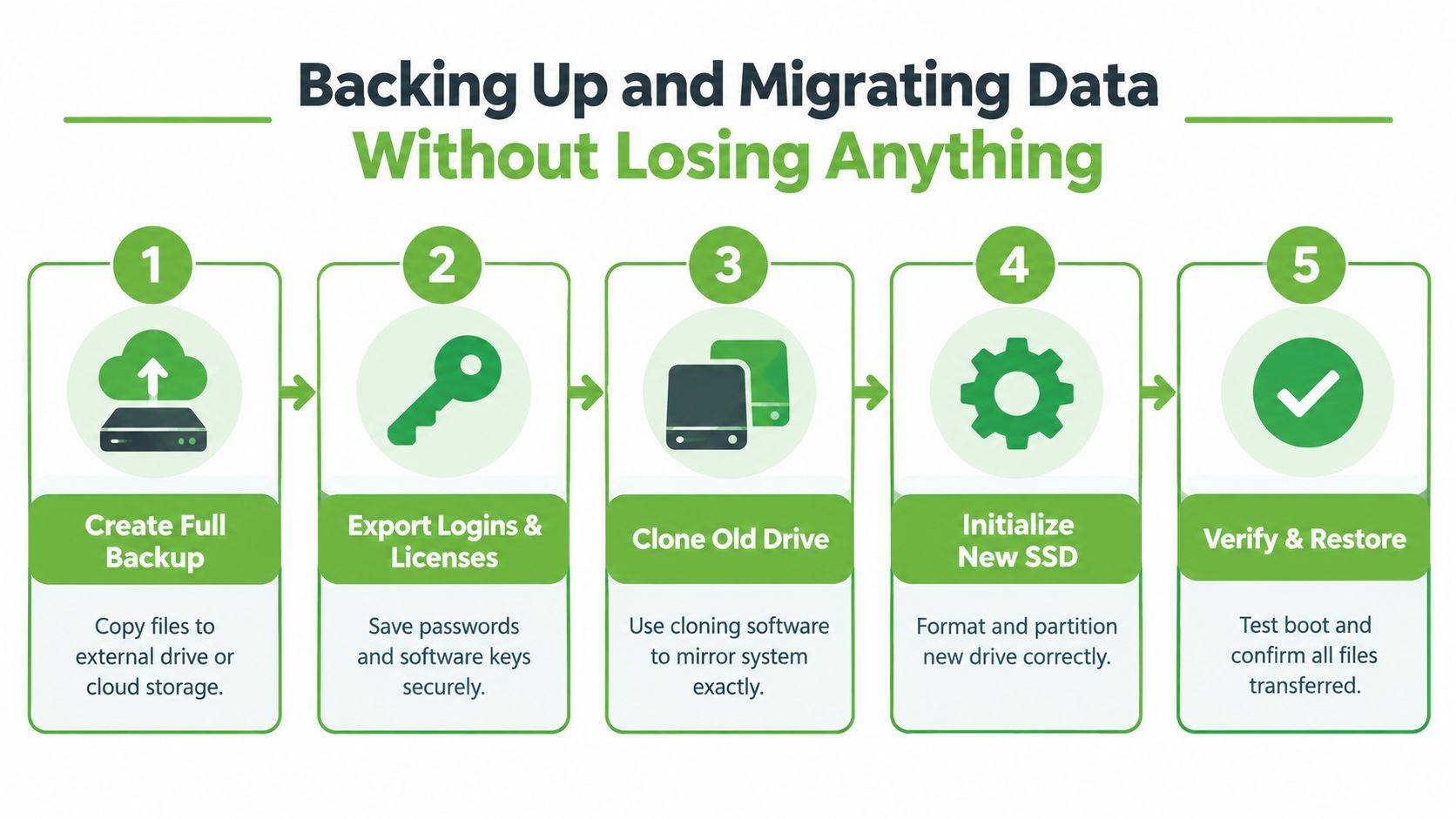
Follow the five-stage workflow
- Create a full backup. Copy documents, photos, project folders and accounting records to an external drive or trusted cloud storage. A synchronised folder may not contain every file, so open important files from the backup rather than assuming the copy is complete.
- Export logins and licences. Save passwords in the approved password manager, record software licence details and confirm access to email and cloud accounts without depending on the old laptop. Keep the Windows or BitLocker recovery key available before opening the chassis.
- Clone the old drive. Cloning makes a working copy of Windows, applications and settings. It suits a new SSD replacing the old drive when the new drive can hold the source data. A completion message is not proof of a usable clone, so test the copy before removing the original drive.
- Initialise the new SSD. A secondary SSD may appear in Windows as unallocated space. Use Disk Management to initialise it, create a partition and format it before moving files. If the old drive has been removed and no clone will be used, reinstall Windows or use the manufacturer's OEM cloud recovery method.
- Verify and restore. Shut down correctly, confirm that the laptop boots from the intended drive and open important documents. Test Wi-Fi, sound, camera, sleep mode, charging and the applications needed for work or study.
Common migration mistakes include selecting the wrong M.2 form factor, forgetting to clone, skipping Disk Management initialisation and discovering that the system cannot boot. Check the laptop model and drive interface before beginning, especially when the upgrade is part of an SME equipment refresh.
A clean Windows installation can suit an unstable or cluttered system, but it requires application installers, account access and licence information. For an SME, record the device's asset owner, encryption status and recovery details before work begins. Keep the old drive untouched until the replacement has passed these checks.
After migration, do not hand the old device to another person while its files remain recoverable. The PDPA requires organisations to make reasonable security arrangements against unauthorised access and related risks throughout the personal-data lifecycle. The PDPC advisory guidance explains that records should be erased, degaussed, destroyed or otherwise made unrecoverable before disposal.
This makes secure handover part of the upgrade decision, not an afterthought. Compare the cost of upgrading with a refurbished replacement over the expected 12–24 month period, including data migration, account removal, sanitisation and responsible recycling. A lower repair bill does not represent a full saving if personal or company information stays on the retired laptop.
For a broader handover route, see this guide to selling a used laptop in Singapore. The practical order remains simple, migrate the data, verify the replacement, then sanitise the old device.
DIY or Professional Service What to Choose in Singapore
DIY upgrades can be sensible when the laptop has accessible parts, the correct tools are already available and the owner understands the risk. A desktop-like gaming laptop with clearly documented RAM and M.2 slots is a different proposition from a thin ultrabook with clips, adhesive and soldered components.
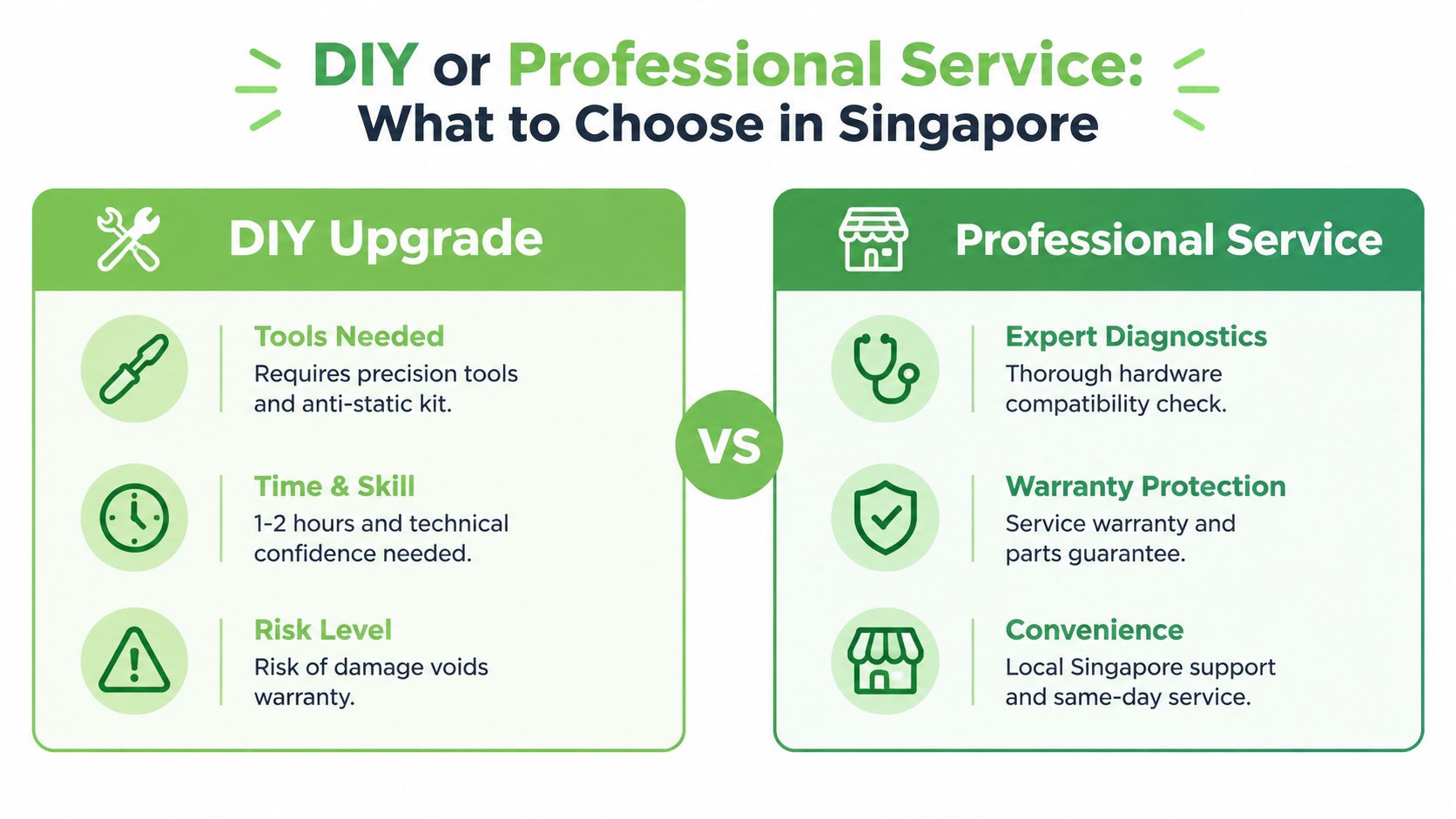
Compare the practical trade-offs
| Consideration | DIY upgrade | Professional service |
|---|---|---|
| Tools | Precision screwdriver, anti-static precautions and a safe work surface | Technician supplies tools and handling process |
| Diagnosis | Owner must identify compatibility and bottleneck | Service provider can inspect slots, storage and thermal condition |
| Data migration | Owner manages backup, cloning and recovery | Migration can be included, but the scope must be confirmed |
| Risk | Mistakes can damage connectors or affect warranty | Reduced handling risk, subject to provider terms |
| Time | Installation may be quick if everything fits | Timing varies by stock, diagnostics and workload |
| Best suited to | Confident users with documented upgrade paths | Businesses, data-sensitive users and uncertain models |
The cost difference isn't limited to labour. A failed installation can lead to a damaged connector, an unbootable system or an incorrectly purchased drive. Professional service is especially useful where the old laptop contains customer records, financial files or business credentials.
Ask clear questions before approving work:
- Compatibility: Will the provider confirm the exact RAM type, SSD interface, slot count and supported capacity?
- Data handling: Is cloning included, and how will the old drive be sanitised or returned?
- Quality control: Does the provider perform documented checks after installation?
- Warranty: Will the upgrade affect the laptop warranty, and what warranty applies to the part and labour?
- Battery condition: Will battery health be disclosed if you're comparing repair with replacement?
- Business controls: Can the provider explain its security and quality processes, including ISO 9001 and ISO 27001 practices?
myhalo approaches this decision as a technology lifecycle partner, with repair, data migration, trade-ins, Certified ReLoved devices and Certified Surplus products available as alternatives to replacing an upgradeable part. Its process includes 30-point quality checks, transparent device grading and battery health disclosure, with ISO 9001 Certified and ISO 27001 Certified operations presented as part of the service context.
Know when replacement wins
A refurbished replacement may be more rational when the laptop needs a battery, screen, storage and memory work at the same time. Compare the total ownership cost over 12–24 months, including likely follow-up repairs, downtime, accessories and the value of a warranty. A newer refurbished business laptop may also provide a better keyboard, ports, webcam or security features than an older consumer model, even if the original device can technically be upgraded.
For SMEs, standardising on a small number of reliable models can simplify support and reduce downtime. For an individual, a repair may be enough when the display, chassis and processor still meet daily needs. The right choice is the one that preserves reliable work, not the one that merely produces the lowest initial quote.
After the Upgrade Warranty Care and Sustainable Next Steps
An upgrade is complete only after the laptop proves it can handle real work. Confirm that Windows recognises the new RAM or SSD, select the correct boot drive, install suitable drivers and firmware updates, then open the applications that previously caused trouble. Test a normal workload, not only a benchmark. Unusual heat or fan noise is a warning to stop and check cooling, drive compatibility and installation quality.
Protect the result
Keep the invoice, component details and migration notes with the laptop's asset record. Before opening the chassis, read the warranty and service terms. Then confirm whether coverage such as myhalo Protect or e-Xtender still applies after the work. Battery care extends the value of the upgrade: keep vents clear, avoid sustained heat and use the correct charger, especially with performance laptops that already run warm.
An upgraded laptop should also have a planned next stage. Review its condition over the next 12–24 months, including reliability, downtime and likely repair needs. If several major parts need attention together, compare those costs with a graded refurbished replacement. For an SME, that comparison can include setup time, standardisation and the effort required to support another model. For an individual, continued use may make sense when the screen, chassis and processor still suit daily tasks.
When the device reaches the end of useful life, use a formal disposal route. The NEA recycling guidance explains that laptops can go into 3-in-1 e-waste bins and be accepted at ALBA collection points free of charge. The opening is limited to 500mm x 250mm, so check the dimensions before bringing larger equipment.
Producers with outlets larger than 300 square metres must provide in-store e-waste collection points. Under Singapore's extended producer responsibility framework, producers must also arrange free collection of old goods on request, as described in Mongabay's overview of Singapore's e-waste system. Doorstep bulky e-waste collection has been included in disposal pathways from 2025, giving households and SMEs another handover option.
Before recycling, decide whether the laptop can be repaired, reused, traded in or resold. Singapore's voluntary SS 587 standard and IT asset disposition guidance support inventorying devices, separating data-bearing equipment, wiping or destroying data and using a licensed recycler with a certificate of destruction, as outlined by TD ITAD. This protects business information while creating a clearer record of what happened to the device.

A managed laptop lifecycle preserves useful equipment, reduces disposal friction and makes technology spending easier to plan. When upgrading no longer offers reliable value, a refurbished replacement can keep the old machine in the recovery chain, with secure data handover completed before recycling or resale.