





Backup and Restore: A Practical Guide for All Devices
You pick up your new phone, sign in, and wait for your photos, contacts, messages and work files to appear. Then you remember that the old device was lost, damaged or wiped before the transfer was complete. The problem isn't the new hardware. It's the missing copy of your digital life.
Backup and restore is the safety net behind every device upgrade, repair, trade-in and business continuity plan. For Singapore households, it protects irreplaceable memories and identity documents. For SMEs, it protects customer records, accounts, operational files and the ability to keep serving customers after a device failure or cyberattack. The practical test isn't whether a backup exists. It's whether you can restore the right information, on a clean device, within the time your work requires.
Table of Contents
- Why Every Singapore Device Owner Needs a Backup Strategy
- Cloud versus Local Backup Choosing Your Approach
- Backing Up and Restoring Data on iOS Android Windows and Mac
- Keeping Your Backups Secure and Encrypting Your Data
- Troubleshooting Common Backup and Restore Failures
- Preparing Your Device for Trade-In or Repair a Data Safety Checklist
- Final Takeaways for Smarter Backup and Restore
Why Every Singapore Device Owner Needs a Backup Strategy
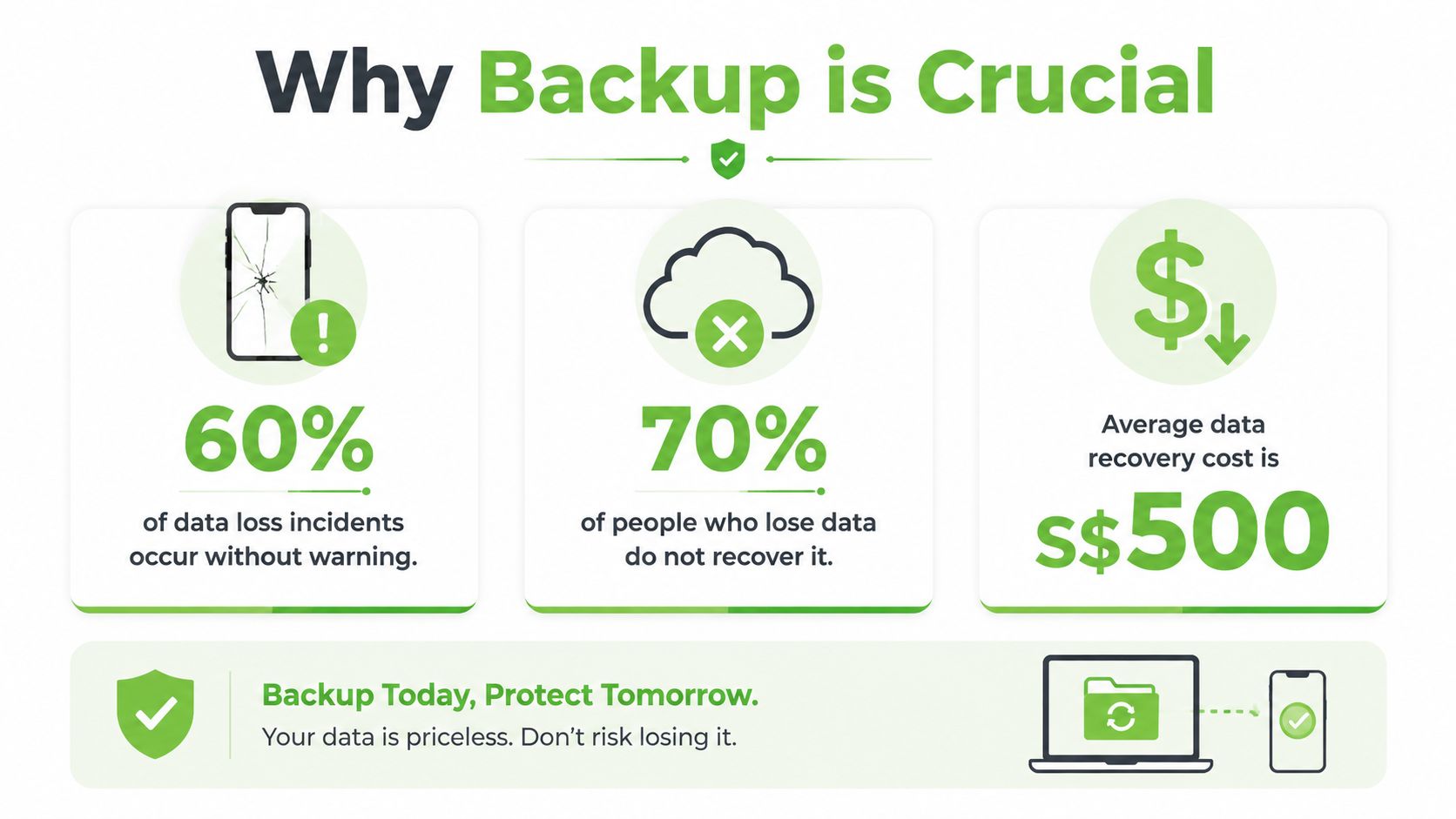
A cracked phone screen may leave its storage intact, but theft, liquid damage, malware or an accidental reset can remove access altogether. A laptop can fail before a presentation, while an SME may lose shared files during an ordinary working day. A backup strategy gives individuals and businesses a recovery path during device upgrades, repairs, trade-ins and cyber incidents.
Singapore's government ICT guidance treats backup as a formal resilience control. Organisations are expected to back up important data and systems at least every day, keep copies in a secure, separate location, and follow the Singapore Government ICT backup and recovery control. The PDPC also advises organisations to back up essential data and keep it offline. For consumers, the same principle protects photos, identity documents and account information. For SMEs, it supports access to customer records, operational files and business systems.
A successful backup does not guarantee a usable recovery. A 2024 survey of 504 IT and security decision-makers in Singapore and Malaysia found that only 3% could recover data and restore business processes within 24 hours after a cyberattack, although 97% had set that as their target, according to regional cyber resilience and recovery findings. In Singapore specifically, 5% reported recovery within 24 hours. Other organisations required anywhere from one to three days to more than three weeks.
Practical rule: A completed backup is not proof of business continuity. A successful restore test comes much closer.
Individuals can apply the same discipline on a smaller scale. Identify files that would be painful or impossible to replace, decide where separate copies will live, schedule backups, and periodically restore a file. Professionals handling sensitive records can use a structured data backup strategy for CPAs to define retention, access and recovery responsibilities. myhalo can also support data protection during device changes, where a verified copy matters as much as the new hardware.
Cloud versus Local Backup Choosing Your Approach
Cloud and local backups solve different problems. Cloud storage protects against a fire, theft or flood affecting your home or office, and it can make a replacement device easier to configure. Local storage gives you physical control and can restore large folders without downloading everything through an internet connection.
Cloud backup suits people who want automation. iCloud can preserve Apple device data, Google One can sync Android information, and OneDrive can keep working documents available across Windows devices. The trade-off is continuing subscription cost, dependence on account access and the time required to download a large restore. A stolen password can also expose the backup account unless you protect it with strong authentication.
Local backup suits users who want direct control. An external hard disk can hold photos, project folders and system backups, often with a faster restore path for large files. But the drive can be stolen, damaged or encrypted alongside the computer if it remains connected. Manual backups also fail when nobody remembers to run them.
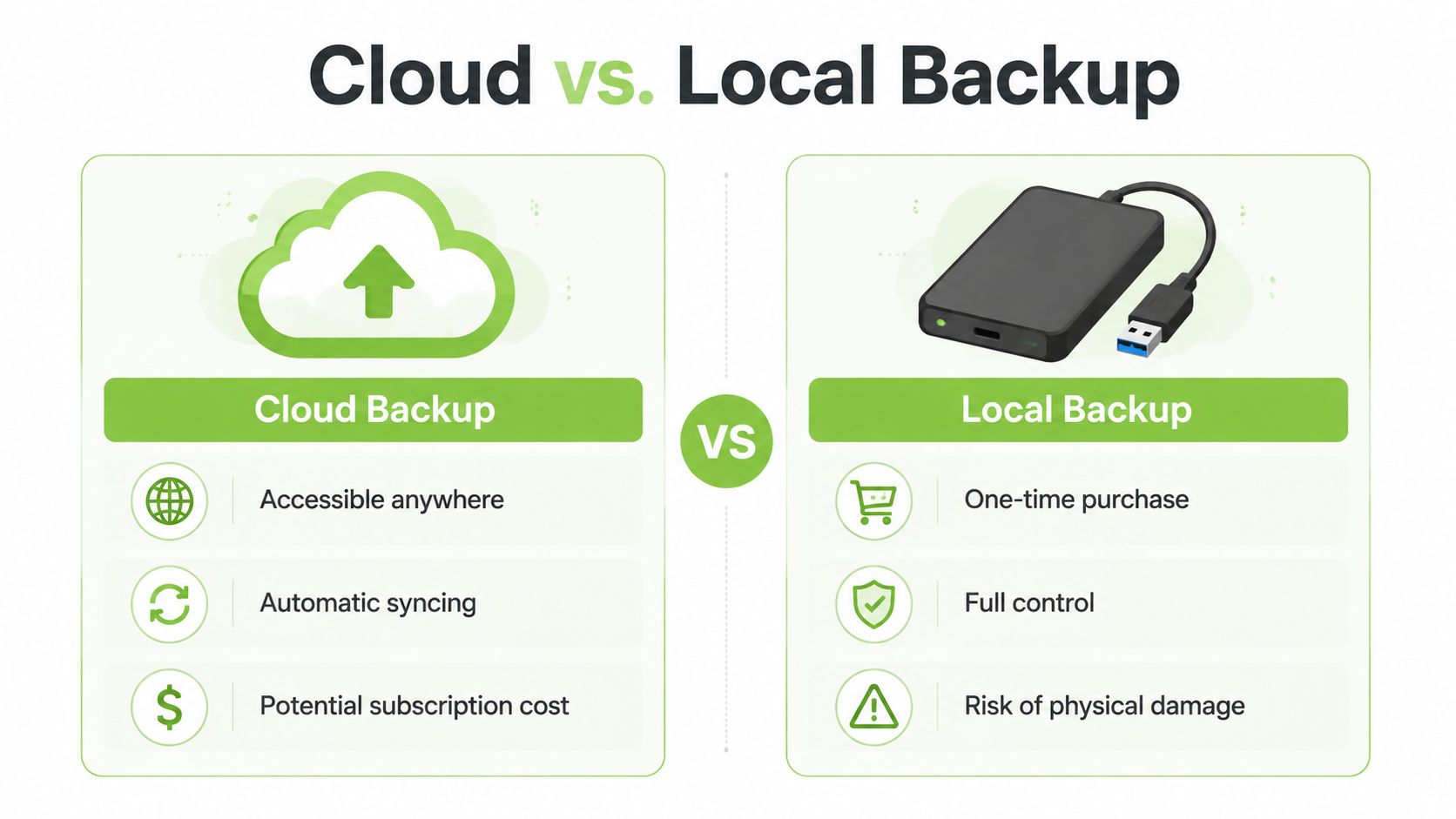
How the options compare in Singapore
| Approach | Works well for | Main trade-off |
|---|---|---|
| Cloud backup | Automatic offsite protection and device replacement | Internet dependency, account security and subscription cost |
| Local backup | Fast access to large files and direct ownership | Physical damage, theft and the need for manual separation |
| Hybrid backup | Important files that need both convenience and resilience | More setup, monitoring and restore decisions |
A hybrid arrangement is usually the most practical choice. Keep frequently changing files in a trusted cloud service, then maintain a local copy that is disconnected when the backup finishes. Singapore's Police Force recommends offline media such as an external hard disk isolated from a NAS, and advises organisations to test backup media regularly in its joint NAS ransomware advisory.
The threat is not theoretical. In a Singapore and Malaysia survey, 75% of Singapore respondents said attackers had partially compromised backup or recovery systems, while 38% said those systems were completely compromised, as reported in local backup resilience coverage. A backup connected permanently to the same credentials and network as production data can become part of the incident.
For SMEs, define the recovery objective before selecting storage. The difference between restoring one spreadsheet and rebuilding a shared file server is significant. A clear explanation of RTO and RPO for enterprise cloud can help teams separate how quickly they need services back from how much recent data they can afford to lose. For removable storage options, review the memory card and micro SD card guide, particularly when cameras, tablets or handheld devices are part of the workflow.
Backing Up and Restoring Data on iOS Android Windows and Mac
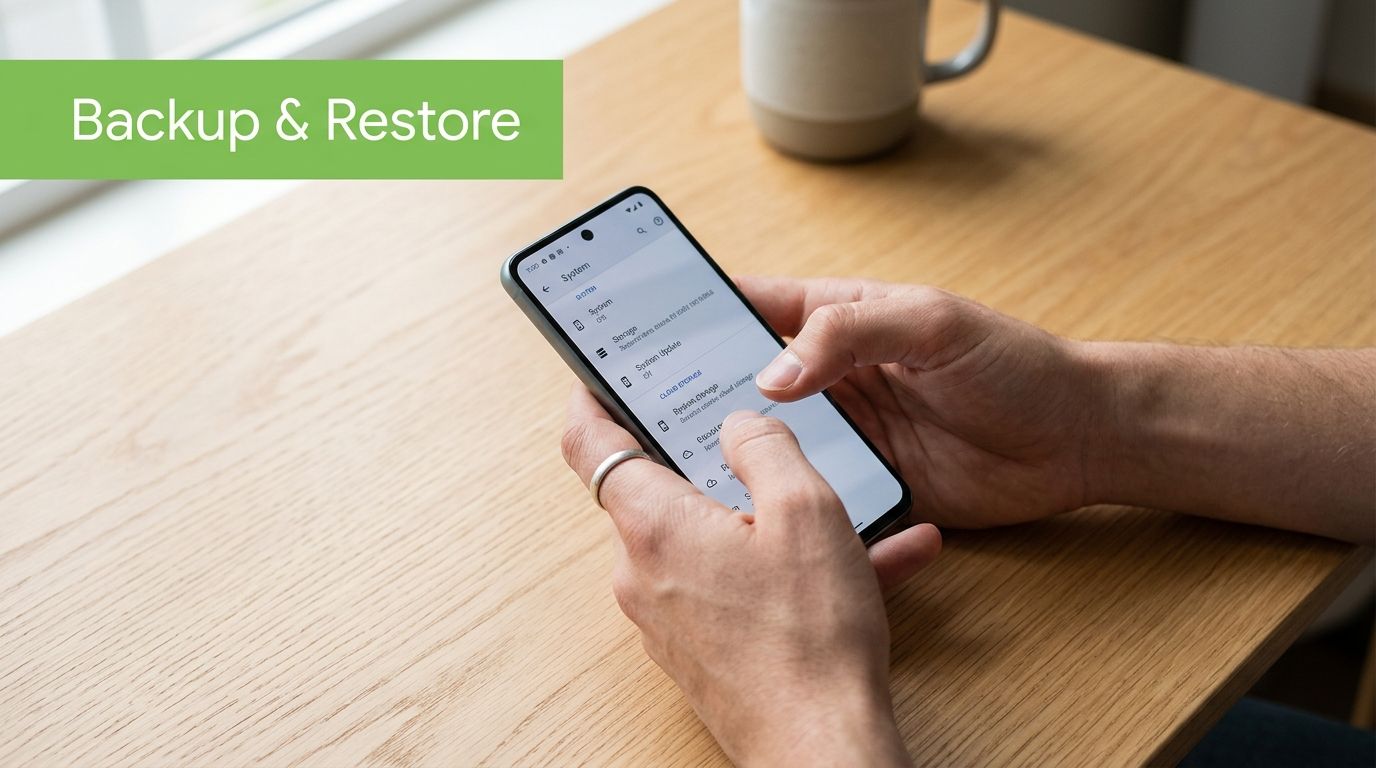
The right backup method depends on the operating system, but the principle stays the same. Protect personal files, account data, device settings and anything that doesn't exist elsewhere. Before a repair or upgrade, complete the backup while the original device still works, then confirm that the copy is usable.
iPhone and iPad
On an iPhone or iPad, iCloud Backup is the simplest automatic option. Open Settings, select your Apple Account, then iCloud and iCloud Backup. Check available iCloud storage first, enable backup, and choose Back Up Now while connected to power and Wi-Fi. Review iCloud settings to confirm that photos, contacts, messages and other important app data are included through the services you use.
A Finder backup on a Mac gives you a local alternative. Connect the iPhone or iPad, open Finder, select the device and choose Back Up Now. Encrypting the local backup protects saved passwords and health data, but store the backup password safely because losing it can prevent restoration.
During setup of a replacement Apple device, choose the option to restore from iCloud or from a Mac backup. Keep the device connected to power and Wi-Fi while apps and media download. If you need physical storage for a local workflow, an enclosure such as the Orico 2.5-inch SATA USB 3.0 HDD enclosure can turn a compatible internal drive into accessible external storage.
Android phones and tablets
Android devices commonly use Google One to back up app data, call history, contacts, device settings and text messages. Open Settings, find the backup section, check the Google Account shown, and run a manual backup before changing devices. Photos and videos need separate attention if you use Google Photos, another cloud service or only local storage.
For a more hands-on copy, connect the phone to a computer and transfer the DCIM, Documents, Downloads and other relevant folders. Manufacturer tools may also create a device backup. Android Studio is more suitable for technical users and shouldn't be the first choice for a family member who only needs photos and contacts preserved.
Restore by signing in to the same Google Account during setup, then selecting the available backup. Copy local folders back after the new device is configured, and open important documents and videos rather than assuming the transfer was complete.
Windows 11
Windows offers several layers. OneDrive can synchronise working folders, while File History copies selected files to an external drive or network location. Open File History settings, choose the drive and confirm the folders that matter. Keep a separate copy of files that aren't included automatically, such as application exports or data stored in unusual locations.
A system image is useful when you need to rebuild a computer with its operating environment, applications and settings. It requires suitable storage and should be tested before you rely on it for a complete recovery. For a single deleted file, restoring from File History is usually simpler than rebuilding the entire system.
macOS
Time Machine provides an organised local backup for a Mac. Connect a suitable external drive, select it in Time Machine settings and allow automatic backups to run. iCloud Drive can keep selected files available across Apple devices, but it shouldn't be treated as the only copy of every local document unless you have confirmed the storage and synchronisation settings.
To restore, use Migration Assistant when moving to a replacement Mac, or enter macOS Recovery when rebuilding an existing machine. Restore only what you need where possible. A smaller, verified restore is easier to troubleshoot than transferring years of obsolete files without reviewing them.
Keeping Your Backups Secure and Encrypting Your Data
A backup contains the same sensitive information as the original device. It may include identity documents, customer records, invoices, saved passwords, messages and family photos. Treat the backup drive and cloud account as protected assets, not as ordinary storage.
Protect access before protecting storage
Turn on device encryption through BitLocker on supported Windows editions or FileVault on macOS. Use an encrypted backup option where the platform provides one, and protect the encryption password or recovery key in a password manager. A unique password for the cloud account matters because reusing a password allows an unrelated breach to become a backup incident.
Enable multi-factor authentication on Apple, Google, Microsoft and storage accounts. Review signed-in devices and remove access for equipment you no longer own. Remote wipe can reduce exposure after a lost phone or laptop, but it only helps when the device remains reachable and the feature was enabled beforehand.
The Singapore Police Force advises restoring ransomware-affected systems only from a recent backup and only after a clean installation that is completely free of malware. Cleaning matters because some ransomware can persist and re-encrypt restored files if the system remains infected, as explained in the Singapore Police Force ransomware guidance.
Separate copies and check retention
Keep at least one backup offline or otherwise isolated from the device and network that hold your working data. For an SME, give backup administration its own account, limit who can delete or change backups, and preserve older versions so a recently encrypted file doesn't overwrite the only usable copy.
The PDPA also affects what you retain. Singapore's Personal Data Protection Act requires organisations to stop retaining personal data, or remove the means of linking it to individuals, when it's reasonable to assume the original purpose is no longer being served and retention is no longer necessary for legal or business purposes, according to the Personal Data Protection Act. Backup retention therefore needs a review process, not unlimited accumulation.
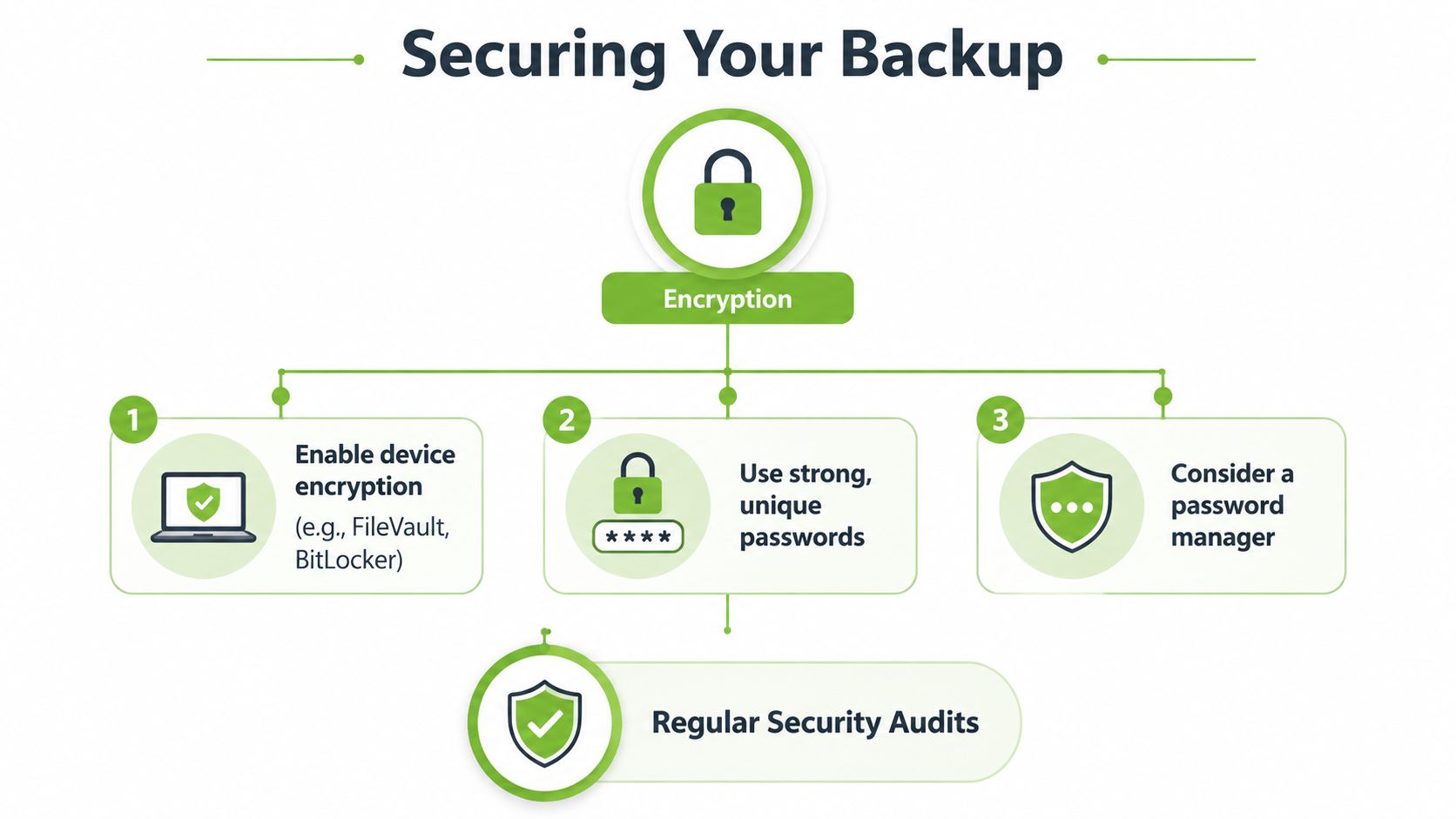
Test by restoring a small file, then a representative folder. Check that the file opens, the version is correct and the person responsible knows where the restored copy belongs. A backup job that reports success but has never produced a readable restore remains unproven.
Troubleshooting Common Backup and Restore Failures
Restore problems usually have a visible cause. Start by identifying whether the issue is missing storage, missing permissions, an incomplete backup, a damaged destination or an infected system. Avoid repeated guesses that could overwrite the only good copy.
iCloud restores that stop early
An iCloud restore may pause when the account lacks sufficient storage, the Wi-Fi connection changes or the backup is older than expected. Check the Apple Account, confirm the backup date and free enough device space for the content you're restoring. Keep the device powered and connected to a stable network, then retry from the setup process if the restore remains incomplete.
If photos or files were synchronised separately, check those services directly rather than expecting every item to come from the device backup. Restore a small selection first when you're troubleshooting a particular category.
Android backups that appear incomplete
Android restoration can look successful while some app data doesn't return. Different apps handle their own backup policies, and a local folder may never have been included in Google One. Check Google Photos, Google Drive and the phone's file storage separately, then transfer missing folders from the old device if it still starts.
A corrupted backup or unstable phone may require a clean setup. Preserve any readable local files first, reset only after you have another copy, and install applications again from official stores. Don't delete the original until important documents, contacts and media open correctly on the replacement.
Windows images and Time Machine failures
Windows system image failures often relate to an unsuitable or unreliable destination drive. Check that the drive is recognised, has enough capacity and isn't disconnecting during the operation. For a single folder, use File History or a direct copy instead of forcing a full image restore.
Time Machine may refuse to complete because of a failing cable, insufficient space, a damaged file system or a drive that disconnects. Try a different cable or port, inspect the drive, and preserve existing backups before erasing anything. If the backup drive itself is failing, copy the newest usable data to another destination before attempting repair.
Ransomware needs a different response
Disconnect the infected device from networks and don't reconnect backup drives. Identify a recent, clean backup, rebuild the system from a clean installation and restore only after malware has been removed. The Police Force guidance linked earlier is the appropriate local reference for this sequence.
If the backup is also compromised, stop experimenting with it. Preserve evidence, isolate affected systems and obtain qualified incident-response or data-recovery help before deleting files or paying a ransom.
Preparing Your Device for Trade-In or Repair a Data Safety Checklist
A device transition is a data-security event. Before handing over a phone, tablet, laptop or desktop, complete the backup and verify it on another device or in the relevant cloud account.
Before the handover
Use this checklist:
- Confirm the latest backup: Run a manual backup, check its completion status and open selected files from the destination.
- Copy local-only content: Move downloads, recordings, browser exports, desktop folders and application data that cloud sync may not include.
- Sign out of accounts: Remove Apple, Google, Microsoft, messaging and business accounts from the device.
- Remove connections: Unpair watches and accessories, remove the SIM card and take out any memory card.
- Disable device locks: Turn off Find My or equivalent activation locks after the data is safe, especially before a trade-in.
- Erase the device: Use the platform's factory reset process, not a manual deletion of individual files.
- Check the result: Restart the device and confirm it shows the initial setup screen without your account or personal content.
For a business handover, also remove management profiles, certificates, VPN settings and local user accounts. Ask the service provider how it handles data-bearing storage if a repair requires replacing a drive. A reset isn't a substitute for encryption, but encrypted storage makes the process safer when it has been enabled throughout the device's use.
myhalo supports device lifecycle transitions through repairs, data migration, trade-ins and responsible recycling. Its Certified ReLoved devices are professionally prepared and undergo 30-point quality checks under an ISO 9001:2015-certified process, with transparent grading and battery health disclosure. Customers comparing trade-in options can use this guide to trading in an iPhone in Singapore as part of their preparation.
Choosing proactive maintenance through myhalo e-Xtender or accidental damage and extended warranty support through myhalo Protect can reduce disruption around unexpected device failures. For organisations, myhalo's ISO 27001 certification is relevant when assessing information-security processes, while Certified Surplus products and responsible recycling support more deliberate use of existing equipment.
Final Takeaways for Smarter Backup and Restore
Backup and restore works when it's treated as a continuing operating habit. Schedule daily backups for important data where practical, keep a separate or offline copy, protect accounts with unique passwords and encryption, and test a representative restore before an emergency exposes a gap.
The Singapore recovery data shows why this discipline matters. Organisations may set a 24-hour target, yet many take days or weeks to restore business processes. The difference comes from tested playbooks, isolated backup systems, clear recovery priorities and people who know what to do under pressure.
Device changes don't need to threaten your data. A reliable backup lets you repair, trade in, reuse or upgrade with confidence, while services such as data migration, RescueAdvise and the mylo AI Assistant can help users make more informed technology lifecycle decisions. Extending a device's useful life through repair, Certified ReLoved or Certified Surplus options can also create practical value by reducing replacement costs and making better use of hardware already in circulation.
Visit myhalo to explore device repairs, data migration, trade-ins, Certified ReLoved and Certified Surplus technology, plus support for safer upgrades and responsible recycling. Before you hand over or replace any device, arrange your backup first and use myhalo's lifecycle services to move your data with greater confidence.